TR7500_Series_Software_v29_En - 第304页
Test Research Inc. 282 TR7500 Series User Guid e –Softwa re v.2.9.0 11.9.10 Change Lighting 11.9.10 .1 Move to FOV Positi on Selecting the chec k box means move the camera to the positio n of the FOV that is currently be…
Test Research Inc.
TR7500 Series User Guide –Software v.2.9.0 281
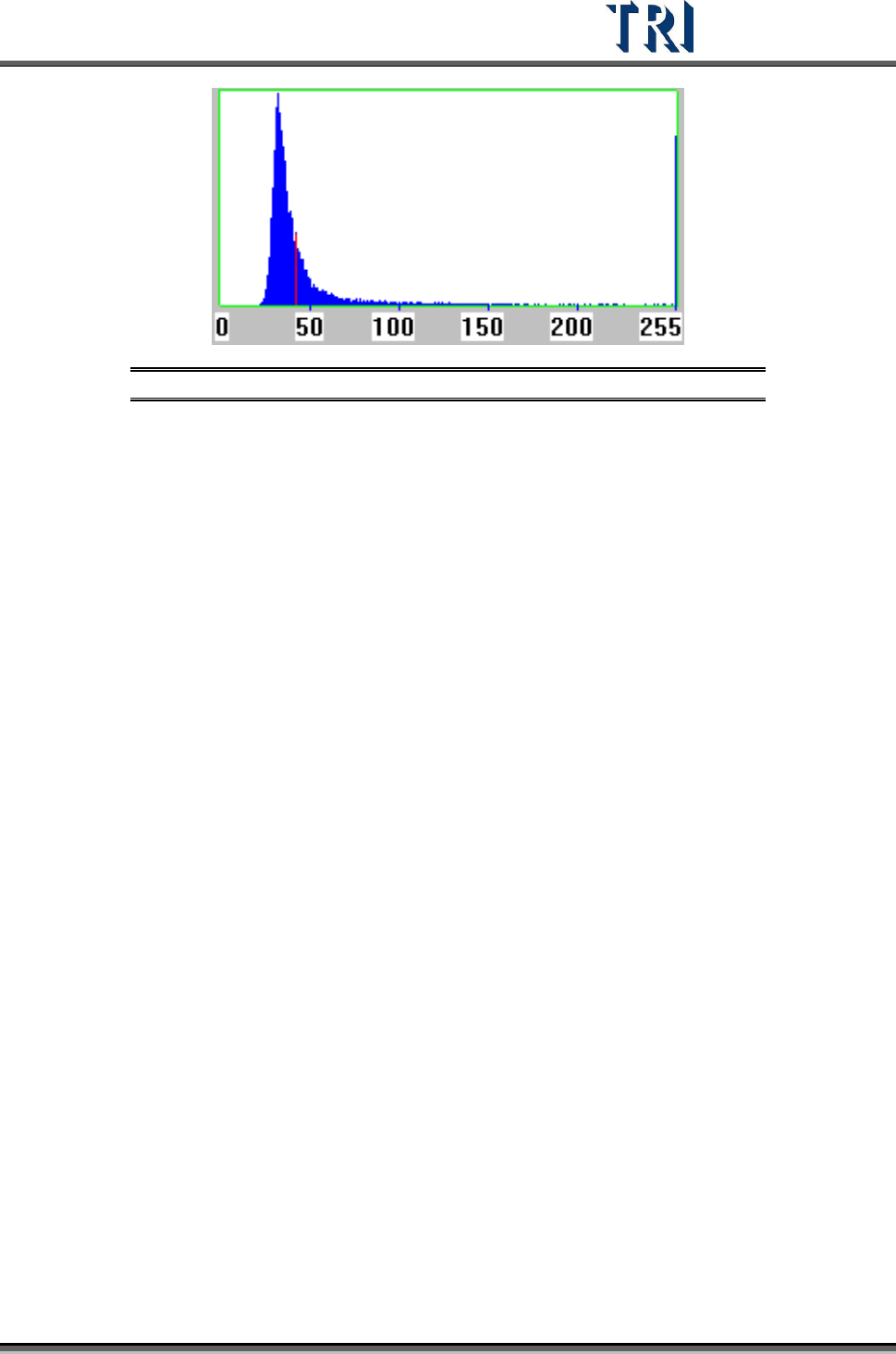
Figure 473: Histogram Curve
Test Research Inc.
282 TR7500 Series User Guide –Software v.2.9.0
11.9.10 Change Lighting
11.9.10.1 Move to FOV Position
Selecting the check box means move the camera to the position of the FOV that is currently
being viewed. Change and save the lighting.
Not selecting the check box means capture the image at the current position. The lighting
can be changed for testing, but cannot be saved.
11.9.10.2 Set Lighting
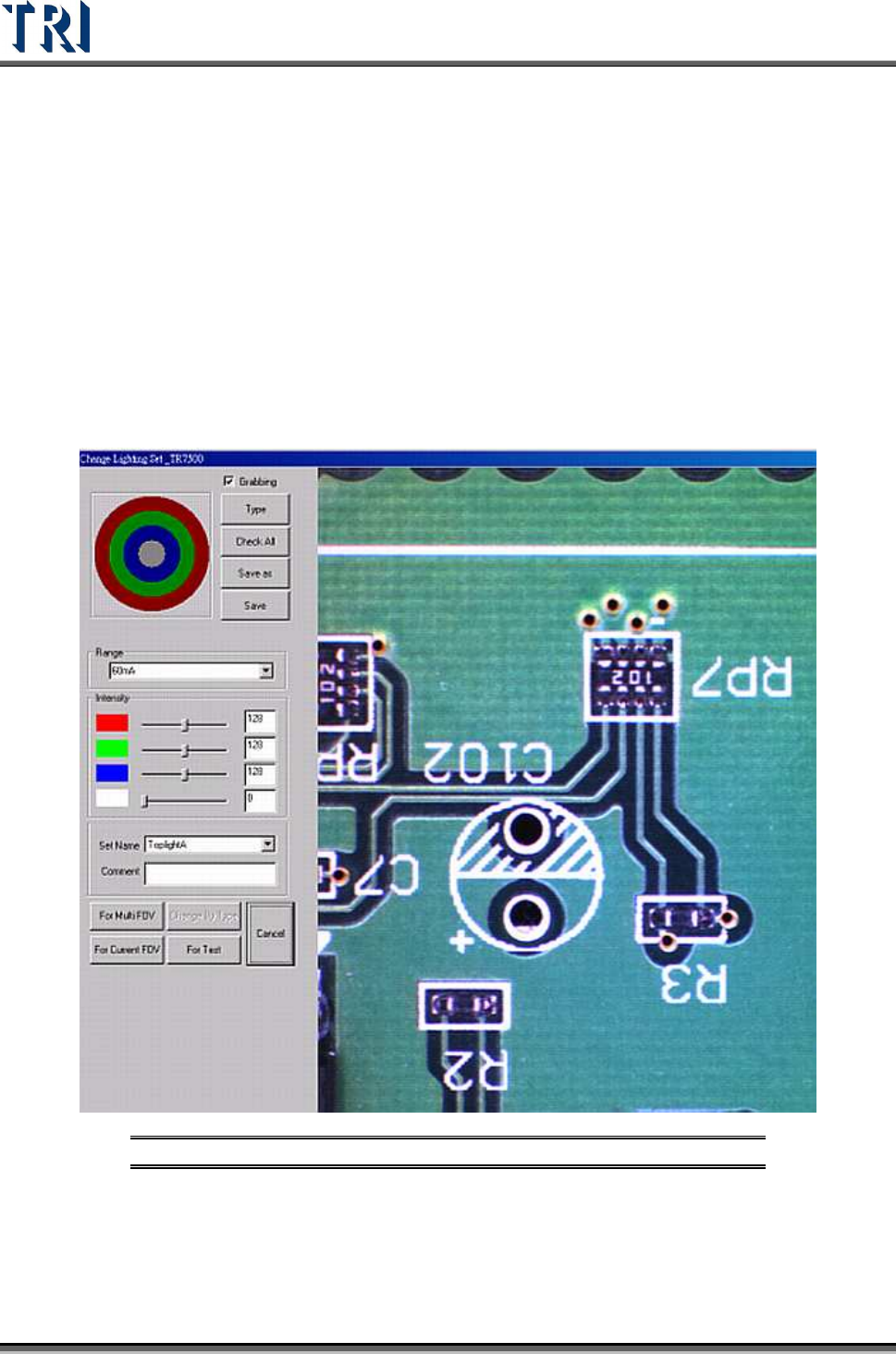
Set the lighting for the FOV. The way to set lighting is in 7
Figure 474: Change FOV Lighting
[For Multi FOV] -- set the light for related FOVs in the other boards in a multi-board
panel.
[For Current FOV] -- only set the light for the current FOV.
Test Research Inc.
TR7500 Series User Guide –Software v.2.9.0 283
[Change By Type] -- set the light to FOVs that contain the component with specified
type.
[For Test] -- the light just displays for testing and the FOV will be inspected by
original lighting. You should press above selection to set lighting or press [Cancel]
not to change and close the window.
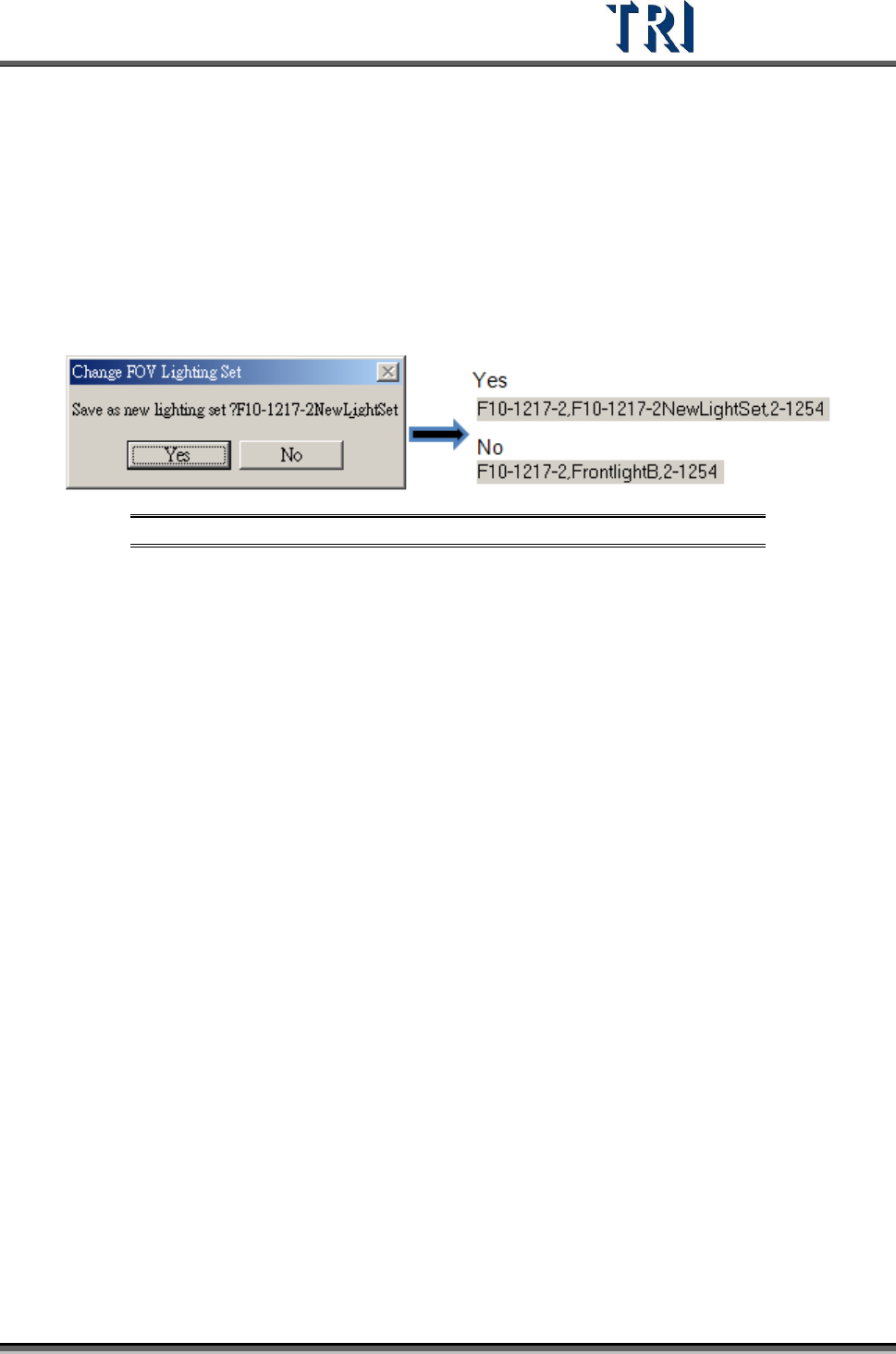
The changed lighting will be named according to the FOV name.
If the lighting is changed with the other default lighting, the system will ask whether
you want to set the lighting with a new name according to the FOV name or set the
lighting with original lighting name.
Figure 475: Save Lighting Name Options