TR7500_Series_Software_v29_En - 第313页
Test Research Inc. TR7500 Series User Guide – Software v.2.9.0 291 [M ono/R/G/B] – Let the i mage in the multi-func t ion win dow display according to the setting. [Prev/Nex t ] – Go to the nex t or previous f ailed …
Test Research Inc.
290 TR7500 Series User Guide –Software v.2.9.0
12 I
NSPECTION
D
IALOG
F
UNCTION
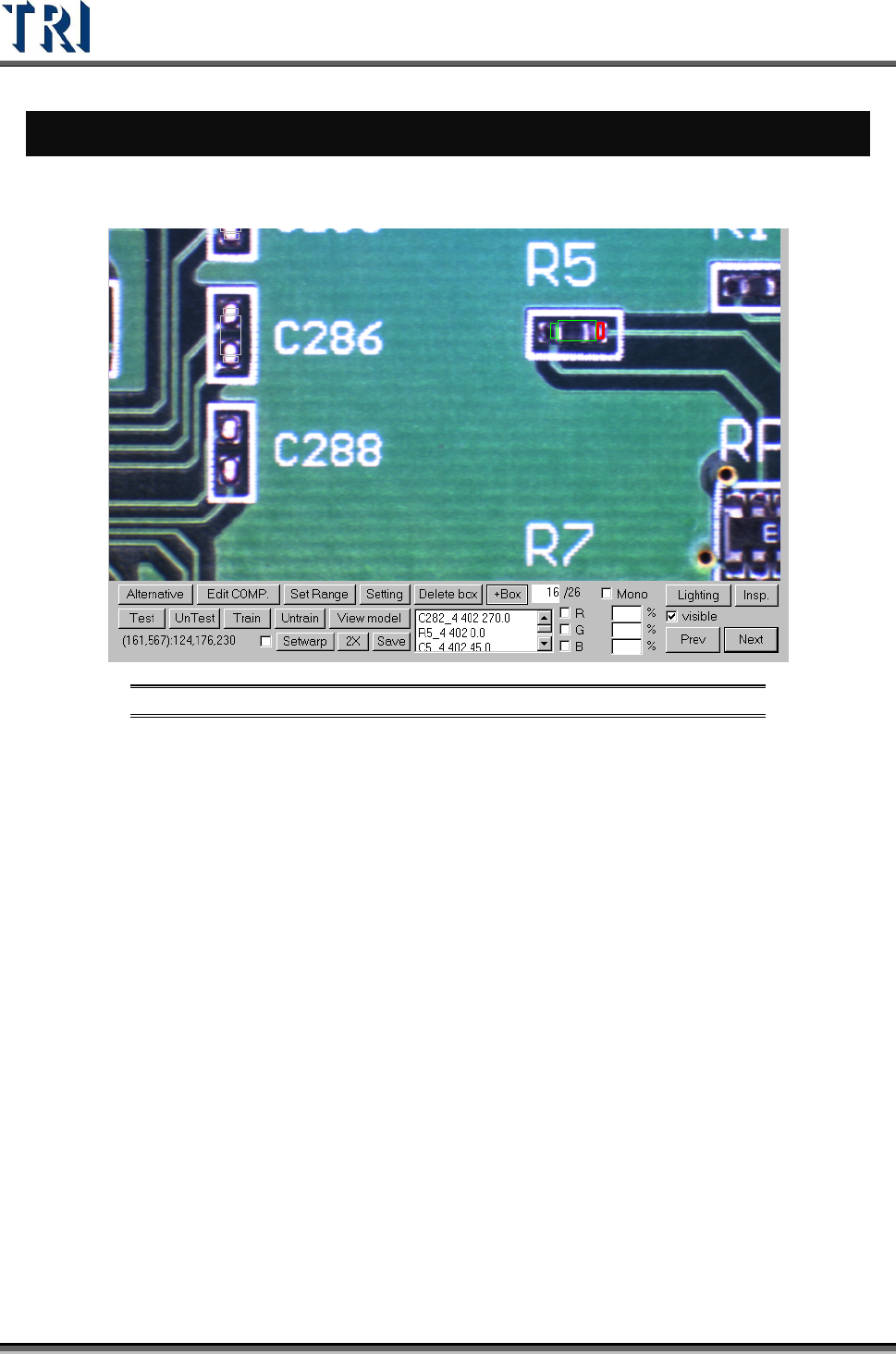
12.1 Image Diagram Functions
Figure 481: Image Diagram Functions
[Alternative ]– Add an alternative to a component.
[Edit COMP]. – Edit component name and angle.
[SetRange] – Set search range for an inspection box.
[Setting] – Set the pass level.
[Delete box] – Delete selected box.
[+Box] – Add one box to selected component.
[Test/UnTest] – Set selected box as test or untest.
[Train/UnTrain] – Train inspection or set trained box as untrained.
[View model] – Review the standard images
[Setwarp/Delwarp] – Set or delete [Warp].
[2X] – Show the double-sized FOV image. The display area is the multi-function
location and the image is reviewed for test.
[Save] – Save the image to the folder.
[Lighting] – Change the lighting for inspection.
[Insp.] – Inspect the current FOV.
[Visible] – Selecting this displays the inspection boxes.
Test Research Inc.
TR7500 Series User Guide –Software v.2.9.0 291
[Mono/R/G/B] – Let the image in the multi-function window display according to the
setting.
[Prev/Next] – Go to the next or previous failed FOV.
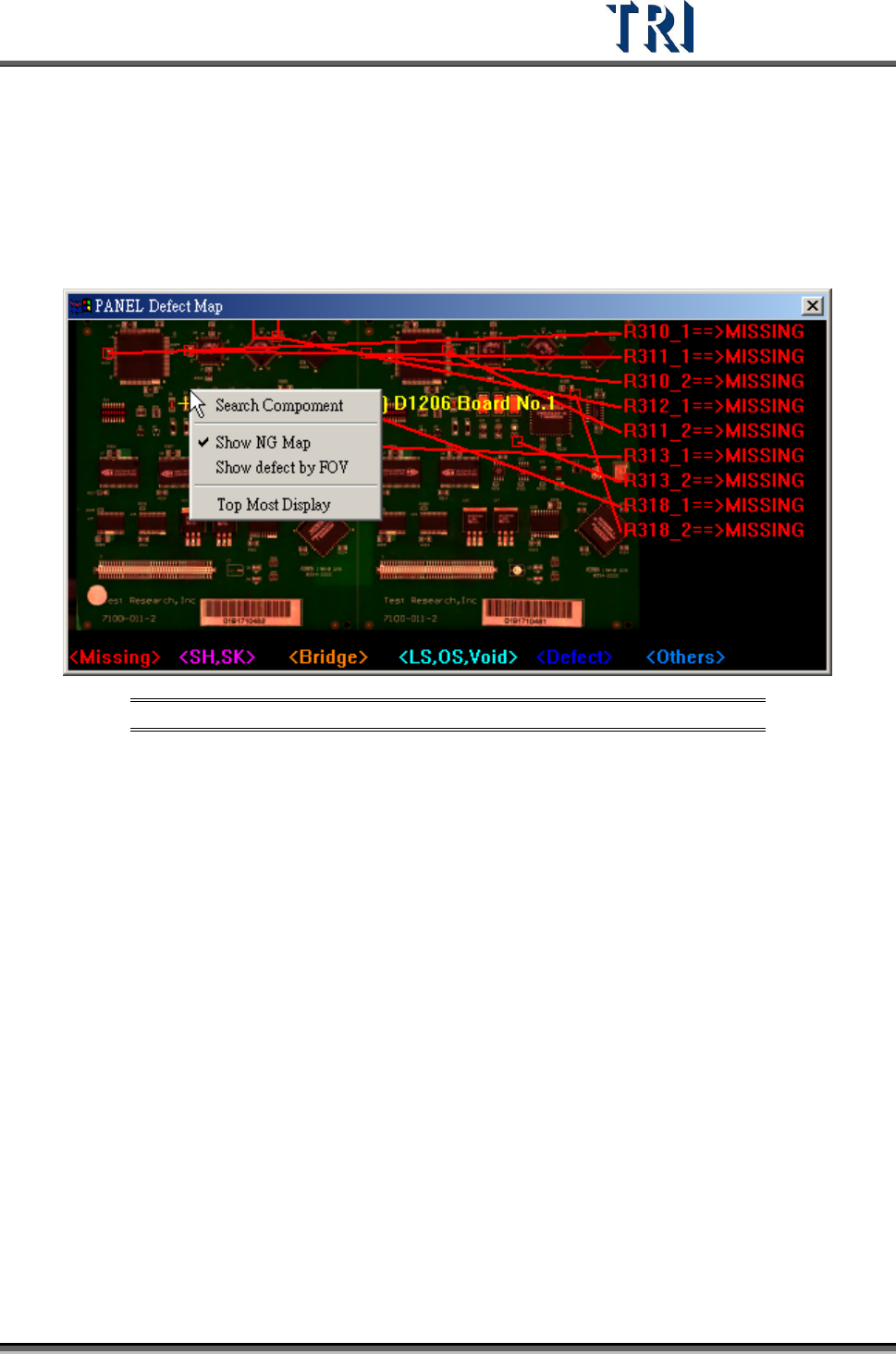
12.2 Panel Defect Map
Right click on the map, then the following pop-up menu will display.
Figure 482: Panel Defect Map
[Search Component] – Select this button, then specify a component to be marked
on the map.
[Show NG Map] – Checking this item displays the panel defect map after the next
inspection; otherwise, the map will not display after the next inspection.
[Show defect by FOV] – The system will display all defects on the panel when this
item is not selected. When selected, the system will only display the defects that
are reviewed in the [Results] dialog.
[Top Most Display] – When the item is selected, this [Panel Defect Map] will be
displayed at the top from the next inspecting.
Test Research Inc.
292 TR7500 Series User Guide –Software v.2.9.0
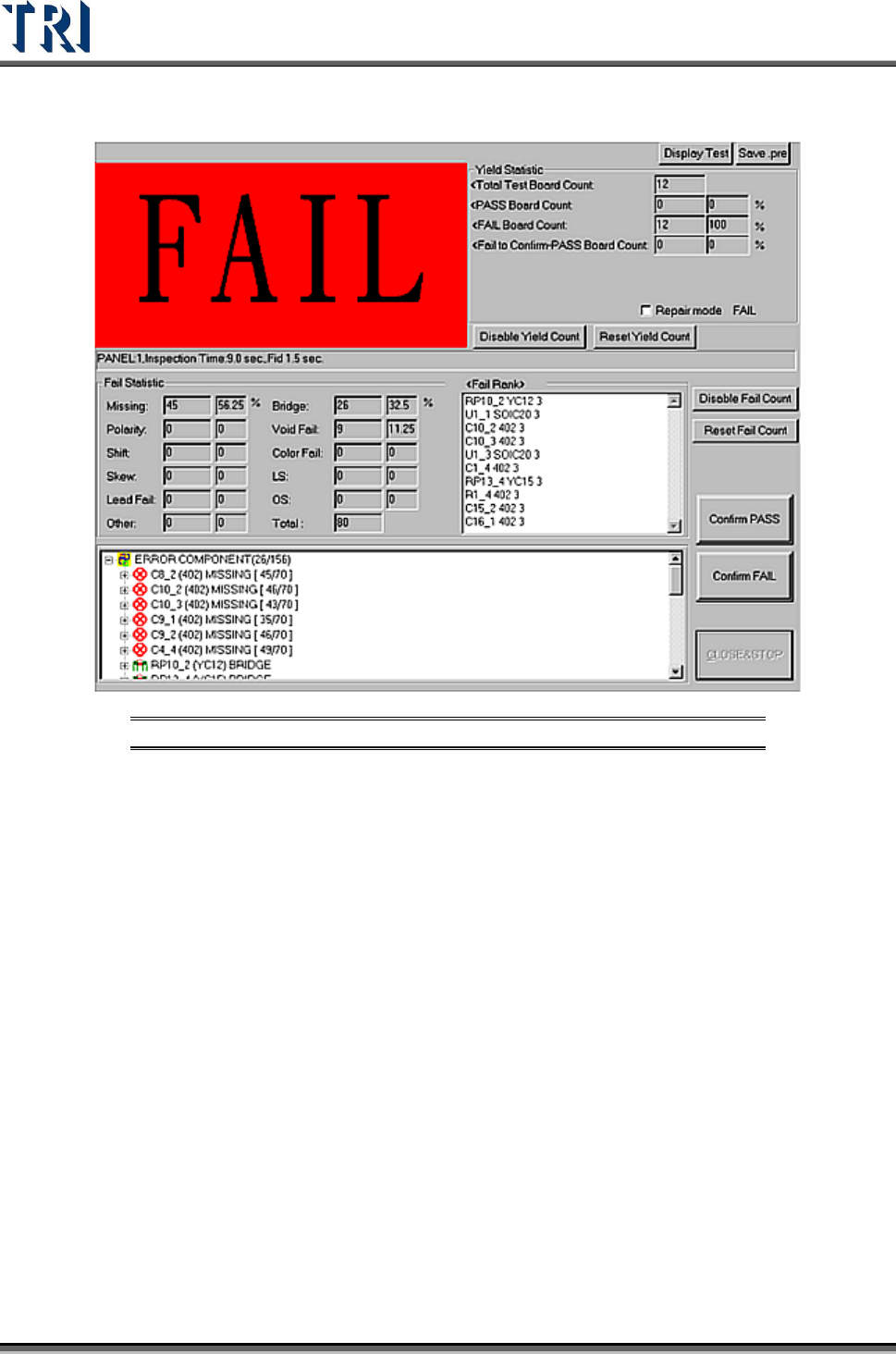
12.3 Results Dialog
Figure 483: Test Results Dialog
[Confirm PASS] – Confirm the board passed.
[Confirm FAIL] – Confirm the board failed.
[Display Test/Display Fail] – Select whether to display [TEST] or [PASS] and [FAIL]
figure.
[Save .pre] – Save the project
[Yield Statistic] – List the result counts of board.
[Total Test Board Count] – Total test board count, counting with the single board.
[PASS Board Count] – Total PASS board count.
[FAIL Board Count] – Total FAIL board count.
[Fail-to Confirm-PASS Board Count] – The number of boards that are tested
FAIL but are confirmed as PASS by operator.
[Repair mode] – Select to link with Repair Station and display the data that is
confirmed and calculated on Repair Station. Note: For Repair Station,
[Setting/Other/SPCOutPut] has to be set as [True]. It shows the DPMO field,
only when you confirm the data by Window on Repair Station.