TR7500_Series_Software_v29_En - 第316页
Test Research Inc. 294 TR7500 Series User Guid e –Softwa re v.2.9.0 Component n ame, (T ype), Defect kind [Parameter , inspected scor e/toleranc e] Displa y Inspection box name, Defect kind, [ Parameter, ins pected core/…
Test Research Inc.
TR7500 Series User Guide –Software v.2.9.0 293
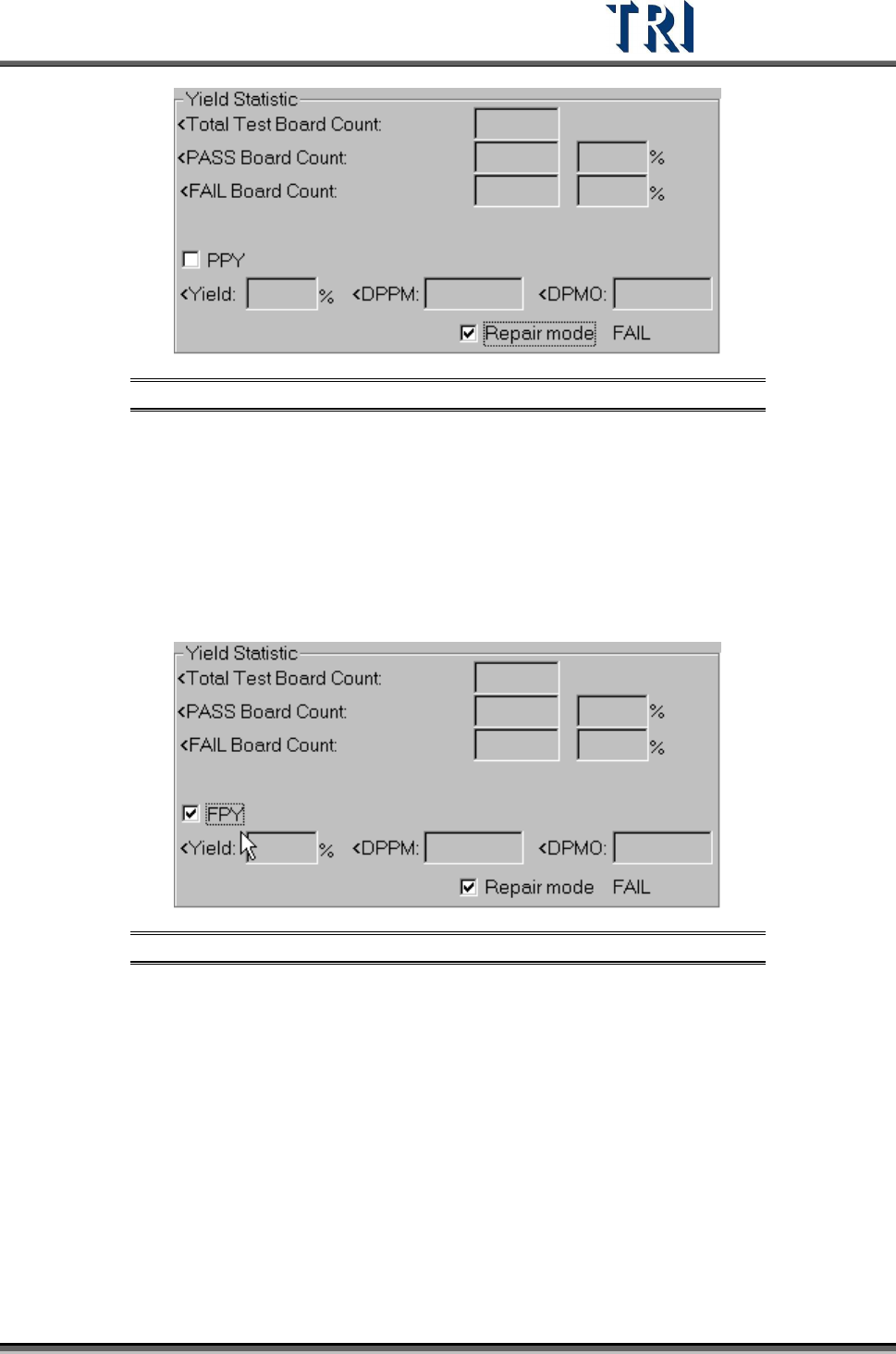
Figure 484: PPY Defect Statistics
[PPY Yield] – (Board confirmed PASS Count + Board that is false alarm Count)/
(Total Test Board Count) *100%
[PPY DPPM] – [(Component confirmed FAIL Count + Component that is false
alarm Count) / (Total Component Count)]*1000000
[PPY DPMO] – [(Inspection Box confirmed FAIL Count + Inspection Box that is
false alarm Count)/(Total Test Board Count*Total Inspection Box
Count)]*1000000
Figure 485: FPY Defect Statistics
FPY Yield – Board confirmed PASS Count /Total Test Board Count *100%
FPY DPPM – [(Component confirmed FAIL Count)/Total Component
Count]*1000000
FPY DPMO – [(Inspection Box confirmed FAIL Count)/(Total Test Board
Count*Total Inspection Box Count)]*1000000
Inspection time – Display inspection counts, inspection time and time to finding
fiducial marks.
Fail Statistic – List the rank of failed components and the defect counts.
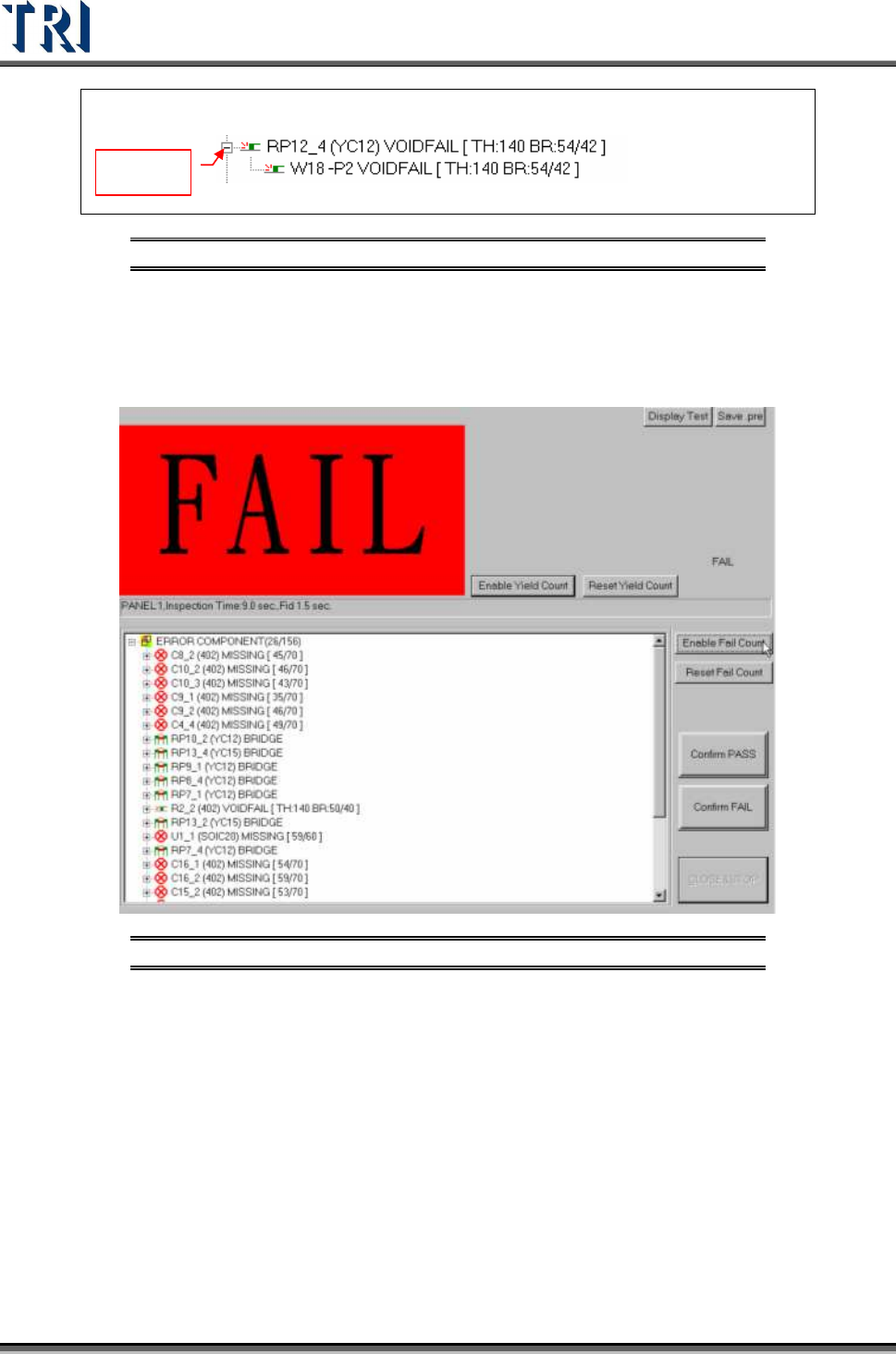
Defect tree – List the details of components.
Test Research Inc.
294 TR7500 Series User Guide –Software v.2.9.0
Component name, (Type), Defect kind [Parameter, inspected score/tolerance]
Display
Inspection box name, Defect kind, [Parameter, inspected core/tolerance]
Figure 486: Example: Defect Tree
[Reset Yield Count] – Reset the [Yield Statistic] field.
[Disable Yield Count] – Do not display the [Yield Statistic] field.
[Disable Fail Count] – Do not display the [Fail Statistic] field.
Figure 487: Results Screen with Yield & Fail Statistics Hidden
[Reset Fail Count] – Reset the [Fail Statistic] field.
[Close&Stop] – Close the window.
Test Research Inc.
TR7500 Series User Guide –Software v.2.9.0 295
13 A
UTO
-C
ONVEYOR
W
IDTH
This procedure requires the auto conveyor width module.
13.1 Hardware
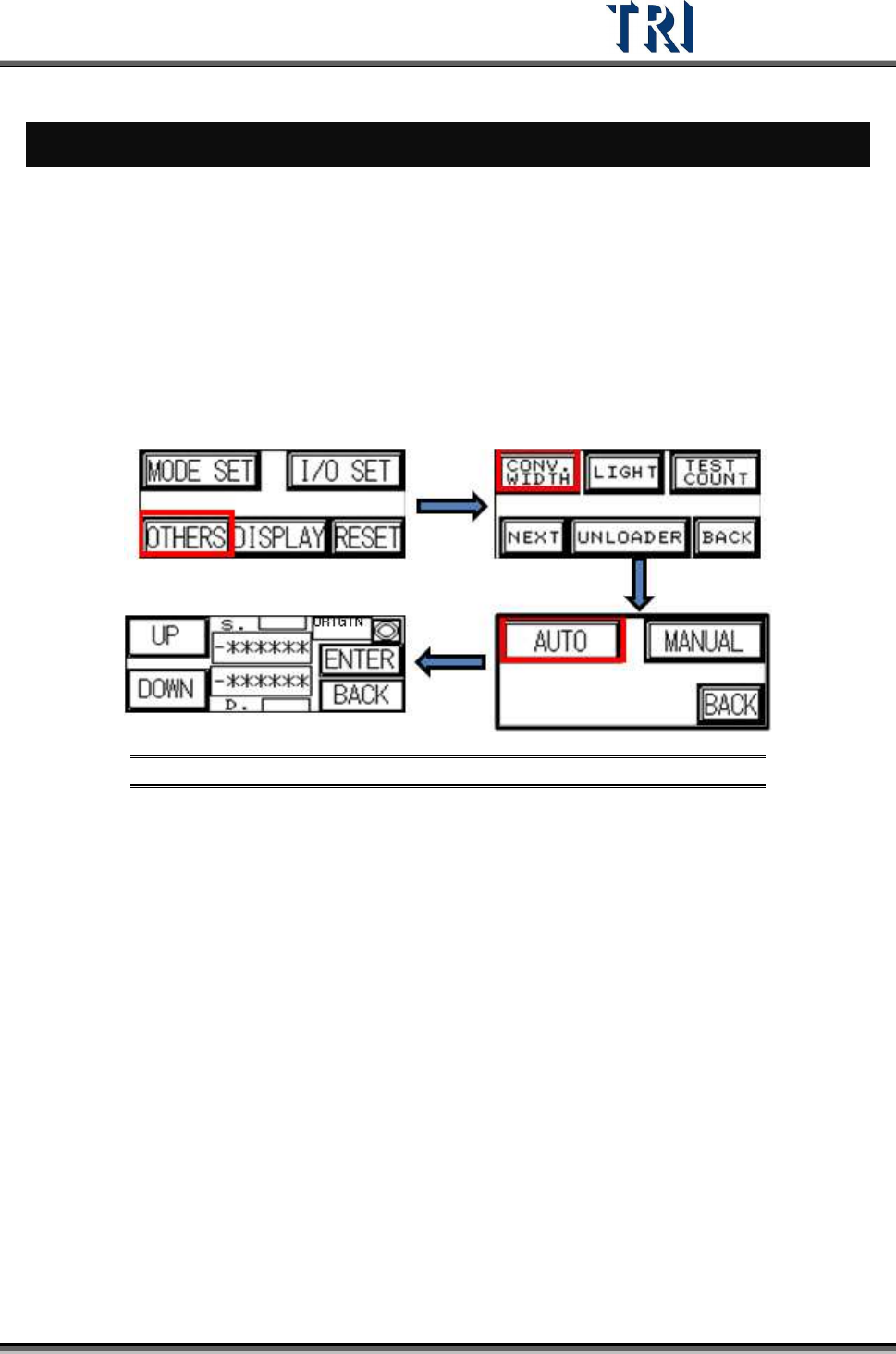
1. Open the auto conveyor adjustment function on the HCI (refer to TR7500 User Guide –
Hardware).
2. Referring to the figure below, press [AUTO] then the conveyor will go to the original
position. Then press [UP] or [DOWN] to enlarge or reduce the conveyor width. When
finished, press [Enter] to save the data. Then press [Back] to go back to the stand-by
image.
Figure 488: Use HCI to Set Conveyor Width
13.2 Software Setting
1. The Windows version of the PC must be compatible with the auto conveyor width system.
2. In the Windows Registry, add a DWORD [AutoConveyorWidth] with the value = [1]
13.3 Saving Width Data to Project
1. Adjust the conveyor width with [Auto Conveyor] Function.
2. When saving the project, the system saves the width to the project automatically.
3. If the current width is not the same with the width in project, system shows the dialog
below asking to replace the saved width with current width.