TR7500_Series_Software_v29_En - 第329页
Test Research Inc. TR7500 Series User Guide – Software v.2.9.0 307 Figure 501 : Confirm Save G ray Card Position 5. After clicking on the [Li ght-Decay Chec k ] button, the system w ill display the following window. It d…
Test Research Inc.
306 TR7500 Series User Guide –Software v.2.9.0
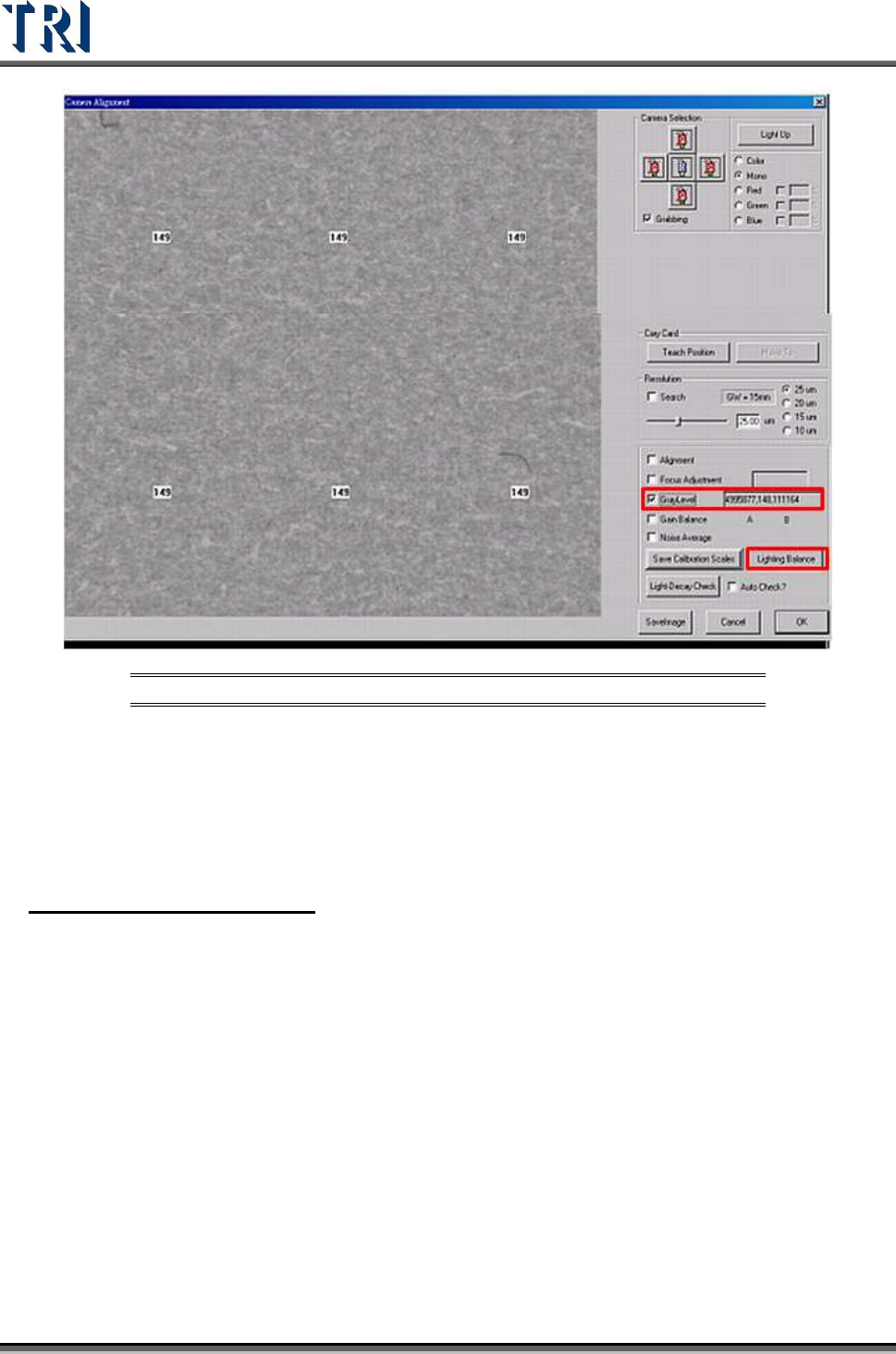
Figure 500: Camera Alignment Dialog
5. Move the X-Y table to position the camera above the gray card. Or press [MoveTo]
button.
6. Select the [GrayLevel] to show the gray level of the current image.
7. Click on the [Lighting Balance] button and input the password “7100” to do lighting
compensation. (Note: Be sure that the FOVs of 5 cameras are on the gray card.)
2. Lighting Decay Auto Check
This function uses software to test the difference between the current value (before
compensating) and the objective value for all five cameras.
1. Open the main program of TR7500 and enter [U
TILITIES
>
C
AMERA
A
LIGNMENT
].
2. Move the X-Y table to let the camera above the center of gray card.
3. Press [Light-Decay Check].
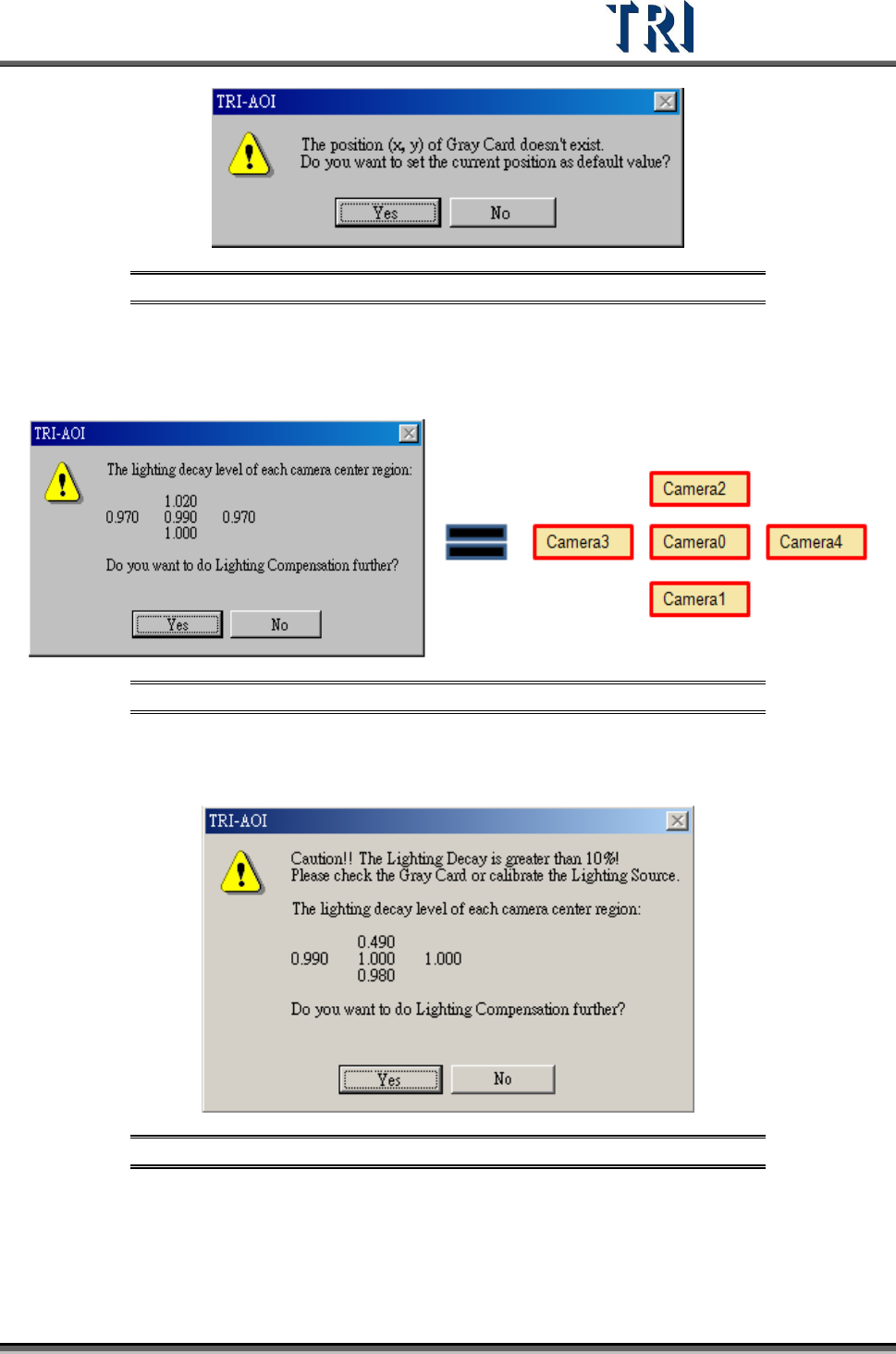
4. For the first time, the system displays the window below to ask if you want to save the
position of the gray card to system. The value of the X-coordinate and Y-coordinate are
saved in the registry and named “GrayCardPosX” and “GrayCardPosY”. When the two
variables exist, the window below does not appear again. To change the value, move the
cameras to be on the gray card then click on the [Teach Position] button.
Test Research Inc.
TR7500 Series User Guide –Software v.2.9.0 307
Figure 501: Confirm Save Gray Card Position
5. After clicking on the [Light-Decay Check] button, the system will display the following
window. It displays the current decay of the gray level for all five cameras. Select if you
want to do lighting compensation later according to the light decay value.
Figure 502: Confirm Perform Lighting Compensation 1
6. If the decay is over 10% for any camera, the dialog in step 5 above will be changed to the
following window to remind you that the decay of lighting is too serious.
Figure 503: Confirm Perform Lighting Compensation 2
7. If [Auto Check] is selected, the system checks the lighting decay automatically when the
program is opened.
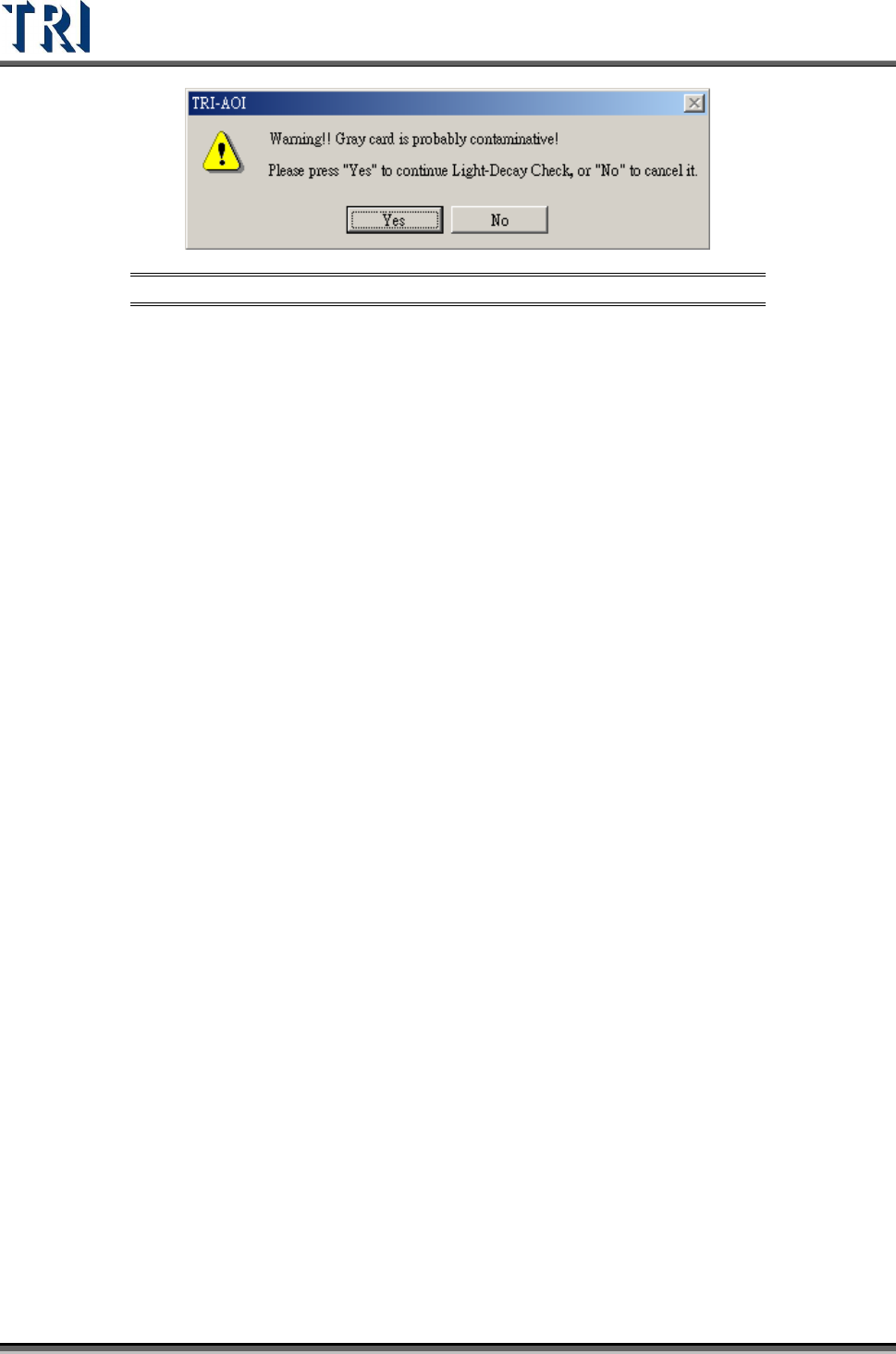
System will test if there is any problem with the gray card (uneven or
interference). If not, continue executing; or the following dialog appears and asks
whether you still want to do lighting compensation.
Test Research Inc.
308 TR7500 Series User Guide –Software v.2.9.0
Figure 504: Confirm Perform Lighting Compensation 3
If the decay of the lighting is less than 10%, the system executes the lighting
compensation. If the decay is larger than 10%, the warning dialog that is
mentioned in Step 6 will appear.