TR7500_Series_Software_v29_En - 第70页
Test Research Inc. 48 TR7500 Series User Guide – Software v.2.9.0 Figure 87: Invers e Pass/Fail Output Password Dialog 3.3.2.6 Share Library Mod e Choosing the [Share Library] function all ows users to share an [Alternat…
Test Research Inc.
TR7500 Series User Guide –Software v.2.9.0 47
3.3.2.3 Halt Machine when Barcode Fail
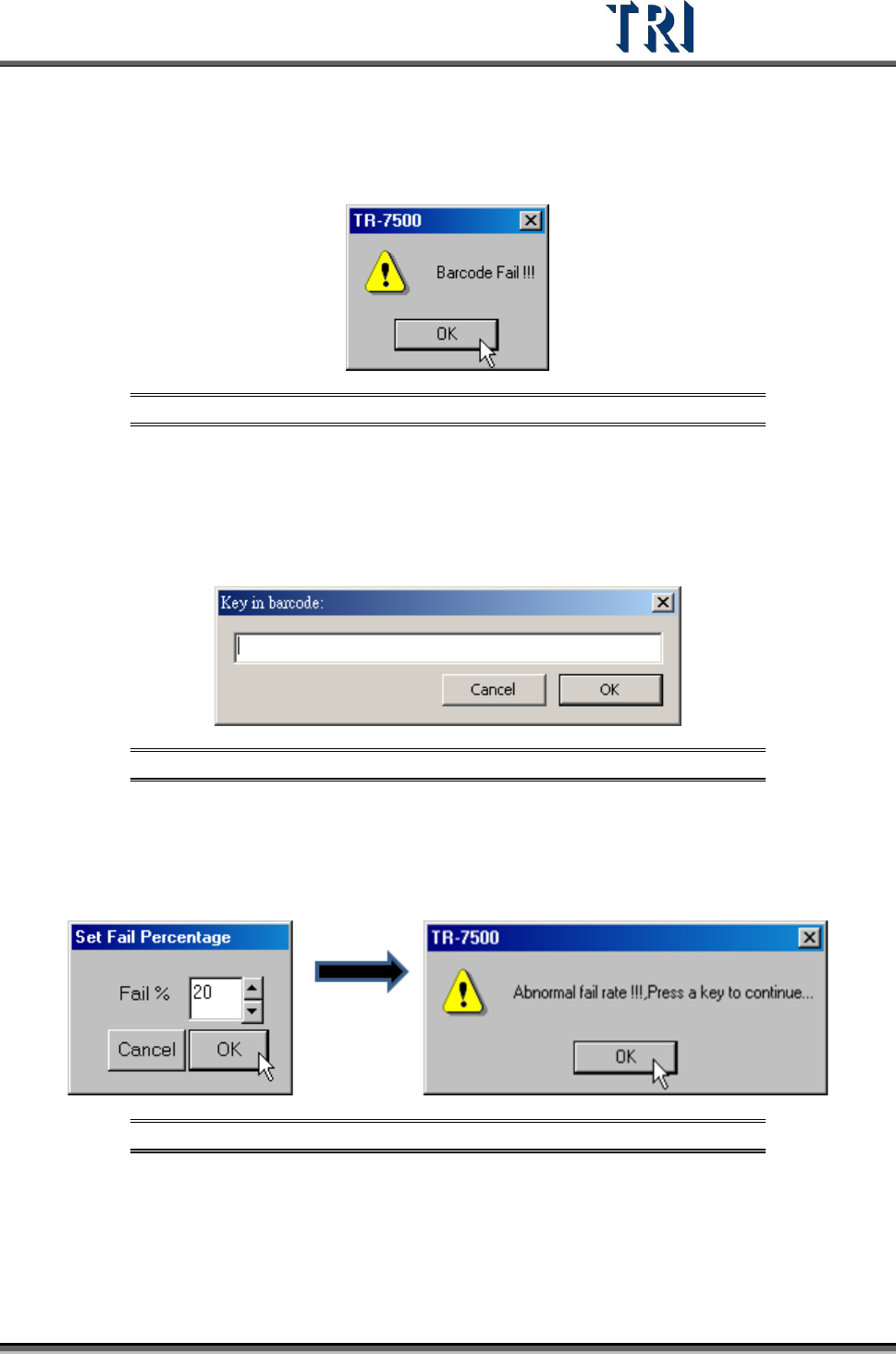
The function is enabled when [Check Barcode] is set. If the barcode cannot be read by the
system, the motion of the table will pause and a warning dialog is displayed.
Figure 84: Barcode Fail Message
Under [Inline] mode, the TR7500 will trigger the red light on the signal tower and sound an
alarm. The operator will have to confirm the result in order for the system to resume testing.
If there is only one set of barcode, the system will show the [Key in Barcode] window in order
for user to enter the barcode manually.
Figure 85: Key In Barcode Message
3.3.2.4 Halt Machine when Abnormal Fail_board Rate
When the percentage of failed boards is over the specified percentage, the table motion will
pause and the project will display a warning dialog.
Figure 86: Set Board Fail Percentage and Fail Message
3.3.2.5 Inverse Pass/Fail Output Signal
Choose this function to change the signal of white and yellow lines in Port 2. Originally, when
the result is [PASS], the output signal is “short”; when the result is [FAIL], the output signal is
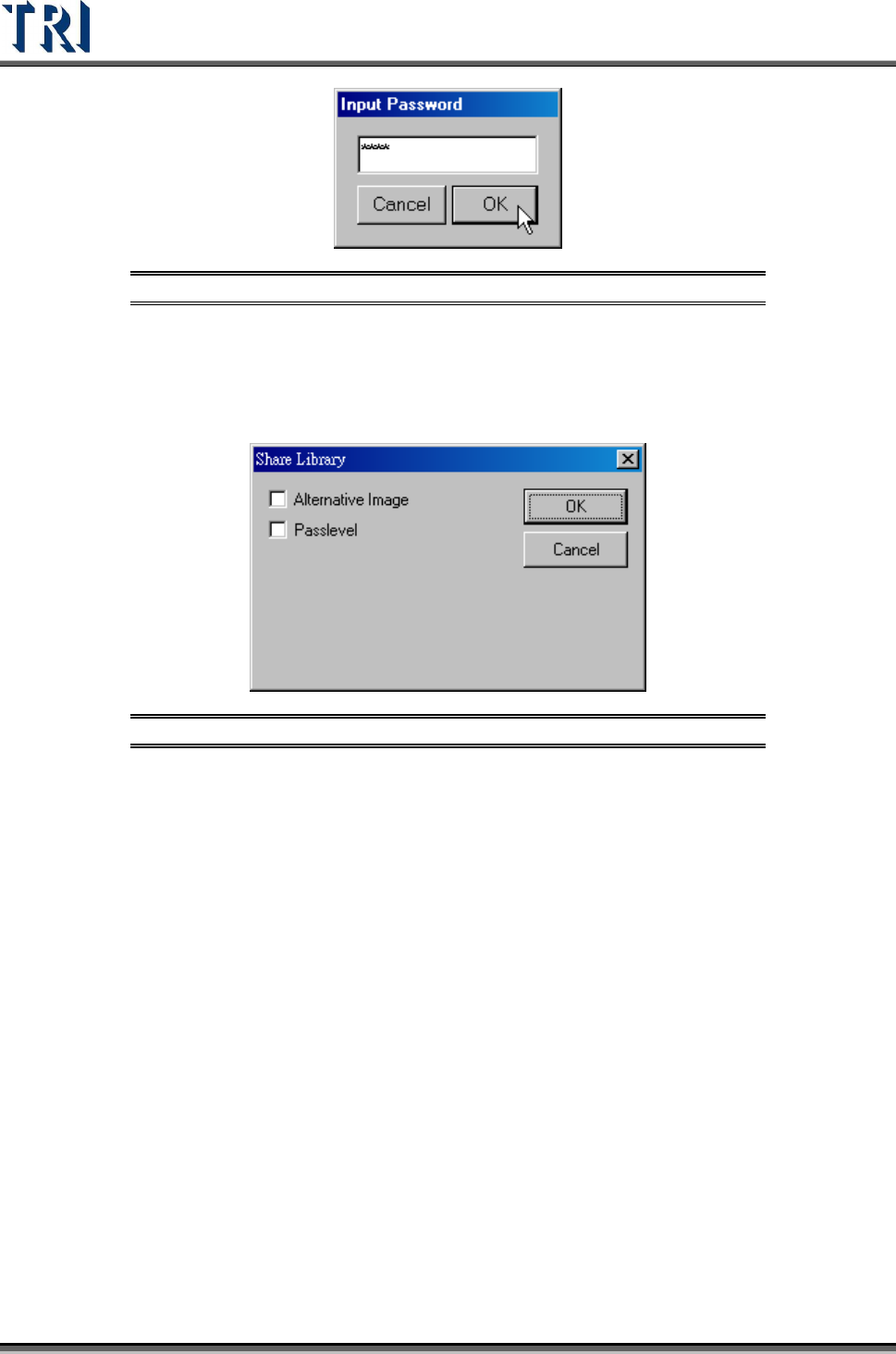
“open”. This function reverses the output signal. The password is [7100].
Test Research Inc.
48 TR7500 Series User Guide –Software v.2.9.0
Figure 87: Inverse Pass/Fail Output Password Dialog
3.3.2.6 Share Library Mode
Choosing the [Share Library] function allows users to share an [Alternative Image] or [Pass
Level] of one project with other projects.
Figure 88: Share Library Dialog
[Alternative Image]
[Add Alternate Image]. When a user adds an alternative image to a project,
the system will ask if the user wants to set/share this image to the [Library]. If
yes, the alternative image will be saved to both the current project and the
[Library]. This allows the image to be shared with other projects. If no, the
image is saved to the current project only and is not shared.
[Delete Alternate Image]. When a user wants to delete an alternative image,
the system will ask if the user wants to delete the image from the [Library]. If
yes, the image will be deleted from both the [Library] and the current project.
If no, the image will be deleted from the current project only.
[Refresh the Alternative Image Automatically]. When a project is loaded, the
system will compare the differences between the project images and the
[Library] images. The project images will be updated based on the [Library]
images.
[Pass Level]
If [Pass Level] is selected from the [Share Library] dialog (see Figure 88), the
system will automatically upload all inspection box variables to the [Library]
after the user has changed them. These variables will be loaded into each
[.pre] or [.prj] file type inspection box from [Library]. Inspection box variables
which do not previously exist in the [Library] cannot be changed by this
command.
Test Research Inc.
TR7500 Series User Guide –Software v.2.9.0 49
3.3.3 Connect Project Server & Project Server Setting
When the project server is installed users may access and control all projects in the AOI
system through the [Project Server] function.
1. Select [Project Server Setting]
2. When the [Project Server] dialog appears, enter the appropriate information in the fields.
3. Click on [Save].
4. Open [Connect Project Server] to enter [Link] mode.
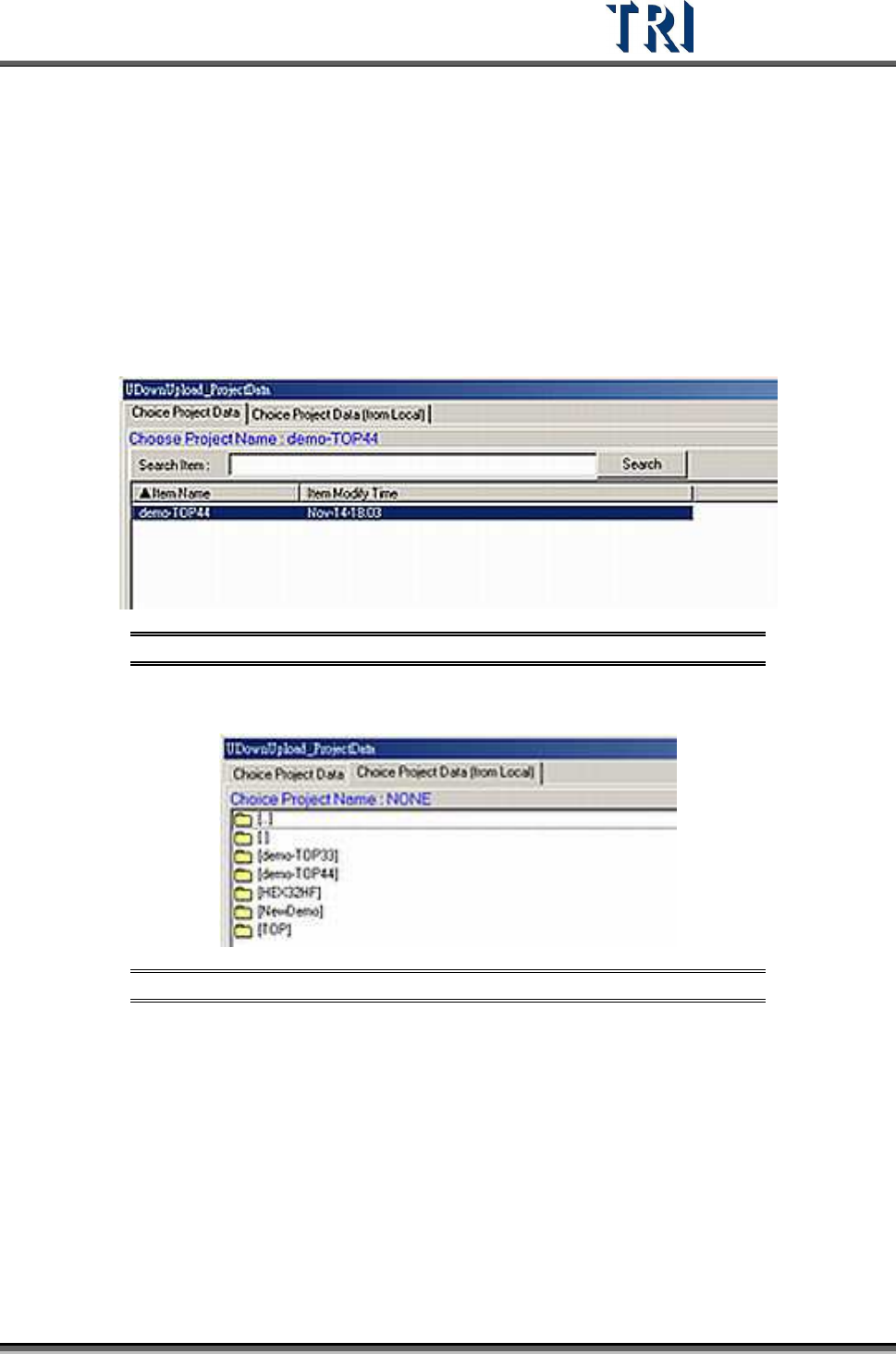
5. The [Project Server] dialog will appear (see figure below). Select the project to download.
Figure 89: Project Server Dialog
6. User may download the local project by selecting [Choose Project Data(from Local)]
Figure 90: Project Server Dialog – Choose Project from Local
7. After saving each program, the system will automatically save and upload the project
back to the [Project Server] under [Link] mode.