00193325-01.pdf - 第19页
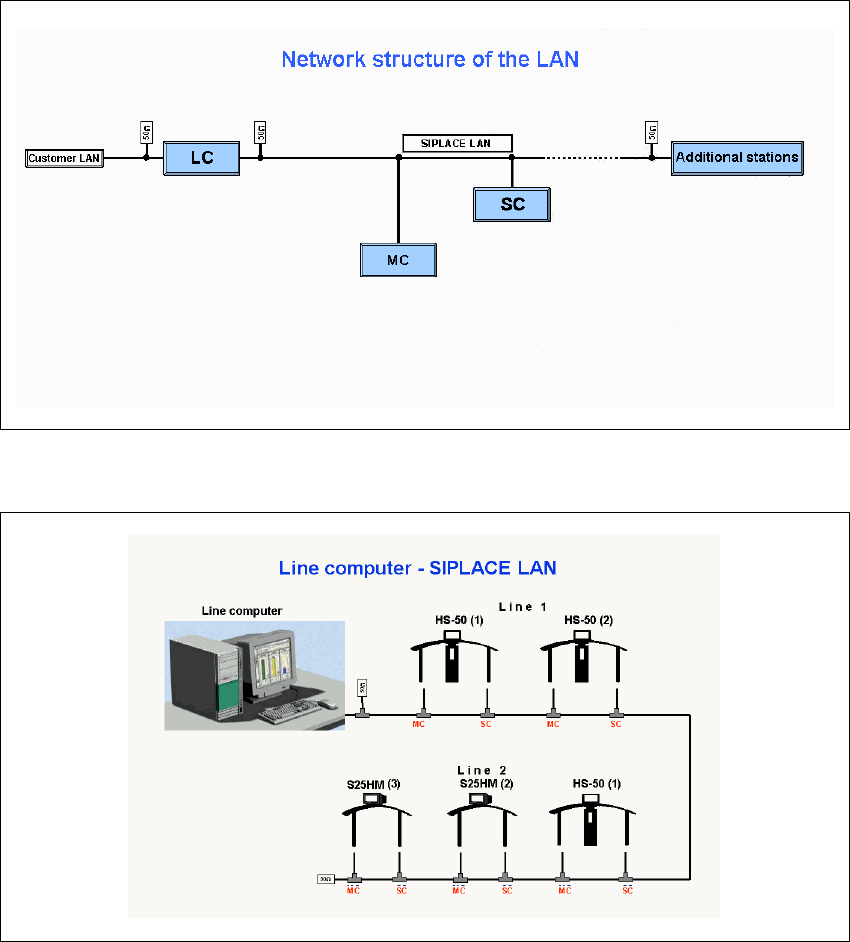
SIPLACE Software Gu ide SR.503.xx 2 Introduction and basic terms Issue 12/01 E N 2.2 Overview 19 2.2.2 Overview of the syste m component s that make up a SIPLACE line 2 Fig. 2.2 - 3 Diagram showing the networ k structure…

2 Introduction and basic terms SIPLACE Software Guide SR.503.xx
2.2 Overview Issue 12/01 EN
18
A station may exist as part of a line or may be the only machine in a line. 2
Each station has a „station computer“ which is located on the side of the input area behind a ma-
chine base door. This area also accommodates the uninterruptible power supply (UPS). The UPS
is available as an option.
2
A monitor with touch screen and retractable keyboard with an integrated trackball is mounted on
either side (HS-50 only) of the station (see Figures 2.2 - 1 and 2.2 - 2). 2
NOTE
You can operate the station computer software either via the keyboard and trackball or via the
touch screen. 2
SIPLACE Software Guide SR.503.xx 2 Introduction and basic terms
Issue 12/01 EN 2.2 Overview
19
2.2.2 Overview of the system components that make up a SIPLACE line
2
Fig. 2.2 - 3 Diagram showing the network structure of the LAN
2
Fig. 2.2 - 4 Schematic diagram of the network in a SIPLACE line (example)
The individual stations obtain their placement data from a host computer (Line computer UNIX or
Siplace Pro). The placement data is sent to the individual stations by the job control function of
the host computer. 2

3 Graphical user interface SIPLACE Software Guide SR.503.xx
3.1 Inputs and Controls Issue 12/01 EN
20
3 Graphical user interface
This section describes how to use the various controls such as the keyboard, trackball, mouse
buttons and touch screen and also introduces the functions of the individual components of the
graphical user interface. 3
In addition, the safety notes of the operating instructions for
SIPLACE HS-50 und S-25 HM machines take priority. 3
3.1 Inputs and Controls
Keyboard 3
The keyboard with its integrated trackball and mouse buttons acts as the standard input tool for
the graphical user interface of the station computer software. 3
Trackball and mouse buttons 3
You use the trackball to move the mouse pointer across the user interface to the desired object
and then use the left mouse button to select the object or execute the appropriate function. 3
Touch screen 3
The (touch) screen can also be used to operate the user interface. In this way, you can directly
select the actions, or trigger the corresponding functions, by touching the corresponding object
with your finger on screen. 3
NOTE
In this guide, triggering an action using the left mouse button or by touching the screen with your
finger is always referred to as „clicking“. 3
3