00193325-01.pdf - 第52页
3 Graphical user int erface SIPLACE Software Guide SR.503.xx 3.3 User interf ace - views and menus Issue 12/01 E N 52 Click the De lete list but ton if you want to d elete all the entri es in the list. Click the Clos…
SIPLACE Software Guide SR.503.xx 3 Graphical user interface
Issue 12/01 EN 3.3 User interface - views and menus
51
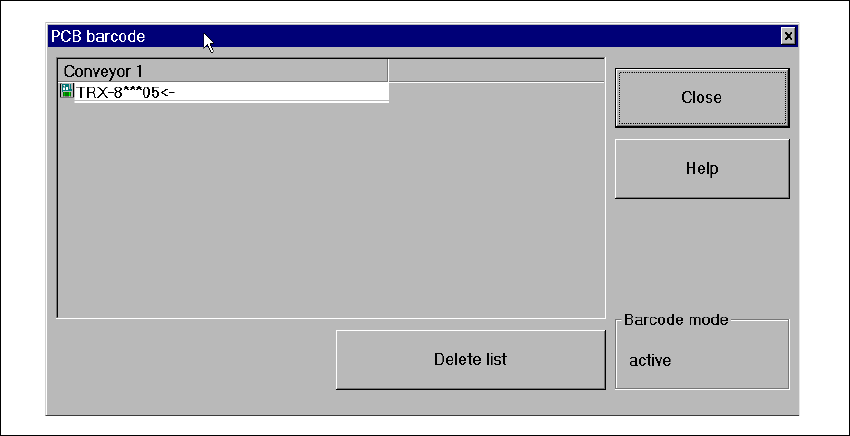
Click the PCB barcode... menu item.
The „PCB barcode“ dialog box is opened.
3
Fig. 3.3 - 14 "PCB barcode" dialog box

3 Graphical user interface SIPLACE Software Guide SR.503.xx
3.3 User interface - views and menus Issue 12/01 EN
52
Click the Delete list button if you want to delete all the entries in the list.
Click the Close button to close the dialog box.
NOTE
The current status of barcode operation is displayed below the „Delete list“ button. Barcode oper-
ation is activated or deactivated in the line computer program. 3
Configuring Traceability 3
This function is only active when the Traceability option is installed on the machine. Traceability is
an optional upgrade. This option allows you to generate traceability data during production on all
mentioned machines. 3
In printed circuit board production, traceability means the tracing back of production over a long
period of time. For example, traceability allows you to determine which components out of what
batches have been used for the in-line assembly of a specific printed circuit board. 3
See also "Traceability" Option on page 99. 3
3
SIPLACE Software Guide SR.503.xx 3 Graphical user interface
Issue 12/01 EN 3.3 User interface - views and menus
53
3.3.2.4 "Settings" menu
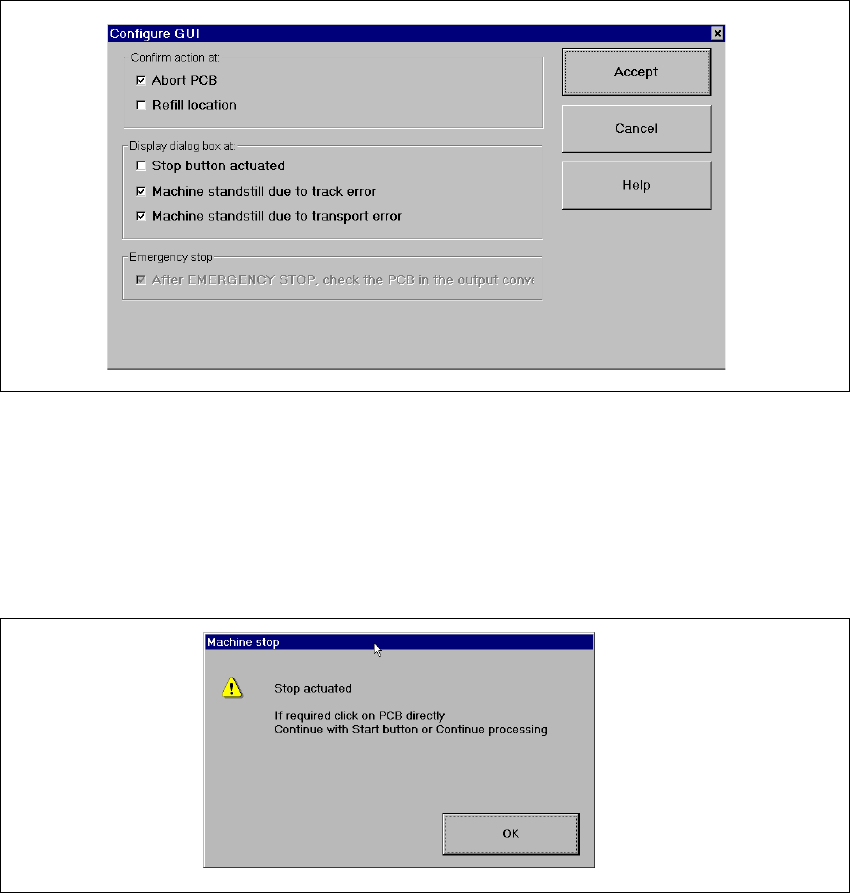
The "Settings" menu is only available in the main view. The options in this menu can be used to
set whether a particular action must be confirmed again before it is executed. Or whether, when
a particular event occurs, a dialog box containing the relevant information is to be displayed and
then, similarly, confirmed by the user. 3
Click the Configure GUI... menu item.
This displays the following window.
3
Fig. 3.3 - 15 "Configure GUI" dialog box
Activate/deactivate the check box for the required options.
Click Accept to save the settings.
Example:If the stop button is activated and the "Stop button actuated" box is checked,
the following dialog box is displayed and must be confirmed. 3
3
Fig. 3.3 - 16 "Stop button actuated" check box
If the box is not checked, the dialog box does not appear. 3