00193325-01.pdf - 第54页
3 Graphical user int erface SIPLACE Software Guide SR.503.xx 3.3 User interf ace - views and menus Issue 12/01 E N 54 Click the Con figure compressed air de activatio n... menu item. This dis plays the fo llowing wi nd…
SIPLACE Software Guide SR.503.xx 3 Graphical user interface
Issue 12/01 EN 3.3 User interface - views and menus
53
3.3.2.4 "Settings" menu
The "Settings" menu is only available in the main view. The options in this menu can be used to
set whether a particular action must be confirmed again before it is executed. Or whether, when
a particular event occurs, a dialog box containing the relevant information is to be displayed and
then, similarly, confirmed by the user. 3
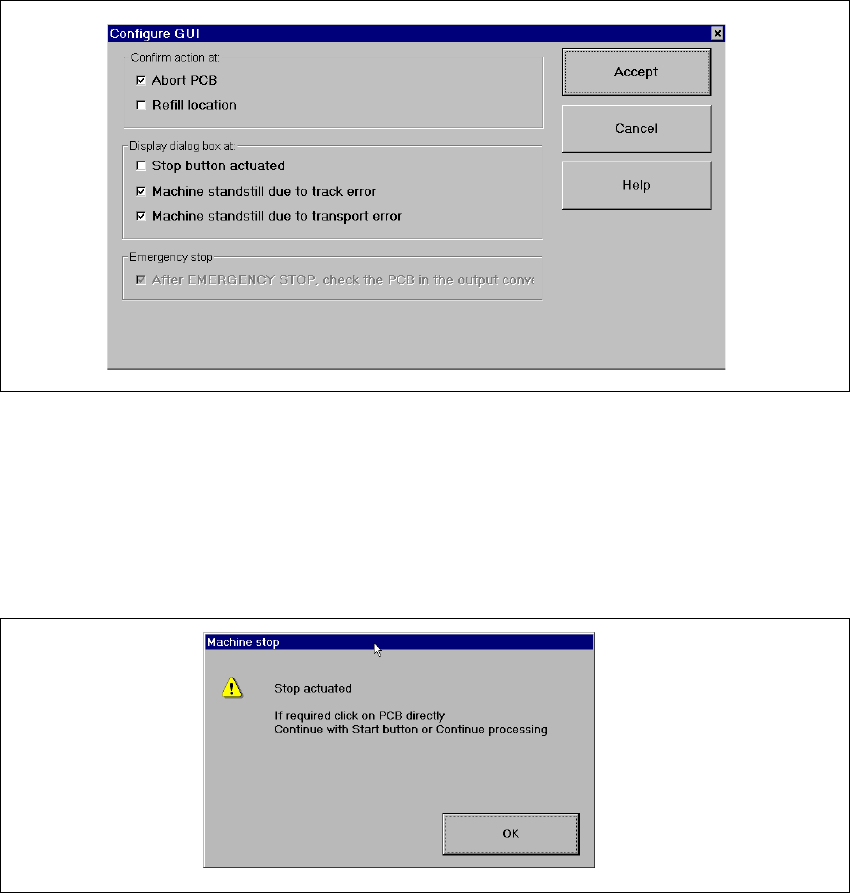
Click the Configure GUI... menu item.
This displays the following window.
3
Fig. 3.3 - 15 "Configure GUI" dialog box
Activate/deactivate the check box for the required options.
Click Accept to save the settings.
Example:If the stop button is activated and the "Stop button actuated" box is checked,
the following dialog box is displayed and must be confirmed. 3
3
Fig. 3.3 - 16 "Stop button actuated" check box
If the box is not checked, the dialog box does not appear. 3
3 Graphical user interface SIPLACE Software Guide SR.503.xx
3.3 User interface - views and menus Issue 12/01 EN
54
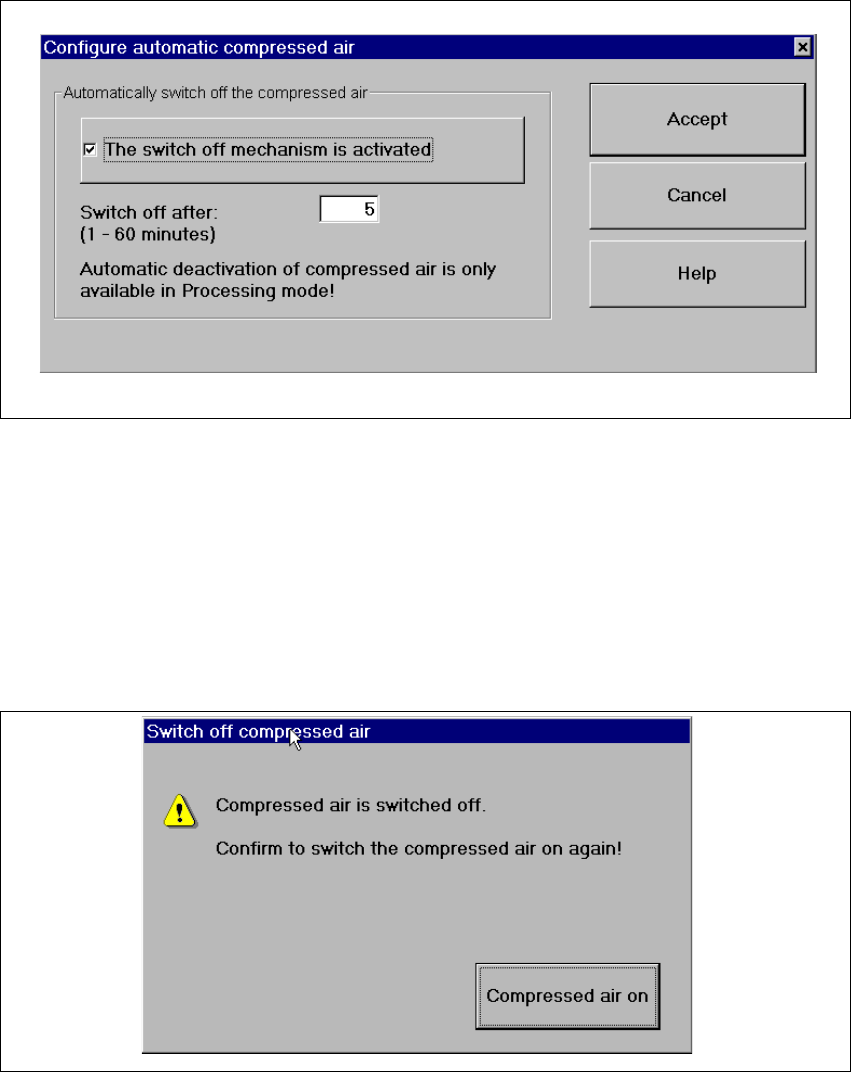
Click the Configure compressed air deactivation... menu item.
This displays the following window.
3
Fig. 3.3 - 17 "Configure compressed air deactivation" dialog box
Activate/deactivate the check box for the automatic deactivation.
Click Accept to save the settings.
3
Click the Switch off compressed air... menu item. (This function is only possible if the ma-
chine is in the „Processing suspended“ status.)
This displays the following window.
3
Fig. 3.3 - 18 "Switch off compressed air" window
Activate the Compressed air on button.
The compressed air is reactivated.
SIPLACE Software Guide SR.503.xx 3 Graphical user interface
Issue 12/01 EN 3.3 User interface - views and menus
55
3.3.2.5 „Language“ menu
It is possible to set the language versions for the user interface integrated into the station com-
puter software via the „Language“ menu.
The user interface can be changed to a different language from any view.
You can choose between „German“ and „English“. 3
Click the menu item corresponding to the required language.
The user interface texts are displayed in the selected language.
It is possible to extend the range of languages available using a language CD to install addi-
tional languages.