00193325-01.pdf - 第57页
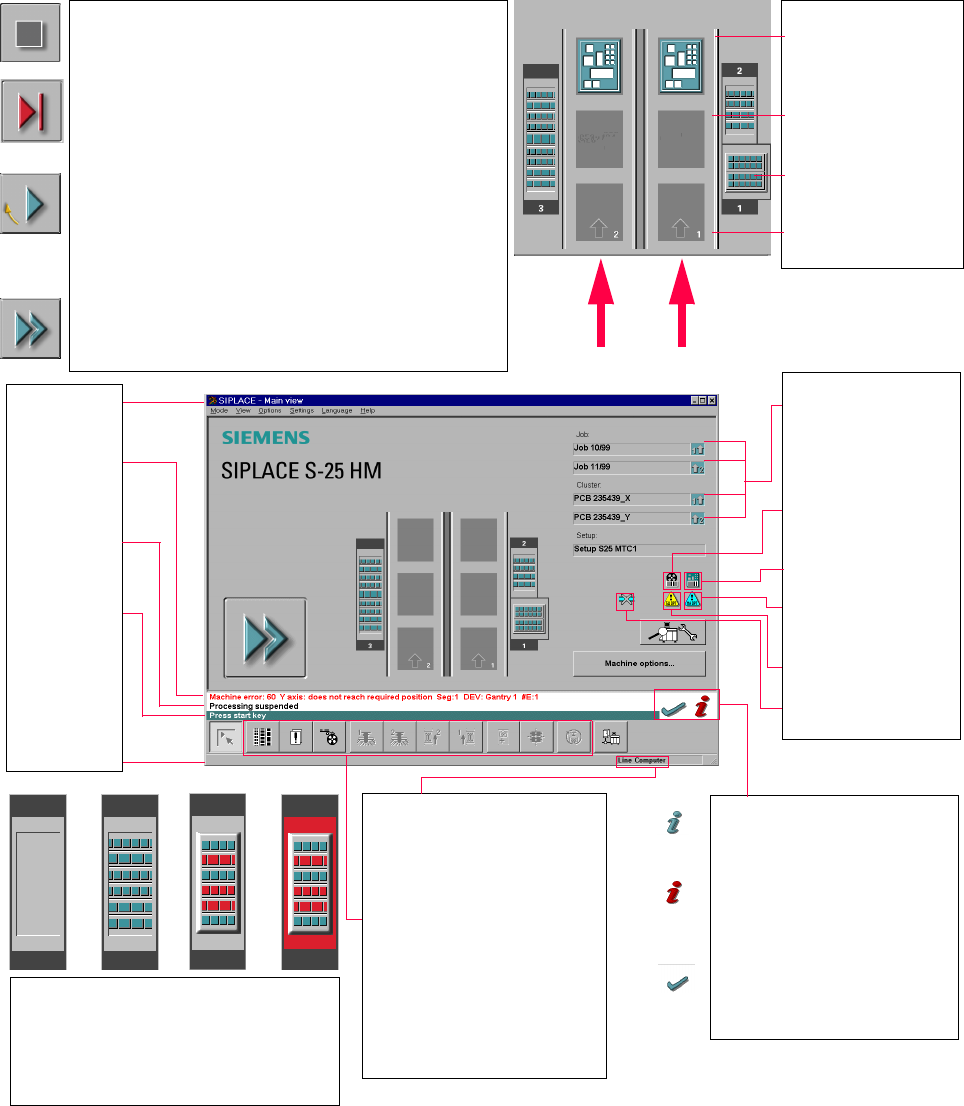
SIPLACE S oftware Guide SR.503.xx 3 Graphical user i nterface Issue 12/01 E N 3.4 Flow chart for the main view 57 3.4 Flow chart for the main view 3 3 3 Pull-down menu s 3 Err or in form at ion bar 3 S tatus indicati on …

3 Graphical user interface SIPLACE Software Guide SR.503.xx
3.3 User interface - views and menus Issue 12/01 EN
56
3.3.2.6 "Help" menu
This menu gives you access to all the functions required to call the help system as well as general
information concerning the station computer or the software. 3
Contents Ctrl+F1 3
This calls the on-line help system. 3
Help Alt+F1 3
This calls the help system and displays information about the current view. 3
Use help 3
Information on how to use the Help system is displayed. 3
Info... 3
This displays information on the currently installed software version (SC version), the service
pack, the language CD and general information on the station computer. 3
NOTE
You can use the button (bottom right) to call the Online Help system from within any view of
the user interface.
This calls the help system for the current view.
A detailed description of the functions in the Help menu can be found in Chapter 6. 3
Click the required menu item in the "Help" menu or press the corresponding key combination.
3
SIPLACE Software Guide SR.503.xx 3 Graphical user interface
Issue 12/01 EN 3.4 Flow chart for the main view
57
3.4 Flow chart for the main view
3
3
3
Pull-down menus
3
Error information
bar
3
Status indication
and process status
3
Notification about a
specific action to
carry out
3
Information bar
3
Control modes:
Stand alone
GEM Host (not yet available)
Line Computer
SIPLACE Pro
3
Submenu icons with info box:
Setup
Error
Feeders
Gantry 1, 2
PCB conveyor 2, 1
Teach fiducial
Test component
SITEST
GEM
3
Output conveyor
The PCB is supplied.
Central conveyor
The central conveyor is empty.
MTC on location 1
(S-25 HM only)
Input conveyor
The input conveyor is empty.
3
Context-sensitive help system
This also provides a short description of all
displayed operating elements.
3
Help system for errors
Starts a help system displaying possible
causes of the current error along with correc-
tive actions.
3
Error deletion
After the error has been successfully cor-
rected, the currently active error is deleted.
Transport 2
Transport 1
3
Identifies the job or cluster of the
right conveyor lane, or of the
single conveyor, and of the left
conveyor lane (dual conveyors
only).
3
Barcode-supported component
refilling
3
PCB barcode is activated.
3
Machine options have been
changed
3
Software options configured
3
Compressed air switch-off
mechanism configured
1234
1 No setup available on the corresponding location
2 Setup available
3 Setup available - at least one empty track error
4 Machine standstill due to track error
3
This display appears during the start-up process of the machine. Only when the
reference run has been completed successfully will the display appear in the form
of a button.
3
Status
The machine is running, or is in its 'ready' state.
Pressing the button:
The machine stops.
3
Status
The machine is placing components; 'stop' is activated. The assembly of the PCBs
located in processing conveyors 1 and 2 or in the central conveyor will be
terminated and the PCBs will be transported to the intermediate or output
conveyor. Subsequently, the machine will stop.
Pressing the button:
The machine continues to run without interruption.
3
Status
Machine is in the stopped state.
Pressing the button:
The machine resumes the placement operation.
3 Graphical user interface SIPLACE Software Guide SR.503.xx
3.4 Flow chart for the main view Issue 12/01 EN
58