00193325-01.pdf - 第69页
SIPLACE Software G uide SR.503.xx 5 Error information and TSS Issue 12/01 E N 5.2 Calling error information 69 5.2.1 Displaying information on the current error Click the button i n the m ain view. The main Help system…
5 Error information and TSS SIPLACE Software Guide SR.503.xx
5.2 Calling error information Issue 12/01 EN
68
5
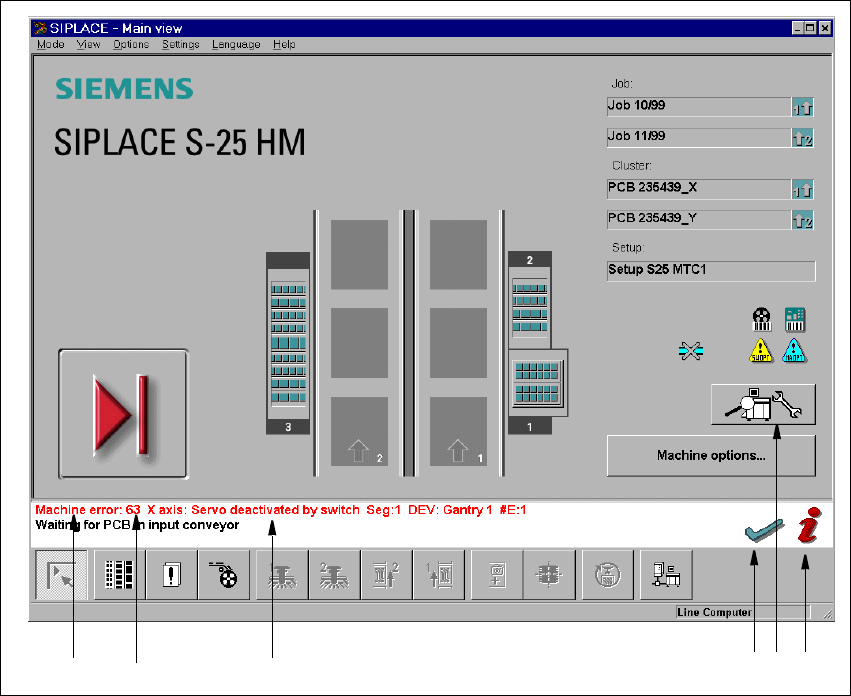
Fig. 5.2 - 1 Main view with error message (Example: S-25 HM)
Key to Fig. 5.2 - 1
(1) Type of error (Track, machine, transport or general error)
(2) Error number (The error number assigned to the error)
(3) Error message (Short information about the error)
(4) „Clear error“ button (Used to acknowledge the error after the cause of the error
has been eliminated)
(5) „TSS“ button (Used to call the Technical Solution System)
(6) „Error information“ button (Used to call up help on the current error)
12 3 456
SIPLACE Software Guide SR.503.xx 5 Error information and TSS
Issue 12/01 EN 5.2 Calling error information
69
5.2.1 Displaying information on the current error
Click the button in the main view.
The main Help system window is opened with information on the currently selected error (see
example in Fig. 5.2 - 4).
Click the button in the Main view.
This starts the Technical Solution System (TSS). See example in Fig. 5.2 - 3
5 Error information and TSS SIPLACE Software Guide SR.503.xx
5.2 Calling error information Issue 12/01 EN
70
5.2.2 Displaying information about a selected error
5
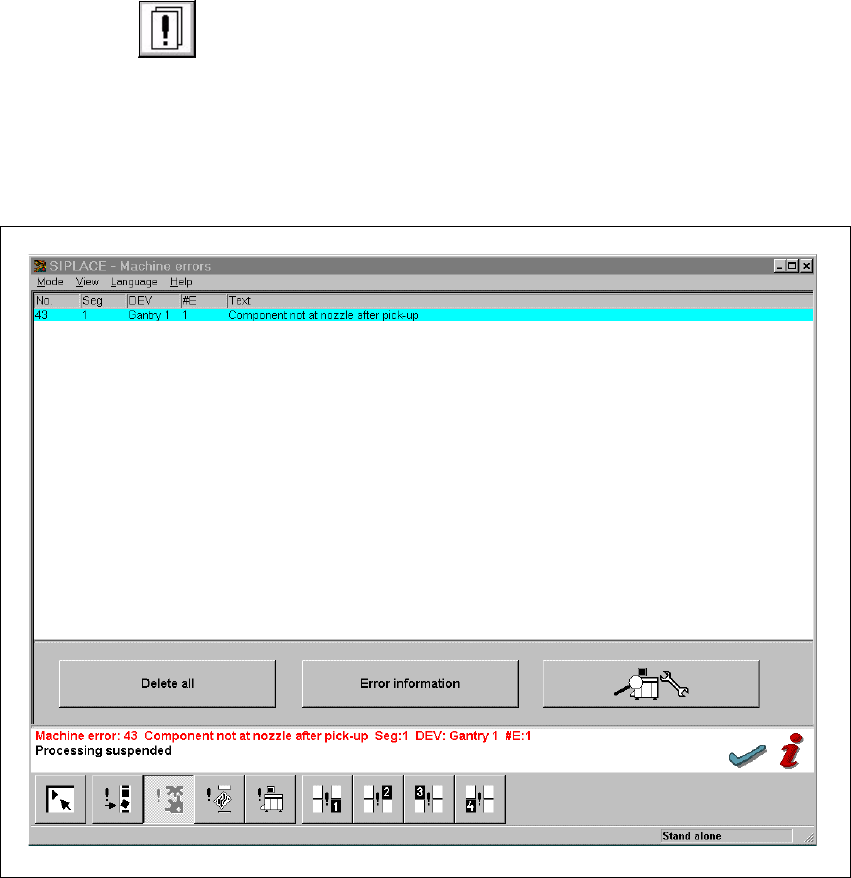
Click on the icon in the toolbar in the Main view.
The user interface switches to the error display for the last error type to be active. All errors of
the current error type that have occurred are displayed in the display area.
Use the appropriate button on the view toolbar to switch to the type of error you require.
The display area is switched to the selected error type (see the example in Fig. 5.2 - 2).
5
Fig. 5.2 - 2 Example: Error of type „Conveyor error“
In the error table, select the entry for the error about which you want to be informed. The line
selected is highlighted in light blue in the table. The „Error information“ and „TSS“ buttons are
now active.