00193325-01.pdf - 第76页
6 Online help system SIPLACE Software Guide SR.503.xx 6.1 General Issue 12/01 EN 76 6.1.1.1 Di splaying the content s of the help system In the He lp menu, cl ick the Con ten t item or press the key c ombi nation Ctrl …
SIPLACE Software Guide SR.503.xx 6 Online help system
Issue 12/01 EN 6.1 General
75
6 Online help system
6.1 General
The help system integrated in the station computer software allows you to call up online help on
the functions, menus and icons available in the station computer’s user interface as well as to con-
sult general station computer information.
The corresponding sections of this chapter contain more detailed information on the various help
system functions. 6
The online help system can be called by selecting the Help --> entry from the Help menu or by
clicking the button. 6
6.1.1 Functions of the "Help" menu
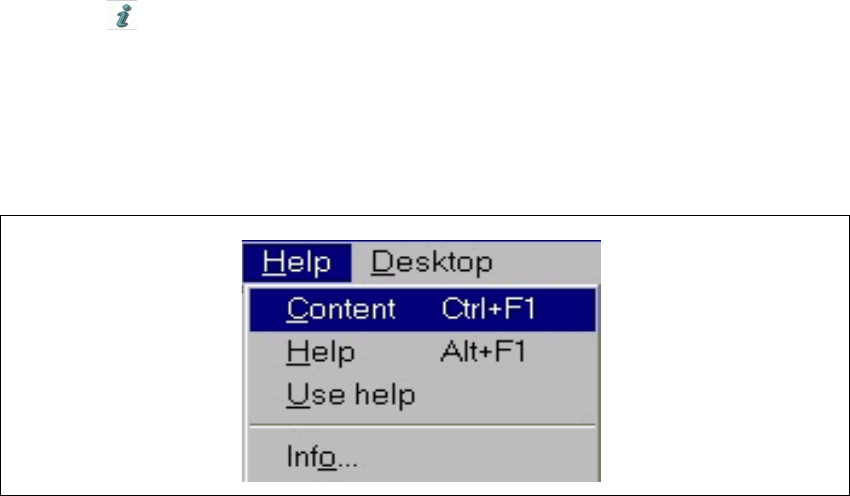
Click Help in the menu bar of the view which is currently active in the SC user interface. The
„Help“ menu is opened.
Fig. 6.1 - 1 „Help“ menu
This menu contains all the options which are necessary to call up help on the functions of the
station computer user interface, general help on using the help system operation or information
on the station computer and the installed software. 6
6
6 Online help system SIPLACE Software Guide SR.503.xx
6.1 General Issue 12/01 EN
76
6.1.1.1 Displaying the contents of the help system
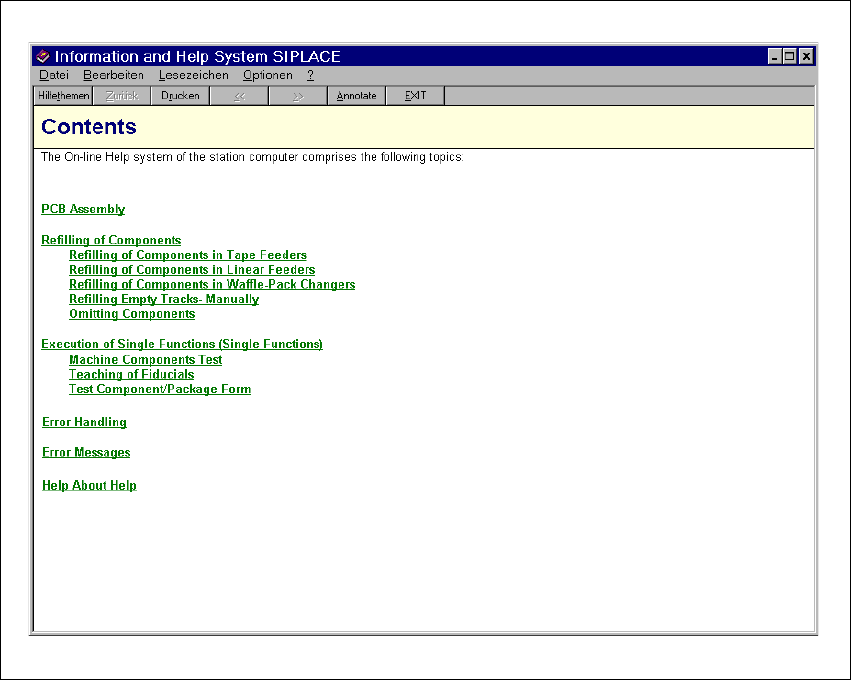
In the Help menu, click the Content item or press the key combination Ctrl + F1.
The main window of the station computer help system is opened (see Fig. 6.1 - 2).
All the topic areas present in this help system are listed in the window’s display area.
6
Fig. 6.1 - 2 Contents of the help system
6
All topic area or topic entries are displayed in green and are underlined. When you click one
of these entries, the display area switches to the help information for the corresponding topic
or topic area (see Fig. 6.1 - 3). 6
SIPLACE Software Guide SR.503.xx 6 Online help system
Issue 12/01 EN 6.1 General
77
6.1.1.2 Displaying help for a particular topic area
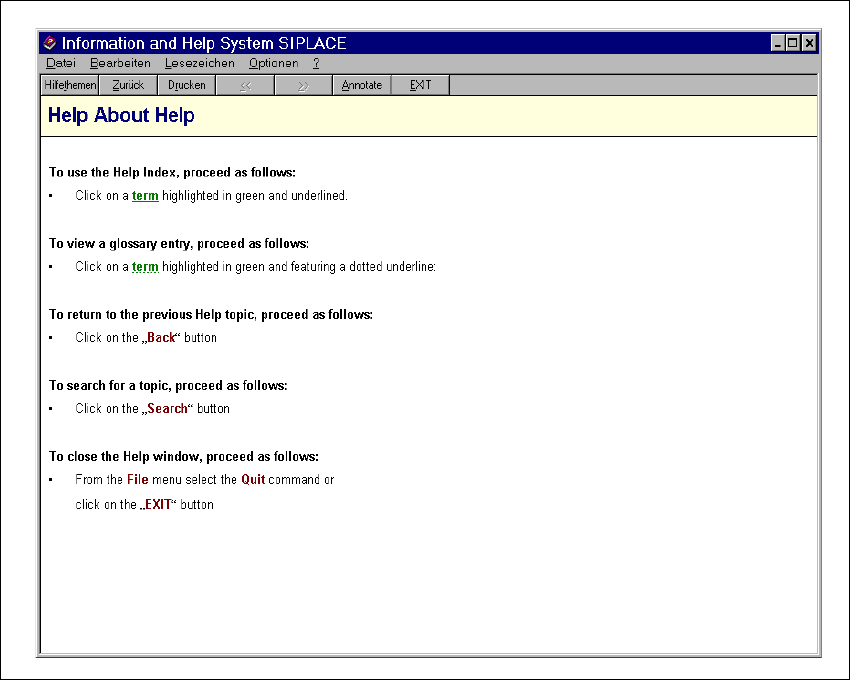
In the help system’s „Contents“ screen (see Fig. 6.1 - 2), click the entry for the required topic
area (e.g. „Help About Help“).
Help information on the selected topic area is now presented in the display area (see example in
Fig. 6.1 - 3).
6
Fig. 6.1 - 3 Example: Topic area "Help About Help"
6
6
6
6