Infinity DI.pdf - 第57页
2.10 Infinity Dual Imag e Manual Chapter Issue 3 Jan 01 INFINITY OPERATOR EDIT DATA EDIT DATA The product bar code can be altered by swiping a label with a reader or by ke ying in the code if it is kno wn. T o edit the b…
Chapter Issue 3 Jan 01 Infinity Dual Image Manual 2.9
INFINITY
OPERATOR
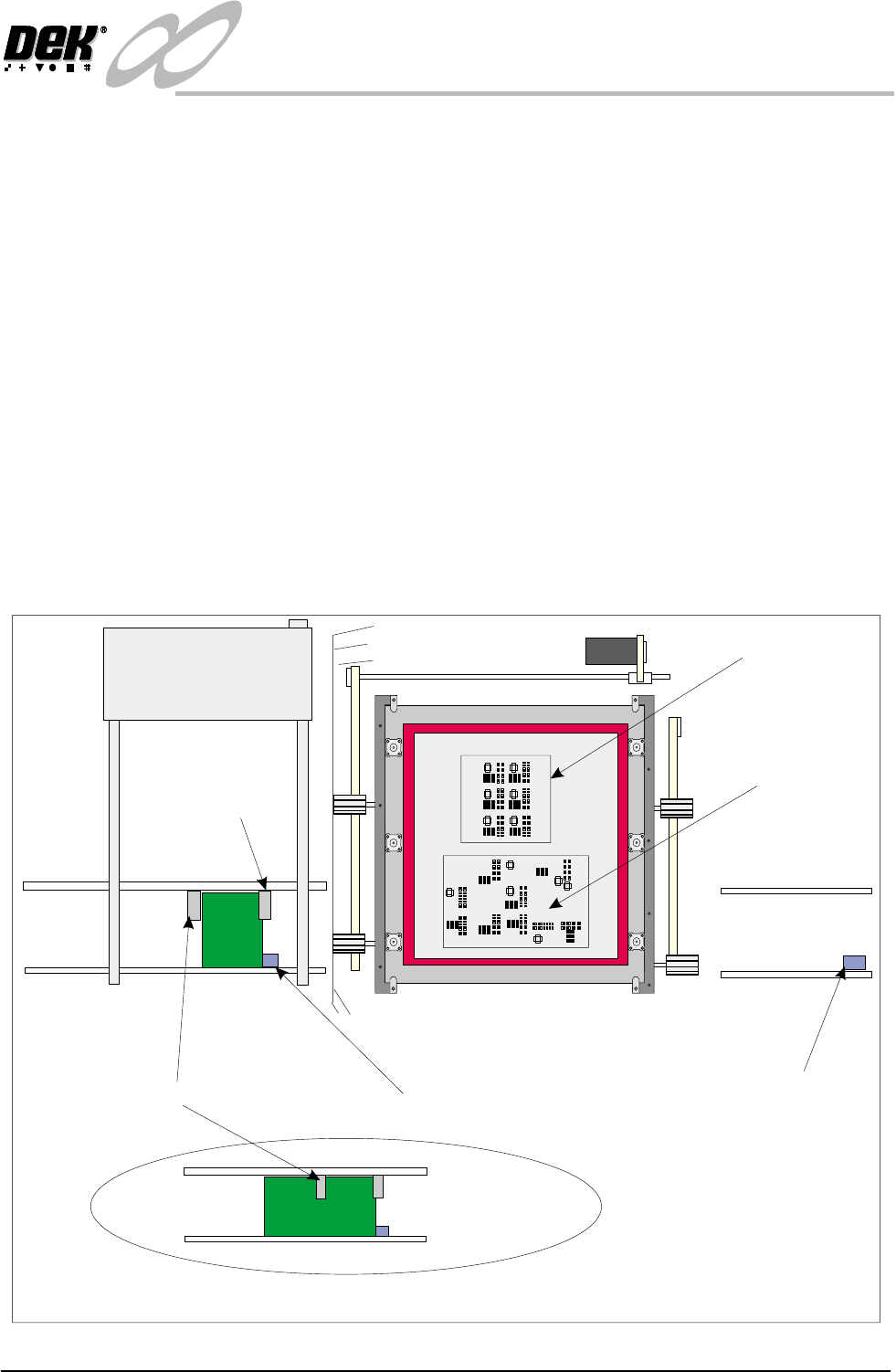
RUN PRODUCT
Product Sensor
Option
When Run is selected, the first board from the batch is fed to the inroad conveyor
sensor and is stopped. There are two further sensors on the input conveyor frame.
The Board Present sensor is activated when the board arrives at the input
conveyor sensor this action tells the printer that a board is ready to be received.
The Product sensor has been set up to determine what type of board is being
loaded. The machine compares product files to determine which product is being
loaded.
Load Product ’Rear’ The first board in the batch ( the’Rear’ Product ) is passed to the input conveyor
sensor where it is halted. The Board Present sensor detects the presence of the
board. as soon as the board reaches the board present sensor, this instigates the
start up of the machine print conveyors. If the board is of the type ’Rear’, its
product file is loaded. The board is fed into the machine and printing com-
mences. On completion, the board is fed to the output conveyor where it is
passed on to the next process.
Load Product
’Front’
If the product is now changed over and the ’Front’ product is printed, when the
product sensor sees the board, the new product file is loaded automatically to the
printer. The screen changer moves the screen to the product ’Front’ position. The
board is fed into the machine and printing starts.
Figure 2-4 Board Load - Product Sensor
Product ‘Rear’ on the Input Conveyor
Front
Product Sensor
Input Conveyor Sensor
Output
Conveyor
Sensor
Product
Front
Product Rear
Product ‘Rear’ image
Product ‘Front’ image
Board
Present
Sensor
2.10 Infinity Dual Image Manual Chapter Issue 3 Jan 01
INFINITY
OPERATOR
EDIT DATA
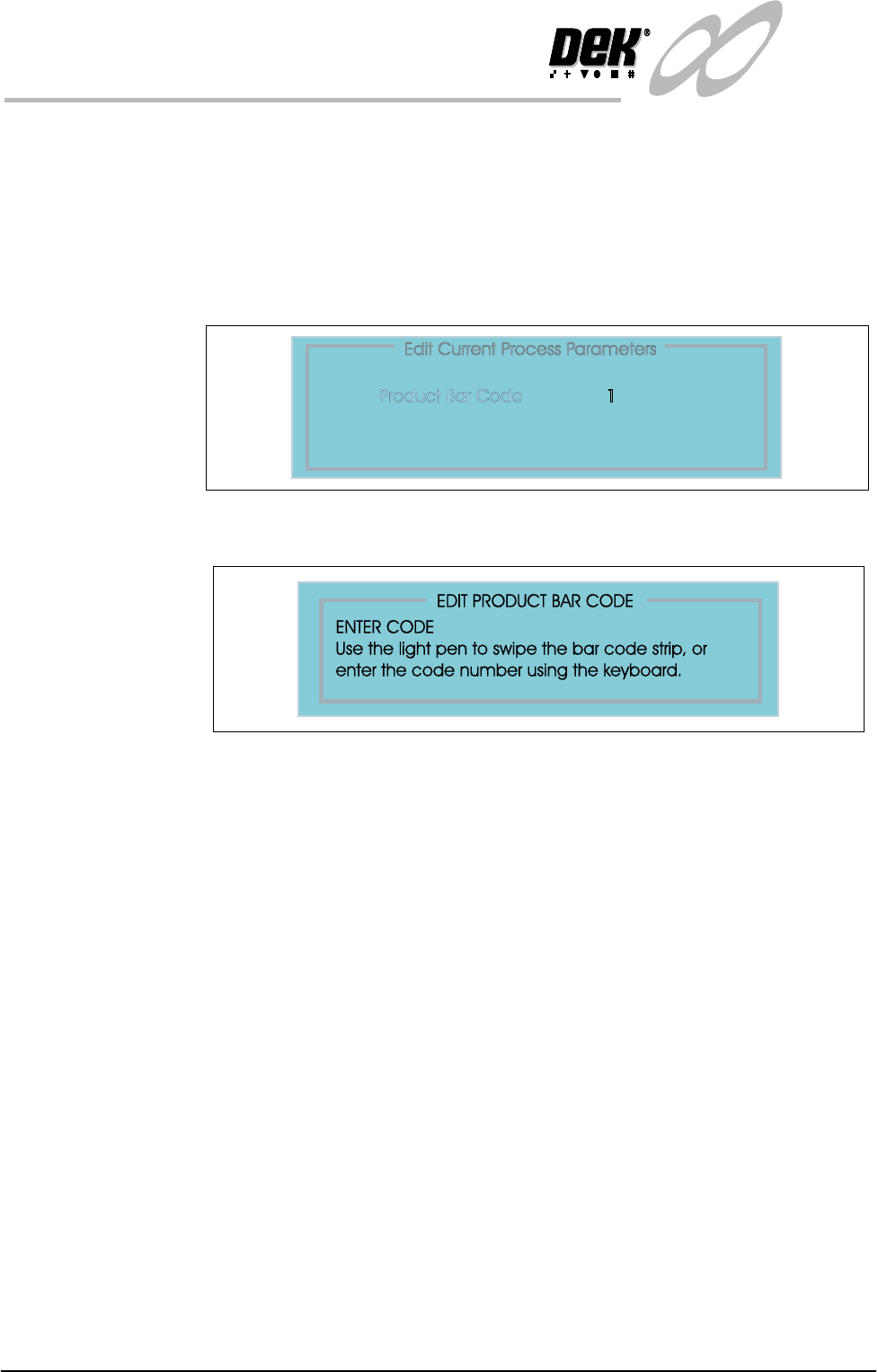
EDIT DATA The product bar code can be altered by swiping a label with a reader or by keying
in the code if it is known.
To edit the bar code follow the steps below:
1. Select Set Up (F6).
2. Select Edit Data (F3).
3. Select Bar Code from the ’Edit Process Page’.
4. Select incr. (F4). Enter the code using the options as shown.

Chapter Issue 3 Jan 01 Infinity Dual Image Manual 2.11
INFINITY
OPERATOR
TOOLING
TOOLING The following board support tooling options are available for use with the
printer:
• Magnetic Support Pillars
• Vacuum Box Tooling
• MultiFlex Tooling
• Dedicated Tooling Plate
• AutoFlex Tooling
• Fine Pitch AutoFlex
• ProFlow Stencil Support
Details of tooling options are given in the Board Support Tooling chapter of the
Infinity Technical Reference Manual.
When setting tooling for two images, the screen images may be for entirely
different products or for a single product printed both sides. In both cases any
tooling placed on the table must be positioned to give support for both images.
Hence, if tooling is placed for a first print run and the board is then flipped over
to be printed on the underside, the board is loaded to the same location for both
prints and tooling placed must accommodate both prints.
Features such as components, must not have tooling pins or support structures
placed for the first print run that would infringe upon the components on the
second print run.
Where vacuum tooling, for example a dedicated tooling plate is used, tooling
support must be given to underside components and first print features without
impairing the vacuum. If the second run had board features such as through
holes, vacuum would be impaired. The tooling must account for such features.
CAUTION
CAMERA DAMAGE. Do not leave any unused tooling on the rising table
in the area behind the rear rail. If any object is left on the rising table
outside the board printing area, it could collide with the camera carriage as
the rising table moves to print height.