00197195-02-UG SetupCenter 5.1_en.pdf - 第102页
Operating the Barcode Reader Barcode Reader - General Exercises Barcode Test 102 User Guide SIPLACE Setup Center 5.1 Step 5 (optional) You have the possib ility to check this b arcode with the settings in the barcode lab…
Operating the Barcode Reader
Barcode Test Barcode Reader - General Exercises
User Guide SIPLACE Setup Center 5.1 101
6.3.4 Barcode Test
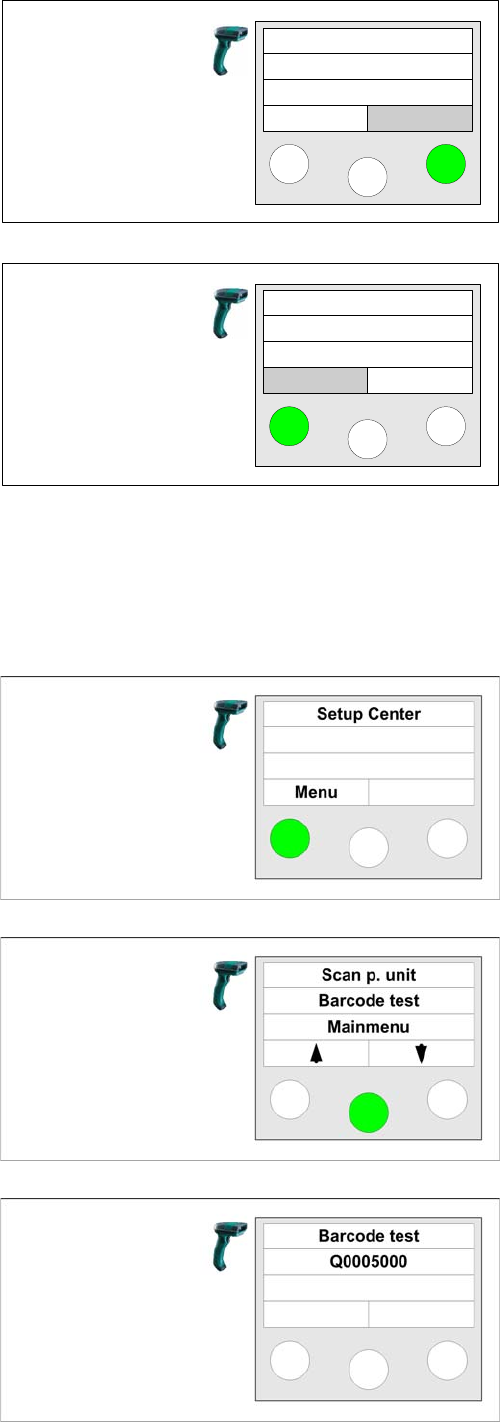
The following steps can be used to scan in a barcode and
to view its contents on the barcode reader display.
Using the Reader:
Step 3
The next information displayed is Setup and Line .
With the Next key on the right, you can display additional
information.
With the Back key on the left, you will return to the previ-
ous information menu, from where setup verification can
be continued.
Step 4
The last information displayed is Station and Location .
With the Back key on the left, you will return to the previ-
ous information menu, from where setup verification can
be continued.
S:Setup
L:Line
Back Next
St:Station
L:location
Back
Step 1
Take the barcode reader and press the Enter key until the
main menu appears on the reader display.
Step 2
Press the button under the word "Menu" (soft key
"Menu")
Step 3
Use the soft keys to browse up and down through the
"Barcode test" menu. Then press the Enter key.
Step 4
Now scan in any barcode on a packaging unit. If the code
is configured in the barcode reader, the contents will be
shown on the display. Please note that the barcode read-
er can only display ASCII characters and therefore can-
not handle all languages.

Operating the Barcode Reader
Barcode Reader - General Exercises Barcode Test
102 User Guide SIPLACE Setup Center 5.1
Step 5 (optional)
You have the possibility to check this barcode with the
settings in the barcode labels.
► Open the Extras => Settings =>Barcode labels menu.
► The scanned barcode will be entered in the Scanned
barcode input field.
► Open the context menu and select the Match func-
tion. The scanned barcode is matched with the set-
tings of the corresponding barcode label. See also
"3.3 Barcode Labels" [ ➙ 31].
Working with the Setup Center Application
Packaging Unit Editor
User Guide SIPLACE Setup Center 5.1 103
7 Working with the Setup Center Application
7.1 Packaging Unit Editor
The following functions are available in the Packaging Unit Editor:
▪ View packaging unit data e.g. packaging unit chain consisting of n packaging units.
▪ Edit packaging unit chains
▪ Change quantities
The modification is simultaneously sent to the station.
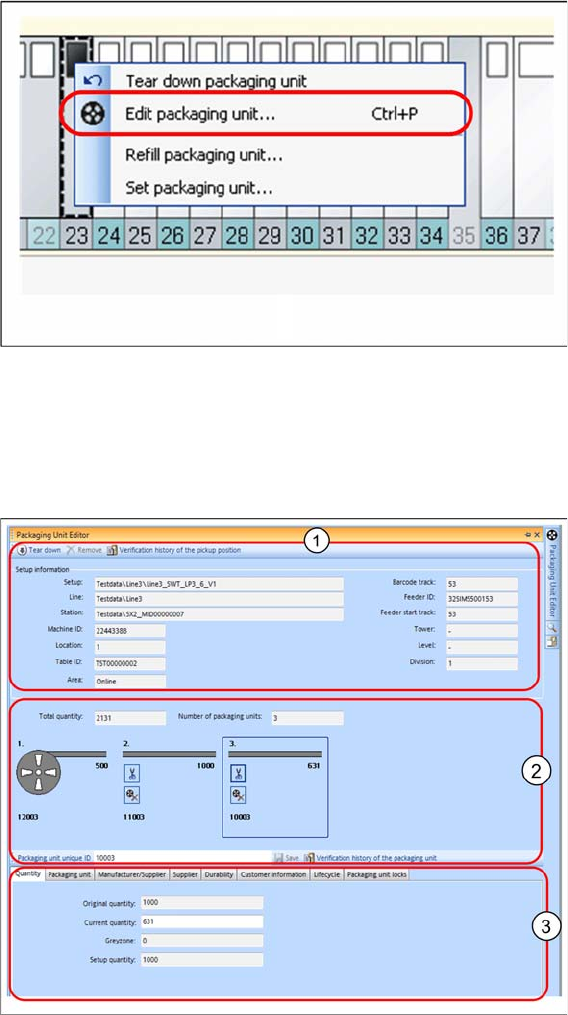
Open Packaging Unit Editor
Click the right mouse button on a verified track to open a menu. Now select the Edit packaging unit...
option.
Alternatively, the Packaging Unit Editor can be opened in the SIPLACE Setup Center user interface:
Tools => Edit packaging unit….
Overview of the Packaging Unit Editor GUI
The Packaging Unit Editor shows the tape segments which form the packaging unit chain.