00197195-02-UG SetupCenter 5.1_en.pdf - 第111页
Working with the Setup Center Application Starting the Search Materials Function and Overview Search Material User Guide SIPLACE Setup Center 5.1 11 1 Search material – overview ► Enter the mate rial name in the sear ch …
Working with the Setup Center Application
Search Material Tearing Down Packaging Unit Chains
110 User Guide SIPLACE Setup Center 5.1
7.1.5 Tearing Down Packaging Unit Chains
You can tear down individual packaging units.
Step-by-step procedure:
► Open the Packaging Unit Editor.
► Select the Tear Down button.
⇨ The packaging unit-feeder relation will be canceled. The packaging unit chain will remain in the da-
tabase, with all its data.
7.2 Search Material
7.2.1 Starting the Search Materials Function and Overview
You can search by specific material (part number or component name). The materials are those pack-
aging units or packaging unit chains available in the database. This is helpful for seeing where this ma-
terial is still available in the production environment for example.
Starting material search
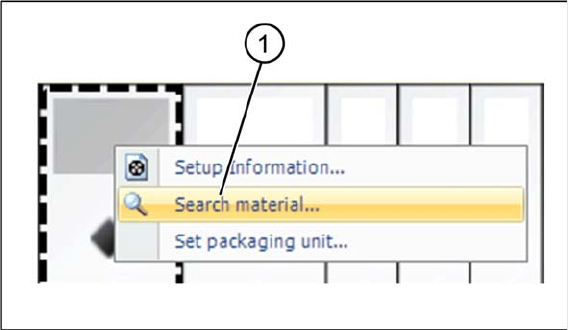
► Right click with the mouse on a track to open the context menu.
► Select Search Material... to open the Search Material dialog box. Provided that the selected track
already has a material allocated to it, the component name will appear in the search field.
► Alternatively, you can open the Search Material dialog box in the menu of the SIPLACE Setup Center
user interface Extras => Search Material…. Provided that a track which already has a material allo-
cated to it has been selected, the component name will appear in the search field.
Working with the Setup Center Application
Starting the Search Materials Function and Overview Search Material
User Guide SIPLACE Setup Center 5.1 111
Search material – overview
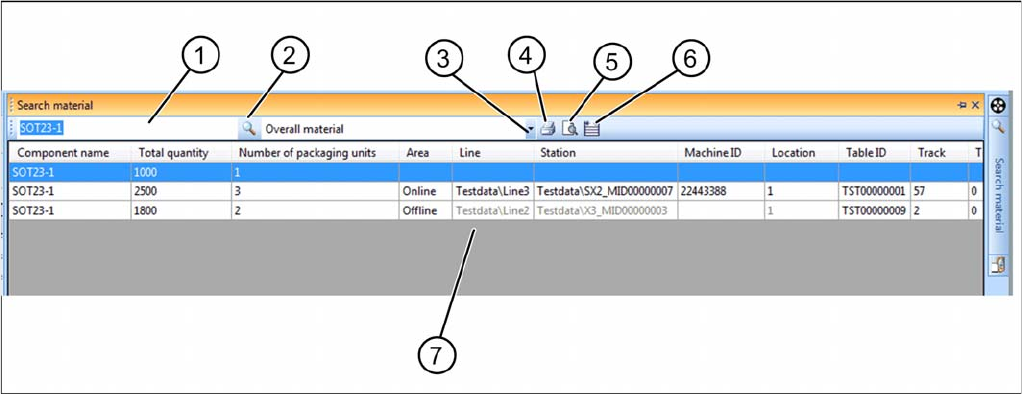
► Enter the material name in the search field (1). You can carry out a wildcard search using *. For ex-
ample, SOT23* also finds SOT23-1 and SOT23-2.
► Select the search parameters from the list (3).
▪ All Material
– The search will be performed across all materials.
▪ Material Not Set Up:
– The search will be performed only across materials which have not be configured i.e. those ma-
terials which have no relation to a setup.
▪ Used in Offline Setup
– The search will be performed only across materials used in offline setups i.e. those materials
which have a relation to a prepared setup.
▪ Used in Online Setup
– The search will be performed only across materials used in online setups i.e. those materials
which are currently being used on a line.
▪ Used in Off-line or Online Setup
– The search will be performed only across materials used in a setup i.e. those materials which
have a relation to a setup.
► Select the (2) icon to start the search.
⇨ The search result will be shown in the table (7) with the relevant quantities, number of packaging
units and any setup position details.
► You can print the result as a report (4), start a print preview (5) and adjust the width of the table col-
umns (6).
Working with the Setup Center Application
Verification History Starting the Search Materials Function and Overview
112 User Guide SIPLACE Setup Center 5.1
Search material - Context menu
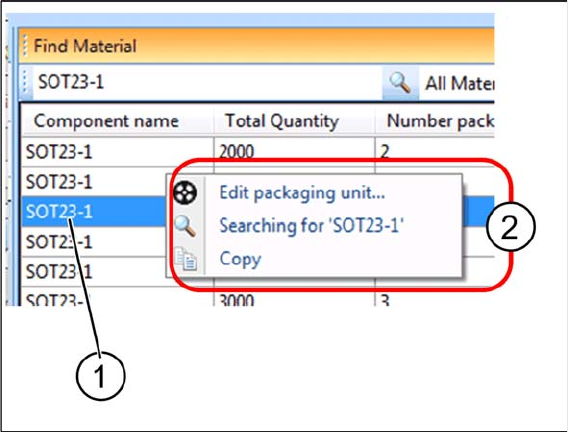
Right click with the mouse on a packaging unit (1) to open the context menu (2).
▪ Edit packaging units...
– Opens the Packaging Unit Editor for the selected packaging unit.
▪ Searching for 'xxx'
The component name of the highlighted line is displayed. The search is repeated with the component
name. This is helpful if a wildcard search was carried first and afterwards the exact component name is
selected in the result list for a new search.
▪ Copy
– Copies the highlighted part of the result list into the clipboard for inserting this part, e.g., into
Word later on.
7.3 Verification History
The verification history saves actions during the online and offline setup verification. Only those scan
runs which were successful will be recorded. You can also record material movements e.g. when a new
packaging unit is set up on a track and the previous packaging unit had a torn foil. Records of the veri-
fication history which are older than 14 days will be deleted. The verification history is shown in a dialog
box.
▪ If the verification history is started from the table view (context menu), predefined filters will be ap-
plied.
– Packaging ID
– Feeder ID
– Pickup point
▪ If the verification history is started from the Packaging Unit Editor, the following filter options are
available:
– Pickup point
– Packaging ID
Starting the verification history
► Go to the main menu and select Extras > Verification History to open the Verification History window.
⇨ Alternatively, you can open the Verification History in the Packaging Unit Editor: go to Setup In-
formation and select the Verification History button.