00197195-02-UG SetupCenter 5.1_en.pdf - 第129页
Working with the Setup Center Application Line-Specific Stock Locations Advanced Setup Report User Guide SIPLACE Setup Center 5.1 12 9 7.8.2 Line-Specif ic Stock Locations The setup report can now display the line-specif…
Working with the Setup Center Application
Advanced Setup Report Warehouse Stock Locations
128 User Guide SIPLACE Setup Center 5.1
Steps:
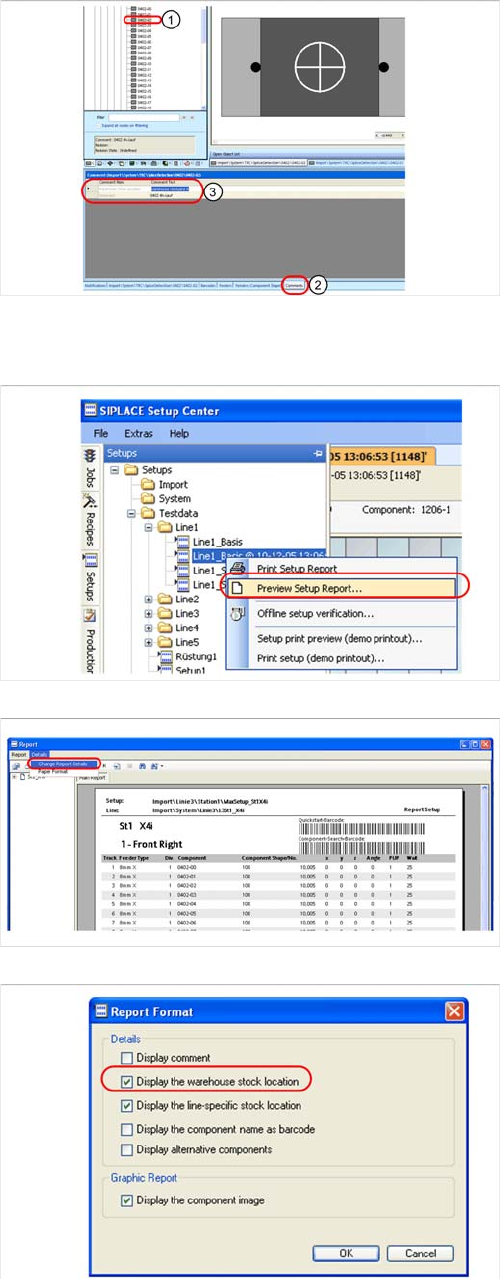
► Select the component in the Component tree view.
Enter the component stock location from the "Ware-
house Stock Location" field as a comment in the
Comment tab.
► In Setup Center select the setup to be verified as an
offline setup, from the menu window at the left edge.
Right-click with the mouse to open the context menu
for the setup and select the option "Preview setup re-
port". The "Report" dialog box will open:
► Start the "Report Format" settings window via the De-
tails Change Report Details menu. The settings win-
dow will open:
► The option "Display the warehouse stock location"
can be enabled/disabled here. Enable this option to
add the stock location information to the setup report.
Confirm this with OK.
Working with the Setup Center Application
Line-Specific Stock Locations Advanced Setup Report
User Guide SIPLACE Setup Center 5.1 129
7.8.2 Line-Specific Stock Locations
The setup report can now display the line-specific stock location for each individual component. This in-
formation helps you to locate components in the warehouse more easily and quickly.
A setup report with information about the line-specific stock location (decentral stock) can only be loaded
from Setup Center.
Prerequisite:
1. The line-specific stock location information needs to be read in via an input file.
► To edit the settings, create an input file with the following XML format:
<?xml version="1.0" encoding="utf-8" ?>
<LineStockLocations fileVersion="1.0.1.1">
<LineStockLocation line="Setup Center\Line X4">
<ComponentStockLocations>
<ComponentStockLocation component="Setup Center\1206"
stocklocation="R12 F06" />
</ComponentStockLocations>
</LineStockLocation>
<LineStockLocation line="Setup Center\Sample" comment="Test Line">
<ComponentStockLocations>
<ComponentStockLocation component="Setup Center\0402"
stocklocation="R01 F02, R01 F03" />
</ComponentStockLocations>
</LineStockLocation>
</LineStockLocations>
► The settings can be changed by editing the field after '= ':
► Save the input file on your computer.
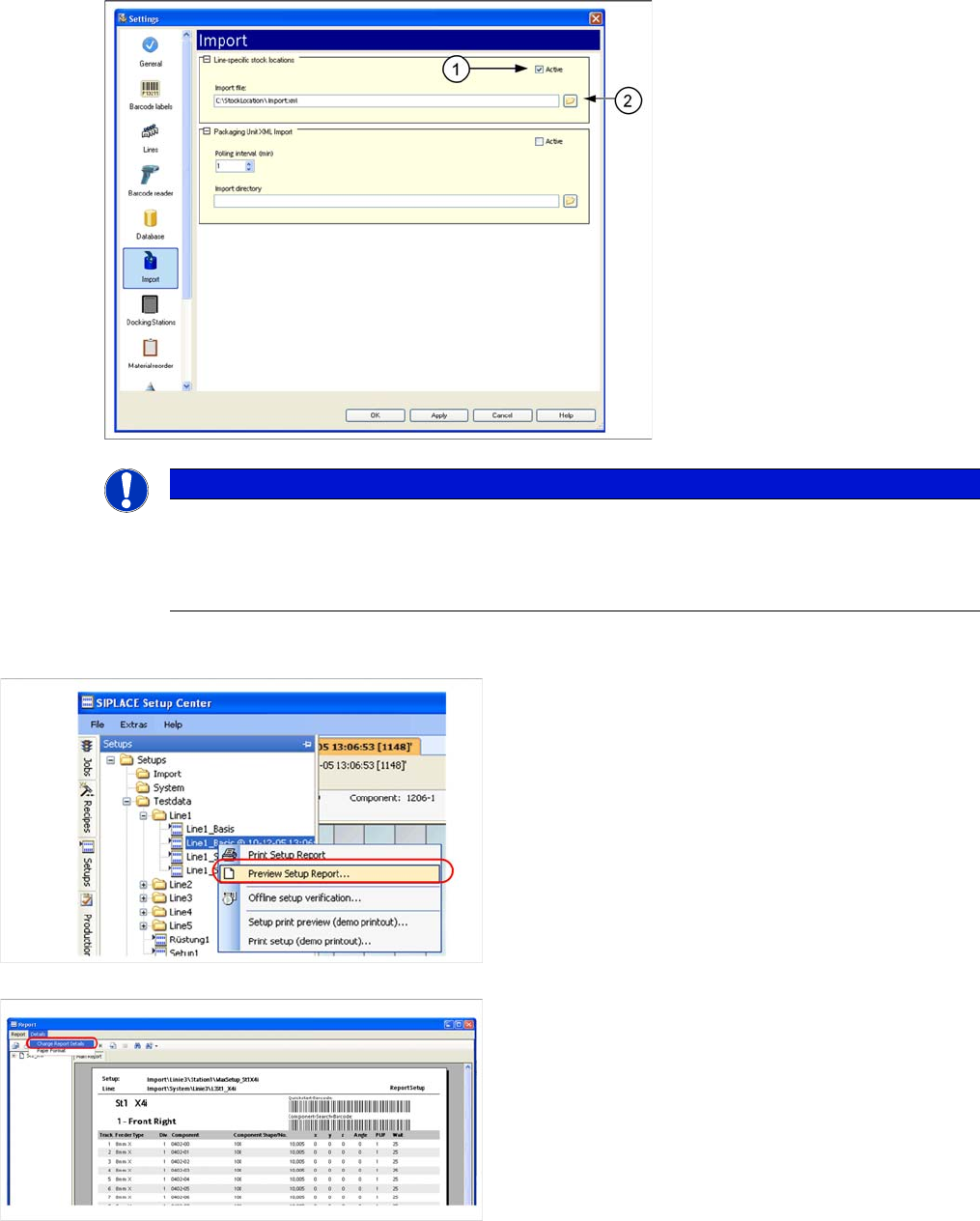
► Enable the option line-specific stock locations via Extras -> Settings -> Import - > Line specific stock
location.
► Specify the relative path of the input file to the SIPLACE Setup Center folder.
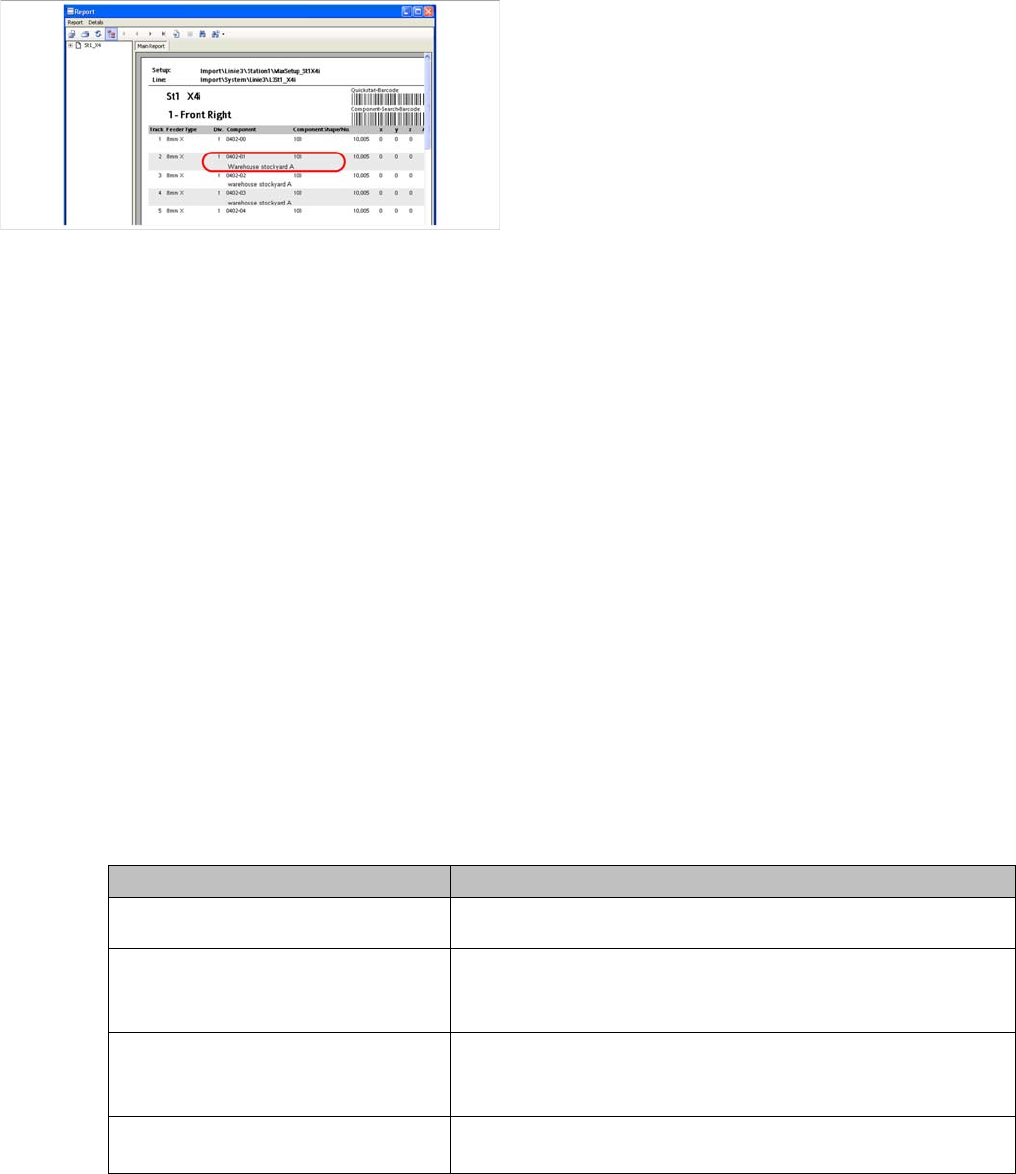
► In the setup report, you will see that an additional line
has been added showing the stock location informa-
tion for the component concerned.
Attribute Meaning
LineStockLocations fileVer-
sion
The input file version. The value must be the version "1.0.1.1".
LineStockLocation line
The line for which line-specific stock location information is to
be imported. The value is the full name of the line. Multiple lines
can be added here.
ComponentStockLocation com-
ponent
The component for which line-specific stock location informa-
tion is to be imported. The value is the full name of the compo-
nent.
Stocklocation
The stock location for the component. The length of the stock
location name is limited to 50 characters:
Working with the Setup Center Application
Advanced Setup Report Line-Specific Stock Locations
130 User Guide SIPLACE Setup Center 5.1
Steps:
NOTICE
Don't forget to register!
If you need more information about this interface, register yourself at http://www.siplace.com
and request the document package via the menu: Products & Solutions -> SIPLACE Software
Suite -> Interface Support.
► In Setup Center select the setup to be verified as an
offline setup, from the menu window at the left edge.
► Right-click with the mouse to open the context menu
for the setup and select the option "< Preview setup
Report". The Report" dialog box will open:
► Start the "Report Format" settings window via the De-
tails Change Report Details menu. The settings win-
dow will open: