00197195-02-UG SetupCenter 5.1_en.pdf - 第131页
Working with the Setup Center Application Further Option s Advanced Setup Report User Guide SIPLACE Setup Center 5.1 13 1 7.8.3 Further Options You can set further options for setup reports in the "Report Fo rmat&qu…
Working with the Setup Center Application
Advanced Setup Report Line-Specific Stock Locations
130 User Guide SIPLACE Setup Center 5.1
Steps:
NOTICE
Don't forget to register!
If you need more information about this interface, register yourself at http://www.siplace.com
and request the document package via the menu: Products & Solutions -> SIPLACE Software
Suite -> Interface Support.
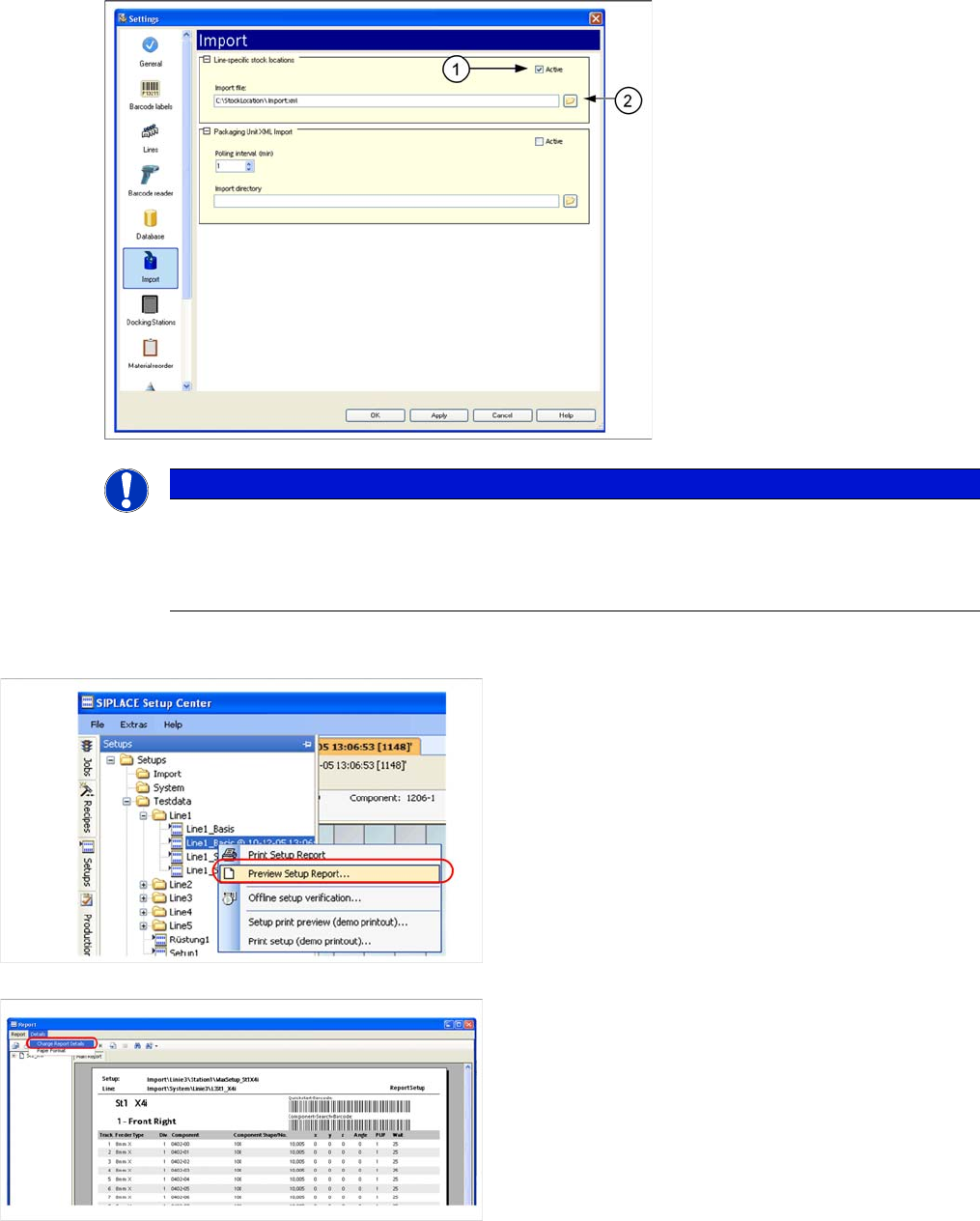
► In Setup Center select the setup to be verified as an
offline setup, from the menu window at the left edge.
► Right-click with the mouse to open the context menu
for the setup and select the option "< Preview setup
Report". The Report" dialog box will open:
► Start the "Report Format" settings window via the De-
tails Change Report Details menu. The settings win-
dow will open:
Working with the Setup Center Application
Further Options Advanced Setup Report
User Guide SIPLACE Setup Center 5.1 131
7.8.3 Further Options
You can set further options for setup reports in the "Report Format" window, by selecting Details
Change Report Details from the menu.
Display the component name as barcode
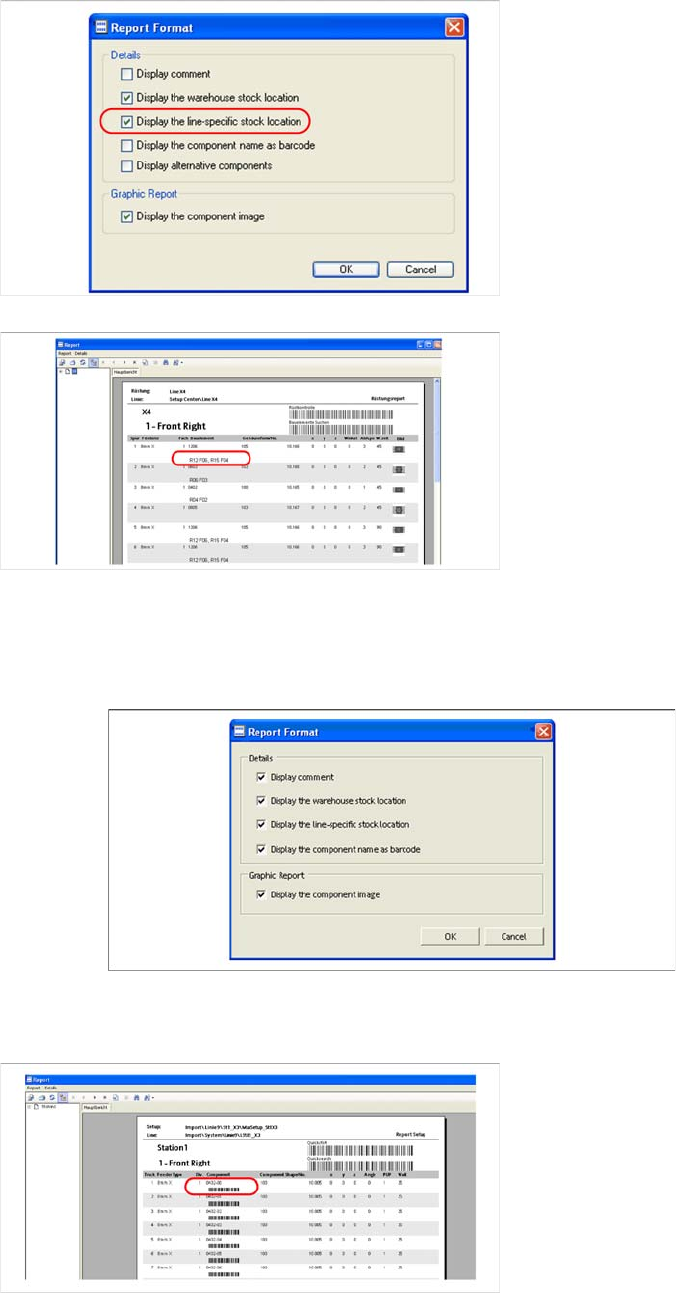
► The option "Display the line-specific stock location"
can be enabled/disabled here. Enable this option to
add the stock location information to the setup report.
► Confirm this with OK.
► In the setup report, you will see that an additional line
has been included, with the line-specific stock loca-
tion information for the component concerned.
► The option "Display the component name as bar-
code" can be enabled/disabled here. Enable this op-
tion to add the component barcodes to the setup
report. Confirm this with OK.
⇨ In the setup report, you will see that an additional line
has been included, with the component name bar-
code for the component concerned.
Working with the Setup Center Application
Setup Verification for Partial Setups Download Partial Setups
132 User Guide SIPLACE Setup Center 5.1
Display comment
Display the component image
7.9 Setup Verification for Partial Setups
The starting point is the compilation of a production schedule with the help of the SIPLACE Line Control
GUI. This production schedule enables you to combine multiple recipes with the same setup (cluster set-
up).
With SIPLACE Pro, selected recipes in a production schedule can be defined at the stations in a line,
which only require part of the joint setup for successful production.
Setup Center detects the selected recipes during downloading and automatically requests setup verifi-
cation of the required partial setup. If no recipe has been selected for downloading, setup verification will
be performed for the entire setup.
The following chapter shows how to use partial setups and explains their handling limits.
7.9.1 Download Partial Setups
SIPLACE Pro enables you to download partial setups. The download of partial setups can be enabled
at Configuration -> Download -> Partial Setup. The setups which are sent to the stations only contain
those components needed for the selected recipe. This recipe selection can be performed manually or
it automatically relates to the predefined recipe.
The following diagram shows the configuration dialog in the SIPLACE Line Control GUI :
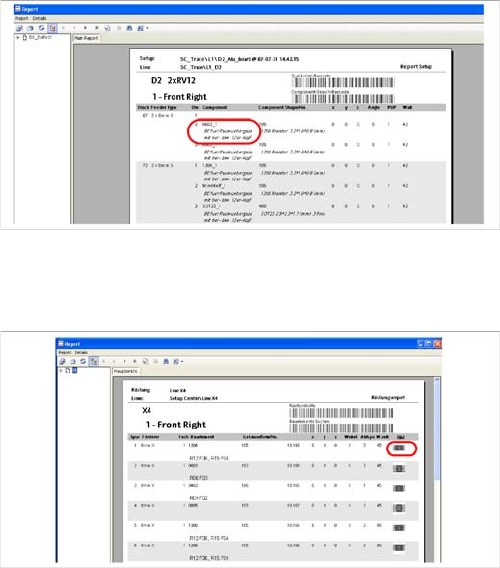
Prerequisite: Comments about the component con-
cerned must already be present in SIPLACE Pro.
► The option "Display comment" can be enabled/disa-
bled here. Enable this option to add additional com-
ments about the components to the setup report.
Confirm this with OK.
⇨ In the setup report, you will see that an additional line
has been included, with an additional comment for
the component concerned.
► The option "Display the component image" can be
enabled/disabled here. Enable this option to add the
component diagrams to the setup report. Confirm this
with OK.
⇨ In the setup report, you will see that an additional line
has been included, with a component image for the
component concerned.