00197195-02-UG SetupCenter 5.1_en.pdf - 第137页
Working with the Setup Center Application Automatic Check of the Firmware Version Firmware User Guide SIPLACE Setup Center 5.1 13 7 7.10 Firmware 7.10.1 A utomatic Check of the Firmware Version Automatic Check of the Doc…
Working with the Setup Center Application
Setup Verification for Partial Setups Synchronizing Frozen Tracks
136 User Guide SIPLACE Setup Center 5.1
Offline setup report
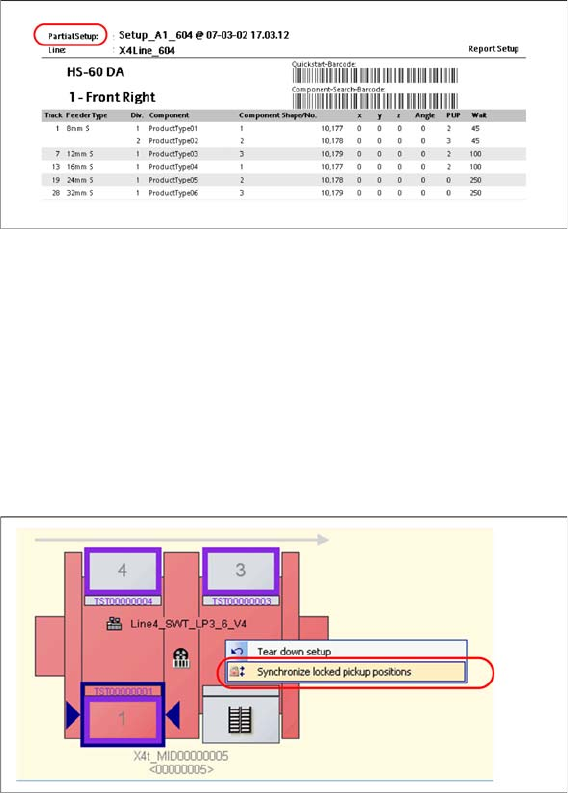
The following diagram shows an example of a setup report printout for a partial setup:
The setup report shows that a partial setup is concerned. Those tracks which are not included in the par-
tial setup will not be shown on the printed report.
7.9.5 Synchronizing Frozen Tracks
In rare cases, tracks may be locked by Setup Center at a station, although this locked status is no longer
available in Setup Center, preventing automatic release of the tracks.
In this case, the locks can be synchronized with the station.
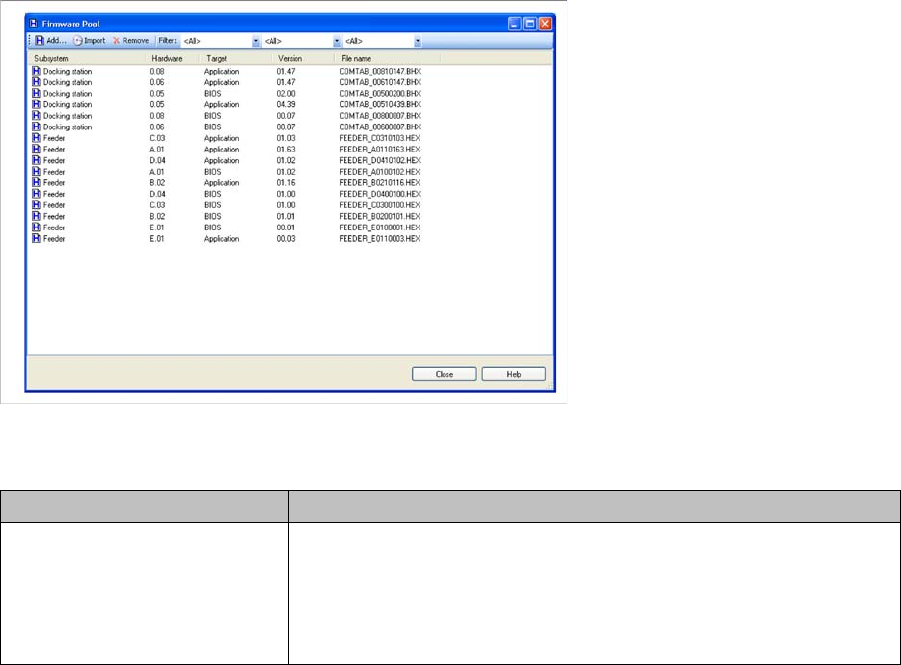
► Right-click with the mouse on the relevant station to open the context menu and select the function
Synchronize locked pickup positions.
7.9.6 Limits and Sources of Error
▪ Recipes which have been selected for a partial setup contain various different setups.
When you open a production schedule for setup verification, you will see a message informing you
that different setups are contained in the schedule.
▪ The selected production schedule already contains a setup which has been selected for online setup
verification. You will see a message, informing you that this setup is already open.
▪ Although various different recipes from a cluster setup have been selected as a partial setup on the
SIPLACE Line Control GUI, Setup Center will show the complete setup for verification.
Check at the Line Control GUI, whether you have marked other recipes from this setup as partial
setups in other production schedules. In this case, deselect these.
Working with the Setup Center Application
Automatic Check of the Firmware Version Firmware
User Guide SIPLACE Setup Center 5.1 137
7.10 Firmware
7.10.1 Automatic Check of the Firmware Version
Automatic Check of the Docking Stations
► Setup Center checks the firmware versions of the configured docking stations during start-up.
⇨ If an older firmware than currently required is detected, Setup Center issues a corresponding warn-
ing in the notifications window.
Automatic Check of X-Feeders/X-Adapters
► Setup Center checks the firmware versions of all X-feeders / X-adapters on the configured docking
stations during start-up.
⇨ If an older firmware than currently required is detected, Setup Center issues a corresponding warn-
ing in the notifications window.
7.10.2 Firmware Pool
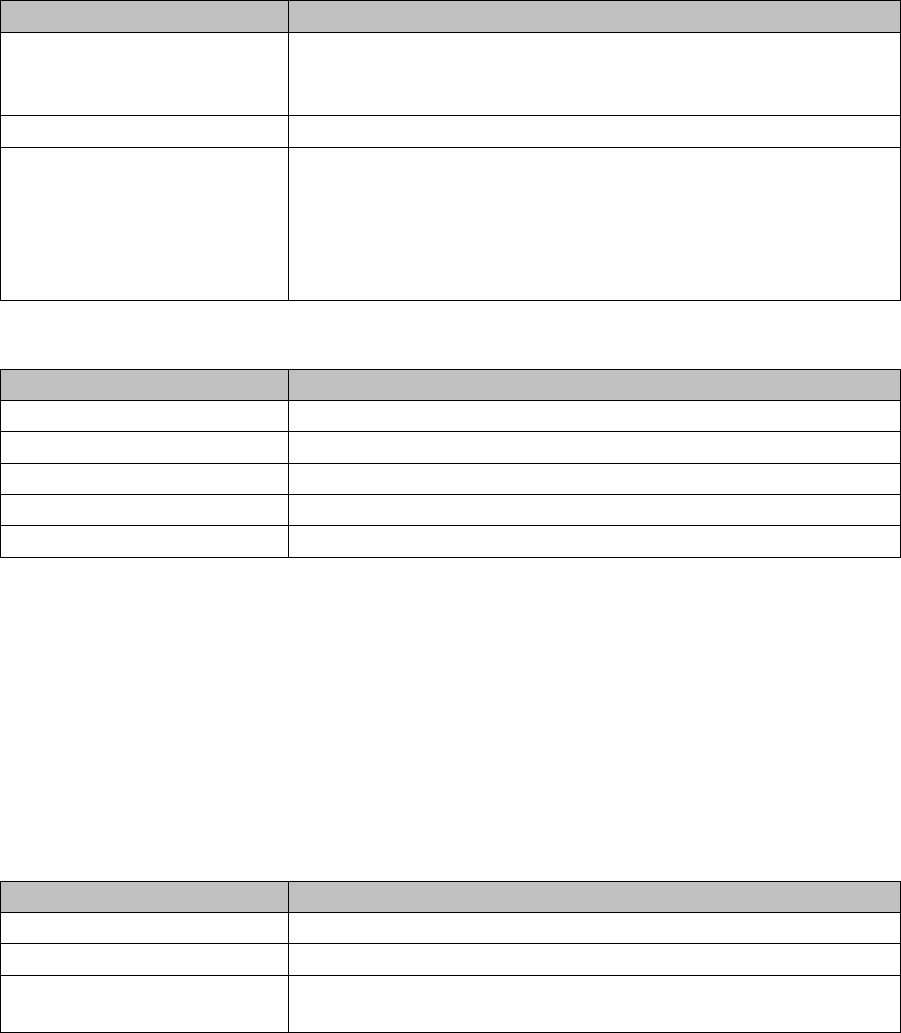
► In the main menu, open Tools > Firmware Pool… and the Firmware Pool dialog box will open.
This view shows you the present firmware versions, you can add new firmware and delete firmware that
is no longer required.
Menu bar
Parameter Description
Add... Allows selecting the firmware files (*.bhx, *.hex) on the file system of
your computer or network.
Select the required file and the firmware is added to the list of avail-
able firmware versions. These can then be installed on the relevant
sub-systems.
Working with the Setup Center Application
Firmware Firmware Download
138 User Guide SIPLACE Setup Center 5.1
Table
7.10.3 Firmware Download
► In the main menu open Extras > Firmware > Download and the context menu with the present tables
or docking stations is displayed.
► Select the required object from the context menu.
► The Firmware download dialog box is shown.
This view shows you the current firmware status for all feeders of the selected table or docking station.
You can load installed firmware versions to the X-feeders or docking stations.
Firmware Versions
Import Import the firmware files directly from the data carrier (CD/DVD) for
the station software. From station software 605.05 and 705.01 these
firmware data are supplied on the installation CD/DVD.
Remove Removes selected firmware data from the list of available firmware.
Filter You can select different filters for a clearly arranged display of the
available firmware data.
▪ Docking station or Feeder
▪ According to Hardware version
▪ BIOS or Application
Parameter Description
Subsystem Shows the subsystem (Docking station or Feeder)
Hardware Shows the hardware version valid for this firmware.
Target Shows if this is a BIOS firmware or an application firmware.
Version Shows the firmware version.
File name Shows the file name of the firmware.
Parameter Description
Parameter Description
Hardware Shows the version of the hardware
BIOS Here, you can select the available BIOS versions for the download.
Application Here, you can select the available versions for the download of the
application.