00197195-02-UG SetupCenter 5.1_en.pdf - 第149页
Working with the Setup Center Application Barcode Label Types Barcode Label Wizard User Guide SIPLACE Setup Center 5.1 14 9 7.11.1.10 Set Packaging Consumed Crates barcode labels with control barcod es to set a packaging…
Working with the Setup Center Application
Barcode Label Wizard Barcode Label Types
148 User Guide SIPLACE Setup Center 5.1
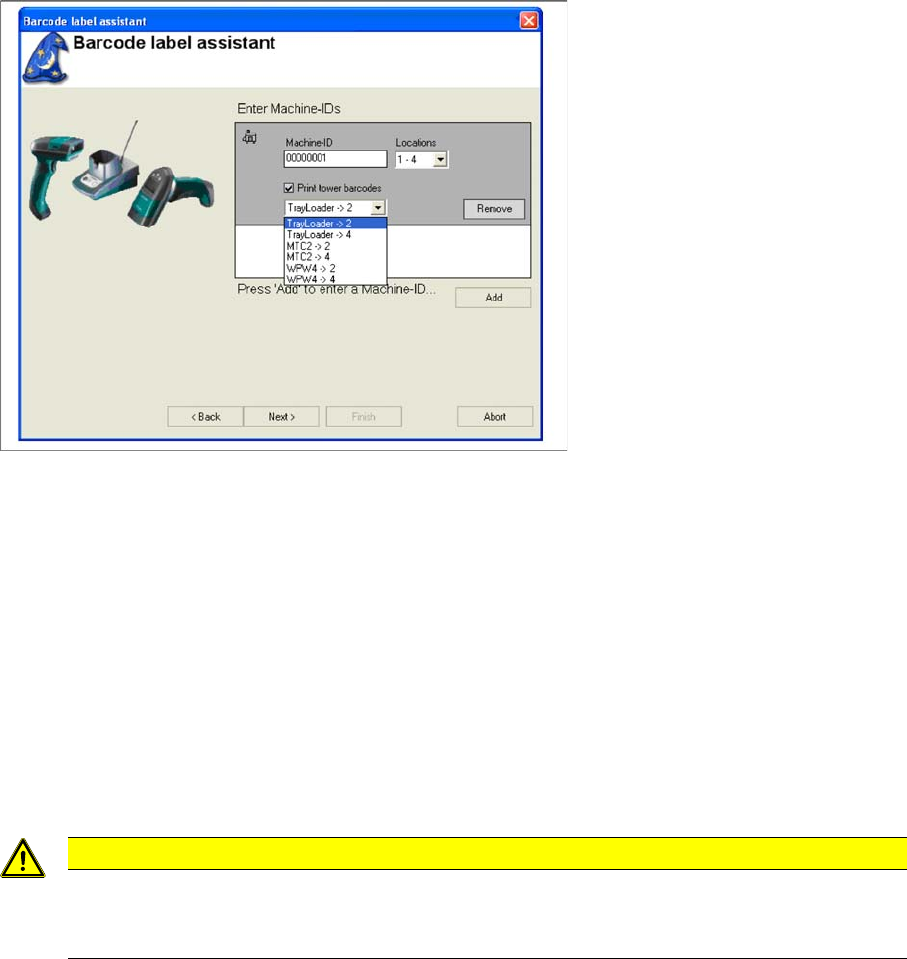
► Select Add, to add a new machine ID to the list.
► If you mark the entry, the following settings will be shown and can be edited.
▪ Machine ID
Specify the required machine ID here. The machine ID needs to be unique for systems using Setup
Center.
▪ Locations
Select the correct location number system here for the corresponding machine. You will find the lo-
cation number on the right or left of the table on every SIPLACE machine.
▪ Print tower barcodes
Select this option if the machine is equipped with a waffle pack tray feeder which has no own track
ruler with barcodes (e.g. WPC) and still needs to be integrated into the setup verification.
► Select Remove, if you do not wish to print the barcode.
► Click on Next.
7.11.1.8 UID Refill
Creates barcode labels with control barcodes for starting the refill with unique packaging unit ID.
The Print Template and Printer Selection is displayed. See "7.11.2 Print Template and Printer Selection"
[ ➙ 150].
► Click on Next.
7.11.1.9 Set Packaging Empty
Crates barcode labels with control barcodes to set a packaging unit to "empty". This is only possible with
a unique packaging unit ID.
The Print Template and Printer Selection is displayed. See "7.11.2 Print Template and Printer Selection"
[ ➙ 150].
► Click on Next.
CAUTION
Lost settings
These settings will be lost when you exit Setup Center. Setup Center does not support an in-
ventory management function.
Working with the Setup Center Application
Barcode Label Types Barcode Label Wizard
User Guide SIPLACE Setup Center 5.1 149
7.11.1.10 Set Packaging Consumed
Crates barcode labels with control barcodes to set a packaging unit to "consumed".
The Print Template and Printer Selection is displayed. See "7.11.2 Print Template and Printer Selection"
[ ➙ 150].
► Click on Next.
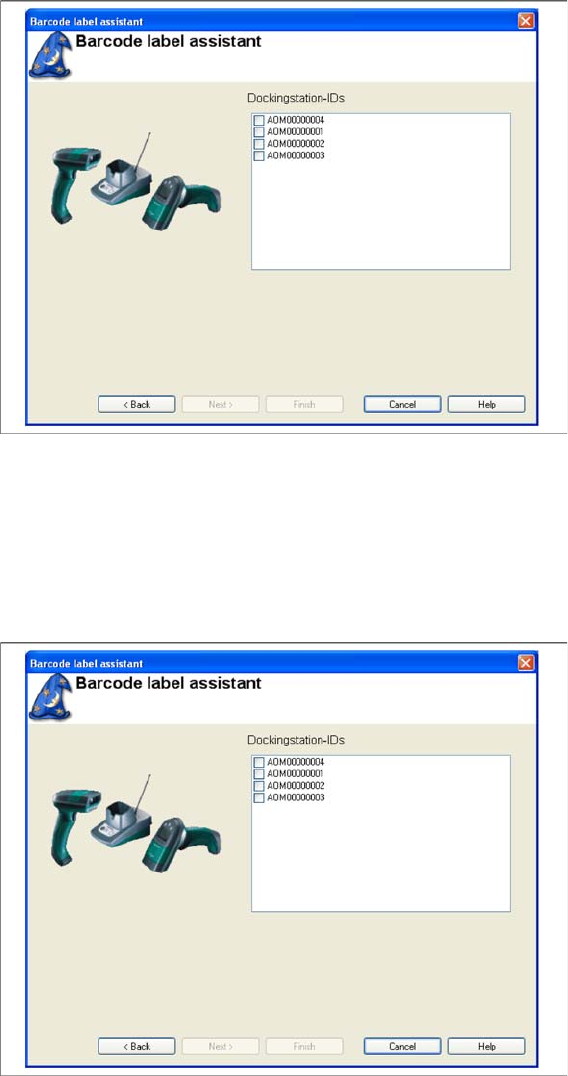
7.11.1.11 Docking Station IDs
The following dialog box appears if barcode labels are needed to unambiguously identify docking sta-
tions.
► Select the required docking stations from the present Docking station IDs.
► Click on Next.
7.11.1.12 Offline Feeder Kitting
The following dialog appears if barcode labels of control barcodes are required for starting the offline
component feeder kitting.
Working with the Setup Center Application
Barcode Label Wizard Print Template and Printer Selection
150 User Guide SIPLACE Setup Center 5.1
► Select the required docking stations from the present Docking station IDs on which component feed-
er kitting is to be performed.
► Click on Next.
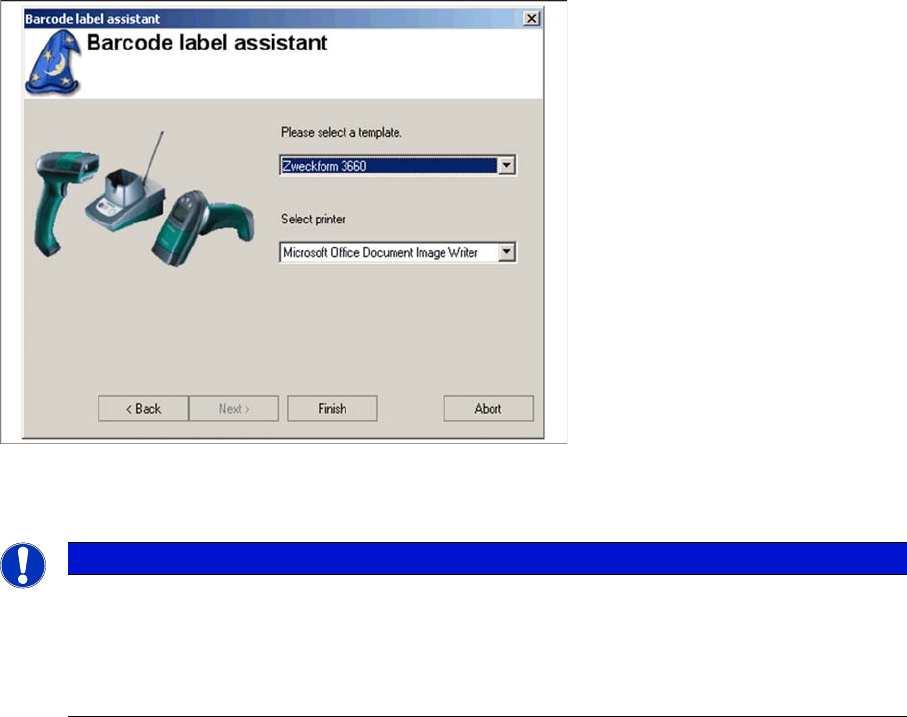
7.11.2 Print Template and Printer Selection
Once all selected dialogs have been completed, the following dialog box will be shown for selection of
the print template and printer.
► Select the required print template.
► Select the required printer.
7.11.3 Finish
After completing the print template and printer selection dialog, click on Finish.
A window is shown with the print preview for the barcodes. Check the barcode again here, before printing
out the barcode labels.
7.11.4 Attaching the Barcode Labels
The printed barcodes need to be attached in the correct positions.
▪ "Online setup verification"
The barcode labels are attached to the corresponding location at the station. The location code can
be found after the machine ID e.g. 00000011-1, 00000011-2, 00000011-3, 000000-4.
The barcode label should be easily accessible for the barcode scanner.
▪ Tower barcodes
See Online Setup Verification.
The tower barcodes for the WPC and the MTC1 must also be attached to the correct side of the waf-
fle pack tray feeder. The printout should show the tower levels as seen when the tray feeder is in the
station and viewed from the front.
NOTICE
Settings are saved
The settings for these barcode label templates are stored in the file "BarcodelabelsPrintout-
Styles.xml" in the installation directory (as a default, this is: C:\Programs\SIPLACE\SIPLACE
Setup Center). If your settings result in illegible printouts, change the settings here and save a
copy of the file.