00197195-02-UG SetupCenter 5.1_en.pdf - 第151页
Working with the Setup Center Application Attaching the Barcode Labels Entering the Barcode Manually User Guide SIPLACE Setup Center 5.1 15 1 ▪ User Barcodes It is recommended that the SIPLACE Setup Center users always h…
Working with the Setup Center Application
Barcode Label Wizard Print Template and Printer Selection
150 User Guide SIPLACE Setup Center 5.1
► Select the required docking stations from the present Docking station IDs on which component feed-
er kitting is to be performed.
► Click on Next.
7.11.2 Print Template and Printer Selection
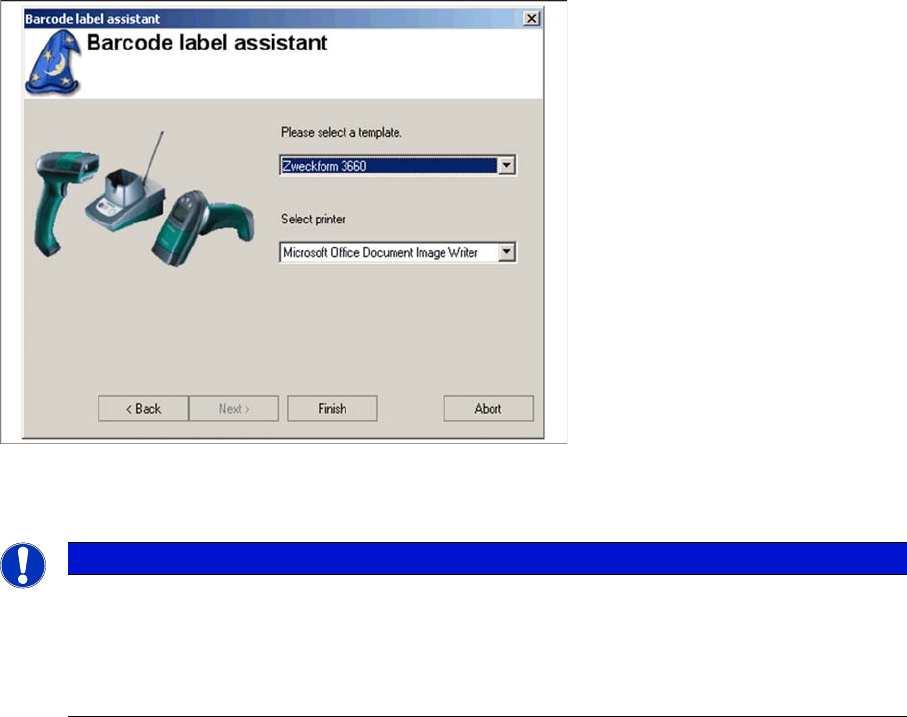
Once all selected dialogs have been completed, the following dialog box will be shown for selection of
the print template and printer.
► Select the required print template.
► Select the required printer.
7.11.3 Finish
After completing the print template and printer selection dialog, click on Finish.
A window is shown with the print preview for the barcodes. Check the barcode again here, before printing
out the barcode labels.
7.11.4 Attaching the Barcode Labels
The printed barcodes need to be attached in the correct positions.
▪ "Online setup verification"
The barcode labels are attached to the corresponding location at the station. The location code can
be found after the machine ID e.g. 00000011-1, 00000011-2, 00000011-3, 000000-4.
The barcode label should be easily accessible for the barcode scanner.
▪ Tower barcodes
See Online Setup Verification.
The tower barcodes for the WPC and the MTC1 must also be attached to the correct side of the waf-
fle pack tray feeder. The printout should show the tower levels as seen when the tray feeder is in the
station and viewed from the front.
NOTICE
Settings are saved
The settings for these barcode label templates are stored in the file "BarcodelabelsPrintout-
Styles.xml" in the installation directory (as a default, this is: C:\Programs\SIPLACE\SIPLACE
Setup Center). If your settings result in illegible printouts, change the settings here and save a
copy of the file.
Working with the Setup Center Application
Attaching the Barcode Labels Entering the Barcode Manually
User Guide SIPLACE Setup Center 5.1 151
▪ User Barcodes
It is recommended that the SIPLACE Setup Center users always have their user barcodes with them
(for login at the scanner, repeat login after automatic logout by SIPLACE Setup Center, …).
For example, the barcodes could be attached to the back of the company ID card.
▪ Changeover table barcodes
The barcode labels are attached to an easily accessible part of the relevant changeover tables.
▪ Machine IDs
See online setup verification.
▪ Shift Change Verification
See online setup verification.
7.12 Entering the Barcode Manually
Packaging unit barcodes can also be entered manually in Setup Center. This is especially helpful, if one
of the packaging unit barcodes can not be read with the scanner, due to bad quality of the printout or two
barcodes being stuck together.
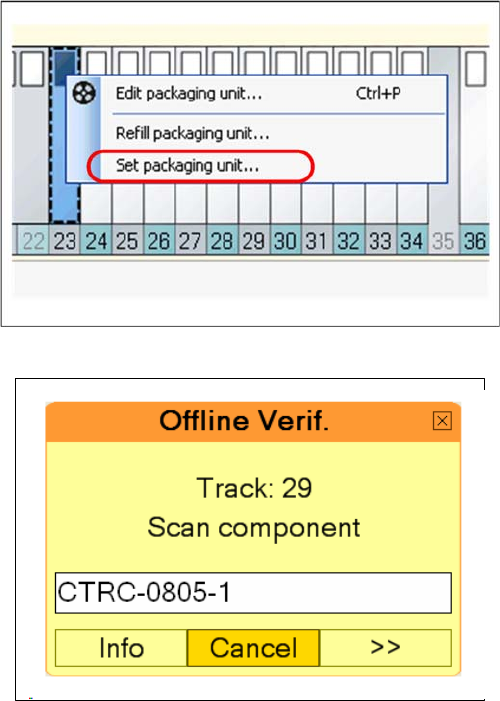
Starting manual entry
Click the right mouse button on a track. The Set packag-
ing unit menu is displayed. Either press Enter or click the
left mouse button to open the barcode editor.
The window is similar to the RF scanner display.
You always have to enter the complete barcode.
Click on Enter to confirm each entry.
Working with the Setup Center Application
Setting the Machine ID Prerequisites
152 User Guide SIPLACE Setup Center 5.1
7.13 Setting the Machine ID
When using SIPLACE machines with software versions which do not yet support the machine ID con-
cept, you need to set (assign) the machine ID in Setup Center. This currently affects all machine software
versions except versions 60x and 70x as well as 407.05 and 505.05 with SC station interface.
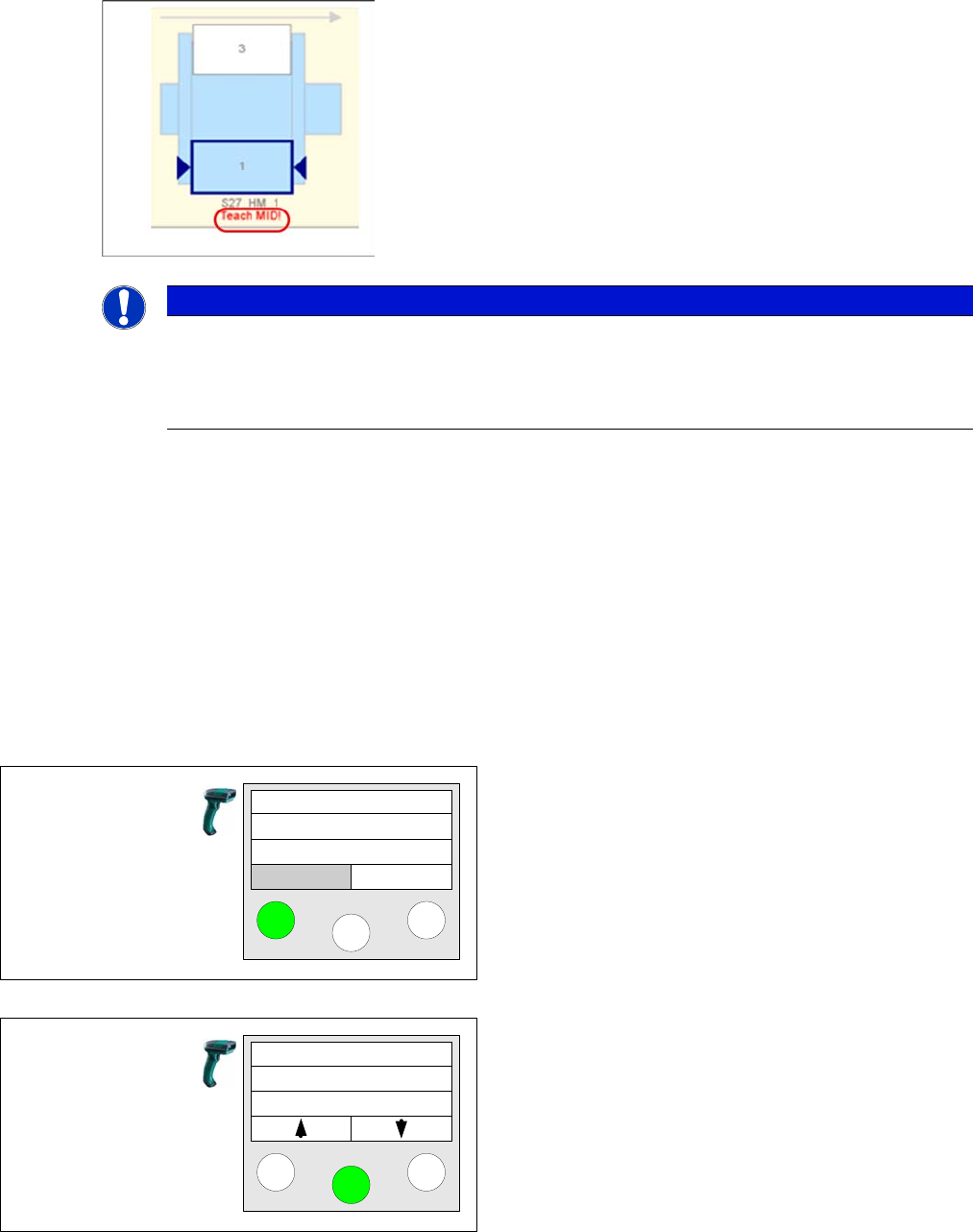
Setup Center shows that the machine ID has not yet been set.
7.13.1 Prerequisites
Printing the machine ID barcodes
You can either print the separate barcodes for "Table verification" and "Refill" or the Machine ID barcode
in X series style. All barcodes contain the actual machine ID.
See also "7.11 Barcode Label Wizard" [ ➙ 140].
7.13.2 Using the Reader
Using the Reader:
NOTICE
Teach MID Function
► The menu item "Teach MID" only appears on the barcode scanner with lines that contain a
machine of the S, F, HS or HF series. The function can be repeated, if a wrong machine ID
was assigned.
Step 1
Click the left mouse button to open the reader menu.
Step 2
Use the arrow keys to switch to the Teach MID function.
Click on Enter to confirm.
Setup Center
Menu
Teach MID