00197195-02-UG SetupCenter 5.1_en.pdf - 第166页
Setup Verification in Practical Cases Activating a Track Using the Reader (Steps with Machine ID) 166 User Guide SIPLACE Setup Center 5.1 8.7.1 Using the Reader ( Steps with Machine ID) Step 1 (optional) Scan in the the …
Setup Verification in Practical Cases
Offline Setup Verification with Waffle Pack Tray Feeders Possible Errors During Setup Verification
User Guide SIPLACE Setup Center 5.1 165
8.5.4 Offline Setup Verification with Waffle Pack Tray Feeders
There is an option to verify locations with waffle pack tray feeders offline. The following settings are re-
quired for this.
► In the main menu open Extras > Settings; the Settings window will be opened.
► Select the category General and the Settings will be opened.
► Go to Offline setup verification settings and enable the option Verify tray changers.
The scanning procedure will then be the same as that used for S tables.
8.6 Possible Errors During Setup Verification
A loud error signal (warning) will draw your attention to errors which occur from incorrect station setups
or unintentional scanning of the wrong barcode. All errors need to be acknowledged by pressing one of
the barcode reader buttons.
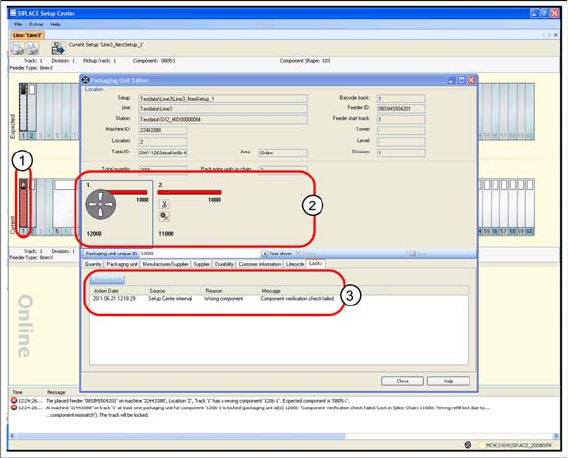
The errors are color-coded in the application and marked with the relevant icon (1). The same occurs in
the Packaging Unit Editor (2). The Locks (3) tab will show more detailed information. The track at which
the error occurred will be marked in red. The stations at which the error occurred will also be marked red
in the line view.
Example: incorrect component refilled
8.7 Activating a Track
You can activate a deactivated track with the help of the reader.
This is necessary if a pickup error occurs at one of a station's tracks. Pickup errors can have a range of
causes e.g. faulty nozzles, components, incorrect station settings, maintenance work not performed etc.
If a station does stop, check the packaging unit on the track indicated at the station and correct if nec-
essary. You then need to reactivate the station. Follow the next steps.
Setup Verification in Practical Cases
Activating a Track Using the Reader (Steps with Machine ID)
166 User Guide SIPLACE Setup Center 5.1
8.7.1 Using the Reader (Steps with Machine ID)
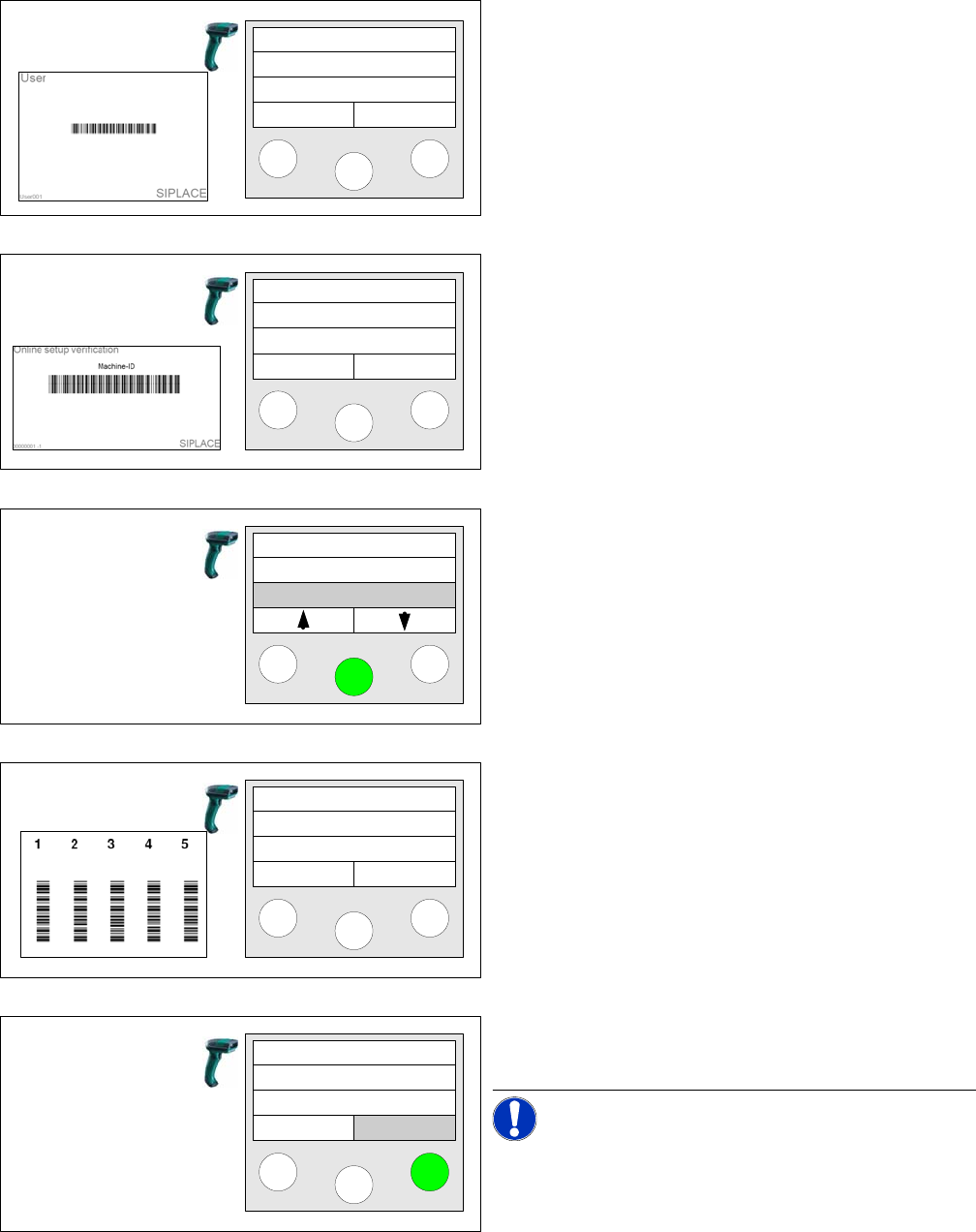
Step 1 (optional)
Scan in the the User if the User registration at the reader
required option has been activated via
Extras Settings
Reader
.
Step 2
Scan in the Machine ID barcode of the location to be ver-
ified.
Step 3
Select the Refill function and click on Enter to confirm.
There is no separate function for Activate. You can also
start the function by scanning the barcode Refill.
Step 4
Scan the Track barcode.
Step 5
Press the right Active key.
NOTICE!
The "Active" button will not appear if the option "Activate
pickup position with verification" is enabled.
Setup Center
Menu
Setup Center
Menu
Tablecheck
Missing tracks
Refill
Scan track
Track: 55
Scan component
Info activ
Setup Verification in Practical Cases
Activation at the Station GUI Activating a Track
User Guide SIPLACE Setup Center 5.1 167
Alternative
Instead of using the machine ID barcode, you can also directly attach the "Refill" control barcode. After
the barcode has been scanned in, Step 4 will begin.
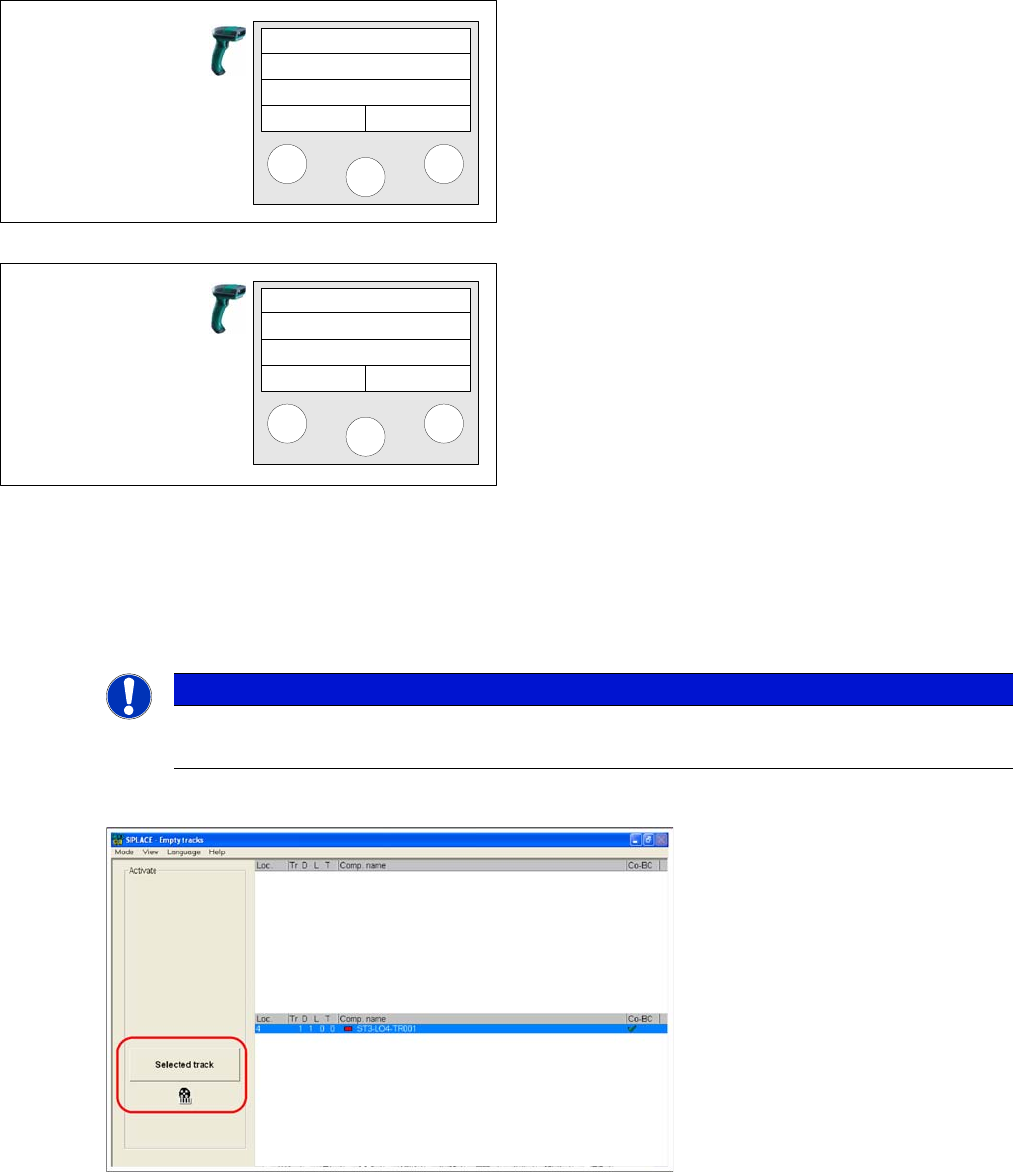
8.7.2 Activation at the Station GUI
In station software 60x or lower
► A deactivated track can be reactivated with the Selected track button. The track will then be deleted
from the list of empty tracks. The button will be disabled.
► For details, refer to the Online Help for the station computer GUI.
Step 6 (optional)
If in Extras → Settings → General the Activate pickup po-
sition with verification:For components on S-tables or For
components on X-tables has been activated the compo-
nent barcode containing the barcode fragment "Compo-
nent" has to be scanned as a confirmation. Alternatively,
you can scan in the unique barcode.
Step 7
After you have pressed this key, the main menu appears
on the scanner.
If additional packaging units must be activated, the entire
procedure must be repeated.
Activ. Track 55
Scan p. unit
Info
Setup Center
Menu
NOTICE
Function not possible
This function is not available if the option "Activate pickup position with verification" is disabled.