00197195-02-UG SetupCenter 5.1_en.pdf - 第168页
Setup Verification in Practical Cases Refilling a Track for Online Setup Verification Prerequisites 168 User Guide SIPLACE Setup Center 5.1 In station software 70x or higher ► A deacti vated track can be reactivat ed wit…
Setup Verification in Practical Cases
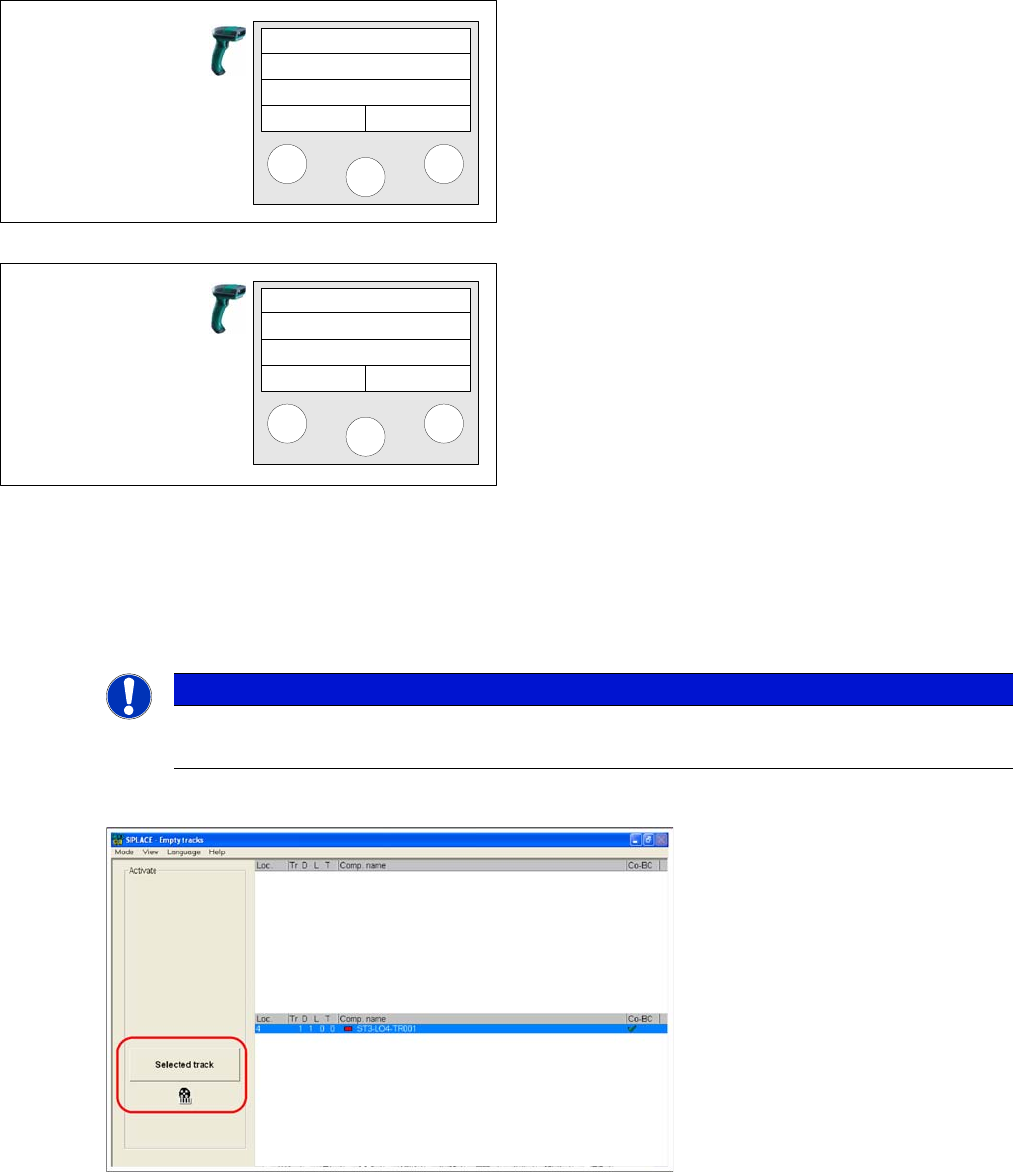
Activation at the Station GUI Activating a Track
User Guide SIPLACE Setup Center 5.1 167
Alternative
Instead of using the machine ID barcode, you can also directly attach the "Refill" control barcode. After
the barcode has been scanned in, Step 4 will begin.
8.7.2 Activation at the Station GUI
In station software 60x or lower
► A deactivated track can be reactivated with the Selected track button. The track will then be deleted
from the list of empty tracks. The button will be disabled.
► For details, refer to the Online Help for the station computer GUI.
Step 6 (optional)
If in Extras → Settings → General the Activate pickup po-
sition with verification:For components on S-tables or For
components on X-tables has been activated the compo-
nent barcode containing the barcode fragment "Compo-
nent" has to be scanned as a confirmation. Alternatively,
you can scan in the unique barcode.
Step 7
After you have pressed this key, the main menu appears
on the scanner.
If additional packaging units must be activated, the entire
procedure must be repeated.
Activ. Track 55
Scan p. unit
Info
Setup Center
Menu
NOTICE
Function not possible
This function is not available if the option "Activate pickup position with verification" is disabled.
Setup Verification in Practical Cases
Refilling a Track for Online Setup Verification Prerequisites
168 User Guide SIPLACE Setup Center 5.1
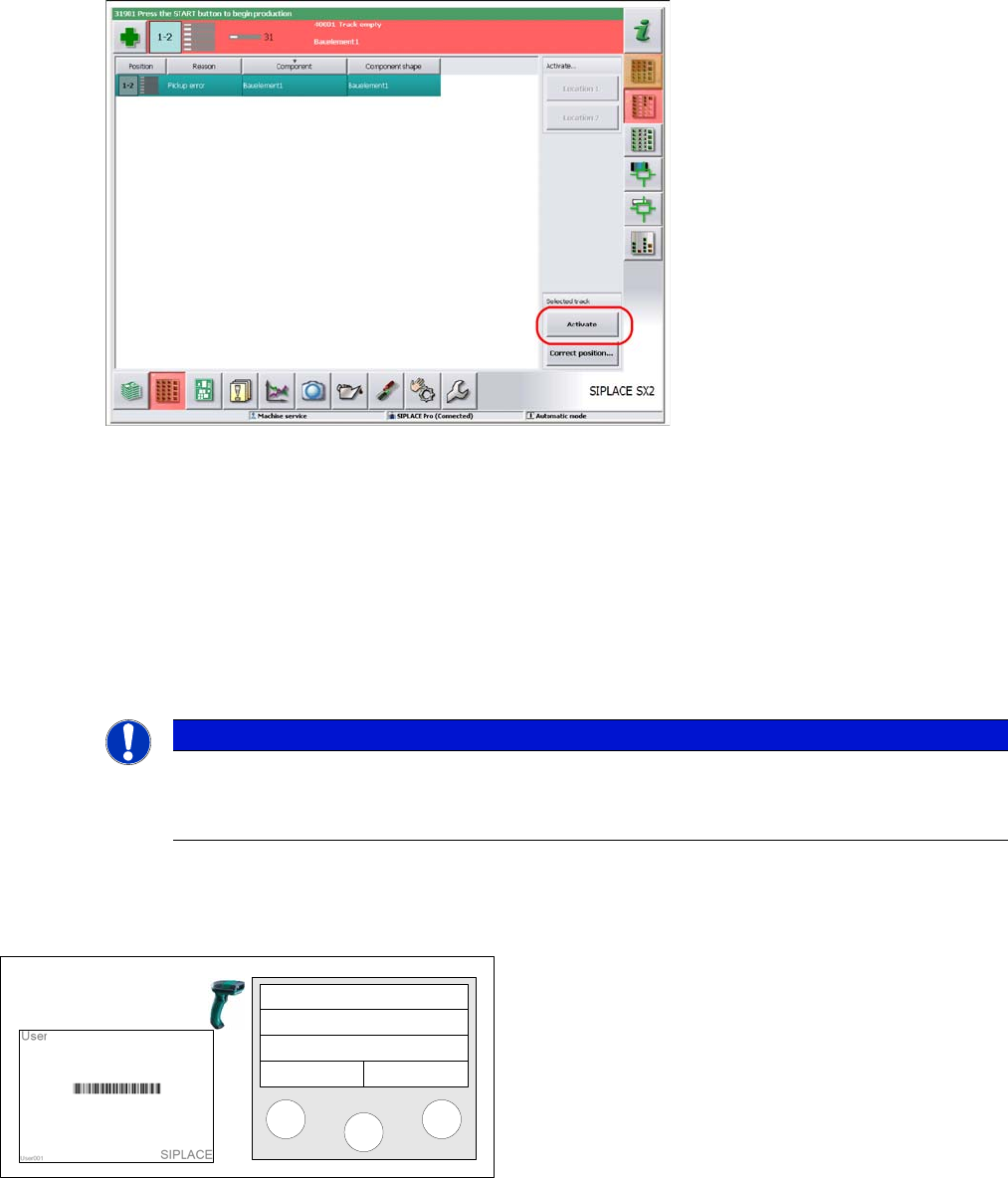
In station software 70x or higher
► A deactivated track can be reactivated with the Activate button. The track will then be deleted from
the list of empty tracks. The button will be disabled.
► For details, refer to the Online Help for the station computer GUI.
8.8 Refilling a Track for Online Setup Verification
8.8.1 Prerequisites
The user works in online mode. You can refill any track in online mode.
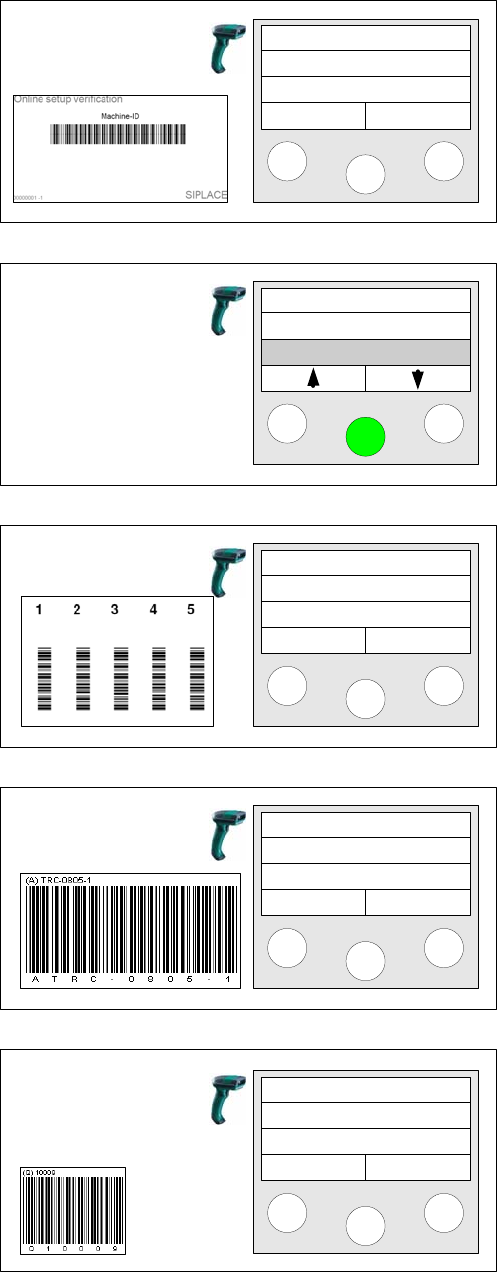
8.8.2 Using the Reader (Steps with Machine ID)
The following section describes the step-by-step procedure with machine ID.
NOTICE
Up to 30 Packaging Units Allowed per Track.
If the set, maximum permissible packaging unit quantity is exceeded, the packaging unit last
scanned in will be frozen and the pickup location will be disabled at the machine.
Step 1 (optional)
Scan in the the User if the User registration at the reader
required option has been activated via
Extras Settings
Reader
.
Setup Center
Menu
Setup Verification in Practical Cases
Using the Reader (Steps with Machine ID) Refilling a Track for Online Setup Verification
User Guide SIPLACE Setup Center 5.1 169
Step 2
Scan in the Machine ID barcode of the location to be ver-
ified.
Step 3
Select the Refill function and click on Enter to confirm.
Step 4
Scan the Track barcode.
Step 5a
Depending on the configuration of the barcode rule, the
component barcode or the unique barcode will be
scanned.
Step 5b (optional)
If additional barcodes have been defined for the packag-
ing unit, they must be scanned consecutively.
Setup Center
Menu
Tablecheck
Missing tracks
Refill
Scan track
Track: 55
Scan component
Info >>
Next barcode
Info >>