00197195-02-UG SetupCenter 5.1_en.pdf - 第179页
Setup Verification in Practical Cases Setup Verification Workin g with X-Feeders User Guide SIPLACE Setup Center 5.1 17 9 Triggering a scan request for feeders with 2 tracks (e.g. 2x8 m m X) Triggering a scan request fo …
Setup Verification in Practical Cases
Working with X-Feeders Scan Request
178 User Guide SIPLACE Setup Center 5.1
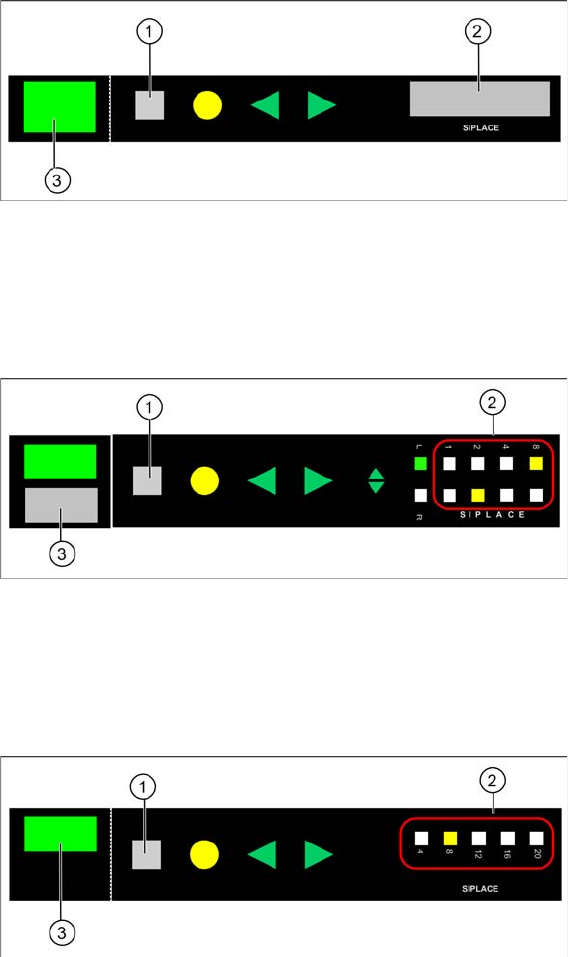
X feeder with LCD display
1. Set button
2. LCD display
3. Status Display
X feeder with LED display (2x8 mm)
1. Set button
2. Pitch display
3. Status Display
X feeder with LED display (12/16 mm Smart Feeder)
1. Set button
2. Pitch display
3. Status Display
8.12.2.1 Triggering a Scan Request
► To trigger the scan request, press the SET button for at least 2 seconds. After this period, the mes-
sage will be sent to the SIPLACE Setup Center.
Setup Verification in Practical Cases
Setup Verification Working with X-Feeders
User Guide SIPLACE Setup Center 5.1 179
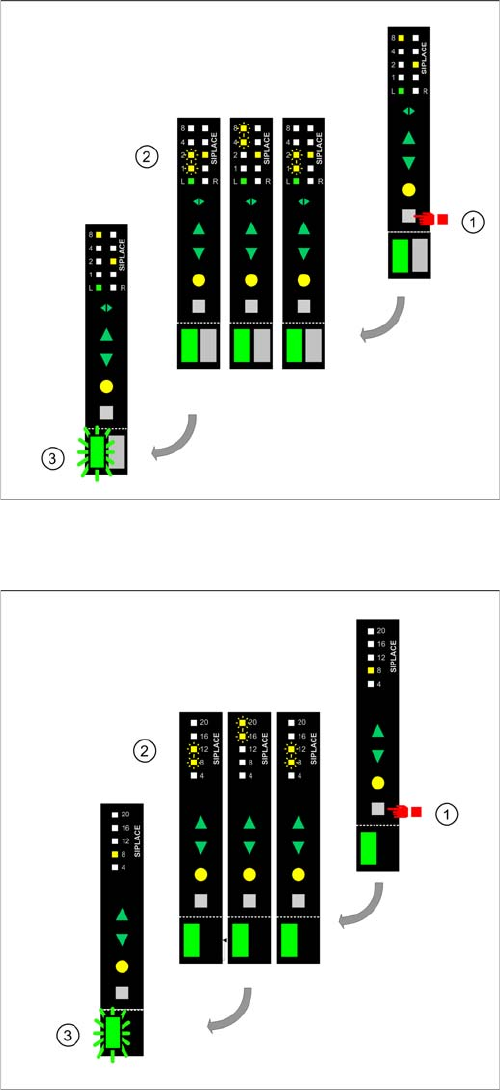
Triggering a scan request for feeders with 2 tracks (e.g. 2x8 mm X)
Triggering a scan request for the 12/16 mm Smart Feeder
8.12.3 Setup Verification
A packaging unit can only be verified if it has been threaded into an X-feeder and if this feeder is in a
pre-setup unit or a machine. In Setup Center, the packaging unit is technically "married" to the feeder
until the packaging unit has been used up or manually torn down. This enables you to manage the setup
verification data for individual X feeders, in conjunction with the feeder ID. This also means that the setup
verification data can be used again after moving an X feeder, thereby saving the need for renewed setup
verification.
Original state (1)
▪ To trigger the scan request, press the SET button for
at least 2 seconds. After this period, the message will
be sent to the SIPLACE Setup Center.
Display change for confirmation (2)
▪ The pitch display changes to the following state for
confirmation purposes: the LEDs 1+2 and 4+8 flash
alternately (shown using the example of track 1) as
long as the SET button is held pressed.
Status display change (3)
▪ To confirm that the message has been received and
that the scan process can be performed, SIPLACE
Setup Center switches the status display over to
"green, flashing".
Original state (1)
▪ To trigger the scan request, press the SET button for
at least 2 seconds. After this period, the message will
be sent to the SIPLACE Setup Center.
Display change for confirmation (2)
▪ To confirm that the message has been sent, the pitch
display changes to alternate flashing of LEDs 8+12
and 16+20.
Status display change (3)
▪ To confirm that the message has been received and
that the scan process can be performed, SIPLACE
Setup Center switches the status display over to
"green, flashing".
Setup Verification in Practical Cases
Working with X-Feeders Setup Verification
180 User Guide SIPLACE Setup Center 5.1
Prerequisites
An X-feeder with a packaging unit is placed on a changeover table which is connected to a docking sta-
tion.
Step-by-Step Procedure (Offline Setup Verification for Track 55):
During online setup in step 3 the machine ID barcode of the location is scanned instead of the setup
verification barcode. Select the Table Check option in the reader menu.
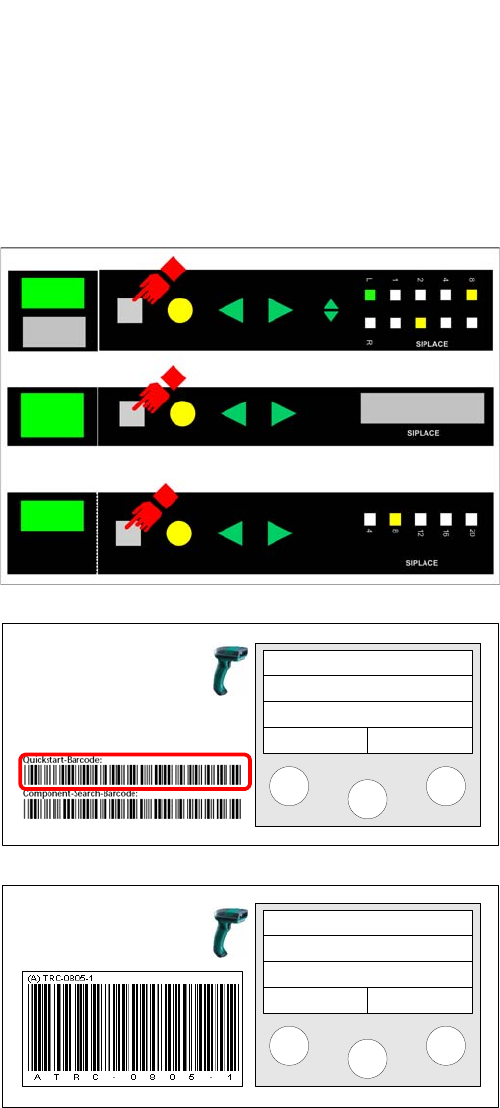
Step 1
The process assumes that the following steps must be
performed
► Scanning the quick start barcode
► Scanning the docking station barcode
► Scanning the changeover table barcode
⇨ The barcode scanner is in verification mode.
Step 2
Press the Set button on the feeder for the track to be
checked.
Step 3
Scan in the Setup Verification barcode of the location to
be verified. You find the barcode in the headline of the
setup report.
Step 4
The selected track is highlighted in Setup Center and
ready for verification. Now the steps for setup verification
already described are executed.
Setup Center
Menu
Track: 55
Scan component
Info >>