00197195-02-UG SetupCenter 5.1_en.pdf - 第186页
Setup Verification in Practical Cases Working with Machine IDs or Control Barcodes Tear Down After Foi l Tor n Error 186 User Guide SIPLACE Setup Center 5.1 Step 1 : Enable the option Tear down packaging unit after foil …
Setup Verification in Practical Cases
Tear Down After Foil Torn Error Working with X-Feeders
User Guide SIPLACE Setup Center 5.1 185
8.12.5.1 Setup Center Settings for X-Feeders and Their Effects
The following table shows what is to be carried out for the X-feeder depending on the Setup Center set-
ting.
8.12.6 Tear Down After Foil Torn Error
After a foil torn error, Setup Center can tear down a packaging unit. This prevents incorrect traceability
data from being written if an X-feeder has not been torn down properly and another packaging unit has
been put on the same X-feeder instead.
A torn foil error can occur if
▪ the foil is torn,
▪ the foil container is open,
▪ the foil has been cut through, or
▪ a tangled foil has not been transported properly.
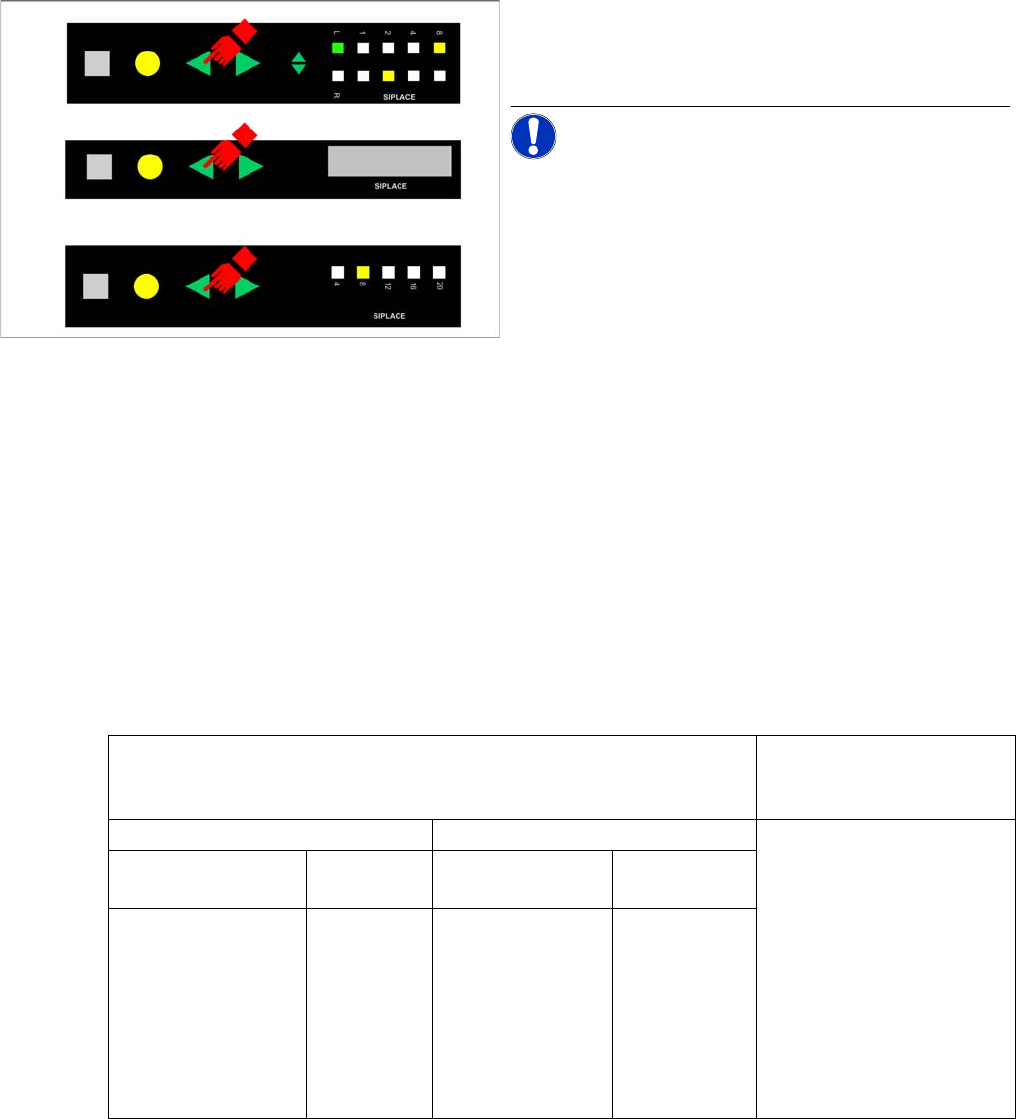
Step 2
► Press the "Back" button of the feeder for at least 2
seconds.
NOTICE! If the foil rocker is not in the upper po-
sition after 5 seconds, it is assumed the button has been
pressed accidentally.
▪ Feeder with LCD display
– The feeder display will show the state Reel re-
moved.
▪ Feeder with LCD display
– After 0.75 seconds the error state "Torn foil" is de-
leted and the track is torn down. The status dis-
play turns green if the feeder module is needed
for the current placement job and if there is no
other error.
– The pitch display LED will now switch back to its
original state.
The feeder has been torn down.
The BACKWARDS button can now be released.
Tear down packaging unit after foil torn error (X-feeder) = OFF Tear down packaging unit
after foil torn error (X-feed-
er) = ON
Activate with verification = ON Activate with verification = OFF Complete setup verification
of track necessary
If the option Tear down the
packaging unit if the verifi-
cation status of the X-feeder
is unreliable has been ena-
bled at Tools => Settings =>
Line => Domain-Wide Verifi-
cation Settings, it is also
necessary to perform a
complete setup verification.
Activate via station
computer GUI
Activate with
reader
Activate via station
computer GUI
Activate with
reader
Activation not possi-
ble
Activation
possible
(with Scan
packaging
unit)
Activation possible Activation pos-
sible
Setup Verification in Practical Cases
Working with Machine IDs or Control Barcodes Tear Down After Foil Torn Error
186 User Guide SIPLACE Setup Center 5.1
Step 1:
Enable the option Tear down packaging unit after foil torn error (X-feeder) via Extras -> Settings -> Com-
mon -> Settings for Online verification. See "3.2.1 Settings of Online Setup Verification" [ ➙ 27].
Or, the option Tear down the packaging unit if the verification status of the X-feeder is unreliable has
been enabled at Tools => Settings => Line => Domain-Wide Verification Settings. See "3.4.1 Verification
Settings for Domains" [ ➙ 33].
Step 2:
The X-feeder reports a foil torn error and the track is deactivated by the station. Setup Center sends a
teardown instruction to the station and tears the packaging unit down. The connection between packag-
ing unit and feeder is cut both at the station and in the Setup Center.
Step 3:
Verify the track again.
8.13 Working with Machine IDs or Control Barcodes
The machine ID in Setup Center gives you two different options for starting the functions setup verifica-
tion, refill, activate and shift change. You can either use the control barcodes, as in the past, or the ma-
chine ID.
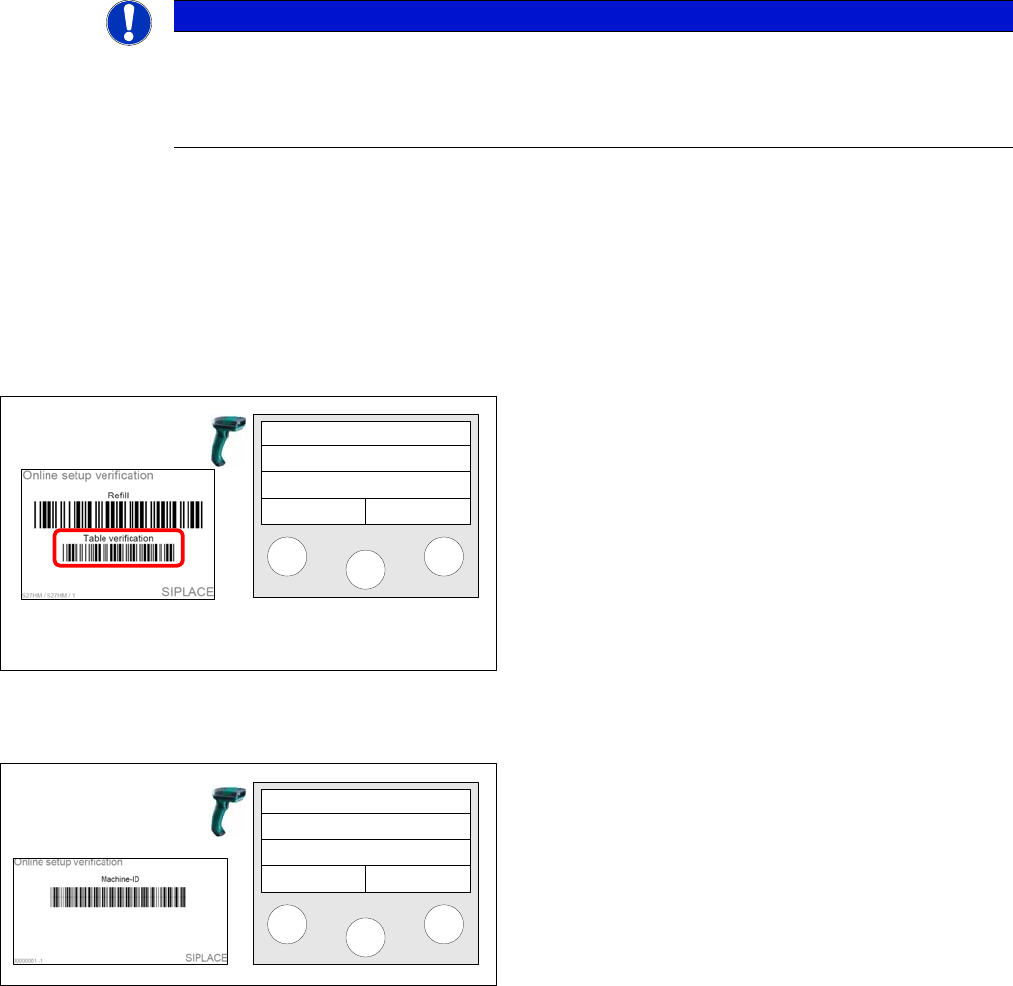
Starting the Functions with Control Barcodes
Starting the functions with machine ID
NOTICE
Packaging unit information in the database
If the setting is not active, the information about the packaging unit used on this feeder will re-
main in the Setup Center database and in the component level indicator. The track cannot be
activated again with a scanner.
Working with the control barcodes Table
verification, Refill and Shift change is possible with Setup
Center 2.0 version and higher and thus still available.
e.g.. After Table verification has been scanned in, you
can start the verification process.
Setup Center
Menu
Step 1
Scan in the Machine ID.
Setup Center
Menu
Setup Verification in Practical Cases
Tear Down After Foil Torn Error Changeover Table Management
User Guide SIPLACE Setup Center 5.1 187
8.14 Changeover Table Management
The changeover table management enables you to manage setup verification data for each changeover
table. This reduces the setup change times for placement machines significantly, as soon as a setup is
prepared in the pre-setup area
and - through simple log-in of the changeover table - is sent to the production line with the same setup.
During this procedure, the setup verification data are stored in the Setup Center database and, as soon
as the changeover table is docked into the relevant machine location, are sent to the station.
With the help of changeover table management, tables can be moved between different setups. When
the changeover table is logged on, Setup Center generates a delta setup. This is, for example, neces-
sary when a production line is out of action and the production
needs to be continued on another line, without performing re-verification. It is particularly important if the
packaging units do not have a unique ID barcode and the current packaging unit size (quantity) should
not be lost.
Prerequisite
The following preparations and requirements are essential to Setup Center operation with changeover
table management:
▪ The "Changeover Table Management“ option has been activated via
Extras Settings Common
.
▪ All changeover tables (COT) carry a unique barcode. You can generate the barcodes via the Bar-
code Label Assistant. Make sure that the barcodes are attached to the correct tables, since data
such as the manufacturer name are encoded in the barcode.
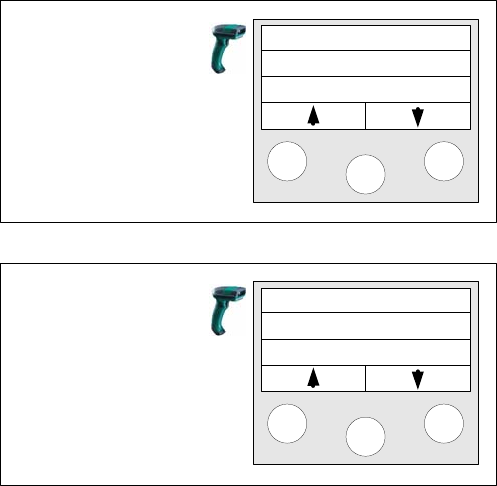
Step 2
A selection menu with the functions Table Verification,
Missing Tracks and Refill... appears.
Step 2 Continued
… Find comp. and shift change.
Select the desired action. You can now execute the func-
tion as usual.
Tablecheck
Missing tracks
Refill
Find Comp.
Shift Change
Mainmenu