00197195-02-UG SetupCenter 5.1_en.pdf - 第22页
Starting Setup Center The User Interface Display Area for Open Setups 22 User Guide SIPLACE Setup Center 5.1 Orange: This indicates that a specific task must be performed in the m achine (e.g. refill) Red: Error. Th e ma…
Starting Setup Center
Display Area for Open Setups The User Interface
User Guide SIPLACE Setup Center 5.1 21
2.2.2.6 Color Coding of Levels
2.2.2.7 Line Display
The bottom half of the user interface shows the configured line with the active setup.
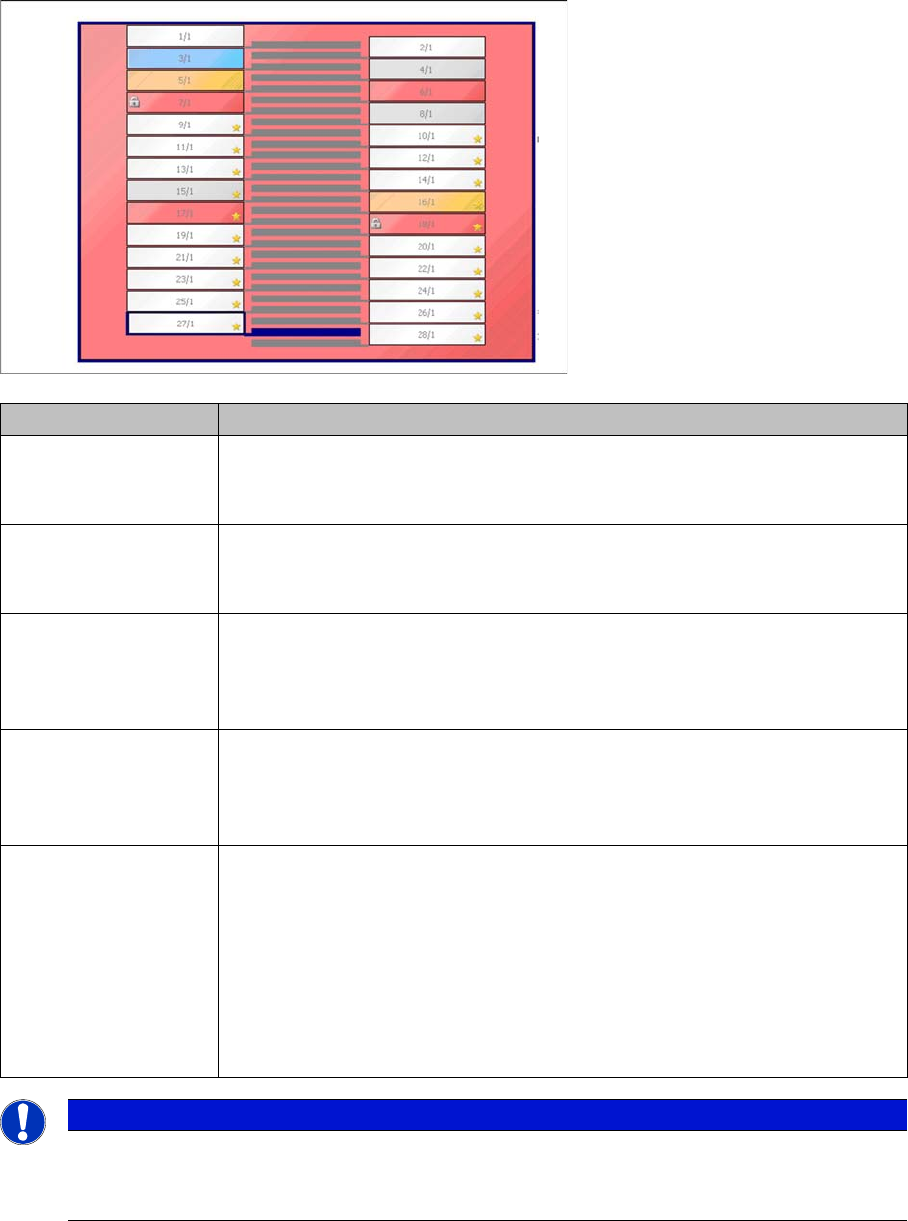
The machine state is shown by a range of different colors:
Blue: The tables and stations in use are marked blue.
White: The tables and stations which are empty or not in use are marked white.
Color Meaning
White The level is not subject to component verification. It does not matter whether
a component is configured or not in the level.
Example: level 1/1, 2/1, 9/1, 10/1, 11/1, 12/1, 13/1, 14/1, 19/1, to 28/1,
Blue The level is subject to component verification. This level has not yet been
checked successfully.
Example: level 3/1
Gray The level is subject to component verification. This level has been verified
successfully. When you have an active component level indicator with thresh-
olds, the component level will also be above the warning threshold.
Example: level 4/1 and 8/1
Orange The level is subject to component verification. This level has been verified
successfully. The component level has undershot the warning level of the
component level indicator.
Example: level 5/1
Red ▪ The level is subject to component verification. This level has been verified
successfully. The component level has undershot the stop level of the
component level indicator.
– Example: lane 6/1
▪ The level is subject to component verification. This level has not been ver-
ified successfully. The level has been frozen by Setup Center or an exter-
nal system (padlock symbol).
– Example: track 7/1
NOTICE
Levels with asterisk
Levels marked with an asterisk do not contain a component in the target setup. These levels
can be used as dynamic spare tracks.
Starting Setup Center
The User Interface Display Area for Open Setups
22 User Guide SIPLACE Setup Center 5.1
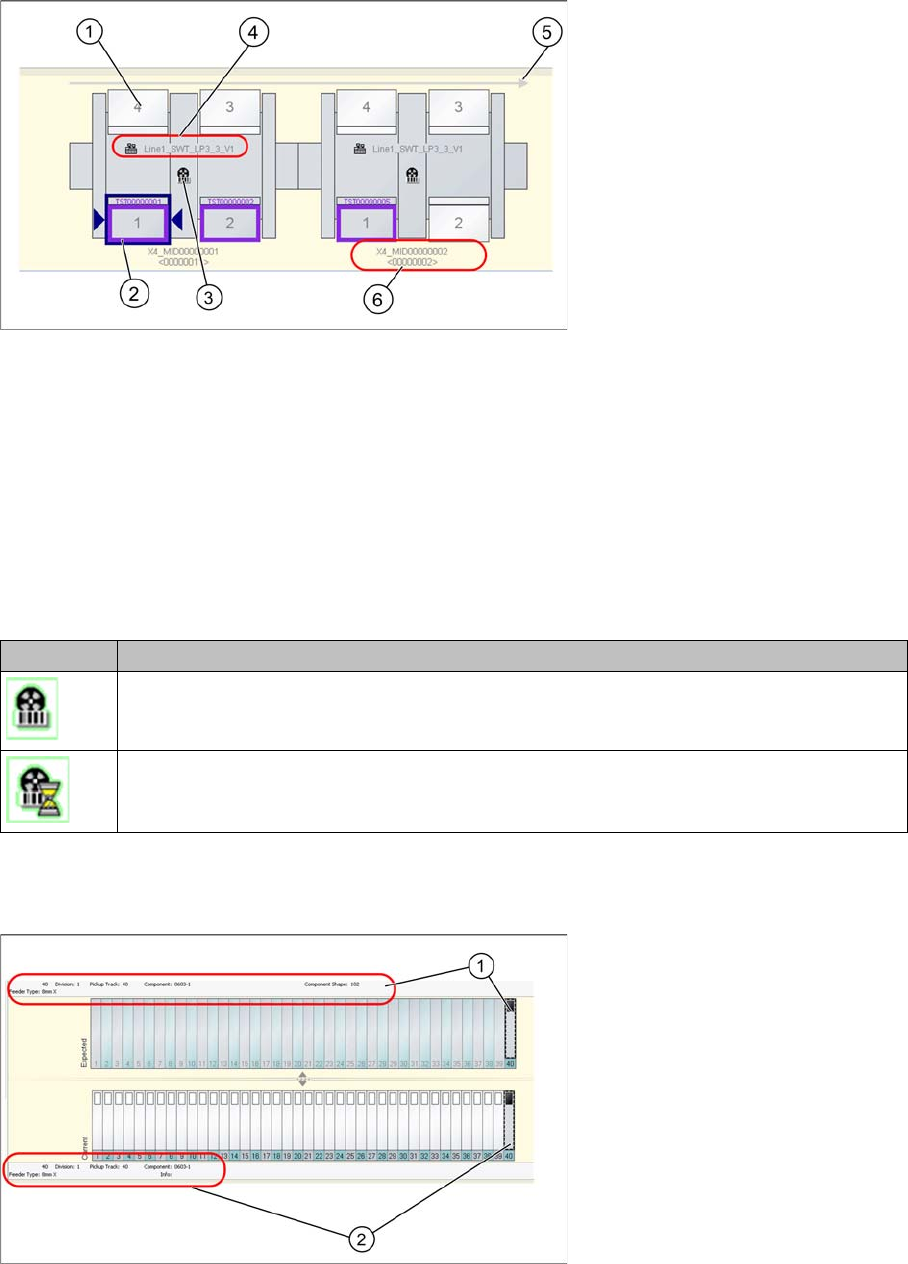
Orange: This indicates that a specific task must be performed in the machine (e.g. refill)
Red: Error. The machine is unable to produce.
Legend
1. Location with table/feeders
2. Selected location (outlined in dark blue)
3. Status display (see following table)
4. Shows setup name
5. Transport direction
6. Station name - from programming system - and machine ID
Status display (3)
2.2.2.8 Information Bar with Track/Division Details
The location view shows an information bar with details about the selected track or division.
Legend
1. Information bar - expected setup (target setup)
2. Information bar - current setup (actual setup)
Icon Meaning
Forced setup verification
Forced setup verification waits for the machine to confirm whether the setup has been
switched over.
Starting Setup Center
Notifications Box The User Interface
User Guide SIPLACE Setup Center 5.1 23
The information bars show tool tips for the selected track e.g.
▪ Component name
▪ Pickup track
▪ Barcode
▪ Fiducial
▪ Barcode
▪Mask
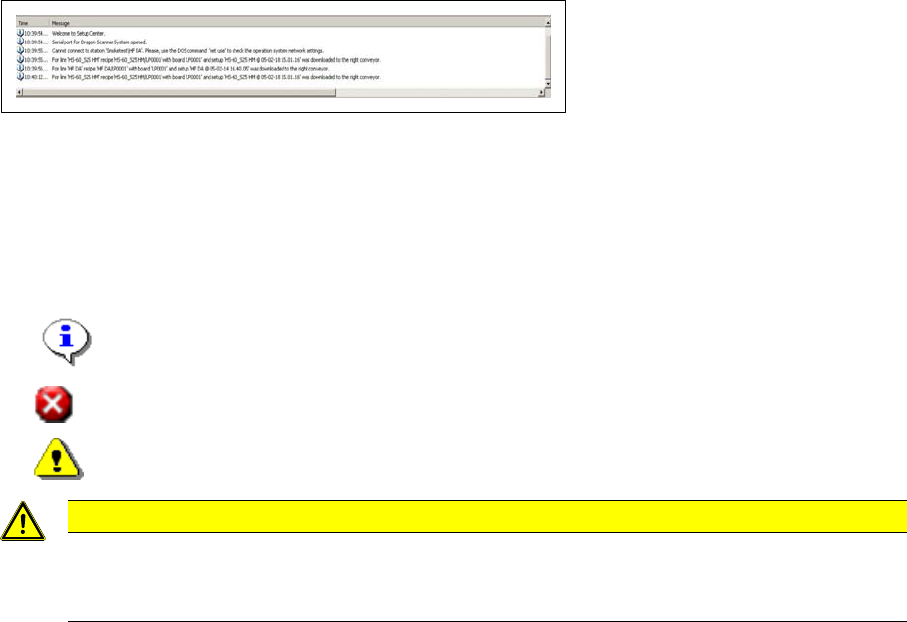
2.2.3 Notifications Box
This displays all informative notifications, warnings and error messages.
The messages shown here are also written in a log.
The procedures in SIPLACE Setup Center are internally recorded in the log. This log is important for re-
cording SIPLACE Setup Center errors and for supporting service staff in the analysis and removal of
these errors.
For further information, refer to the Software Version Description for SIPLACE Setup Center.
The entries in the notifications window of the user interface are marked with a symbol and a time stamp.
These symbols are as follows:
▪ Information
▪Error
▪ Warning
CAUTION
Error messages limited to 1000
The number of error messages is limited to 1000. Once this limit is reached, the old entries are
deleted.