00197195-02-UG SetupCenter 5.1_en.pdf - 第24页
Starting Setup Center The User Interface Notifications Box 24 User Guide SIPLACE Setup Center 5.1
Starting Setup Center
Notifications Box The User Interface
User Guide SIPLACE Setup Center 5.1 23
The information bars show tool tips for the selected track e.g.
▪ Component name
▪ Pickup track
▪ Barcode
▪ Fiducial
▪ Barcode
▪Mask
2.2.3 Notifications Box
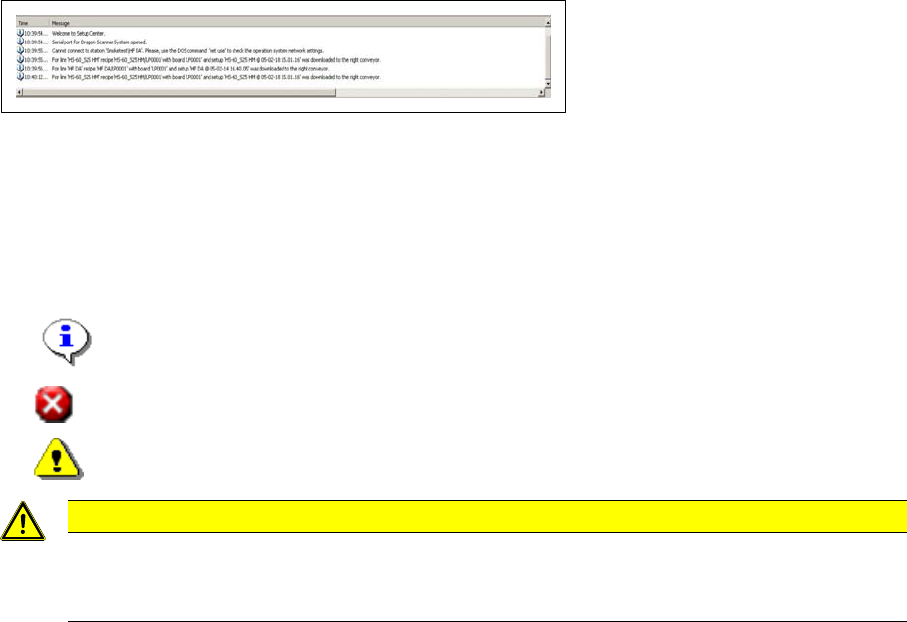
This displays all informative notifications, warnings and error messages.
The messages shown here are also written in a log.
The procedures in SIPLACE Setup Center are internally recorded in the log. This log is important for re-
cording SIPLACE Setup Center errors and for supporting service staff in the analysis and removal of
these errors.
For further information, refer to the Software Version Description for SIPLACE Setup Center.
The entries in the notifications window of the user interface are marked with a symbol and a time stamp.
These symbols are as follows:
▪ Information
▪Error
▪ Warning
CAUTION
Error messages limited to 1000
The number of error messages is limited to 1000. Once this limit is reached, the old entries are
deleted.
Starting Setup Center
The User Interface Notifications Box
24 User Guide SIPLACE Setup Center 5.1
Configuring Setup Center
How to Open the Settings
User Guide SIPLACE Setup Center 5.1 25
3 Configuring Setup Center
SIPLACE Setup Center must be configured before it can be used. The meaning of the individual settings
depends on the environment and the task at the usage site.
You can define the general settings such as Language, Security and Setup Verification for SIPLACE Set-
up Center.
3.1 How to Open the Settings
1. In the main menu of Setup Center select Extras => Settings.
2. If a password has been set for Setup Center safety (Settings → General → Security), the login dialog
box is now displayed.
3. Enter a password in the Password request an click OK.
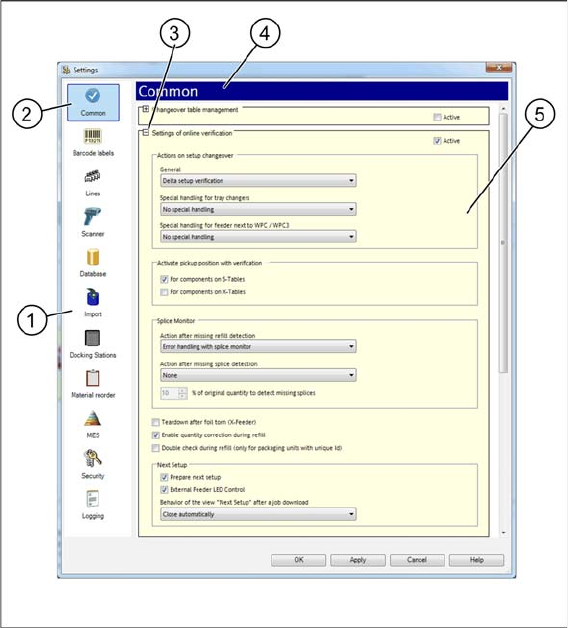
4. The Settings dialog box is opened.
The individual categories can be selected in the list on the left side. The corresponding settings are dis-
played on the right side.
Legend
1. Selection list for the individual configuration categories
2. Active configuration ("General" in this example)
3. Expanding a field (+). The field will be expanded and further parameters will be displayed.
Closing a field (-). The field will be closed, the parameters will be hidden.
4. Display of the active configuration ("General" in this example)
5. Setting options in the active configuration