00197195-02-UG SetupCenter 5.1_en.pdf - 第25页
Configuring Setup Center How to Open the Settings User Guide SIPLACE Setup Center 5.1 25 3 Configuring Setup Center SIPLACE Setup Center must be c onfigured before it can be used. The meaning of the individual settings d…
Starting Setup Center
The User Interface Notifications Box
24 User Guide SIPLACE Setup Center 5.1
Configuring Setup Center
How to Open the Settings
User Guide SIPLACE Setup Center 5.1 25
3 Configuring Setup Center
SIPLACE Setup Center must be configured before it can be used. The meaning of the individual settings
depends on the environment and the task at the usage site.
You can define the general settings such as Language, Security and Setup Verification for SIPLACE Set-
up Center.
3.1 How to Open the Settings
1. In the main menu of Setup Center select Extras => Settings.
2. If a password has been set for Setup Center safety (Settings → General → Security), the login dialog
box is now displayed.
3. Enter a password in the Password request an click OK.
4. The Settings dialog box is opened.
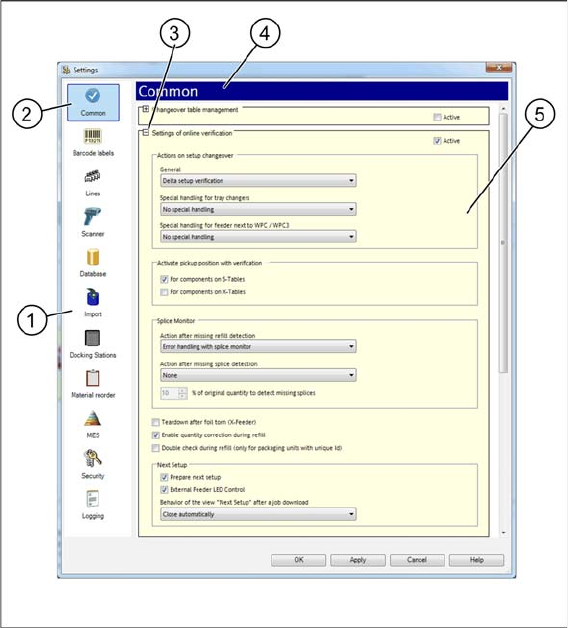
The individual categories can be selected in the list on the left side. The corresponding settings are dis-
played on the right side.
Legend
1. Selection list for the individual configuration categories
2. Active configuration ("General" in this example)
3. Expanding a field (+). The field will be expanded and further parameters will be displayed.
Closing a field (-). The field will be closed, the parameters will be hidden.
4. Display of the active configuration ("General" in this example)
5. Setting options in the active configuration
Configuring Setup Center
General
26 User Guide SIPLACE Setup Center 5.1
For some settings, e. g. Language, a restart of SIPLACE Setup Center is necessary. If a restart is nec-
essary, you will be notified.
3.2 General
► In the main menu open Extras > Settings and the Settings window is opened.
► Select the category General and the Settings will be opened.
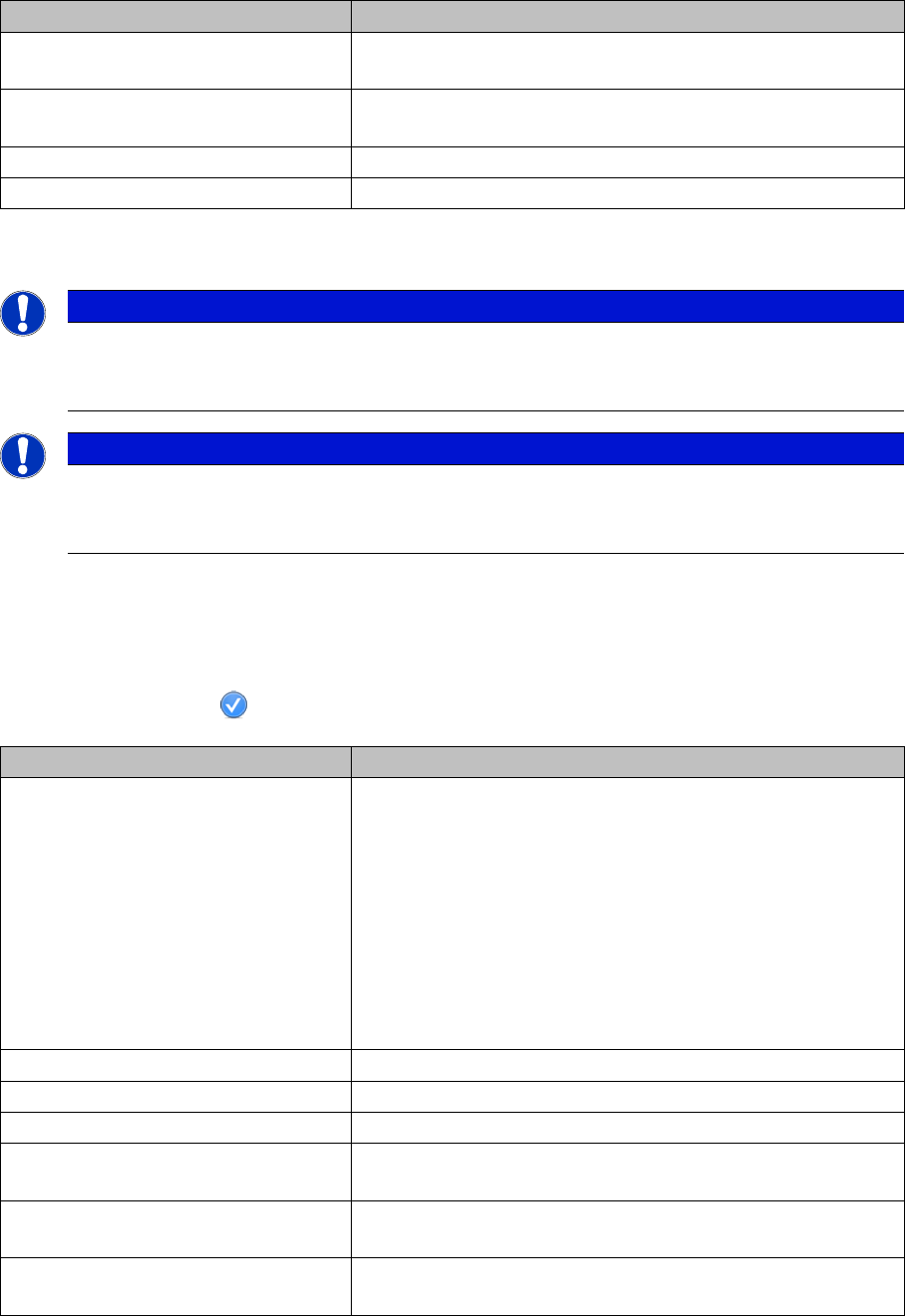
Button Description
OK All modifications in the configuration dialog box are saved by
clicking the OK button. In addition, OK closes the dialog box.
Accept All modifications in the configuration dialog box are saved. The
dialog box remains open for further settings.
Cancel Cancel discards all modifications and closes the dialog box.
Help Opens the online help for the current view.
NOTICE
Settings are saved
Certain settings are saved in the ApplicationSettings.xml file. This file is located in the installa-
tion directory of Setup Center.
NOTICE
Reading the "barcode label" section
Please read the "barcode labels" section of this manual very carefully and observe any instruc-
tions which may effect your daily work, such as verifying setups, refilling packaging units etc.
Edit field Description
Changeover table management Here you can activate/deactivate the changeover table man-
agement of the setup verifications.
The changeover table management has a great influence on
the procedures and the handling of the Setup Center in offline
and in online operation. Each changeover table (COT) is iden-
tified by a unique barcode for changeover table management.
This barcode has to be scanned in during the work steps, e.g.,
to allow for the assignment of a table to a location. Before
changing this setting, you need to tear down the complete line,
otherwise unintentional errors could occur.
Settings for online setup verification See "3.2.1 Settings of Online Setup Verification" [ ➙ 27].
Settings for offline verification See "3.2.2 Settings of Offline Verification" [ ➙ 29].
General settings for setup verification See"3.2.3 General Settings for Setup Verification" [ ➙ 29]
Packaging data for station-based
traceability
See"3.2.4 Packaging Data for Station-Based Traceability"
[ ➙ 30]
Automatic individualization of packag-
ing unit charges
See "3.2.5 Automatic Individualization of Batch Packaging
Units" [ ➙ 30].
Print current quantity barcode label on
tear down
See "3.2.6 Print Current Quantity Barcode Label on Tear
down" [ ➙ 30].