00197195-02-UG SetupCenter 5.1_en.pdf - 第33页
Configuring Setup Center Verification Settings for Domains Lines User Guide SIPLACE Setup Center 5.1 33 3.4 L ines ► In the main menu open Extras > Settings and the Settings window is opened. ► Select the category Lin…

Configuring Setup Center
Barcode Labels Fragment Mapping
32 User Guide SIPLACE Setup Center 5.1
3.3.1 Fragment Mapping
► In the main menu open Extras > Settings and the Settings window is opened.
► Select the category Barcode labels and the settings are opened.
► Select the Fragment Mapping function and the Fragment Mapping dialog box will open.
If a barcode fragment contains values which do not match the standard, alternative values can be en-
tered with this function. An error message will be issued if the scanned barcode does not match the pre-
scribed values.
Settings Description
Label name Names of barcode labels as sorted list.
Component verification "Component“ fragment for component verification
The barcode fragment 'Component' is extracted from the fully scanned bar-
code and is then (just this fragment) compared with the supplier barcode in the
programming system. This ensures that the barcode containing the fragment
'Component' can also contain other fragments and have any length, without
the need to generate matching versions of the supplier barcode.
Component barcode for verification
The fully scanned barcode, which contains the barcode fragment 'Compo-
nent', will be compared with the supplier barcode in the programming system.
If the barcode contains other barcode fragments, you will need to enter filler
characters in the supplier barcode and the filter, to ensure that the number of
characters matches the barcode which was scanned in.
Fragment mapping The Fragment Mapping dialog box will open. See "3.3.1 Fragment Mapping"
[➙32].
If a barcode fragment contains values which do not match those prescribed,
alternative values can be entered with this function. An error message will be
issued if the scanned barcode does not match the prescribed values.
Pattern Total barcode pattern for selected barcode label.
Expert mode Activation of expert mode for manual editing of barcode pattern.
Scanned barcode During the barcode test the scanned barcode is entered here.
Tab Description
MSD Level Value: MSD level values acc. to IPC/JEDEC standard (1, 2, 2a, 3, 4, 5, 5a, 6)
Alternative values: enter the alternative value here.
RoHS adherence Value: Y = Yes, N= No, 0 = Unknown
Alternative values: enter the alternative value here.
Brightness Class Define a placeholder (filter) for those characters in the brightness class bar-
code which you do not want Setup Center to check.
Example:
Brightness class on the packaging unit: S10300S40300
Definition of brightness class
in the SIPLACE Pro setup: S1XXXXS4XXXX
If X is defined here as a placeholder, only the characters at S1 and S4 on the
barcode will be checked by Setup Center.
Configuring Setup Center
Verification Settings for Domains Lines
User Guide SIPLACE Setup Center 5.1 33
3.4 Lines
► In the main menu open Extras > Settings and the Settings window is opened.
► Select the category Line and the settings will be opened.
In this view you configure the lines that are used for online setup verification. You can add, remove and
repair these lines. In addition, you can define domain-wide, line-specific and station-specific verification
settings. The tree view shows the domains, all currently configured lines and their stations. The param-
eters shown differ, according to which element has been selected.
3.4.1 Verification Settings for Domains
The domain has been selected in the tree view. The following settings are possible for the selected do-
main:
Edit field Description
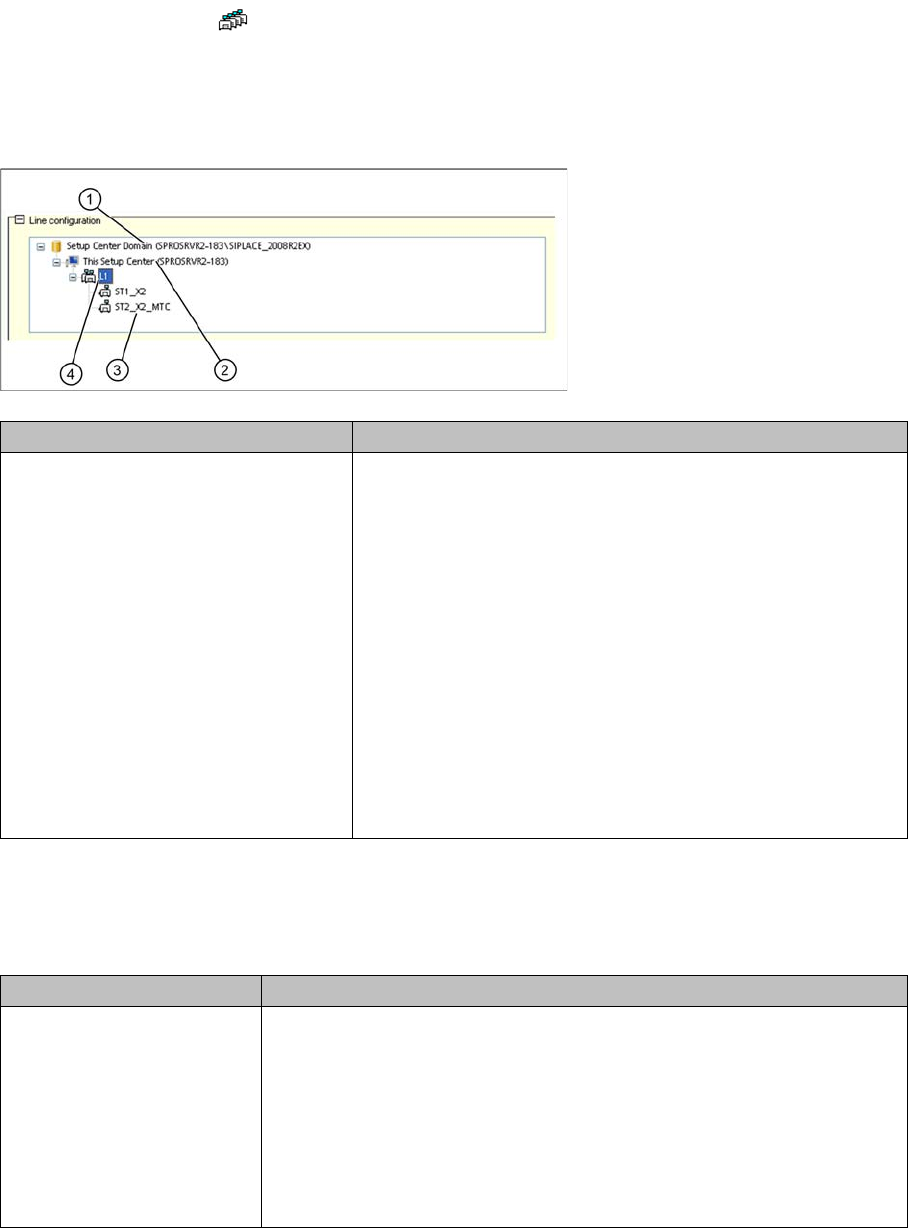
Line configuration 1. Domains
2. Name for this Setup Center
3. Configured lines
4. Stations for the lines
The online setup verification is carried out for the configured
lines. When a domain, line or station is selected the expanded
settings are shown in the lower area of the dialog box.
Domains selected: - See "3.4.1 Verification Settings for Do-
mains" [ ➙ 33]
Line selected:- See "3.4.3 Verification Settings for Lines"
[ ➙ 37]
Station selected: - See "3.4.5 Verification Settings for Stations"
[ ➙ 38]
Settings Meanings
UID refill enabled Active: simplified refilling of unique packaging unit IDs is permitted. Dur-
ing refilling, you only need to select the function Refill Packaging Unit in
the scanner menu and then scan in the Packaging ID for the previous
reel, followed by the Packaging ID for the next reel. Instead of using the
menu function, you can also scan in the UID Refill control barcode.
This simplified refilling can be used universally, in the pre-setup area as
well as on the line and you can even generate packaging unit chains in
the warehouse area.
Configuring Setup Center
Lines Verification Settings for Domains
34 User Guide SIPLACE Setup Center 5.1
► Observe the following information when enabling the function Tear down the packaging unit if the
verification status of the X-feeder is unreliable.
Feeder kitting enabled on
single-slot EDIF
Active: permits feeder kitting in the single slot EDIF. The packaging unit-
feeder relation is formed during feeder kitting with the single slot EDIF,
by scanning in the feeder ID and the packaging unit data.
NOTICE! This function can only be applied if the option "Tear
down the packaging unit if the verification status of the X feeder is unre-
liable" has been disabled.
Settings Meanings
Tear down the packaging
unit if the verification status
of the X-feeder is unreliable
Active: As soon as an unreliable verification status is determined, Setup
Center cancels the packaging unit-feeder relation. This makes sure that
the configured packaging unit needs to be reverified, in case it has to be
replaced. The verifications status is set as unreliable if the cover foil is no
longer properly tensioned (e.g. in the event of a torn foil). This status is
also set if the cover foil tension outside the machine and/or docking sta-
tion has been released.
WARNING
Minimum station software requirement essential at all machines
All machines which are checked by Setup Center must have at least station software 706.01 or
605.03 SP3 installed.
WARNING
Recommended activation strategy
If the function Tear down the packaging unit if the verification status of the X-feeder is unreliable
has been switched on, all setups which have already been verified (online and offline) are ini-
tially unreliable and will need to be reverified.
➢ We therefore recommend that you first make sure all stations fulfil the minimum software
requirements and that you then, after a certain period (around 4 weeks) enable this func-
tion in Setup Center.
► This ensures that most packaging unit-feeder relations will have reached a reliable state so
that only a minimum of these relations will be canceled when the function is enabled.
Settings Meanings
Permit Packaging Unit
Chains to be Split in the
Packaging Unit Editor
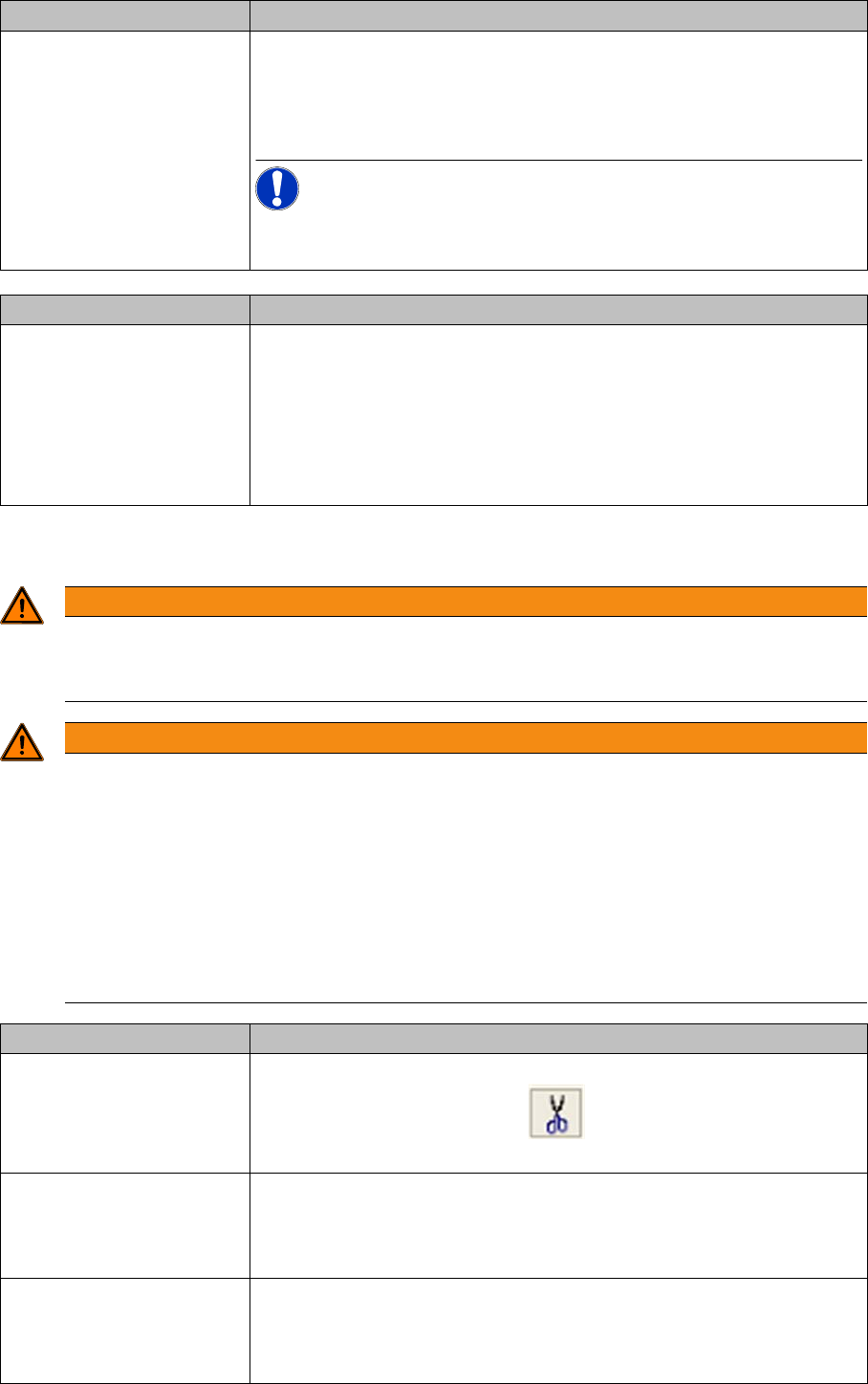
Active: the function for canceling the packaging unit is available in the
Packaging Unit Editor. The icon for cutting the packaging unit is
shown.
Stop threshold for MSD time
(hh:mm)
Once the remaining open storage time has reached the set stop thresh-
old, the packaging unit will be locked. This setting is permanently moni-
tored by Setup Center. The stop threshold can be used, for example, to
add the time which passes between placement and soldering.
Stop threshold for use-by
date (hh:mm)
Once the remaining open storage time has reached the set stop thresh-
old, the packaging unit will be locked. This setting is permanently moni-
tored by Setup Center. The stop threshold can be used, for example, to
add the time which passes between placement and soldering.
Settings Meanings