00197195-02-UG SetupCenter 5.1_en.pdf - 第40页
Configuring Setup Center Database Connecting a Datalogic Scanner 40 User Guide SIPLACE Setup Center 5.1 Datalogic Scanner Datalogic Bluetooth Scanner ► Follow the instructions in the configuratio n dialog. 3.6 Database ►…
Configuring Setup Center
Connecting a Datalogic Scanner Scanner
User Guide SIPLACE Setup Center 5.1 39
3.5 Scanner
► In the main menu open Extras > Settings and the Settings window is opened.
► Select the category Scanner and the settings are opened.
In this view the settings for the scanners are made.
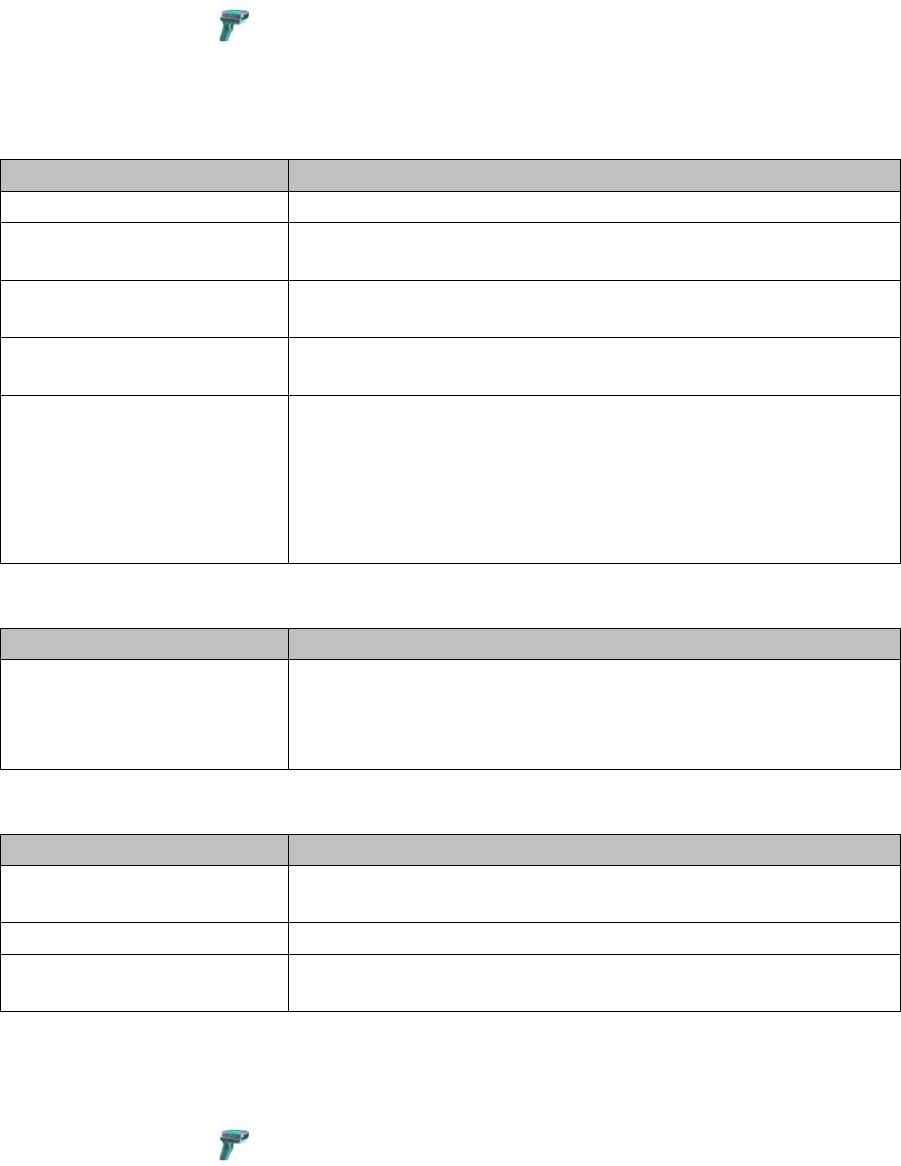
Datalogic scanner
Wired Scanner
Windows Mobile (WLAN) Scanner
3.5.1 Connecting a Datalogic Scanner
► In the main menu open Extras > Settings and the Settings window is opened.
► Select the category Scanner and the settings are opened.
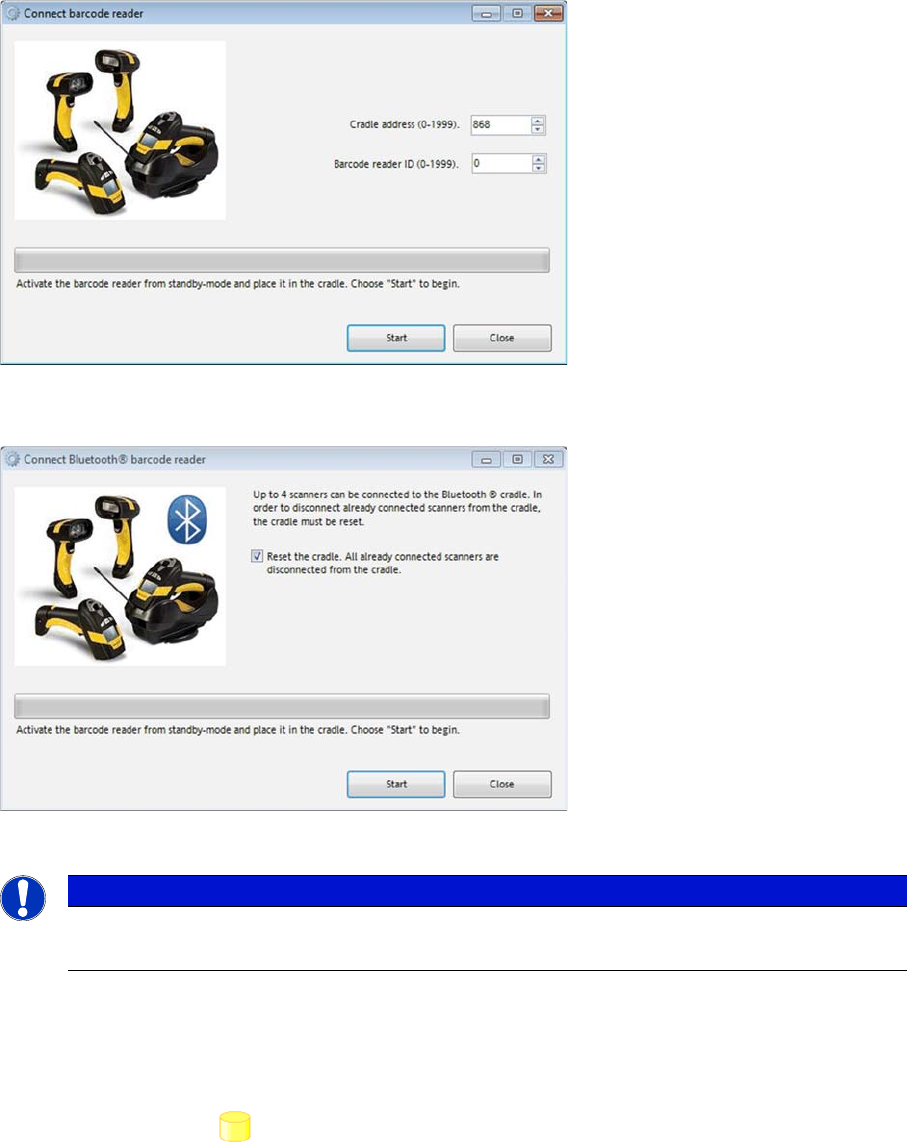
► Go to Datalogic Scanner and select Connect Barcode Reader...
► The start page for the installation procedure will open. This will vary according to the scanner type.
Parameter Description
Active The use of the scanner can be activated/deactivated.
Serial port As an alternative the serial port can be set manually after deactivat-
ing the "Autodetect" switch.
Timeout (sec) If the scanner does not react within this time, the process will be ter-
minated.
Autodetect The automatic detection of the serial port to which the cradle of the
scanner is connected can be activated/deactivated.
Connect Scanner... This option allows the automatic configuration of one or more scan-
ners. For this, it must be ensured that the cradle of the scanner has
already been connected to the Setup Center computer.
The start screen for the installation procedure is shown. This differs
according to the scanner type used. See "3.5.1 Connecting a Data-
logic Scanner" [ ➙ 39].
Parameter Description
Active The input mask for the wired scanner is permanently shown in the
foreground of the Setup Center GUI. This setting is advisable if you
use a wired scanner that is integrated in the keyboard of the Setup
Center PC, in the pre-setup area.
Parameter Description
Active Here you can activate/deactivate the interface between Setup Center
and Symbol MC70 scanner.
Port Make sure that the port set in Setup Center is released for use.
Timeout (sec) If the scanner does not react within this time, the process will be ter-
minated.
Configuring Setup Center
Database Connecting a Datalogic Scanner
40 User Guide SIPLACE Setup Center 5.1
Datalogic Scanner
Datalogic Bluetooth Scanner
► Follow the instructions in the configuration dialog.
3.6 Database
► In the main menu open Extras > Settings and the Settings window is opened.
► Select the category Database and the settings are opened.
In this section the communication settings of the SIPLACE Setup Center database are made. The set-
tings for the SIPLACE Setup Center database are defined during the installation but they can be
changed here, if necessary.
NOTICE
Installation
For more details about the installation procedure, refer to the Setup Center installation guide.
Configuring Setup Center
Connecting a Datalogic Scanner Import
User Guide SIPLACE Setup Center 5.1 41
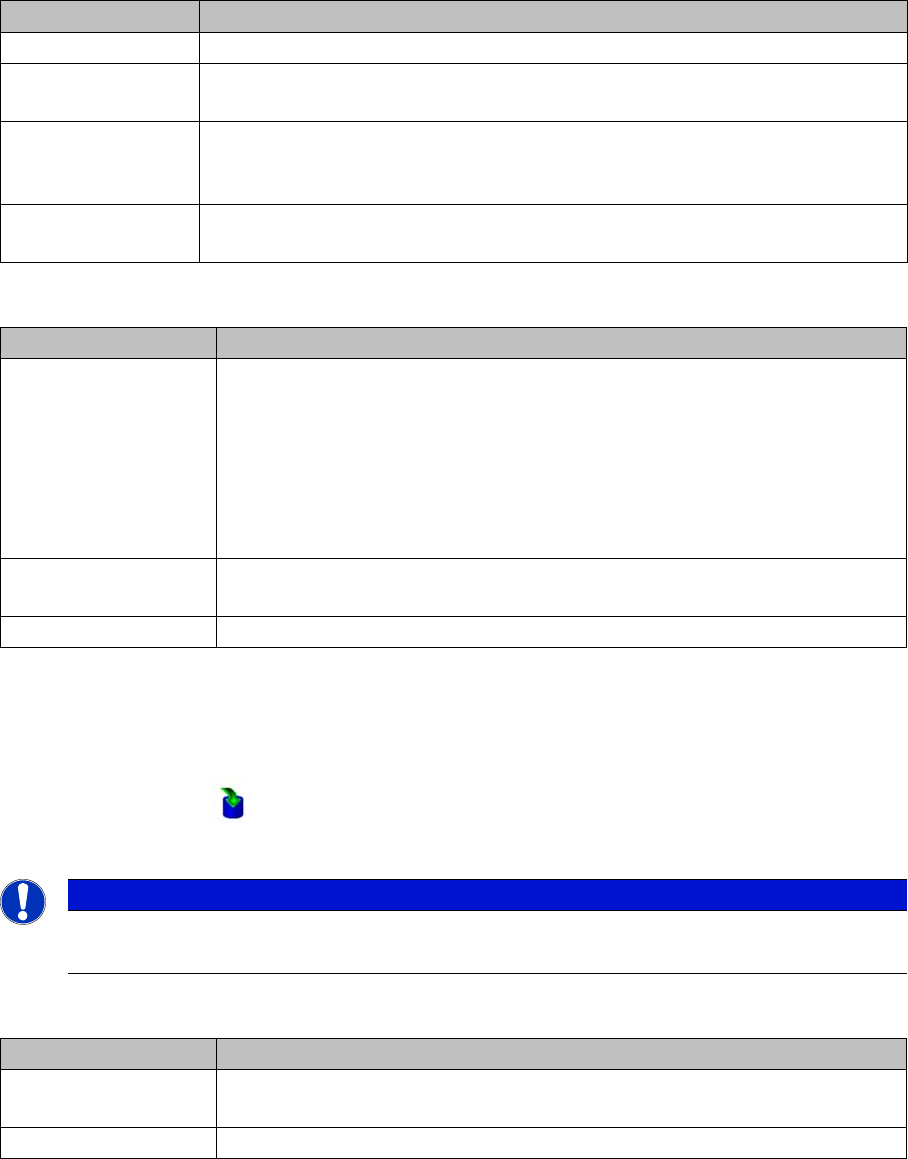
Setup Center Database Settings
In this area the settings for the usage of the database are made.
Database maintenance
3.7 Import
► In the main menu open Extras > Settings; the Settings window will be opened.
► Select the category Import and the settings will be opened.
This is where the settings for importing XML packaging unit data into the database are defined.
Line-specific stock location
Settings Meanings
Server name The instance name of the database server or an MSDE database.
Database name The name of the database. The default setting "SIPLACESetupCenter" is set
during installation, but it can be changed here later.
User The name of the user account with which Setup Center accesses the database.
The user account is compounded by the name of the database pattern + USR,
e.g. SIPLACESetupCenterUSR.
Password SIPLACE Setup Center requires a password to connect to the previously men-
tioned user account to the database.
Settings Meanings
Material reorder Active
This setting is deactivated after the installation of SIPLACE Setup Center and
can be activated here.
This option allows the automatic export of packaging units from the database
that are marked for reordering. The preset time is 3 years but it can be given
exactly to the day. The procedure is triggered manually with the Execute now
button.
Delete orders older
then (days)
The preset time can be changed.
Execute now The procedure is immediately carried out manually.
NOTICE
Changes require a restart
if you make changes to the import settings, you will always need to restart Setup Center.
Settings Meanings
Active To import the input file for line-specific stock locations, activate the "Line-spe-
cific stock locations" option.
Import file Relative path of the input file to the SIPLACE Setup Center directory.