00197195-02-UG SetupCenter 5.1_en.pdf - 第55页
Setting System Components Component Level Indicator Station Software Settings (from Version 60x) User Guide SIPLACE Setup Center 5.1 55 3. Supply and container – Edit.. . : Opens a dia log box in whi ch the current inven…
Setting System Components
Station Software Settings (from Version 60x) Component Level Indicator
54 User Guide SIPLACE Setup Center 5.1
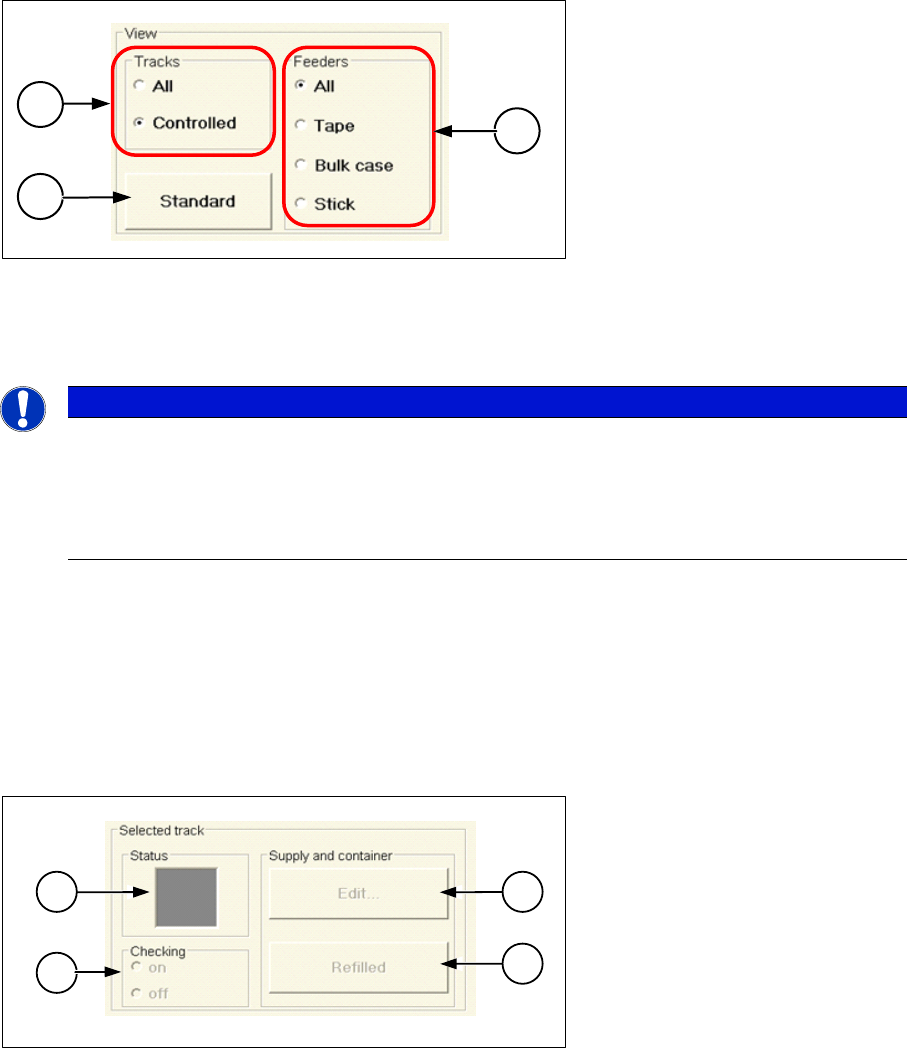
Configuring the View
1. Tracks
– All: All tracks are displayed.
– Controlled: (Default) Only tracks with activated component level indicators are displayed.
2. Standard
– Restores the default table order.
3. Feeders
– All: All feeders are displayed.
– Tape | Bulk case | Stick: Only tracks with the appropriate feeder type are displayed.
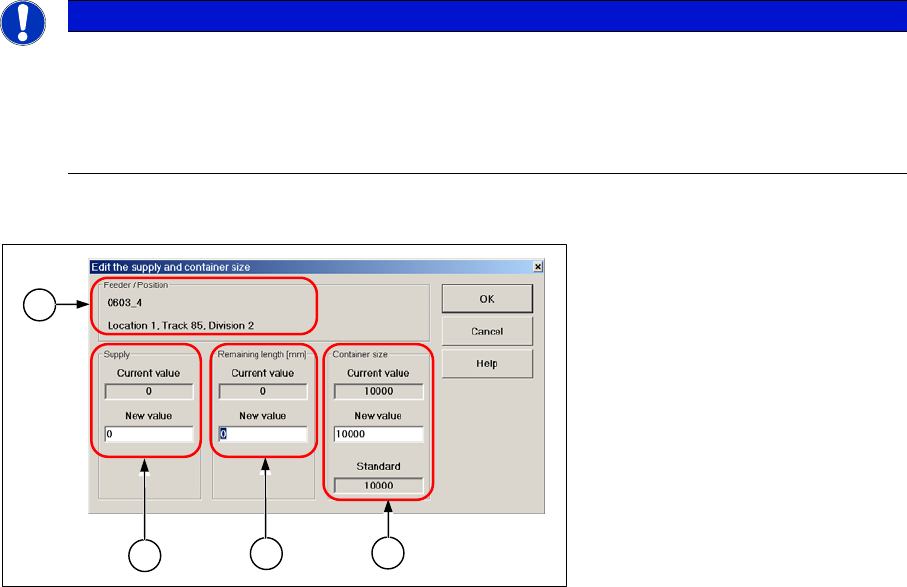
Selected Track
1. Status Shows the current component level state for the selected track. The color scheme corre-
sponds to the colors used in the table.
– Green: There are still sufficient components available on the selected track.
– Yellow: The level on the selected track has fallen below the threshold for issuing a warning. We
recommend to verify and refill the track.
– Red: The message "Track is empty" has been issued; the track will be deactivated and must be
refilled. After refilling, the track needs to be reactivated.
2. Checking
– On: Component level indicator for the selected current track is activated. Entry in the Active col-
umn = "X".
– Off: Component level indicator for the selected current track is deactivated.
Entry in the Active column = "-".
NOTICE
All entries marked in color
When "All" tracks is selected, this marks all entries in the list – irrespective of whether "Yes (x)"
or "No" is set for the column Active. If "No", is set for a track, it will not be monitored by the com-
ponent level indicator and no error message will be issued when the threshold value is under-
cut.
2
3
1
2
1 3
4
Setting System Components
Component Level Indicator Station Software Settings (from Version 60x)
User Guide SIPLACE Setup Center 5.1 55
3. Supply and container
– Edit...: Opens a dialog box in which the current inventory or quantity can be entered for the se-
lected track.
– Refilled: The current component quantity of the selected track (supply) is calculated anew: Sup-
ply = Current Supply + Original Quantity. The entry is updated in the table. This function is only
available, if the track is not monitored by a barcode.
This option is no longer present on the user interface of the station software 60X.
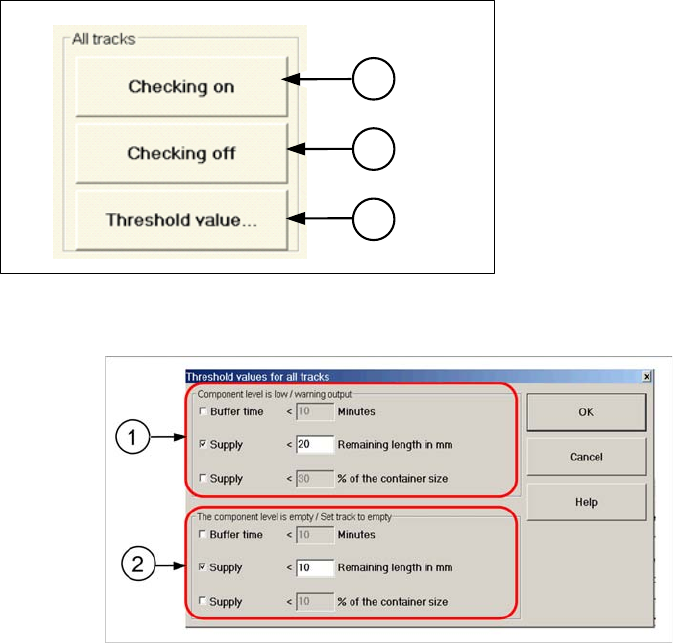
Edit...
1. Display of the Selected Packaging Units
2. Supply: Current number of components that are in the feeder.
3. Remaining length [mm]: Length of the reel – measured from the trailing edge of the feeder.
4. Container size: number of components per packaging unit. This option is no longer present on the
user interface of the station software 60X.
Current value, new value and default indicate the following:
▪ Current value: Current calculated value.
▪ New value: Value can be edited.
▪ Default: Value is provided by the programming system.
Activating the Component Level Indicator
The component level indicator can be activated/deactivated for all tracks.
NOTICE
Component level change at the station
When using station software version 407, 505 or 605, the station component level can only be
changed if just one packaging unit information item (reel status) is present. When using tracks
with more than one item of packaging unit information, changes to the component level can only
be made in Setup Center.
1
2
3
4
Setting System Components
Station Software Settings (from Version 60x) Component Level Indicator
56 User Guide SIPLACE Setup Center 5.1
Threshold Values
1. Component level almost empty / Issue warning:
▪ Buffer time < ... Minutes: If the current calculated time until a track runs empty drops below the indi-
cated number of minutes, a warning "Track Error" will be issued and the track will be highlighted in
yellow in the view.
▪ Supply < ... Remaining length in mm: If the remaining component tape (measured from the trailing
edge of the feeder) is shorter than the indicated value, a warning ("Track Error") will be issued and
the track will be highlighted in yellow in the view. Recommended: 2000 mm, minimum: 500 mm.
This option only functions if the "component pitch" has been correctly set in the SIPLACE Pro pro-
gramming system.
▪ Supply < ... % of container size: If the calculated number of components drops below the specified
percentage of the packaging unit size, a warning ("Track Error") will be issued and the track high-
lighted in yellow in the view.
This option is no longer present on the user interface of the station software 60X.
2. Component level empty / Set track to empty:
▪ Buffer time < ... Minutes: If the current calculated time until a track runs empty drops below the indi-
cated number of minutes, a message will be issued and the track will be deactivated and marked in
red in the view.
▪ Supply < ... Remaining length in mm: If the remaining component tape (measured from the trailing
edge of the feeder) is shorter than the indicated number of minutes, a message will be issued and
the track will be deactivated and marked in red in the view. Recommended: 500 mm, minimum: 500
mm.
This option only functions if the "component pitch" has been correctly set in the SIPLACE Pro pro-
gramming system.
▪ Supply < ... % of container size: If the calculated number of components drops below the specified
percentage of the packaging unit size, a message will be issued, and the track will be deactivated
and highlighted in red in the view.
This option is no longer present on the user interface of the station software 60X.
1. Checking on: the component level indicator is ena-
bled for all tracks. Entry in the column "Active" = x.
This option is no longer present on the user interface
of the station software 60X.
2. Checking off: The component level indicator is deac-
tivated for all tracks. Entry in the Active column = "-".
This option is no longer present on the user interface
of the station software 60X.
3. Threshold value...: Opens a dialog for entering the
values. A message will be issued in case threshold is
undercut.
1
2
3