00197195-02-UG SetupCenter 5.1_en.pdf - 第59页
Setting System Components Component Level Indicator Station Software Settings (from Version 60x) User Guide SIPLACE Setup Center 5.1 59 Legend 1. Tower has not be en refere nced. 2. Tower is ready for oper ation. 3. Towe…
Setting System Components
Station Software Settings (from Version 60x) Component Level Indicator
58 User Guide SIPLACE Setup Center 5.1
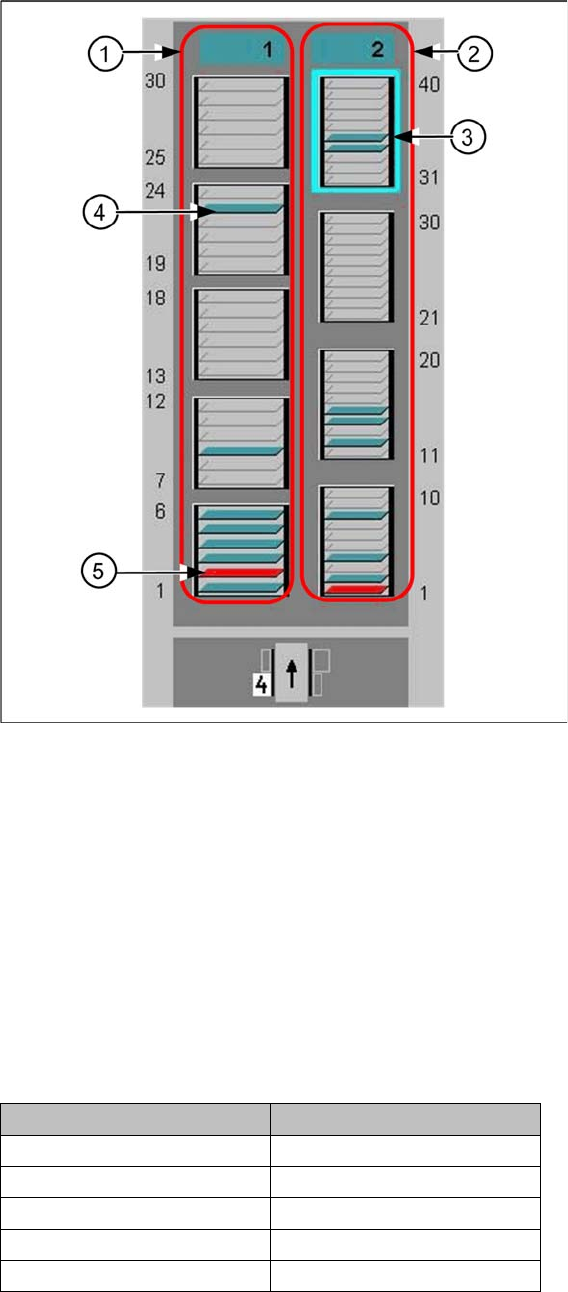
Representation and Numbering of the Trays
Legend
1. Tower 1
2. Tower 2
3. Selected Cassette
4. This tray is occupied
5. This tray is out of operation
Color coding of the tray symbol in the graphic:
▪ Gray: Tray is not available in the setup.
▪ Green: Tray is ready for operation.
▪ Red: Tray is out of operation
The trays are numbered as follows:
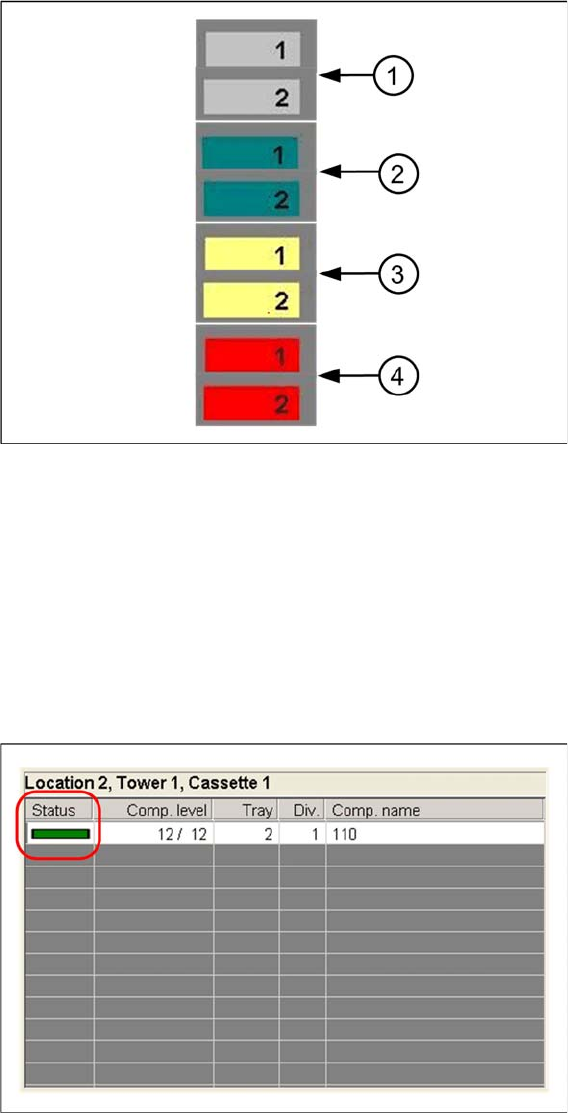
Color coding of the tower symbol in the graphic
Tower 1 Tower 2
Cassette 5: 25 - 30 --
Cassette 4: 19 - 24 Cassette 4: 31 - 40
Cassette 3: 13 - 18 Cassette 3: 21 - 30
Cassette 2: 7- 12 Cassette 2: 11 - 20
Cassette 1: 1 - 6 Cassette 1: 1 - 10
Setting System Components
Component Level Indicator Station Software Settings (from Version 60x)
User Guide SIPLACE Setup Center 5.1 59
Legend
1. Tower has not been referenced.
2. Tower is ready for operation.
3. Tower is in refill position
4. Tower is out of operation
Component Level Indicator View
The view provides information about component levels and the status of all the checked levels in a se-
lected cassette.
Setting System Components
Station Software Settings (from Version 60x) Component Level Indicator
60 User Guide SIPLACE Setup Center 5.1
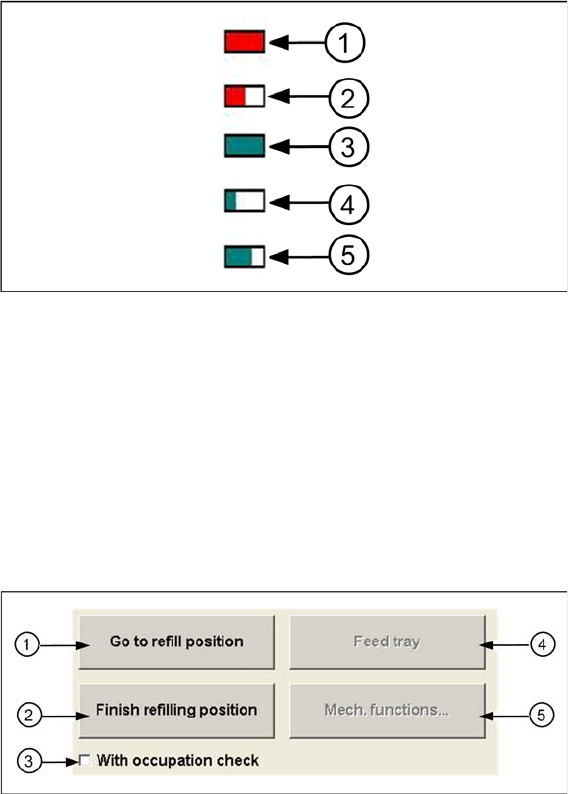
Color coding of the magazines in the status table:
Legend
1. Magazine is empty, out of operation
2. Magazine is not empty, but has been deactivated either by the machine or by the operator (e.g.,
wrong component in magazine).
3. Magazine is in operation and is full.
4. Magazine is in operation and 25 % full.
5. Magazine is in operation and 66 % full.
Selected Cassette
1. Go to refill position
Moves the selected tower into the refill position so that the selected cassettes can be replaced com-
pletely.
No components can be picked up from this tower.
2. Finish refill position
Moves the entire tower back into the processing position. Components can be picked up again.
3. With occupancy check
–Ticked:
The existing tray carrier is compared to the tray carrier specified in the setup.
– Not ticked:
The occupancy check is disabled.
4. Feed tray
Moves the selected level into the processing position.
5. Mech. functions...
Opens a dialog box in which the various functions can be started: Carrying out a reference run, mov-
ing the MTC to the transport position, feeding the tray.