00197195-02-UG SetupCenter 5.1_en.pdf - 第89页
Barcode Practical Example Barcode Labels User Guide SIPLACE Setup Center 5.1 89 5.1.3.7 Expert Mode With the help of the graphic tools the generation of the barcod es is instantly converted into a regular ex - pression a…
Barcode
Barcode Labels Practical Example
88 User Guide SIPLACE Setup Center 5.1
When you scan in a packaging unit for the first time, all the barcodes defined in the label will need to be
scanned in. At the same time, a data set will be created in the Setup Center database. This remains in
the database, even after tear down. This remains in the database, even after tear down.
5.1.3.6 Combined Barcode
There are also barcodes which contain multiple information. Most 2D barcodes contain multiple informa-
tion.
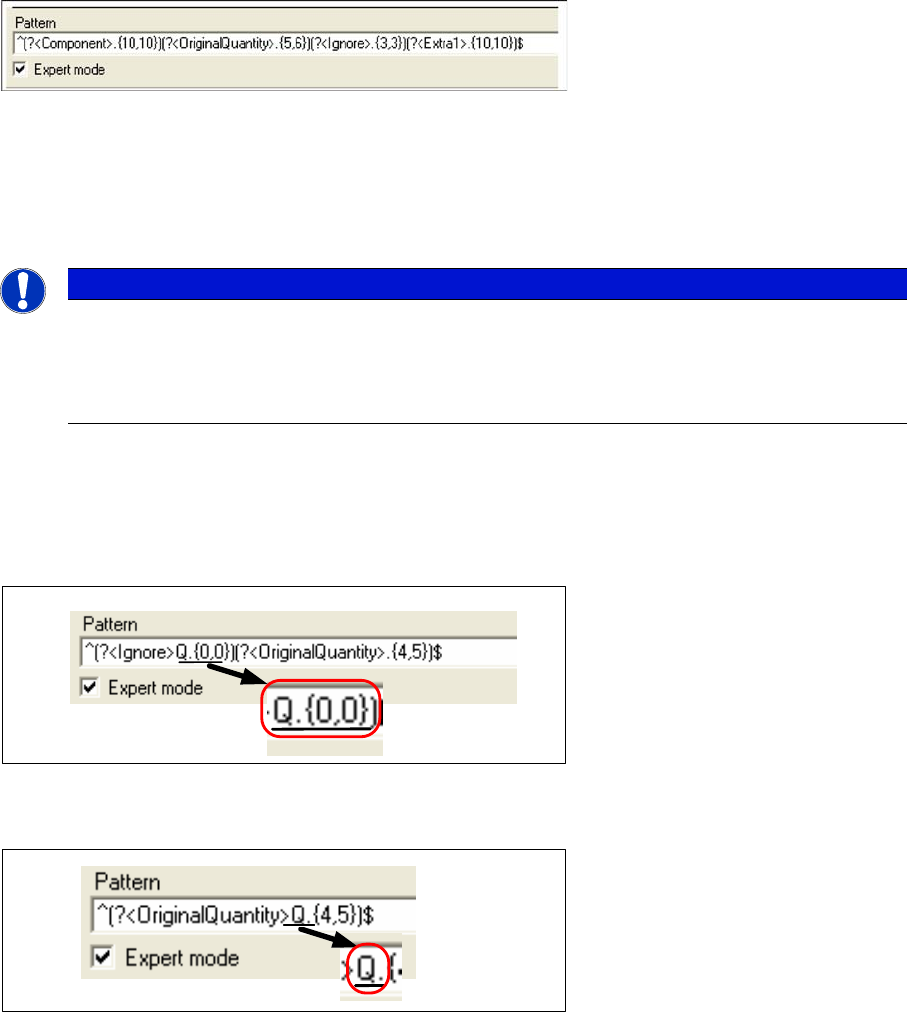
A new barcode label is therefore added and one barcode with several fragment types is generated.
1. Add new barcode label. The overall barcode consists of the following fragment types:
2. Fragment Component for component.
3. Fragment QriginalQuantity for the quantity
4. Fragment Ignore hides the following 3 characters.
5. Fragment Extra1 for the date. Extra 1 is used as the date format does not comply with the predefined
format for dates.
The corresponding regular expression:
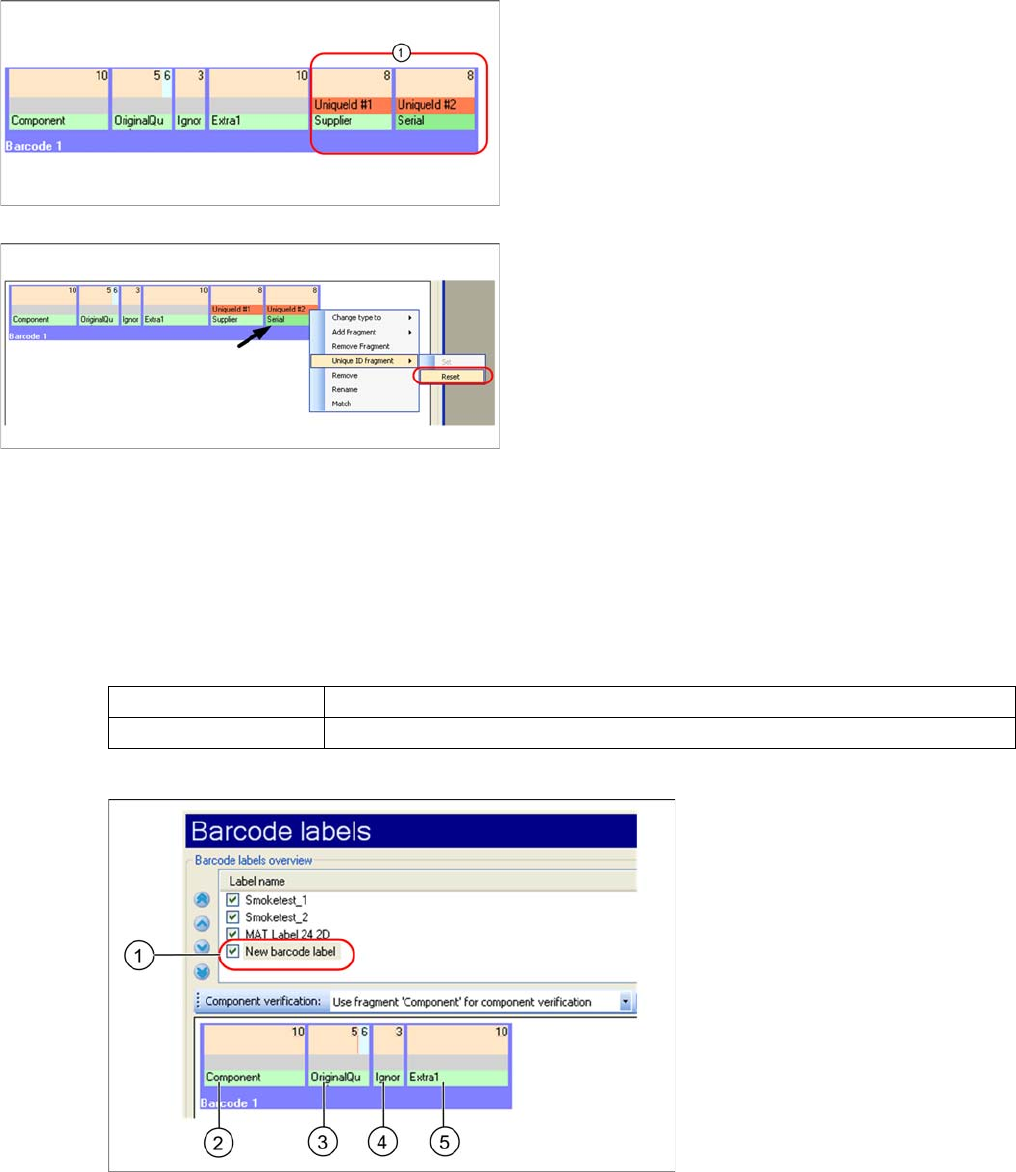
Step 3
The unique ID will now be formed from the two fragments
"supplier" and "serial", in the fixed order.
Optional – removing a UniqueID marker
▪Simply right-click with the mouse in the green Serial
field to open the Unique ID Fragment context menu.
▪ Select Remove to delete the UniqueID from the "se-
rial" fragment.
Component Barcode
TRC-0805-1 TRC-0805-1Q15000HH/03/05/2005
Barcode
Practical Example Barcode Labels
User Guide SIPLACE Setup Center 5.1 89
5.1.3.7 Expert Mode
With the help of the graphic tools the generation of the barcodes is instantly converted into a regular ex-
pression and displayed in the Schema field.
If the tick at Expert mode is activated, the syntax of the regular expression can be edited.
A change in the fragment Ignore is a reasonable usage of the expert mode.
For example: The character "Q“ in the quantity will not be further processed later on. However, you still
want to ensure that only those barcodes with the prefix "Q" may be used as quantities. The character
"Q" is therefore entered in the Ignore fragment. Quantities without a "Q" or those with another prefix char-
acter will be ignored.
One of the special qualities of the fragment types OriginalQuantity and Quantity is that a prefix can be
entered directly into the fragment.
5.1.3.8 Checking Barcode
You have the possibility to check a barcode with the settings in the barcode labels.
NOTICE
Expert Mode
Consequences
► Complex changes to the regular expression via the expert mode can not always be accu-
rately displayed in the diagram.
Barcode
Barcode Labels Regular Expression - Basics
90 User Guide SIPLACE Setup Center 5.1
5.1.4 Regular Expression - Basics
To process the contents of scanned barcodes, you need to create comparative templates, which are
stored in the system as barcode patterns. These serve as a reference against which scanned barcodes
are compared, to decide whether they are correct or incorrect.
Regular expressions are used to define barcode patterns. They describe the barcode information and
subdivide it into individual fragments, with the help of pattern matching.
5.1.4.1 Barcode Pattern
The barcode pattern enables the user to formally describe the content of a scanned-in barcode. The bar-
code pattern consists of the individual patterns for a barcode fragment. It defines:
1. The part of the barcode which is assigned to a certain barcode fragment type e.g. the component,
unique barcode or the original quantity of the packaging unit.
2. The format of the barcode fragment contents.
3. The order in which the sections for the barcode fragments appear in the barcode.
The so-called pattern matching plays a decisive role in the processing of scanned-in barcode contents.
The question is how to describe the required text passages of a decoded barcode. If the text passage is
already exactly known, it can be directly entered during the search. This search function is identical with
that from all other editors.
However, this is not the most flexible of options. For example, if you want to determine the original quan-
tity of the packaging unit from the barcode and then discover that this consists only of a string of num-
bers, you are faced with a problem. This type of designator can not be adequately described by writing
it down or by listing the various options. This is where so-called "Regular Expressions" can help.
Regular expressions serve to describe the format of a barcode. They are a syntactic utility for the de-
scription of a character string. An example of a barcode, from which the original quantity of a packaging
unit, with the prefix ‚Q', is to be extracted, can be seen below:
^(?<Ignore>Q.{0,0})(?<OriginalQuantity>[0-9]{5,8})$
Let's go through it step by step. We first see the character"^'" which means that the barcode begins here.
It is vital that this character is positioned here, otherwise any number of other characters could be placed
before the string described below and the barcode would still be recognized.
We then see the definition for the barcode fragment "(?<Ignore>Q)". The fragment type "Ignore" means
that the content is not to be stored in the database but that this string of characters appears frequently
in the barcode, as a prefix or postfix. In this case, the character "Q" would always be expected before
the original quantity and, if the character "Q" was missing, the scan would terminate with errors.
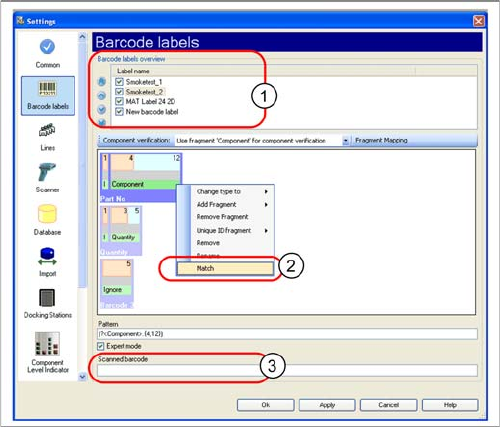
► Open the Extras => Settings =>Barcode labels menu.
► Scan the barcode to be checked and the scanned
barcode will be entered in the Scanned barcode input
field (3).
► Select the relevant barcode label at Label name (1).
► Open the context menu and select the Match (2)
function. The scanned barcode is matched with the
settings of the corresponding barcode label.
⇨ The dialog box showing the Barcode matching re-
sults is opened and the results are displayed.