00197195-02-UG SetupCenter 5.1_en.pdf - 第94页
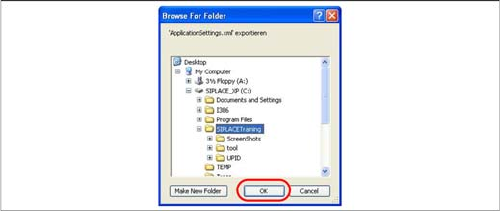
Barcode Barcode Labels Importing and Exporting Barcode Labels 94 User Guide SIPLACE Setup Center 5.1 Step 2 Select the d irectory to which the ApplicationSettings.xml file, with the barcode la bels, is to be exported.
Barcode
Importing and Exporting Barcode Labels Barcode Labels
User Guide SIPLACE Setup Center 5.1 93
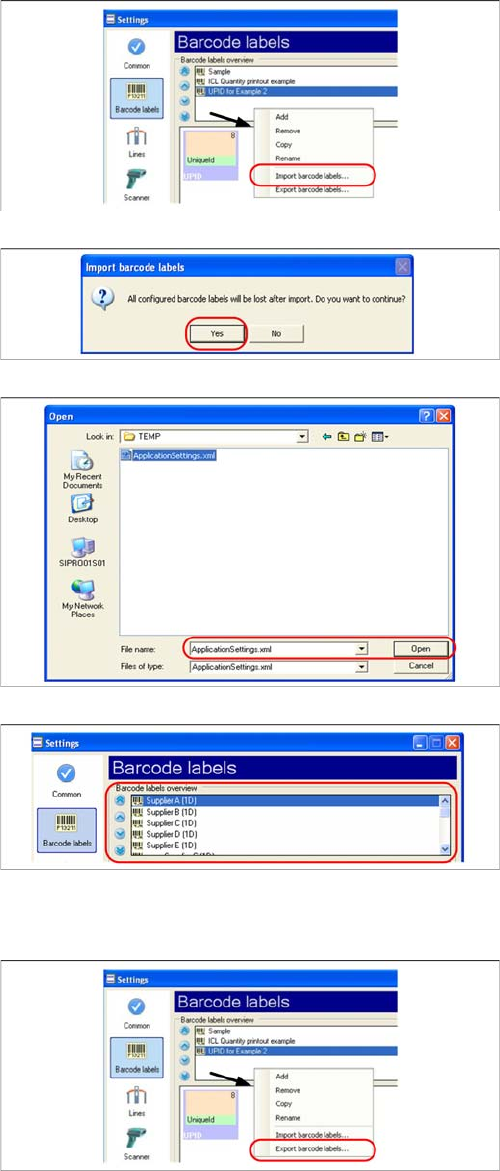
Import
Export
Step 1
Right-click with the mouse in the white field of the Label
Overview to open the context menu. Then select the Im-
port barcode labels… option.
Step 2
Confirm the subsequent message with Yes .
All previously configured labels are getting lost during im-
port.
Step 3
Select the directory of the ApplicationSettings.xml file,
from which the barcode labels should be imported.
Step 4
After successful import of the labels, you see the barcode
labels displayed in the overview.
To finish, accept the barcode labels as usual.
Step 1
Right-click with the mouse in the white field of the Label
Overview to open the context menu. Then select the Ex-
port barcode labels… .
Barcode
Barcode Labels Importing and Exporting Barcode Labels
94 User Guide SIPLACE Setup Center 5.1
Step 2
Select the directory to which the ApplicationSettings.xml
file, with the barcode labels, is to be exported.
Operating the Barcode Reader
Operating the Barcode Reader Datalogic Reader
User Guide SIPLACE Setup Center 5.1 95
6 Operating the Barcode Reader
6.1 Datalogic Reader
6.1.1 Operating the Barcode Reader
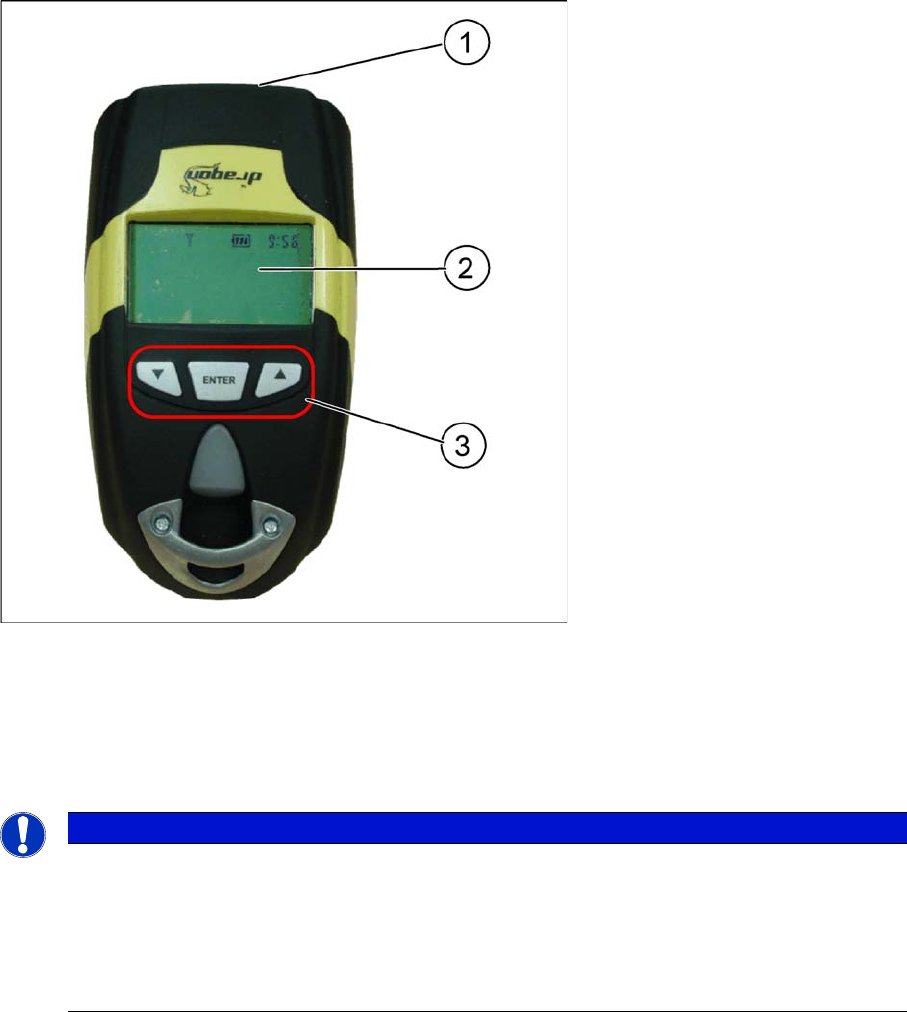
The barcode scanner from Datalogic
TM
, has a 1D barcode reader (model M101, M131, PM8300) or a
2D barcode reader (model PM8500), which can be enabled using the "trigger".
Legend:
1. Laser window
2. Display (4 lines)
3. Keyboard (3 buttons)
The display shows operation and progress information.
NOTICE
Updating the barcode scanner display
For technical reasons, the barcode reader display can only be updated by using the reader i.e.
by pressing a button or scanning in a barcode. In certain circumstances, the reader display may
not show the current status but this will not occur during normal operation. One example would
be the automatic deactivation of the barcode reader display. This can be switched back on by
pressing a button or by using the trigger.