00197195-02-UG SetupCenter 5.1_en.pdf - 第97页
Operating the Barcode Reader Buttons Motorola MC70/MC75 Scanner User Guide SIPLACE Setup Center 5.1 97 6.2 M otorola MC70/MC75 Scanner 6.2.1 Buttons Legend: 1. Pushbuttons for scanning barcodes 2. Soft keys - the context…
Operating the Barcode Reader
Datalogic Reader Barcode Reader Safety Instructions
96 User Guide SIPLACE Setup Center 5.1
6.1.2 Barcode Reader Safety Instructions
The Datalogic barcode scanner
TM
is assigned to laser class 2.
The warning label W216 is shown on the barcode reader.
6.1.3 Configuration
To configure the barcode reader please follow the instructions in the Setup Center Installation Manual.
Accurate (error-free) configuration of the barcode reader is essential for proper operation.
6.1.4 Working with the Barcode reader
The reader is very simple to use and handle. The various procedures require only a few steps.
The SIPLACE Setup Center always shows the next step on the barcode reader display. Other functions
can be called up with the buttons. To return to the "main menu" of the reader, simply press the button in
the middle. The functions for the left and right buttons are shown grey in the lower display line.
The barcode is scanned by aiming, pressing and holding the trigger until the barcode is recognized. This
only takes a fraction of a second but can vary according to the distance from the barcode, the angle at
which you are aiming and the quality of the barcode itself.
DANGER
LASER RADIATION!
Do not look into beam!
Laser Class 2
CAUTION
Laser Instructions
Before operating the barcode scanner, make sure that all operating personnel have been prop-
erly instructed about observance of the relevant laser regulations.
► While operating the barcode reader, observe the respective regulations in line with VDE
0837 "Protection from radiation emitted by laser devices“ and the "Laser radiation“ accident
prevention regulations (VBG93), applicable in Germany.
► Also observe the accident prevention regulations applicable in your country.
NOTICE
Setting the target beam
We recommend that you set a higher target beam value than normally required, until you have
familiarized yourself with the barcode reader. When you feel more confident, the red spot time
can be reduced. To adjust the target beam, please follow the instructions in the Setup Center
Installation Manual.
NOTICE
Data exchange with the barcode scanner
Setup Center is unable to directly address the barcode reader and can only react to queries
from the reader. This means that, should the reader not react, press one of the buttons to ex-
change data.
Operating the Barcode Reader
Buttons Motorola MC70/MC75 Scanner
User Guide SIPLACE Setup Center 5.1 97
6.2 Motorola MC70/MC75 Scanner
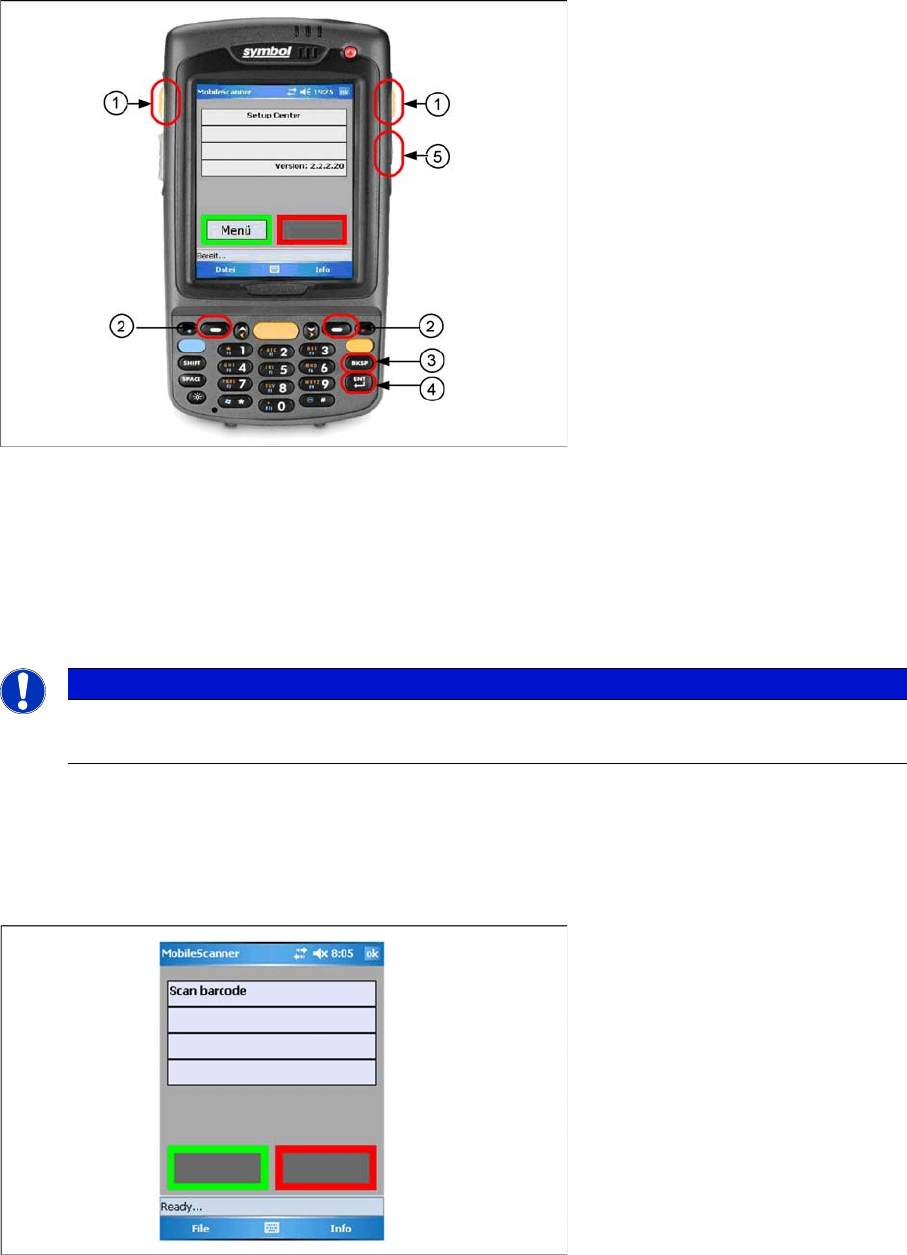
6.2.1 Buttons
Legend:
1. Pushbuttons for scanning barcodes
2. Soft keys - the context-related function is shown on the display.
3. Backspace button
4. Enter button
5. The shift key allows you to switch between SIPLACE applications more rapidly.
6.2.2 Barcode Scanner - Additional Features
6.2.2.1 Manual Barcode Entry
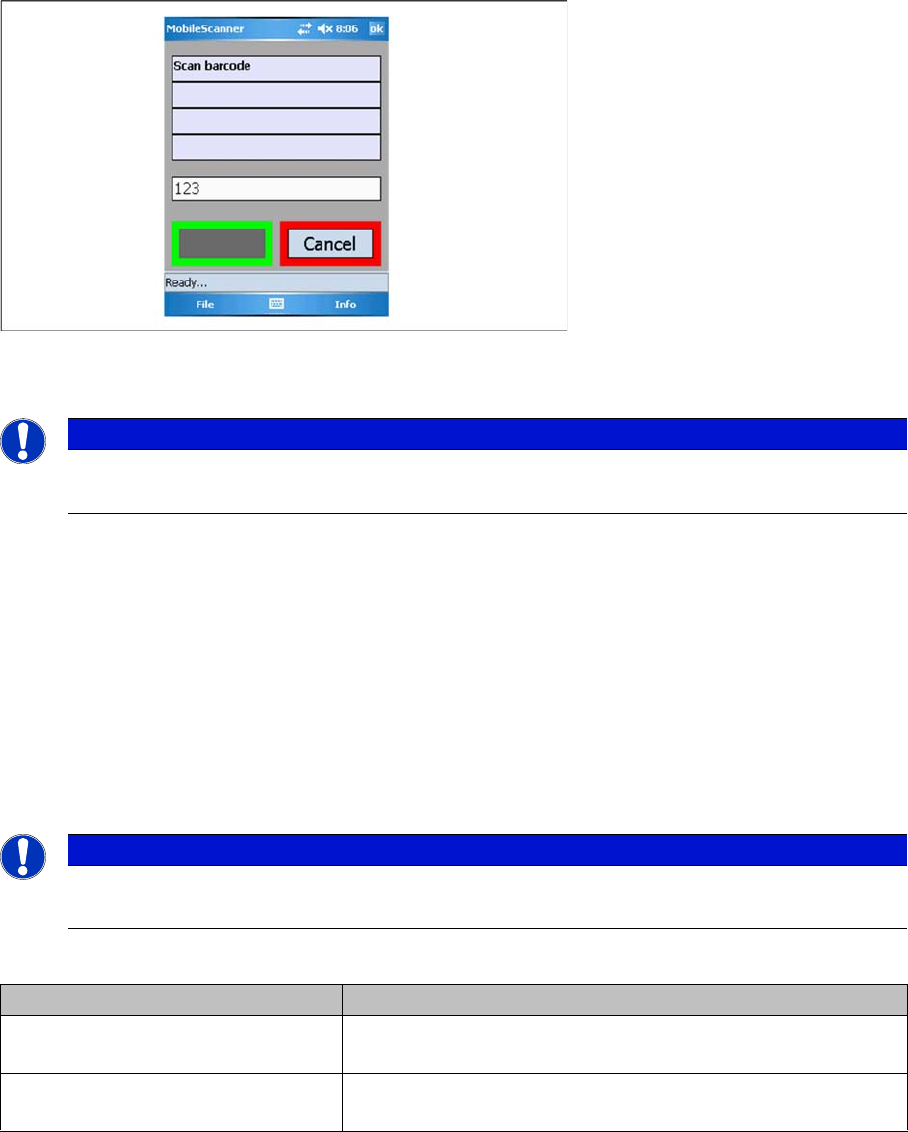
You can enter barcodes with the buttons. Press Enter after you have completed your entry.
If the software requests that you scan in a barcode, this barcode can then be entered directly via the
buttons.
NOTICE
Information about character entry
Information about the characters to be entered can be found in the Motorola manual provided.
Operating the Barcode Reader
Motorola MC70/MC75 Scanner Roaming-Barcode for MC70/MC75 Barcode Scanner
98 User Guide SIPLACE Setup Center 5.1
"Cancel" allows you to terminate the entry at any time. Press the Enter button "ENT" to accept and apply
the entry.
To cancel an action (e.g. manual barcode entry, data exchange), press the backspace button "BKSP".
6.2.3 Roaming-Barcode for MC70/MC75 Barcode Scanner
Roaming barcodes enable you to operate an MC70/MC75 scanner in connection with multiple Setup
Center computers. By scanning in this barcode, the scanner is linked to the Setup Center computer con-
tained in the barcode.
Barcode format
Compile the barcode with the following format:
$IP<Hostname/IP-Address>-<Port>
Explanation
Example:
$IP192.168.10.10-7575
$IPSDD2140C-7575
Setup Center is installed for one line, on the "SDD2140C" computer, with the IP address 192.168.10.10.
Setup Center awaits inputs at port 7575.
► After scanning in the barcode, the information dialog is shown with the connection data:
NOTICE
Information about character entry
Information about the characters to be entered can be found in the Motorola manual provided.
NOTICE
Use code type 39
It is recommended to use code type 39 here.
Attribute Meaning
<Hostname/IP-Address> The computer name or the IP4 address of the computer on
which Setup Center is installed.
<Port> The number of the port at which Setup Center awaits mobile
scanner inputs (standard: 7575).