OM-1455-004_w.pdf - 第52页
2-3 Tg1576-ID-SO 2.2 Component Reloading When the [COMP . RELD.] button on the submenu bar of the "AUTO OPN." window is pressed, the "COMP . RELD." window appears. Fig. B2 "COMP . RELD." Win…
2-2
Tg1576-ID-SO
2. Menus for Automatic Operation
2.1 Outline of Menus for Automatic Operation
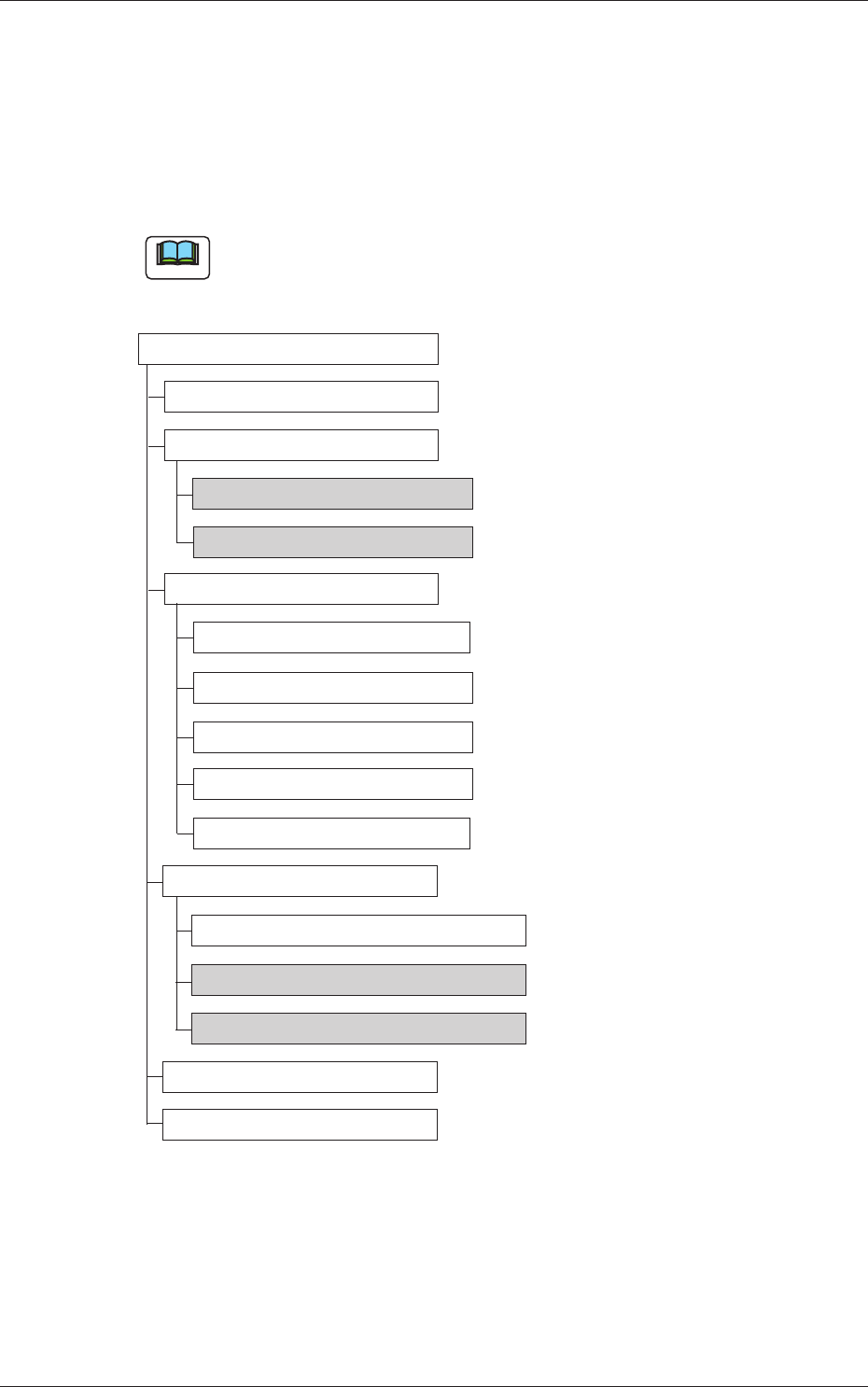
The following shows the hierarchical structure of the menus (including the
submenus and windows) for the automatic operation.
Note
The shadowed (gray) items are related to the single tray feeder.
Menus for Automatic Operation
Reference Item Nos.
Production
Component Reloading
Pickup Tray Matrix 2.2.1
Tray Component Data 2.2.2
Operation
Run Mode
Alternate Mode
Operation Mode
Test Mode 2.3.1
Splicing Mode
Production Data
Production Data
Feeder (B) Offset 2.4.1
Component Carriage Data Editing 2.4.2
Recall
PCB Transfer
Fig. B1 Outline of Menus for Automatic Operation
2. Menus for Automatic Operation
0707-001
2-3
Tg1576-ID-SO
2.2 Component Reloading
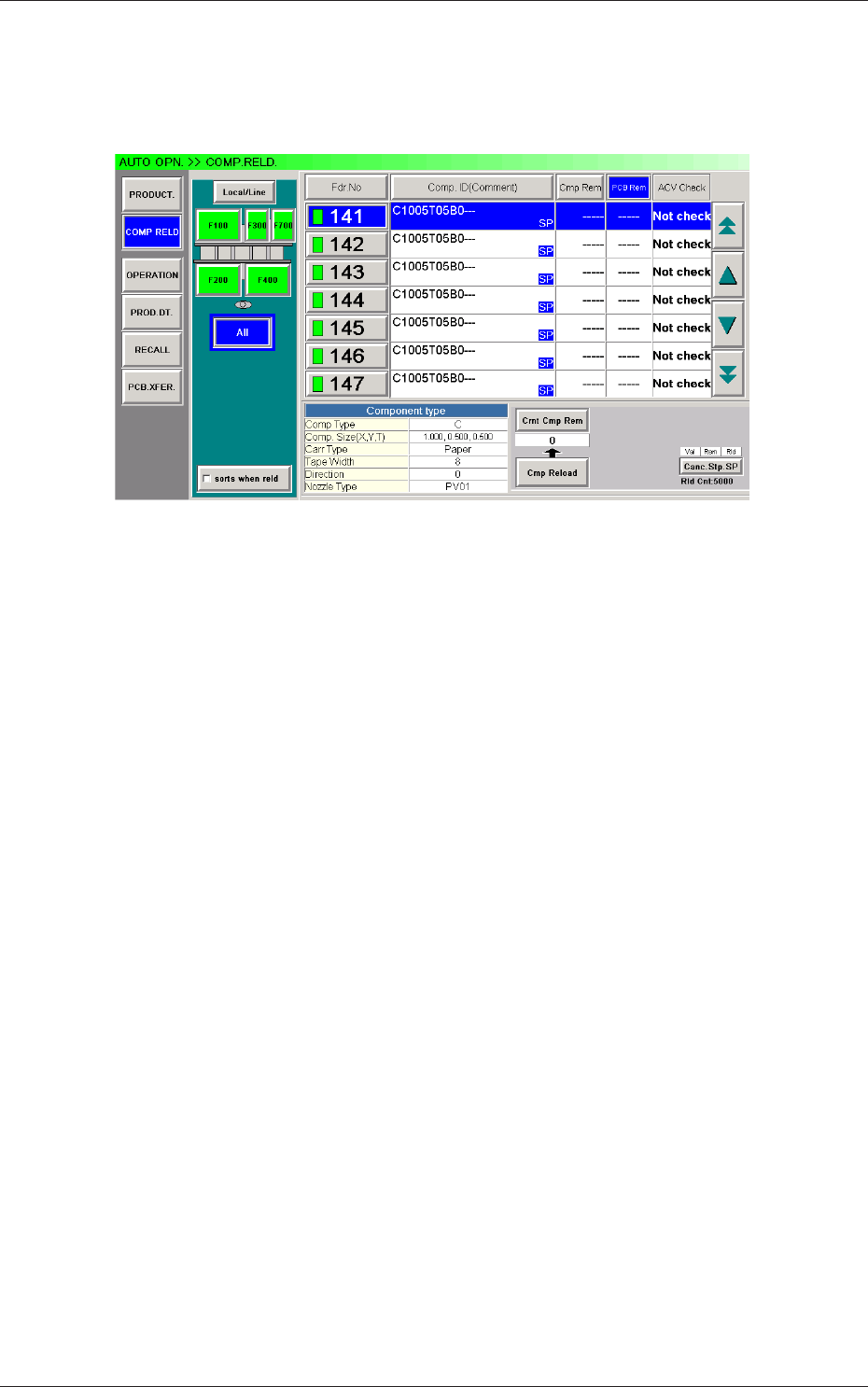
When the [COMP. RELD.] button on the submenu bar of the "AUTO OPN."
window is pressed, the "COMP. RELD." window appears.
Fig. B2 "COMP. RELD." Window
0707-001
2.2 Component Reloading
2-4
Tg1576-ID-SO
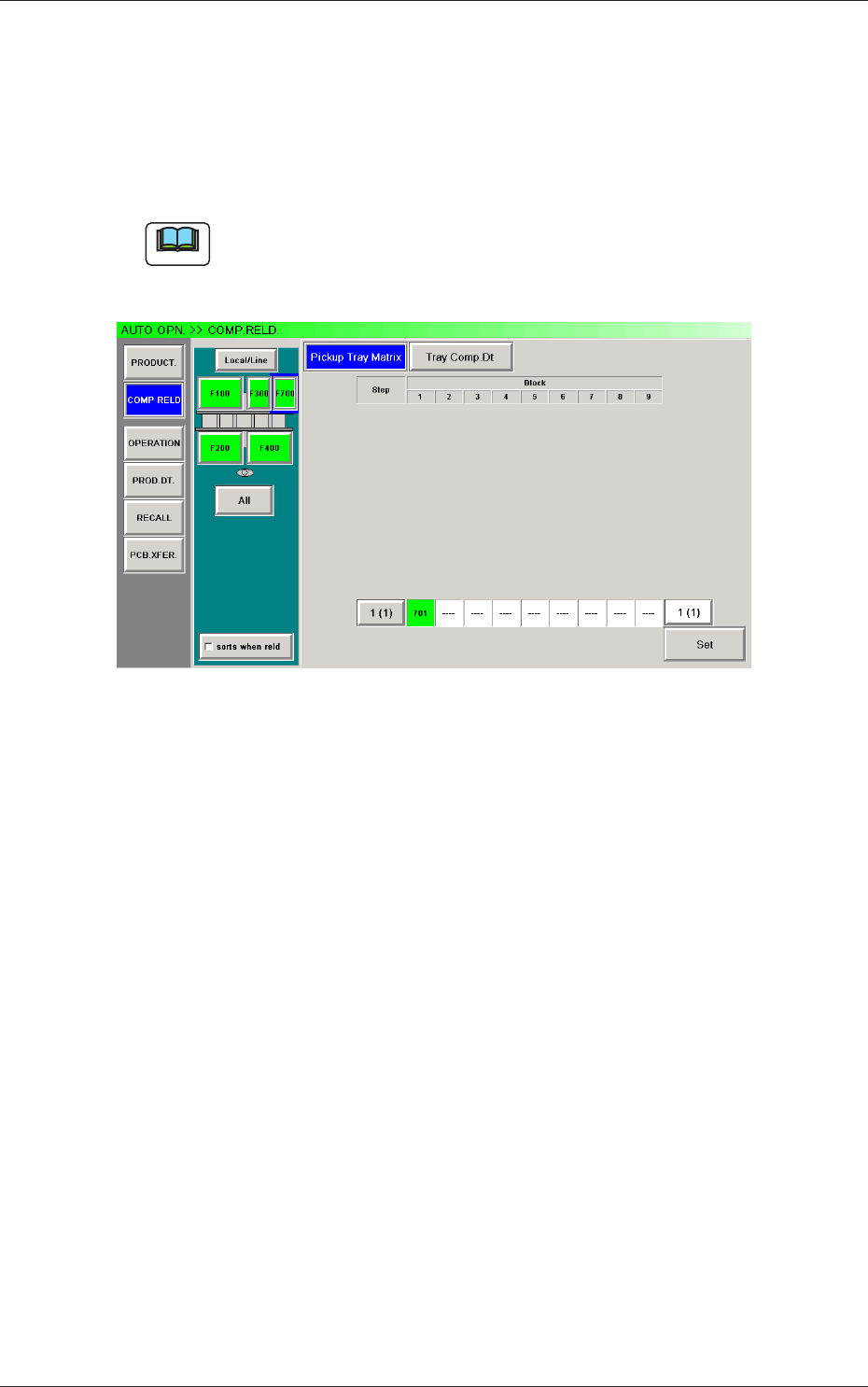
When the feeder block button (F700) is pressed in the "COMP. RELD."
window, the operation sheet for component reloading on the single tray
feeder appears. The single tray feeder is installed on the selected feeder
block.
The "COMP. RELD." window for the single tray feeder is composed of the
"Pickup Tray Matrix" and "Tray Comp. Dt" operation sheets.
Note
When the feeder block button (where the single tray feeder is connected)
is pressed in the "PRODUCT." window, the "COMP. RELD." window for
the single tray feeder also opens.
Fig. B2-1 "COMP. RELD." Window
0708-002
2.2 Component Reloading