OM-1455-004_w.pdf - 第53页
2-4 Tg1576-ID-SO When the feeder block button (F700) is pressed in the "COMP . RELD." window , the operation sheet for component reloading on the single tray feeder appears. The single tray feeder is installed …
2-3
Tg1576-ID-SO
2.2 Component Reloading
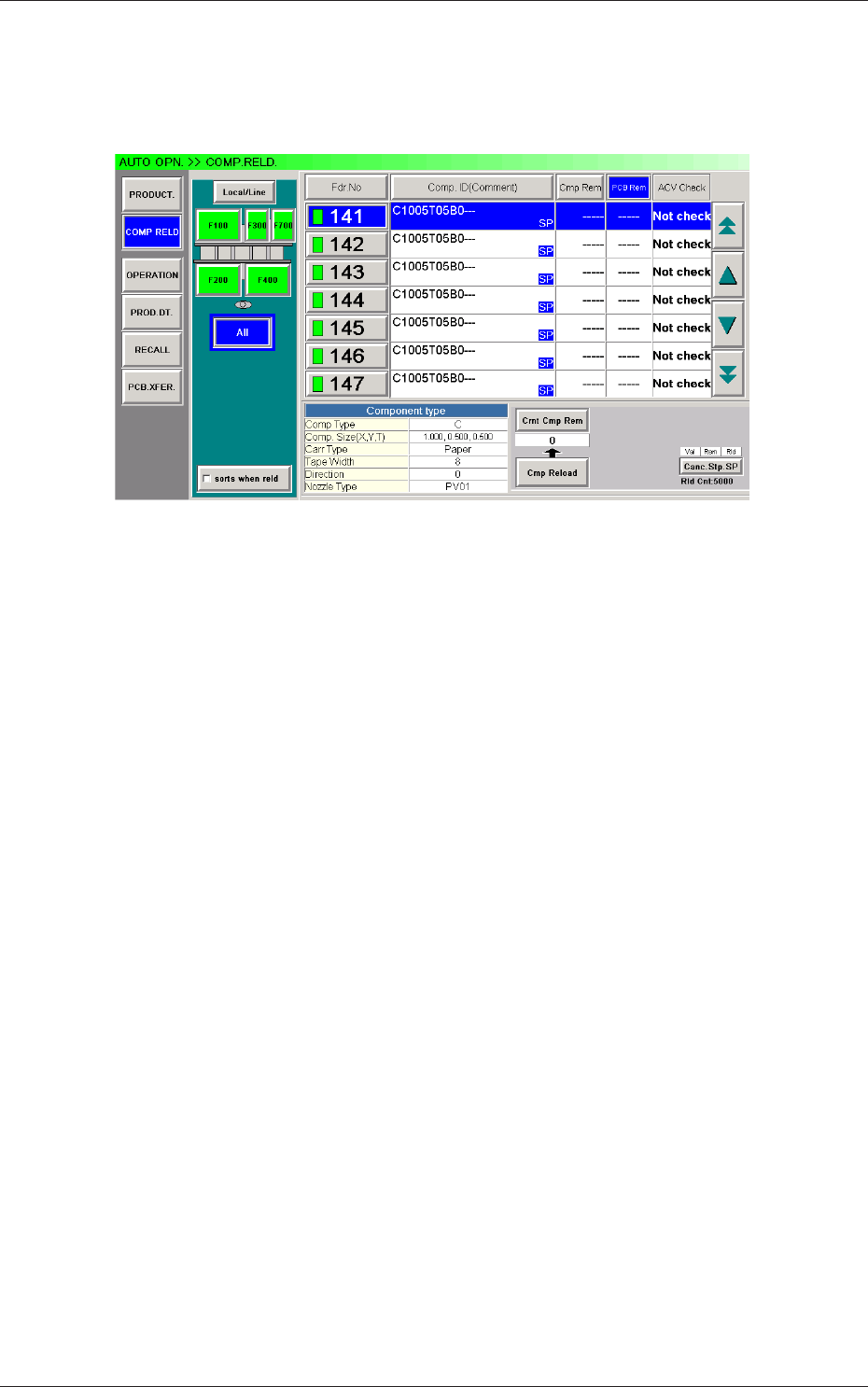
When the [COMP. RELD.] button on the submenu bar of the "AUTO OPN."
window is pressed, the "COMP. RELD." window appears.
Fig. B2 "COMP. RELD." Window
0707-001
2.2 Component Reloading
2-4
Tg1576-ID-SO
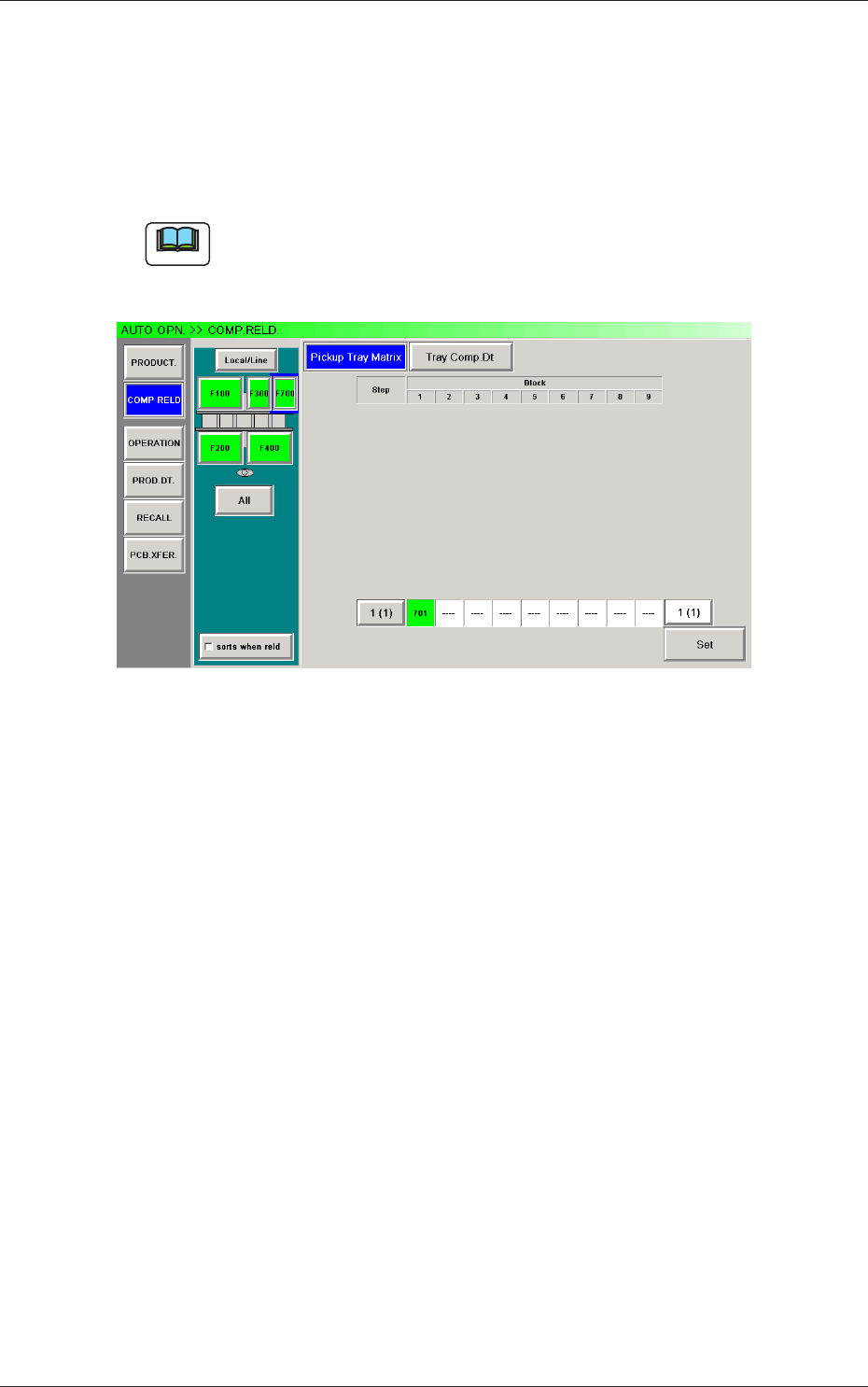
When the feeder block button (F700) is pressed in the "COMP. RELD."
window, the operation sheet for component reloading on the single tray
feeder appears. The single tray feeder is installed on the selected feeder
block.
The "COMP. RELD." window for the single tray feeder is composed of the
"Pickup Tray Matrix" and "Tray Comp. Dt" operation sheets.
Note
When the feeder block button (where the single tray feeder is connected)
is pressed in the "PRODUCT." window, the "COMP. RELD." window for
the single tray feeder also opens.
Fig. B2-1 "COMP. RELD." Window
0708-002
2.2 Component Reloading
2-5
Tg1576-ID-SO
2.2.1 Pickup Tray Matrix
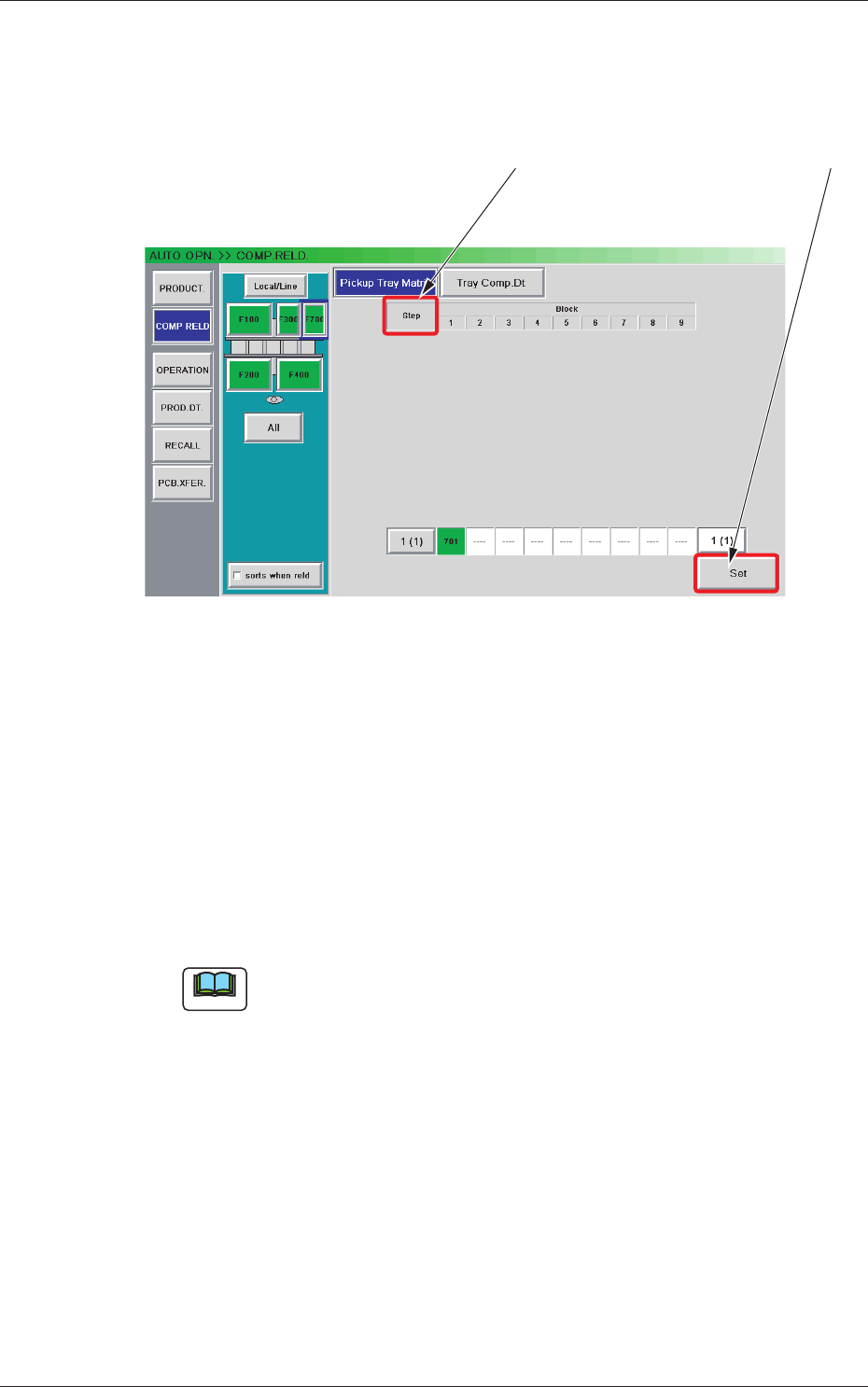
When the [Pickup Tray Matrix] button is pressed in the "COMP. RELD."
window, the "Pickup Tray Matrix" window appears.
[2] [1]
Fig. B3 "Pickup Tray Matrix" Window
[1] Component Reload Buttons
When the component-reloaded step is selected and the [Set] button is
pressed, the tray pickup matrix of the selected step is set to "(1, 1)" and
the number of remaining components is updated.
Reloaded Step Selection :
The component-reloaded step must be
selected.
[Set] Button :
When pressed, this button sets the
component reloading condition with the
specied value.
Note
As for the steps that are not used in the pattern program, no component reload
button is displayed.
[2] Step Selection Buttons
When a magazine and a step are selected, the "Block Information"
window appears, making it possible to check and change the tray
matrices.
0708-002
2.2 Component Reloading