FCM_User Reference Manual.pdf.pdf - 第170页
MIS User Re ference Manual 4022 5 91 96082 5-78 F CM Mult ifl ex 02.02 5.3 .7 Pri nt Optio ns 5.3.7.1 [ Pr int] > [Last r e port] T ABL E 5-36 Qui ck Refer ence ✱✱ Detailed Infor mation Not a ppl icabl e 5.3.7.2 [ Pr …

4022 591 96082 User Reference Manual
02.02 FCM Multiflex 5-77
MIS
NOTE: Although the [Collect data...] dialogue responds imme-diately, this does
not mean the data collection has been finished!
No actual data collection is done as long as any placement module is busy.
As soon as data collection is finished, you will be notified via the menu
dialogue.
▼Controls
■ select [Cancel] to quit the function without action
■ select
[OK] to start the (manual) MIS data collection
■ After you have been notified that the data collection is finished, select
[OK] to
leave the dialogue
MIS
User Reference Manual 4022 591 96082
5-78 FCM Multiflex 02.02
5.3.7 Print Options
5.3.7.1 [Print] > [Last report]
TABLE 5-36 Quick Reference
✱✱Detailed Information
Not applicable
5.3.7.2 [Print] > [All reports]
TABLE 5-37 Quick Reference
✱✱Detailed Information
Not applicable
Actions ■ select [Functions...] in the MIS pull-down menu
■ select [Print]
■ select [Last report]
Conditions ■ order active
Information ■ initiates a print-out of the last displayed report
■ for further information, see the proper report section
Display Options -
Actions ■ select [Functions...] in the MIS pull-down menu
■ select [Print]
■ select [All reports]
Conditions ■ supervisor access level
■ order active
Information ■ initiates a print-out of all reports as selected in the
[Parameters] > [Print set...] menu
■ for further information, see the proper report section
Display Options -
4022 591 96082 User Reference Manual
02.02 FCM Multiflex 5-79
MIS
5.3.7.3 [Print] > [Printer control...]
TABLE 5-38 Quick Reference
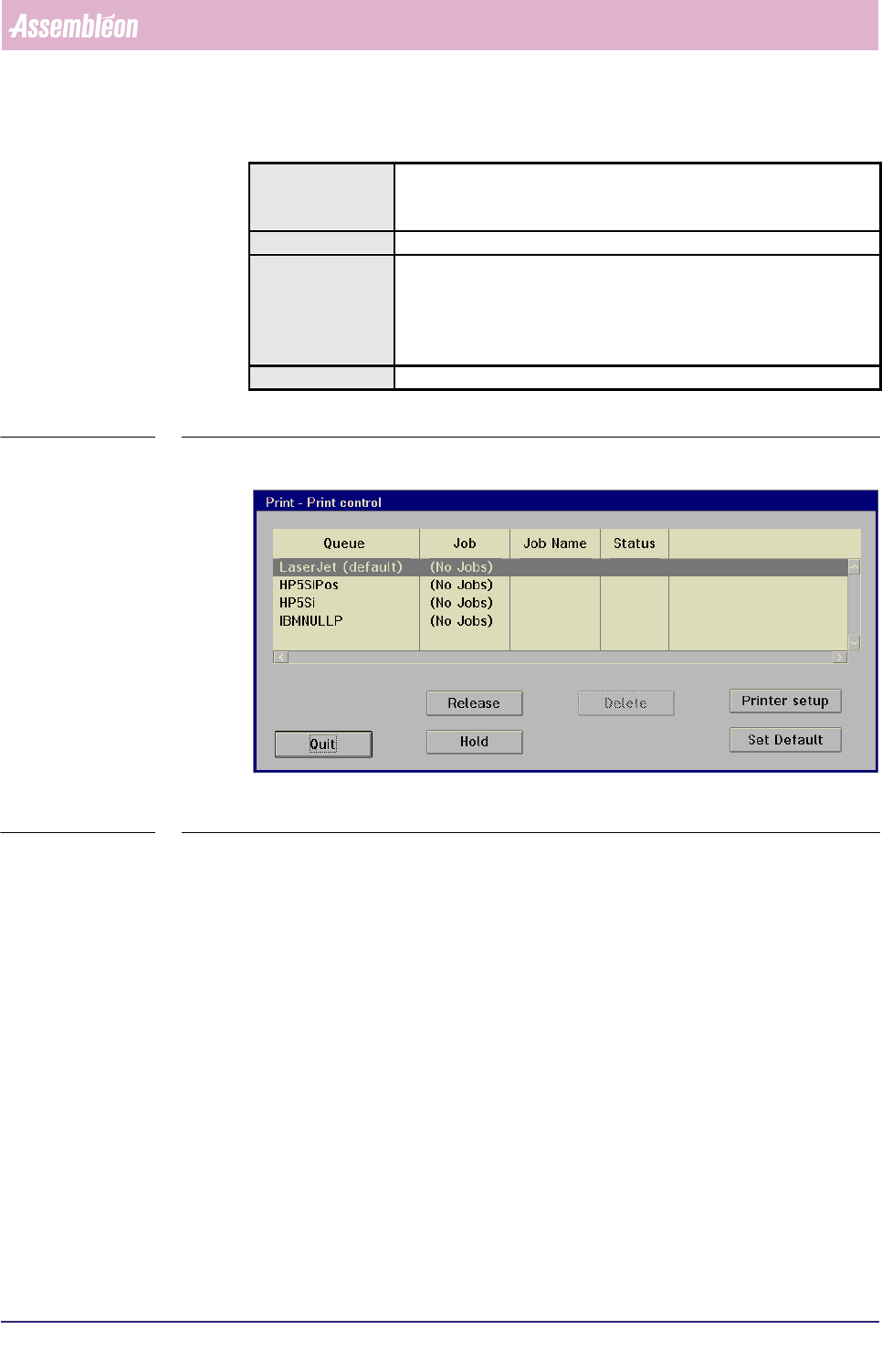
fcm0566a.tif
SCREEN 5-58 [Printer control...] screen example []
✱✱Detailed Information
Installation of a(n) (extra) printer must be done via the NT operating system.
To change the printer settings, we refer to the concerned printer manual, as each
printer (type) has its own - in most cases, different - menu layout.
▼Controls (see SCREEN 5-43)
■ select [Hold] to temporary stop printer actions
■ select [Release] to continue a hold printer action
■ select
[Delete] to remove a printer job from the printer queue
■ to make the highlighted printer the default printer, select [Set Default]
■ select [Printer setup] to go to the printer’s setup menu
■ select [Quit] to leave the MIS [Print control] menu
Actions ■ select [Functions...] in the MIS pull-down menu
■ select [Print]
■ select [Printer control...]
Conditions ■ order active
Information ■ gives control over print jobs and printer queues:
• to delete a print job
• to stop a print job or a print queue
• to re-start a print job or a print queue
• to set up a printer
Display Options -