FCM_User Reference Manual.pdf.pdf - 第25页
4022 591 96082 User Re ference Manual 02.02 FCM Multiflex 3-9 Hu man Inte rfac e 3.3.5 Sp ool Thi s window displays the current spoo l st atu s of the FCM Multiflex with regards to bu ffering S ECS- II (G EM) H ost L i n…
Human Interface
User Reference Manual 4022 591 96082
3-8 FCM Multiflex 02.02
• Aborting: The currently running order and, if present, the scheduled Next
Order are being aborted.
■ System Cal file:
The system calibration file which is associated with the current order.
3.3.3 Next Order
This field shows information related to the next scheduled order:
■ ID:
Identification of the next Order as entered by the User in the “Order - Entry”
dialogue.
■ File:
The Production Action Spec which is used for the next Order.
■ Countdown:
The number of boards in the current Order that must be completed before the
next Order can be started (only used in combination with the optional Board
Identification Module (BI)).
■ Changeover method:
This displays the changeover method which is used to switch from the current
order to the next order. It can be one of the following:
• RCO: A rolling changeover will be performed. This will leave a gap of one
board between the completion of the current order and the start of the next
order.
• Stop for Setup: The same as rolling changeover, but the system is stopped
and the operator is requested to perform a setup change first.
• No RCO: No rolling changeover is possible. The current order, while
completing, will runout before the next order is started.
3.3.4 Boards
The following Board information is displayed about the current order:
■ Reqd:
The requested number of board as specified in the “Order - Entry” dialogue.
■ Good:
The total number of boards currently completed with no errors.
■ Susp:
The total number of suspected boards for the current order. This number relates
to those boards for which “Skip Action” has been selected by the User in the
error recovery dialogue in order to continue production, or which were automat-
ically marked as suspected by the system (e.g. due to sudden power failure
during production).
■ Skip:
The total number of incomplete boards for the current order. This number relates
to those boards for which the User has selected “Skip Board” in the error
recovery dialogue or which were not (fully) populated after the User initiated an
“Abort Order”.
4022 591 96082 User Reference Manual
02.02 FCM Multiflex 3-9
Human Interface
3.3.5 Spool
This window displays the current spool status of the FCM Multiflex with regards to
buffering SECS-II (GEM) Host Link messages. It may display the following statuses:
■ Active:
The FCM Multiflex Controller is storing all (relevant) SECS-II messages in a
special buffer (spool area) since the FCM Multiflex is currently unable to send
data to the host.
■ Full:
The FCM Multiflex Controller is unable to store more SECS-II messages since the
buffer is full.
■ Purging:
The FCM Multiflex Controller is discarding SECS-II messages which were stored in
the buffer (on host’s request).
■ Transmitting:
The FCM Multiflex is sending the SECS-II messages which were stored in the
buffer to the host (on host’s request).
■ Inactive:
The FCM Multiflex is currently not storing messages in the buffer, and trans-
ferring data directly to the host computer.
If the optional SECS-II (GEM) Host Link FC 6 is not installed on your system, this
status window is empty.
Detailed information is available in the relevant FCM Multiflex Option Manual.
3.3.6 Slots
This area shows module positions with module name and slot numbers. Pick &
Placement Modules (CLM (LAS) or WVM) can be fitted in positions 1 through 16. The
Transport Controller (TC) occupies slot 0 while optional modules (e.g. BVM, BI) are
displayed to the left of the TC slot.
Possible statuses that can exist for a module are:
■ E : Error (red background)
■ W : Warning (green background)
■ Ok : Normal (green background)
■ : An empty field means the module is not available (either not physically
present, or no PPU mounted)
■ D : Disabled (black background).
3.3.7 Board Status
This is a visual display of the boards running through the machine. In case of a
Rolling Changeover, boards from a current Order and from the next Order are
displayed in different colours. Additionally, the state of each board is indicated by
means of a character inside the board. Following statuses can exist for a board:
Human Interface
User Reference Manual 4022 591 96082
3-10 FCM Multiflex 02.02
An empty block means the board is progressing normally
The board has been skipped (e.g. “Skip Board” has been selected).
The board is suspected (e.g. “Skip Action” has been selected ).
3.4 Status Bar
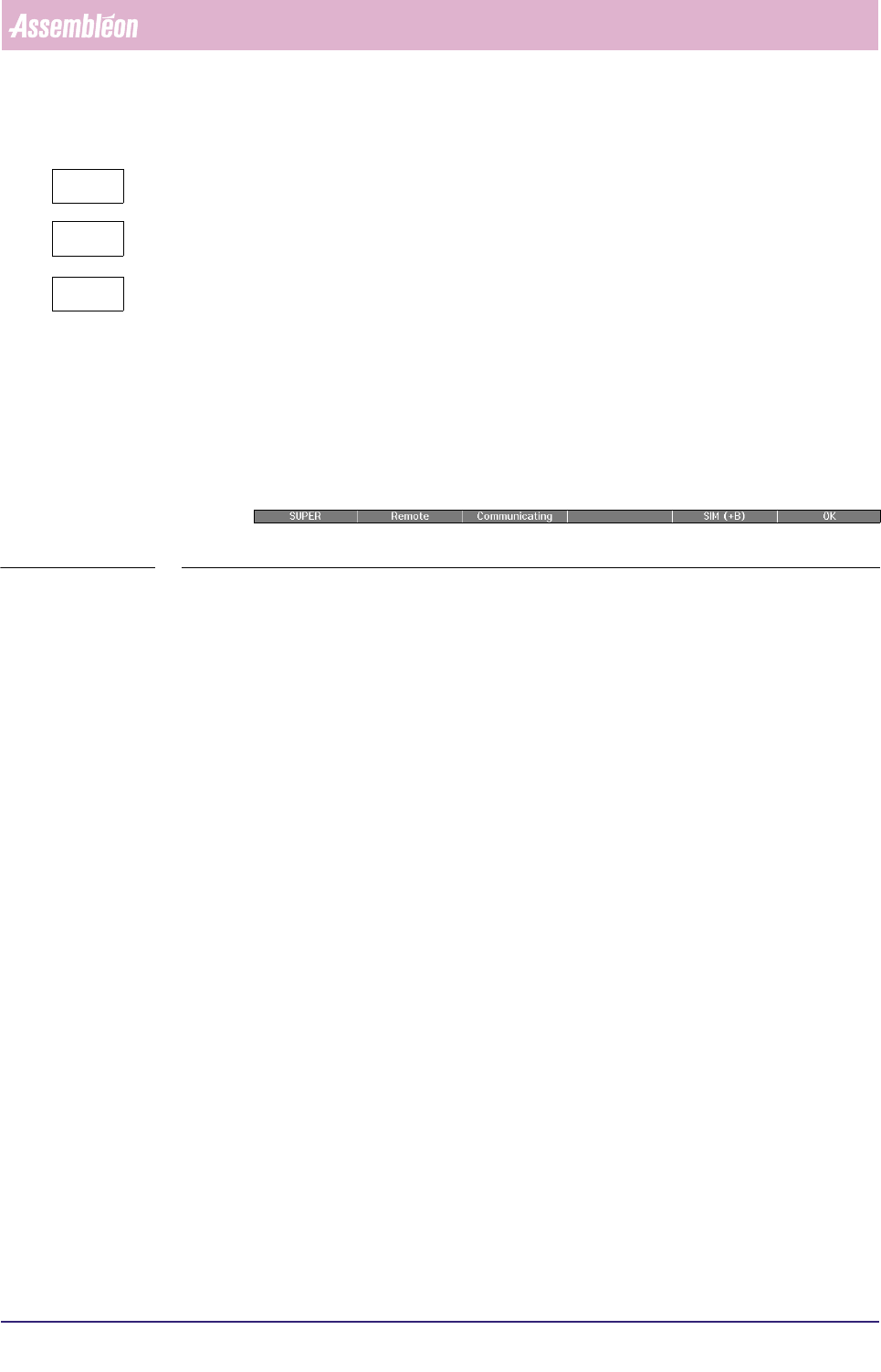
The status bar is located at the bottom of the Human Interface screen and is split
up into 6 sections (of which section 4 is currently not used). It gives the operator a
brief overview of the operation statuses of the FCM Multiflex (see SCREEN 3-6).
SCREEN 3-6 Example of Status bar
The following information can be displayed:
■ User level:
• OPER(ator),
• SUPER(visor),
• MAINT(enance/Service Engineer).
■ Control State (only with optional SECS-II (GEM) Host Link):
• Offline:
The FCM Multiflex is operated locally using the Human Interface of the FC
controller, but is not sending data (e.g. MIS) to the host computer. The FCM
Multiflex will only respond to host messages requesting to go on-line.
• Attempt:
The FCM Multiflex has requested the host to go on-line (either local or
remote).
• Local:
An on-line state in which the FCM Multiflex is operated locally using the
Human Interface of the FC controller. Data may be exchanged with the host.
• Remote:
An on-line state in which the FCM Multiflex is operated via the host
computer, and data may be exchanged.
-
?