FCM_User Reference Manual.pdf.pdf - 第285页
4022 591 96082 User Re ference Manual 02.02 FCM Multiflex 7-3 Advanced O r d er Sche duling • Stop for Setup: RCO i s possible , but there are dif fer ence s in the setup of on e or more CLM (LAS ) or WVM positions (e .g…
Advanced Order Scheduling
User Reference Manual 4022 591 96082
7-2 FCM Multiflex 02.02
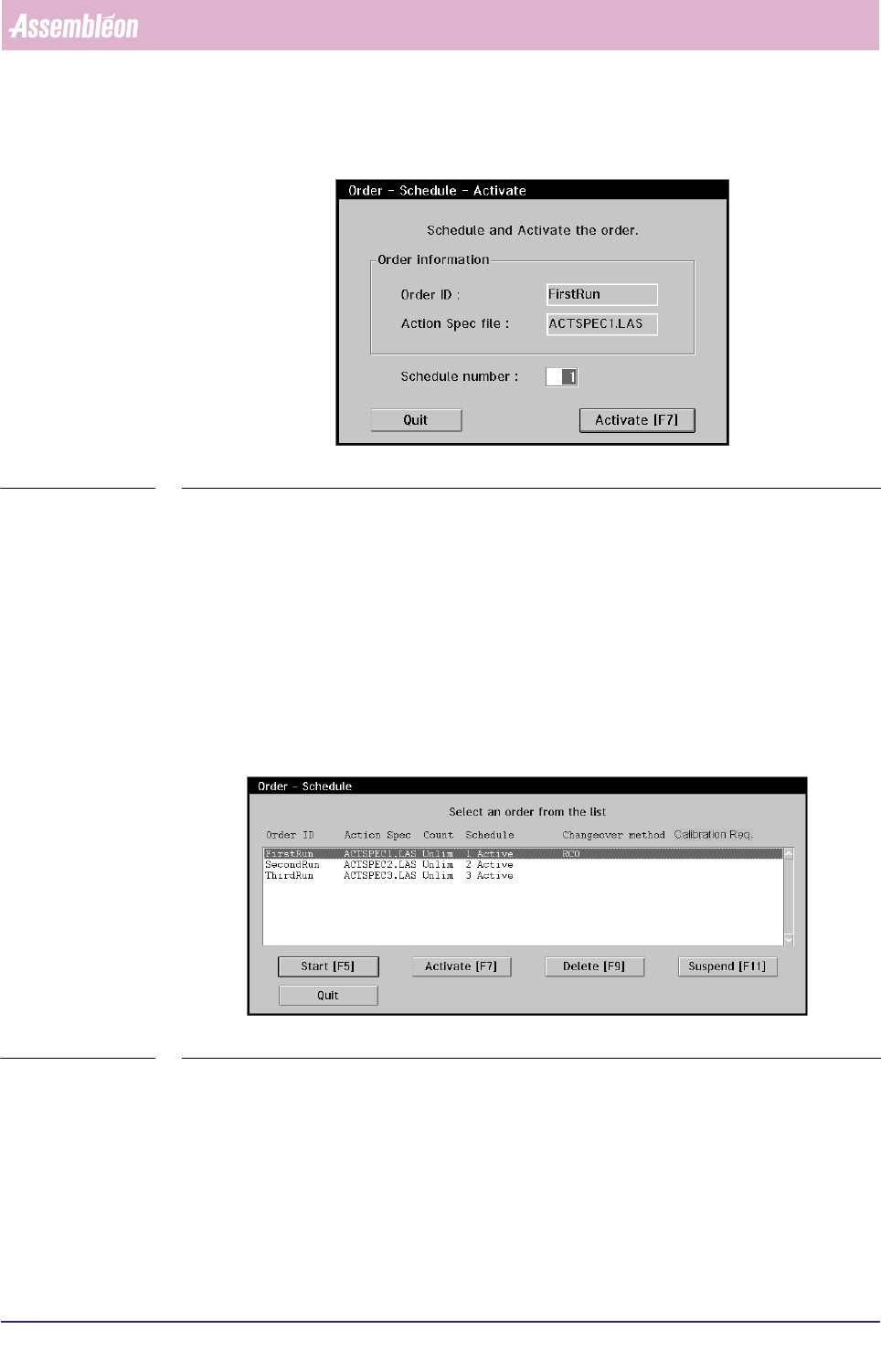
3. Select [Activate] or press <F7>. The Order - Schedule - Activate Dialogue will
now appear (see SCREEN 7-2).
SCREEN 7-2 Order - Schedule - Activate Dialogue
4. The currently displayed schedule number is always the total number of already
active orders + 1. If the displayed Schedule Number is according to your wishes,
select [Activate] or press <F7>.
If you wish to give this order a lower schedule number, change the number in
the Entry Field first. Entering higher schedule numbers will have no effect.
After activating, the screen will go back to the Order - Schedule dialogue (see
SCREEN 7-3). If a schedule number was changed, the dialogue will automatically
re-order all active schedules.
SCREEN 7-3 Order Schedule after activating Orders
All orders which have been activated, now display their Schedule number and
have the status “Active”. Additionally, the Order with Schedule number 1
displays the Changeover Method which is possible when performing a changeover.
This can be one of the following:
• RCO:
If this order is started, the FCM Multiflex will start production on a new order,
with a gap of one board without further intervention necessary. This is called
“Rolling ChangeOver”
4022 591 96082 User Reference Manual
02.02 FCM Multiflex 7-3
Advanced Order Scheduling
• Stop for Setup:
RCO is possible, but there are differences in the setup of one or more CLM
(LAS) or WVM positions (e.g. different feeders, component ids, nozzle or PPU
type). During production, the FCM Multiflex will stop at each position where
the setup has to be changed (FCM Production Status will change to “Change
Setup !”). After the setup has been changed, production can be continued.
• NO RCO:
RCO is not possible because there are differences in the FCM Multiflex Base
setup (e.g. different board carriers, stopper adjustment or transport width). If
this order is started, the FCM Multiflex will run-out the current order first.
After that, the FCM Multiflex stops and requests the user to change the setup
(FCM Production Status will change to “Change Setup !”). After the setup has
been changed, production can be started.
5. If you want to activate more Orders repeat the above mentioned procedure.
6. Select [Quit] or press <Esc> if you wish to leave the Order - Schedule Dialogue.
7.1.2 Suspending Orders
Orders may be suspended from the Order Schedule, when they are currently not
being used in a production period. Only orders which are currently “Active” can be
suspended.
Procedure:
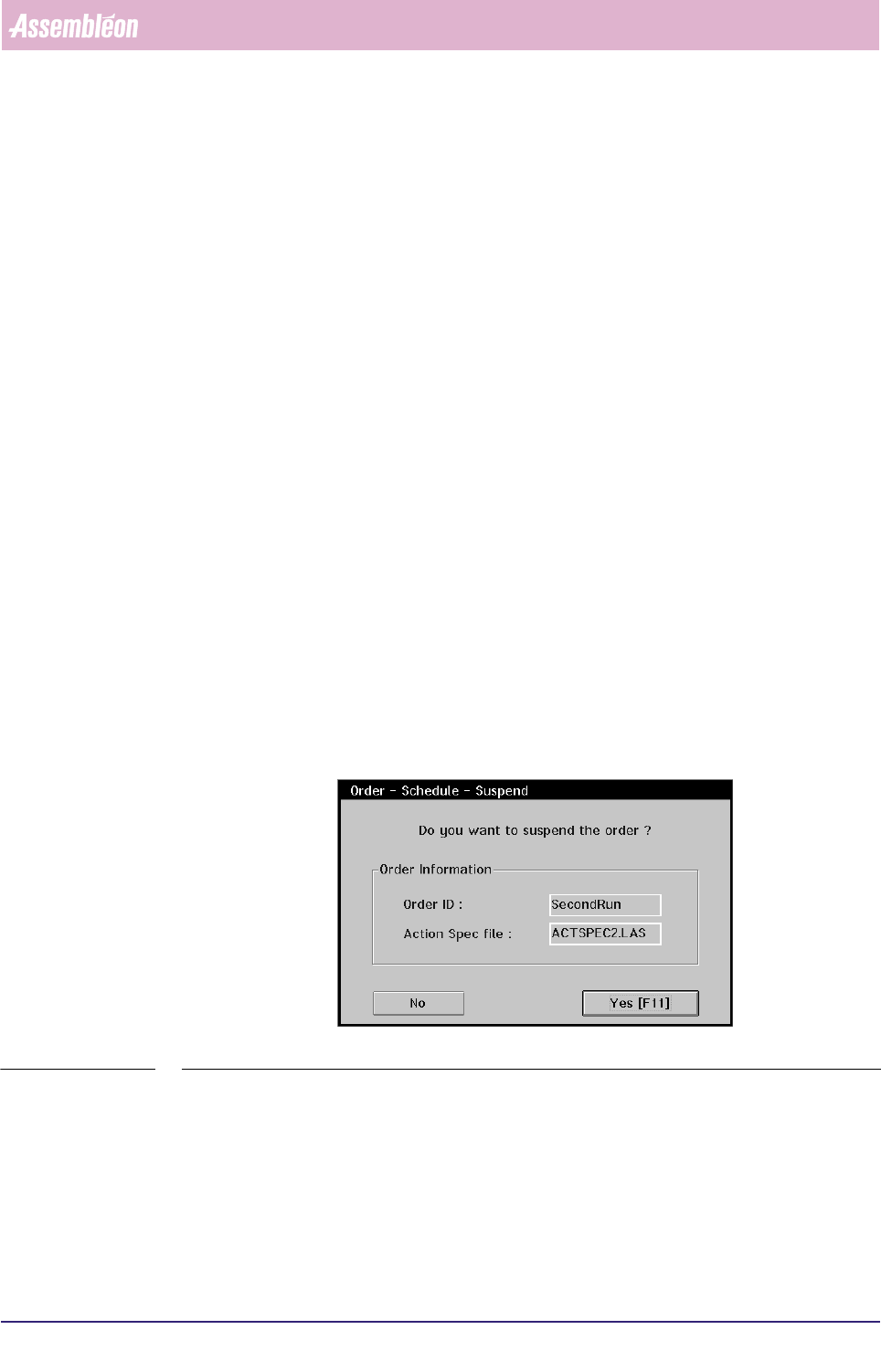
7. Select [Suspend] or press <F11> if you wish to change the selected “Active”
order back to “Idle”. The following dialogue will appear (see SCREEN 7-4).
SCREEN 7-4 Order - Schedule - Suspend Dialogue
8. Select [Yes] or press <F11> if you want to suspend the order. The screen will
return to the Order - Schedule Dialogue.
9. Select [Quit] or press <Esc> if you wish to leave the Order - Schedule Dialogue.
Advanced Order Scheduling
User Reference Manual 4022 591 96082
7-4 FCM Multiflex 02.02
7.1.3 Deleting Orders
Orders may be deleted from the Order Schedule if no intension exists to use them in
a current production period (e.g. after an accident order entry). Only orders which
are currently “Idle” can be deleted.
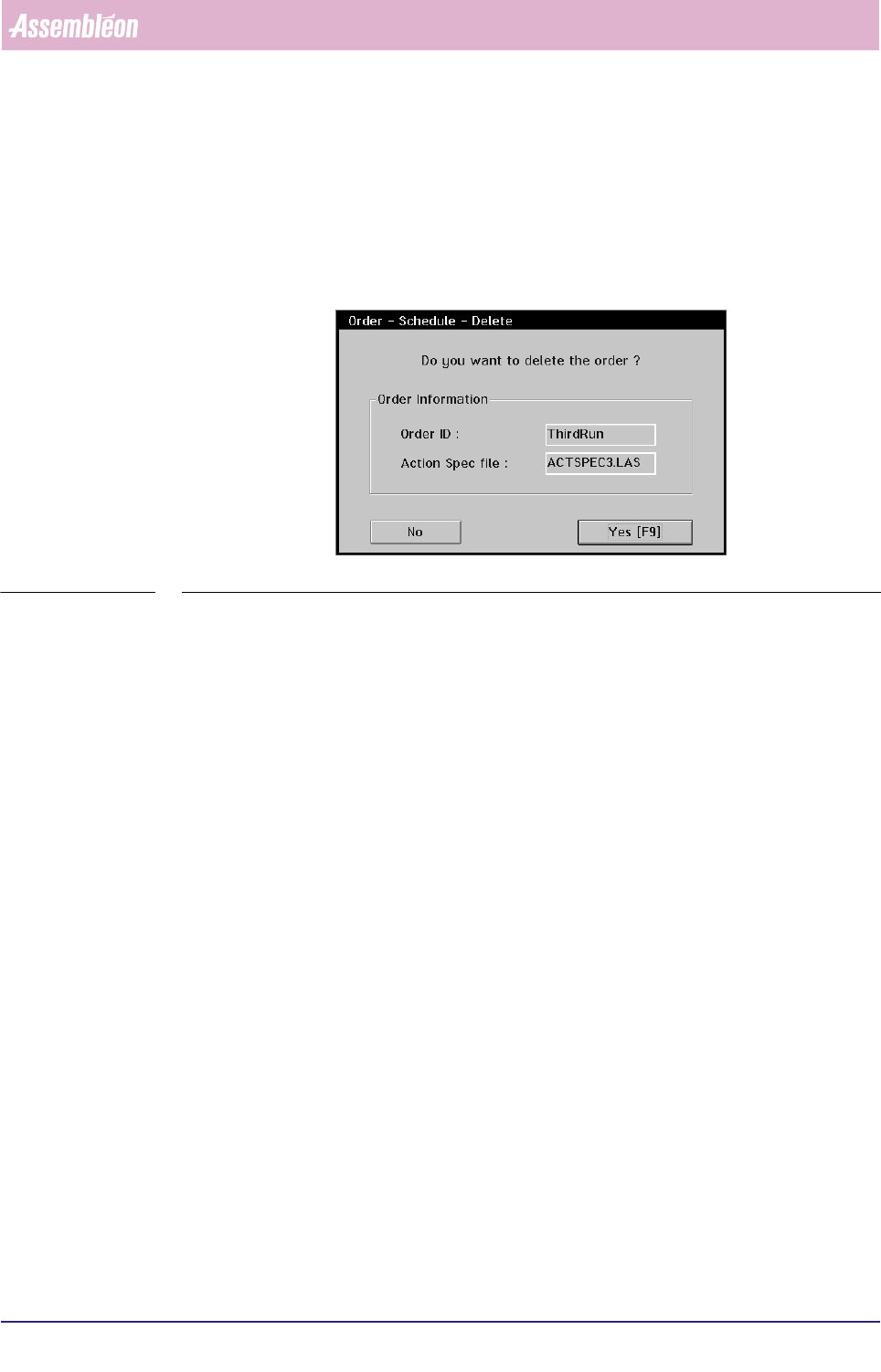
10.Select [Delete] or press <F9> if you wish to remove the selected “Idle” order
from the Order - Schedule. The following dialogue will appear (see SCREEN 7-5):
SCREEN 7-5 Order - Schedule - Delete Dialogue
11.Select [Yes] or press <F9> if you want to delete the order. The screen will return
to the Order - Schedule Dialogue.
12.Select [Quit] or press <Esc> if you wish to leave the Order - Schedule Dialogue.