FCM_User Reference Manual.pdf.pdf - 第287页
4022 591 96082 User Re ference Manual 02.02 FCM Multiflex 8-1 SVS P r o Config ur ation CHAPTER 8 SVS Pro Configur atio n SVS Pr o h as a l ot o f featu r es and parame ters that can be con fig ured by the u ser . These …
Advanced Order Scheduling
User Reference Manual 4022 591 96082
7-4 FCM Multiflex 02.02
7.1.3 Deleting Orders
Orders may be deleted from the Order Schedule if no intension exists to use them in
a current production period (e.g. after an accident order entry). Only orders which
are currently “Idle” can be deleted.
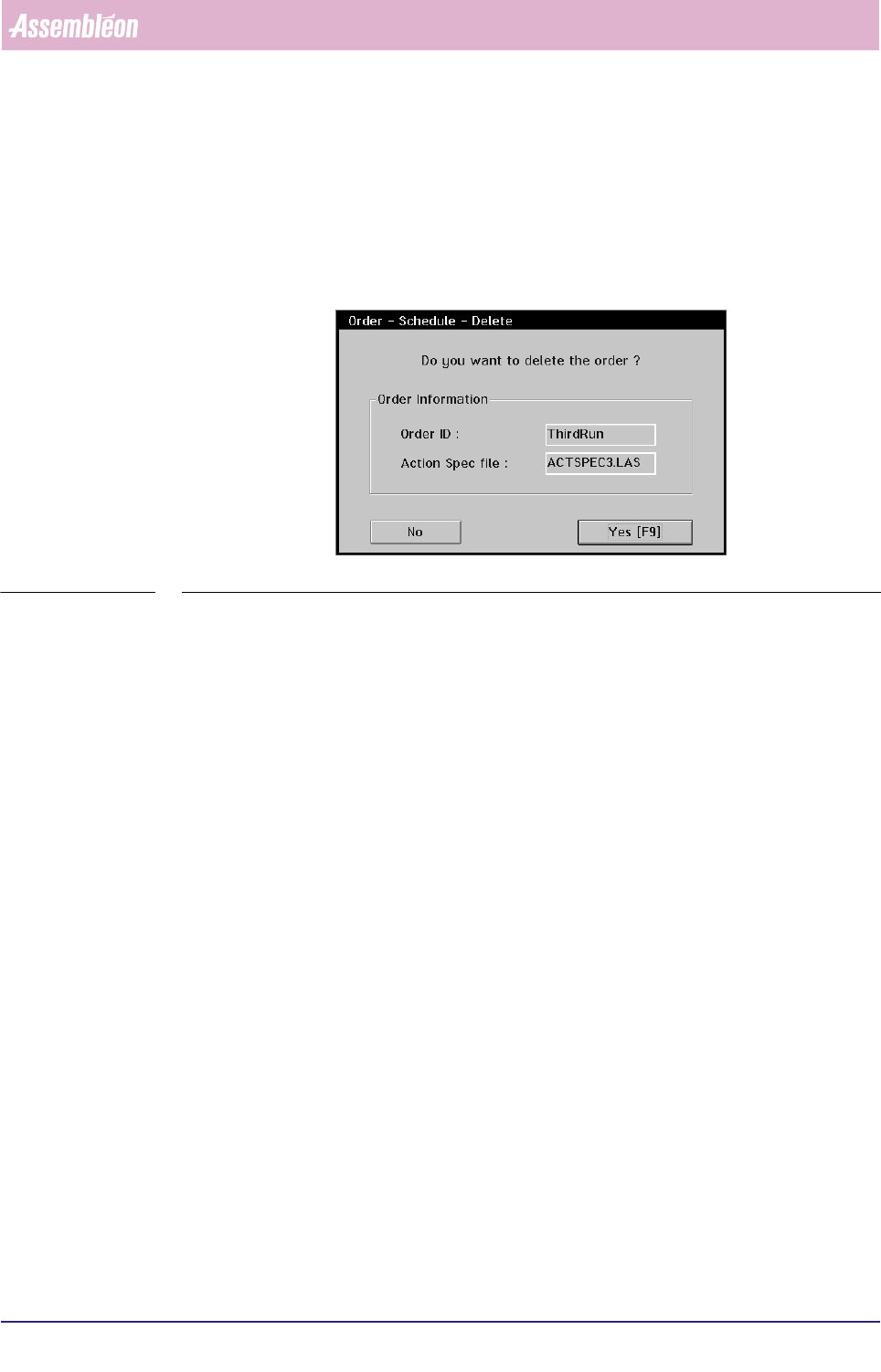
10.Select [Delete] or press <F9> if you wish to remove the selected “Idle” order
from the Order - Schedule. The following dialogue will appear (see SCREEN 7-5):
SCREEN 7-5 Order - Schedule - Delete Dialogue
11.Select [Yes] or press <F9> if you want to delete the order. The screen will return
to the Order - Schedule Dialogue.
12.Select [Quit] or press <Esc> if you wish to leave the Order - Schedule Dialogue.

4022 591 96082 User Reference Manual
02.02 FCM Multiflex 8-1
SVS Pro Configuration
CHAPTER 8 SVS Pro Configuration
SVS Pro has a lot of features and parameters that can be configured by the user.
These configurable items are maintained in a file that is needed on the machine and
on the SVS Pro loading unit.
■ The configuration file resides on the machine controller and is downloaded to
the SVS Pro controller on its request on start up of the machine.
■ On the SVS Pro loading unit the configuration file is located on the hard disk of
the loading unit controller.
To edit the SVS Pro configuration, switch to the operating system,
■ on the machine controller: go to c:\fcm\cim\data
■ on the loading unit controller: go to c:\svspro\data\lu\configuration
and edit the SVSPRO.CFG file.
NOTE: The file on the machine and the file on the loading unit need to be
identical.

SVS Pro Configuration
User Reference Manual 4022 591 96082
8-2 FCM Multiflex 02.02
8.1 Syntax of SVS Pro Configuration File
; This is an example SVS Pro configuration file
; with identifiers enabled
; All COMMENT Lines start with “;”
; Identifiers (0 = disabled, 1 = enabled)
;
IDENTIFIERS 1
; Barcode configuration with identifiers
; this section must be present but is only used if IDENTIFIER field is 1
;
; /type /req /identifiers
IDBARCODE 1 0 ; Operator id
IDBARCODE 2 1 P 1P ; Part number
IDBARCODE 3 1 Q ; Initial Quantity
IDBARCODE 4 1 T 1T S ; Lot Code
IDBARCODE 5 1 V ; Vendor code
IDBARCODE 6 0 T 1T S V ; Combined vendor-lot code
; Barcode configuration without identifiers
; this section must be present but is only used if IDENTIFIER field is 0
;
; /type /req /format /min /max /autofind /compress /verify
BARCODE 1 1 * 4 12
BARCODE 2 1 * 4 20 0 1 YYYYYYYYYYYYYYYYYYYY
BARCODE 3 1
BARCODE 4 1 * 3 14
BARCODE 5 1 * 3 10
BARCODE 6 0 * 3 14
; Random scanning (0 = disabled, 1 = enabled)
; this section is ignored if IDENTIFIER field is 0
;
RANDOMSCAN 1
; Operator rescan id (enabled)
; Time after which the validity of the operator ID scan expires
; and the operator ID has to be rescanned
; ( 0 = disabled, “30…999” = time in seconds)
OPERRESCAN 300
; Amount of components added on “Continue” (“snooze”),
; Intelligent feeder: feeder low length,
; Non-intelligent feeder: amount of boards that can be produced with remaning
; components (recommended: 2x the maximum number of boards in the machine)
; /snooze /length (m) /amount
AMOUNTS 10 2 18
; Feeder support
; /feeder /svs-support
FEEDER T 2 ; Handle as intelligent feeder
FEEDER B 1 ; Handle as non-intelligent feeder
FEEDER FLPCHP 1 ; Handle as non-intelligent feeder
FEEDER TRAY 0 ; No check on tray feeder
FEEDER HOOVERDAVIS 2 ; Handle as intelligent feeder