00194340-01.pdf - 第36页
Retrofit Instructions & User’s Manual / Automatic Vacuum Support Pins (AVSP) Edition 04/2006 3 Operation instructions 3.1 Overview of operations Upon full retrofit of AVSP on SIPLACE placem ent machine, AVSP c an aut…
Retrofit Instructions & User’s Manual / Automatic Vacuum Support Pins (AVSP)
Edition 04/2006
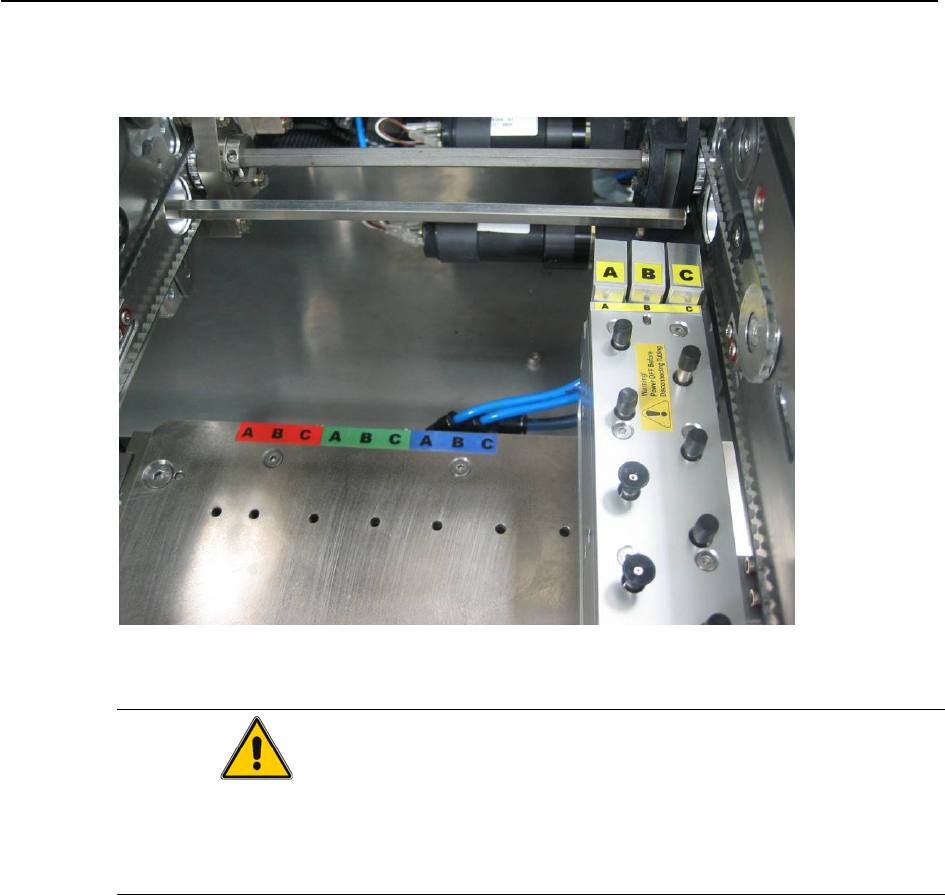
→ Locate pin module on lane where pin support is necessary. Connect the 3 tubing from
control unit to pin module according to the port abbreviation shown in Figure 2.5-2.
Figure 2.5-2 Connect air from air distributor to pin module
CAUTION
Pins is designed to be very sensitive to contact force during teaching of PCB profile,
therefore special care has to be taken in consideration during handling. Lock all the pins at
lowest position after used for storage.
2-31
Retrofit Instructions & User’s Manual / Automatic Vacuum Support Pins (AVSP)
Edition 04/2006
3 Operation instructions
3.1 Overview of operations
Upon full retrofit of AVSP on SIPLACE placement machine, AVSP can automatically adapt to
any PCB profile within a few steps.
teach the pin module
Users only need to
to adapt to the PCB profile using sample PCB.
The pin module can always be re-teach easily by following the similar steps.
3.2 PCB profile teaching operations
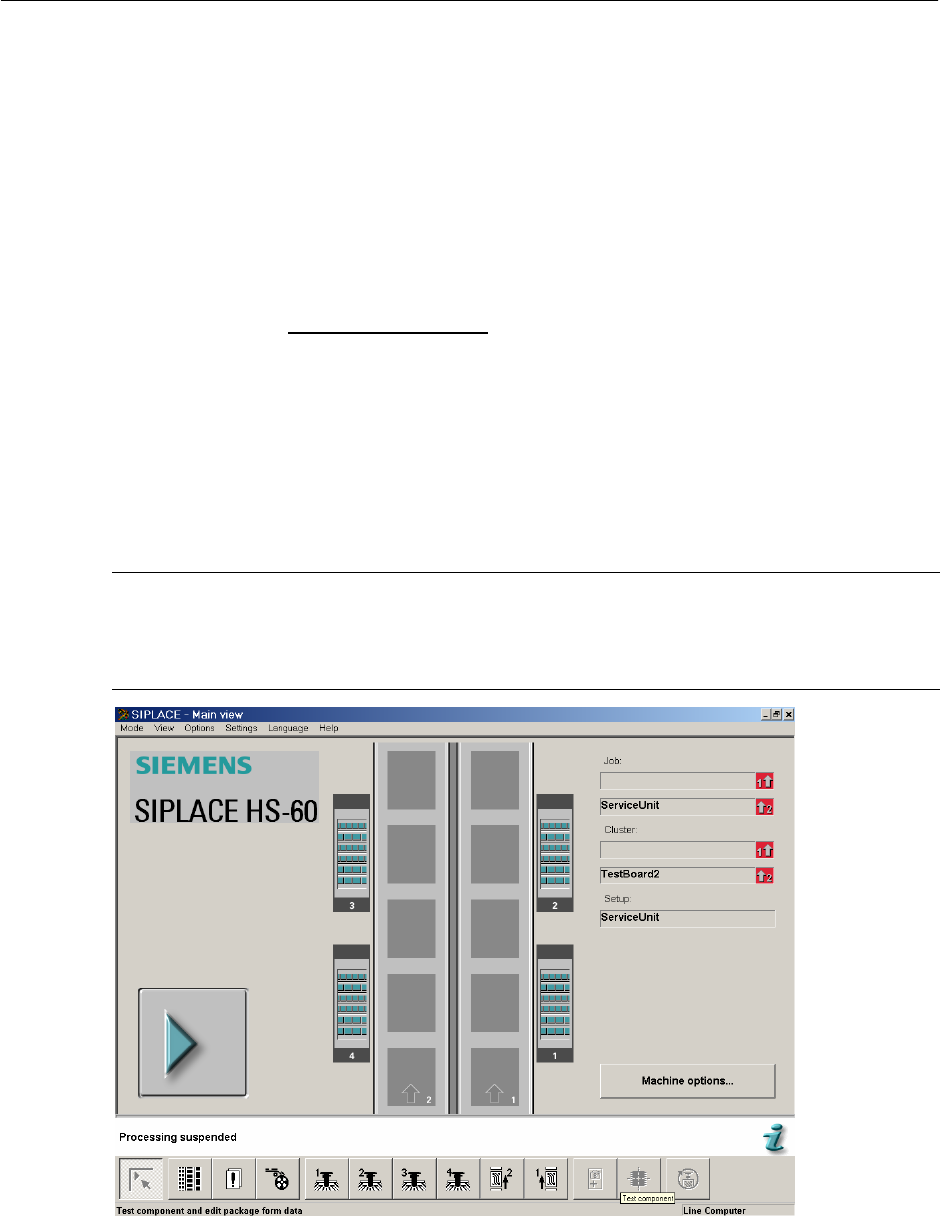
→ Turn ON machine power and you could see the SIPLACE main page on screen. Press
start key to reference run the machine.
NOTE
Turn air supply’s valve ON if you have shut OFF during retrofitting.
Reference run is a must for AVSP to functions correctly.
Figure 3.2-1 SIPLACE main page
3-32
Retrofit Instructions & User’s Manual / Automatic Vacuum Support Pins (AVSP)
Edition 04/2006
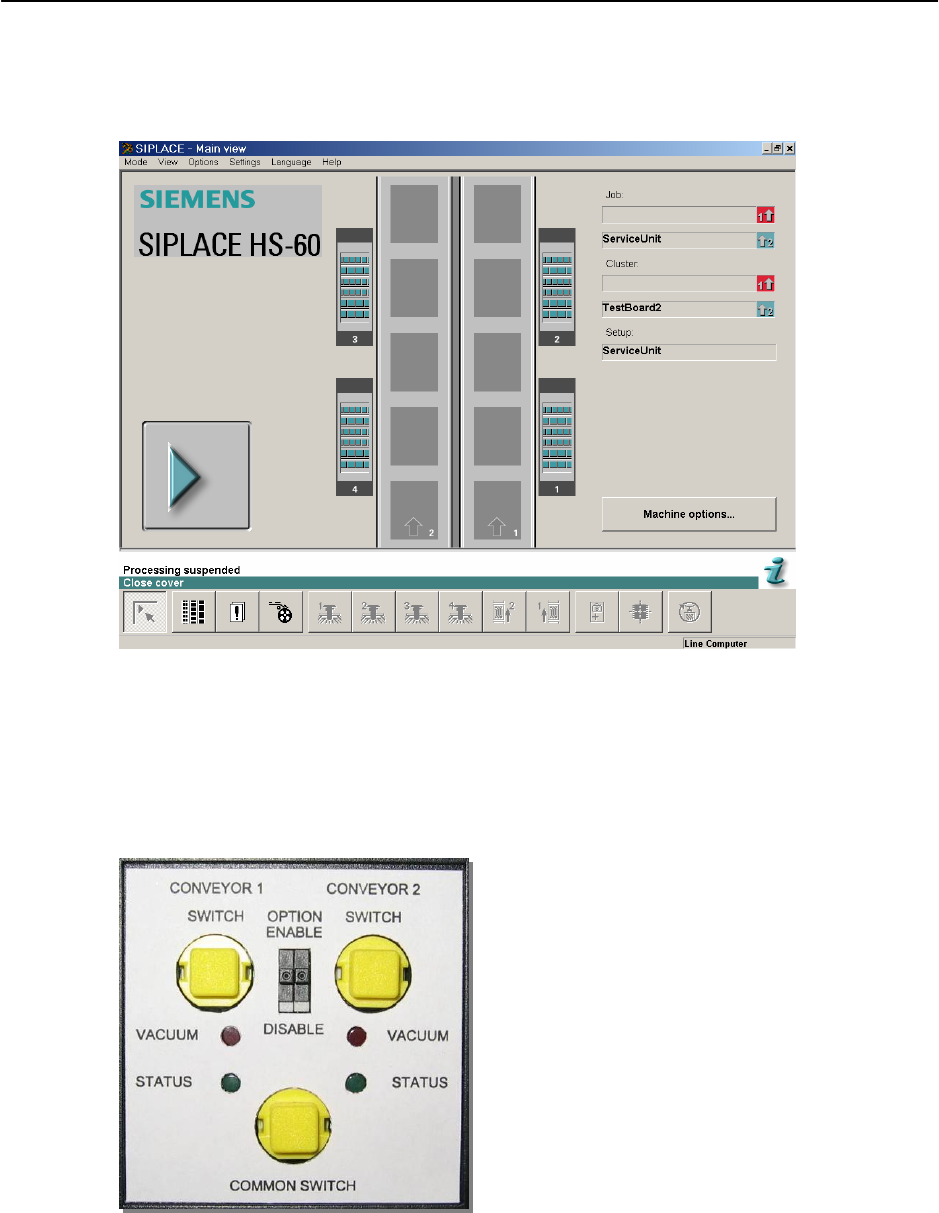
→ Press machine’s stop button and open the respective machine’s cover. If the gantry is in
the way blocking the setting up to be done, push it over to other location. You should see
the message “Close Cover” on the screen.
Figure 3.2-2 "Close Cover" message
→ Turn the OPTION switch for respective placement area to “ENABLE”. Upon enabling the
option, for the first 2.5 second, the status LED will blink as to show booting up of AVSP.
The option is ready when the status LED turns ON continuously. AVSP automatically sets
itself to production mode by default (waiting for PCB).
Figure 3.2-3 Teach pendant button & status LED
3-33