YSM10安装调整(eng).pdf - 第45页
For Ser v ice E n gineer Service Information SI1610004E -000= YSM10_Proced ures for the adjustmen ts required after installing a machine 45/107 5.5 ACP-Chip accuracy adjustment For YSM10, use the Scan cam era as a main c…

For Service Engineer
Service Information
SI1610004E-000= YSM10_Procedures for the adjustments required after installing a machine
44/107
6. Make sure that the 1005 ceramic chip component on the board can be recognized
properly.
1) Leave the 1005 ceramic chip component attached to Head 1 (The component that recognition
check was done in step 5).
2) Trace one of the mounting coordinates of the board data by Head 1.
3) With the machine in the “Emergency Stop” state, lower Head 1 by hand and place the picked
up component on the sticky surface of the board.
4) Make sure that the 1005 ceramic component that was traced and attached to the board
surface can be recognized properly.
Use the mark information “No.11 CERA 1005” and perform the recognition test on the “Mark
Adjust” window.
(If the recognition cannot be performed properly, adjust the brightness on the “Mark Light”
window so that the component can easily be recognized.)
该文档是极速PDF编辑器生成,
如果想去掉该提示,请访问并下载:
http://www.jisupdfeditor.com/
For Service Engineer
Service Information
SI1610004E-000= YSM10_Procedures for the adjustments required after installing a machine
45/107
5.5 ACP-Chip accuracy adjustment
For YSM10, use the Scan camera as a main camera to perform the ACP-Chip adjustment first.
5.5.1 Start up the ACP-Chip utility and perform setting for the adjustment
1. [026 ACP-Chip] on the CalibSm main menu.
Figure 57
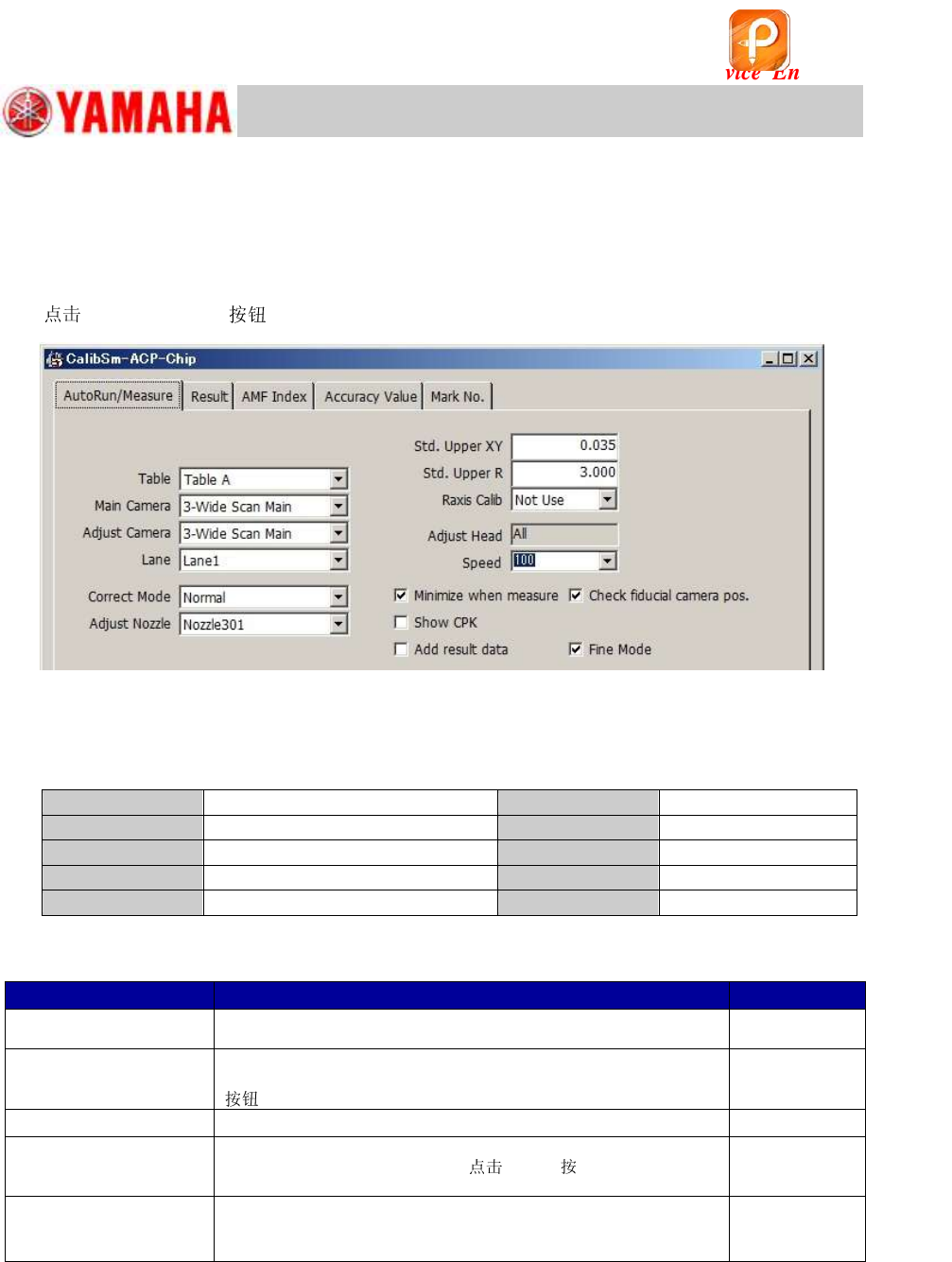
2. Check the settings on the “AutoRun/Measure” tab.
The Scan camera (3-Scan Main)is the main camera of YSM10.
Make sure that all the settings are appropriate.
Table
Table A
Std. Upper XY
0.035
Main Camera
3-Scan Main
Std. Upper R
3.000
Adjust Camera
3-Scan Main
Raxis Calib
Not Use
Correct Mode
Normal
Speed
100
Adjust
301 (312)
Table 26
Settings for other functions
Name of the checkbox
Description
Default setting
Minimize when measure
The function minimizes the window at the time of the ACP-Chip
measurement.
Ticked
Check Fiducial camera
Pos.
The function checks the fiducial camera relative position before
performing the measurement by tapping the [All] or the [Measure]
.
Ticked
Show CPK
The measured result can be displayed in the CPK representation.
Not Ticked
Add result data
The function adds the measured results to the existing adjustment
result file. To display the file,
[Ref.] displayed when
the “Add result data” checkbox is ticked, and select the file.
Not Ticked
Fine Mode
Mode used when performing the ACP-Chip measurement. The
function enhances the performance in the measurement for the R
direction of the chip components.
Ticked
Table 27
[Items to be adjusted]
Fiducial camera position coordinate (XY)
All the heads of the main camera (Main ): “Precision Zigzag” parameter (X, Y)
All the heads except for Head 1 of the main camera (Main ): “Precision Parallel”
parameter (X, Y)
该文档是极速PDF编辑器生成,
如果想去掉该提示,请访问并下载:
http://www.jisupdfeditor.com/
For Service Engineer
Service Information
SI1610004E-000= YSM10_Procedures for the adjustments required after installing a machine
46/107
5.5.2 Mounting, measurement and correction by the ACP-Chip
When completing the initial setup and the necessary settings, start the ACP-Chip adjustment.
This section describes how to perform the adjustment by tapping the [All]
on the “ACP-Chip”
window.
1.
[Reset] .
When performing the adjustment after newly installing a machine,
[Reset] before
tapping the [All]
.
2.
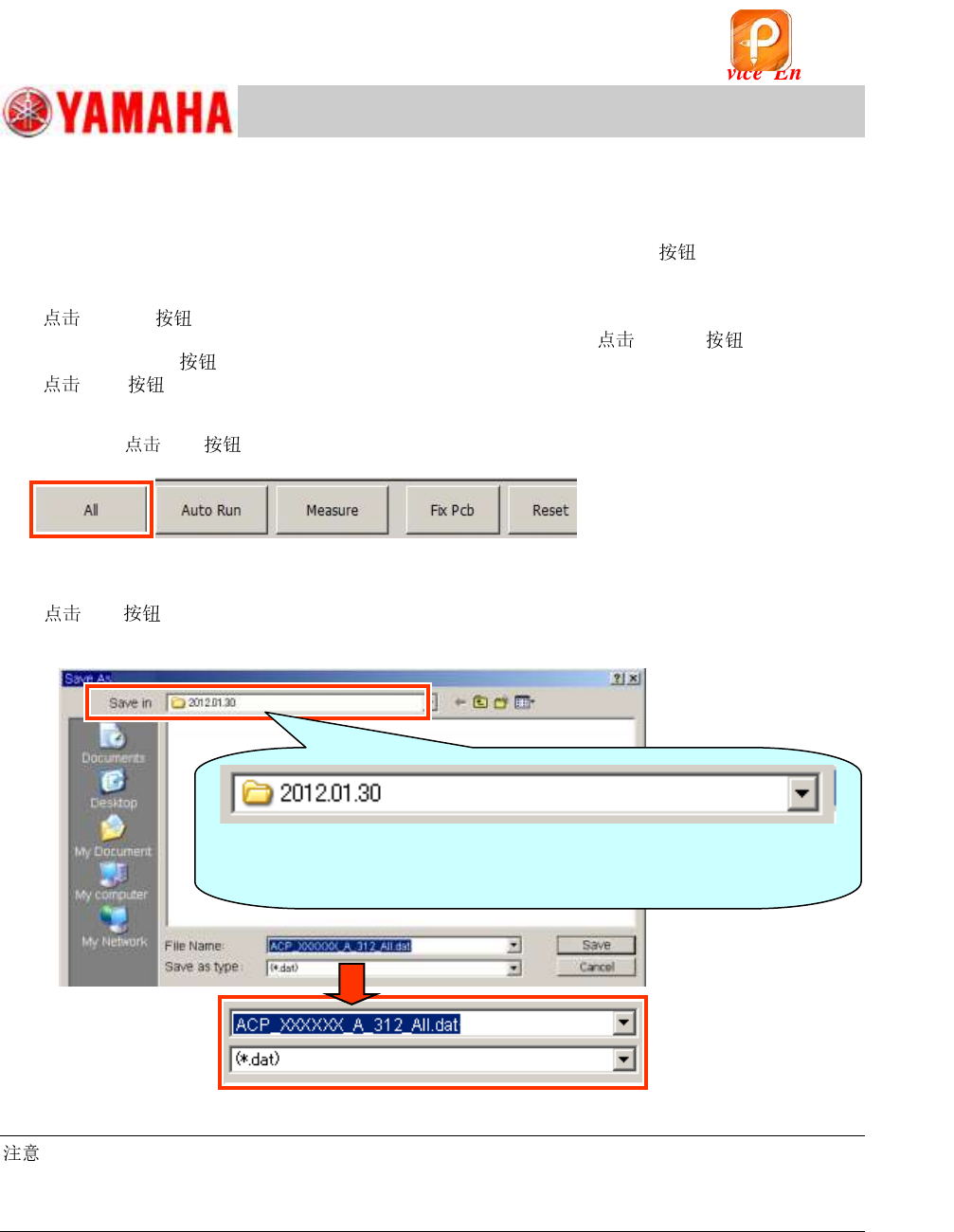
[All] on the “AutoRun/Measure” tab.
After checking the settings for the ACP-Chip adjustment and completing the initial setup for the
board,
[All] .
Figure 58
3. Enter the name of the file for saving the measurement results.
[All] to display the window for entering the name of the file that the measurement
results are to be saved in.
Figure 59
:
~ Name of the file for saving the adjustment data ~
The file is named to indicate the adjustment method and the items to be adjusted as default. Save it in
the folder with the name of the date that the folder is created.
The “Date folder” (folder with the name of the date that the folder is
created) is created automatically under the
“D:¥Machine¥Result¥ACPResult” folder.
该文档是极速PDF编辑器生成,
如果想去掉该提示,请访问并下载:
http://www.jisupdfeditor.com/