YSM10安装调整(eng).pdf - 第72页
For Service Engineer Service Information SI1610004E - 000 = YSM10_Procedures for the adjustments required a fter installing a machine 72 / 107 3. Display the “Data” t ab on the “FinishLog ” window. Index 1, 2 of the fina…
For Service Engineer
Service Information
SI1610004E-000= YSM10_Procedures for the adjustments required after installing a machine
71/107
6.9 Check the Total Index
In the “ACP-Station” adjustment, the result files are saved separately per head.
6.9.1 “FinishLog” confirmation window
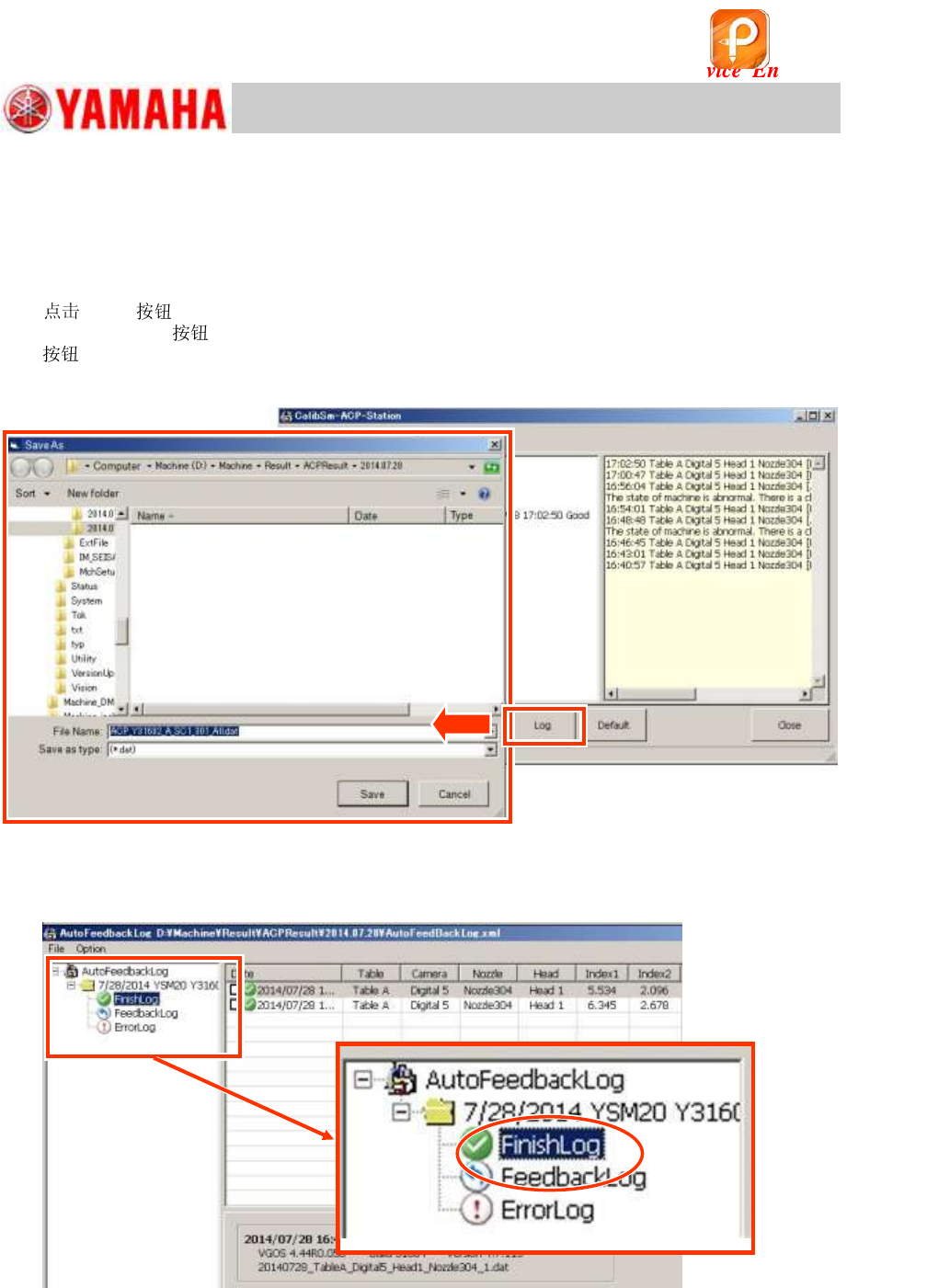
1. [Log] to open the log file.
When the [Log]
at the bottom of the window is tapped, the folder of the date when the [Log]
is tapped opens automatically. Select the “AutoFeedBackLog.xml” file and open it.
The log files are automatically created by the date of the adjustment.
Figure 98
2. Select “FinishLog”.
When the log window appears, select “FinishLog”.
Figure 99
该文档是极速PDF编辑器生成,
如果想去掉该提示,请访问并下载:
http://www.jisupdfeditor.com/
For Service Engineer
Service Information
SI1610004E-000= YSM10_Procedures for the adjustments required after installing a machine
72/107
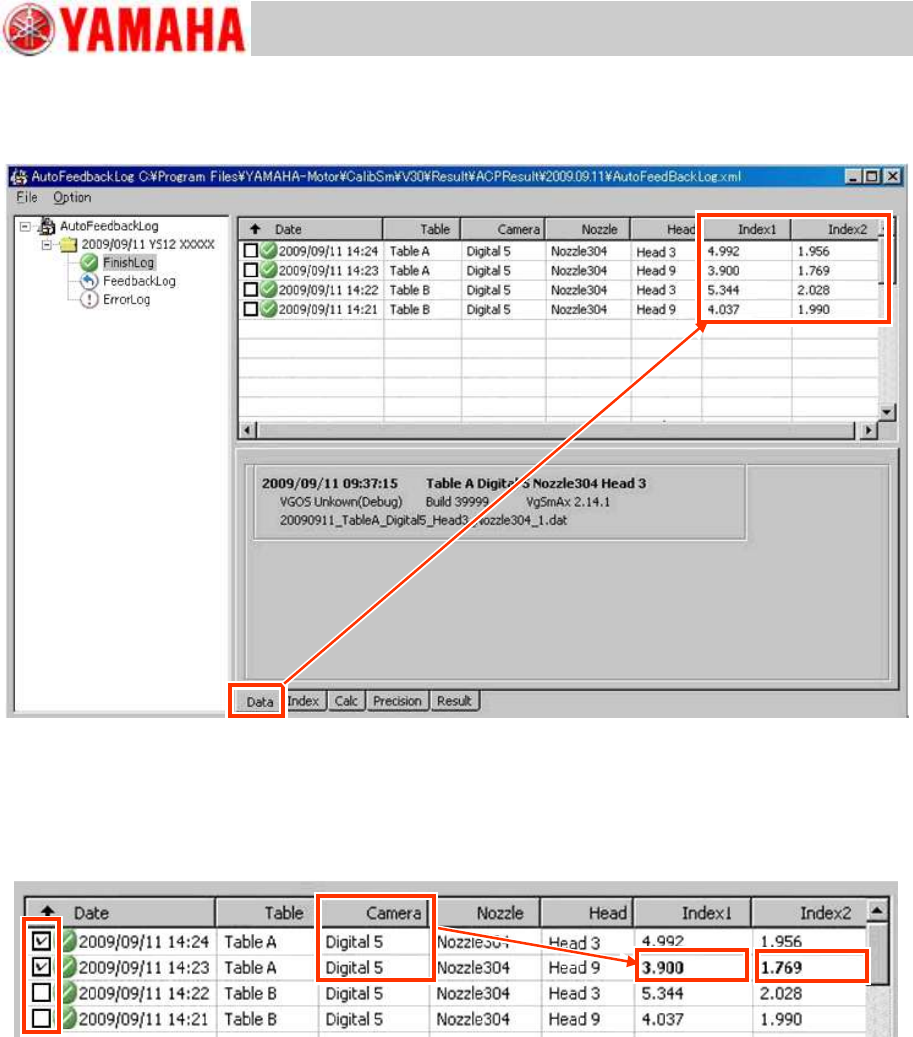
3. Display the “Data” tab on the “FinishLog” window.
Index 1, 2 of the final data that have been adjusted separately can be checked on the window.
Figure 100
4. Check the total Index.
If you tick the checkboxes on the left of the chart, the worst value of the Index 1 and 2 are indicated
by the boldface.
The figure below shows the total Index of Digital 5.
Figure 101
5. Fill in the Total Index (Index1, Index 2) on the check sheet.
For Service Engineer
Service Information
SI1610004E-000= YSM10_Procedures for the adjustments required after installing a machine
73/107
6.9.2 Export the “Result.dat” accuracy data after the adjustment
If the status of the accuracy data after the adjustment needs to be graphed out on the VgChart,
export the “Result.dat” file and create VgChart by using the “VgChart Utility” on other PC.
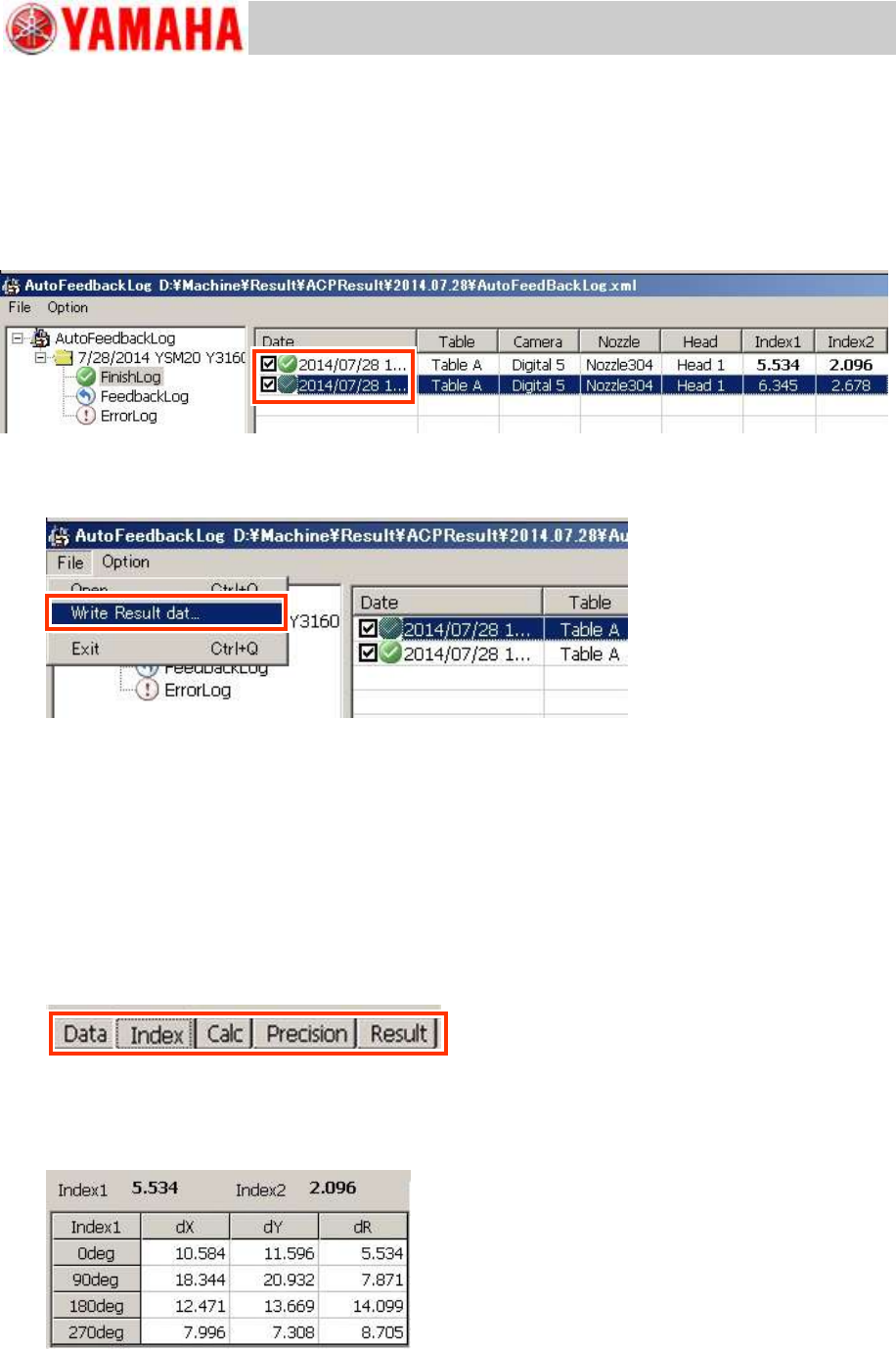
1. Select the file to be exported.
Tick the checkboxes of the files to be exported on the “Date” column.
Figure 102
2. Select ”Write Result data” from the “File” pull-down menu.
Figure 103
3. Specify the destination and save the data.
The data is written to the specified destination as the “Result.dat” file.
* The accuracy data before the adjustment can be exported on “FeedbackLog”.
See “6.9.5 Export the accuracy data “Result.dat” before the adjustment” for the method.
6.9.3 Other tabs
The adjustment result can be checked on the “Data” tab, and the detailed result can be checked
on the following tabs.
Figure 104
“Index” tab
The detailed information of the Index for each adjustment result can be checked.
Figure 105