F4000N_revD.pdf - 第9页
F4000N Series Operating Manual Section 1: Introductio n Part # 562187N - 1 Rev . D Sep 2012 8 © 20 12 Fisnar Inc. Note: The robot automatically assigns the program number as its filename w hen saved to the USB drive. It …
F4000N Series Operating Manual
Section 1: Introduction
Part # 562187N-1
Rev. D Sep 2012
7
© 2012 Fisnar Inc.
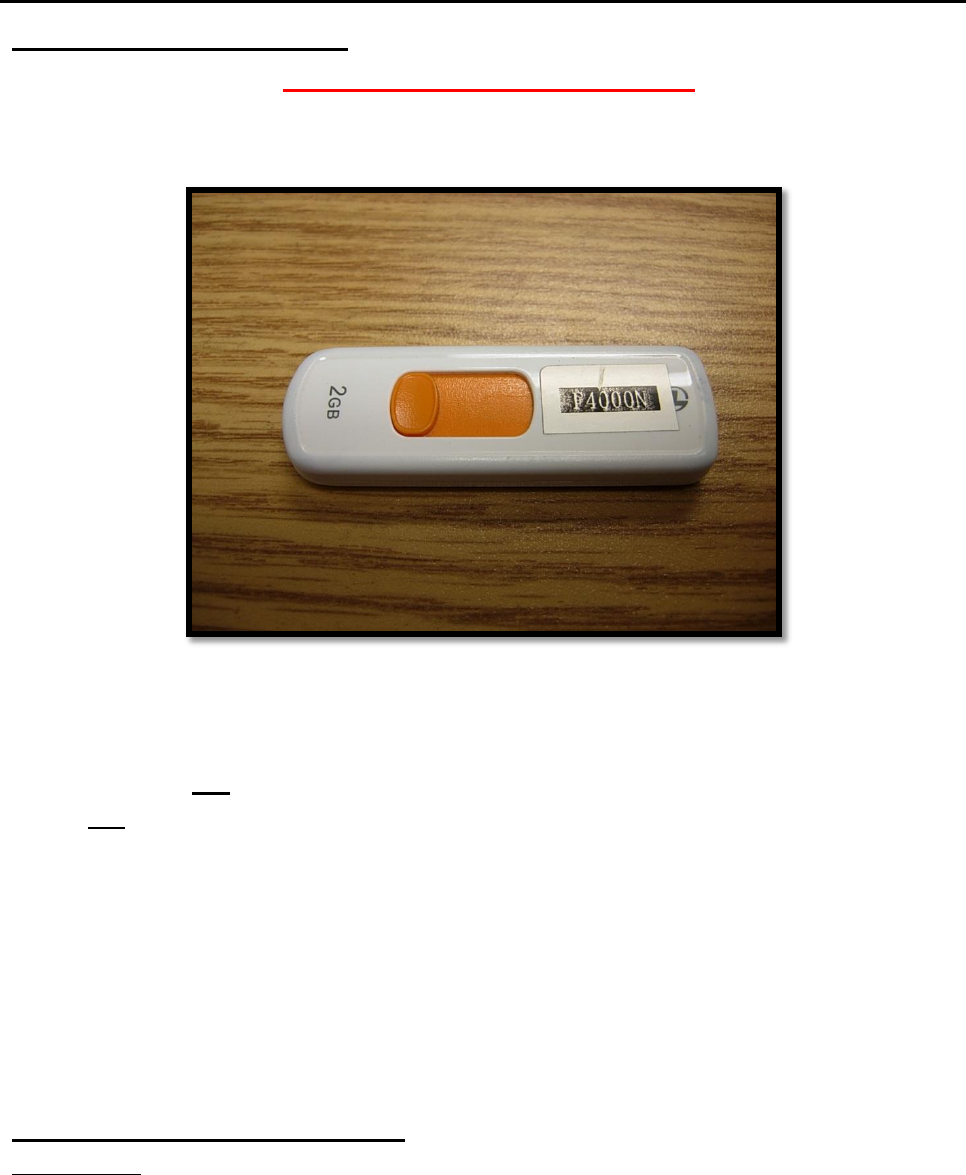
F4000N-USB Instructions
NOTICE: DO NOT LOSE THIS DRIVE
A USB flash drive (p/n: F4000N-USB) is included as part of the standard accessory kit for
the F4000N Series robot.
Saving and loading programs as well as updating the robot firmware can be done directly
with the flash drive provided.
Please note that not all commercially-available USB drives are compatible with the robot.
We do not recommend using any other USB drives other than the one provided.
Fisnar, Inc. will not be held liable for any issues arising from external hardware being
used with the robot without a written consent from Fisnar.
Caution: The instructions below are excerpts from the manual and are meant as
a quick reference guide here only. Please refer to the manual for
complete instructions.
Uploading/Downloading Programs
Instructions:
1) Turn the robot OFF. Connect the USB drive to Robot USB port and then turn the
robot ON.
2) Initialize the robot.
3) On the Setup Menu, select USB Up/Down Load.
All Data: Copies all program files.
Part Data: Allows the user to select which program files to be loaded / saved.

F4000N Series Operating Manual
Section 1: Introduction
Part # 562187N-1
Rev. D Sep 2012
8
© 2012 Fisnar Inc.
Note: The robot automatically assigns the program number as its filename when saved to
the USB drive. It uses this filename to load the program to the same number on the
robot.
Updating Robot Software
Instructions:
1) On the USB drive, create an “updata” folder and copy the software files. The
software folder should include the batch (.bat), MS-DOS (.com) and executable
(.exe) files.
2) Turn the robot OFF. Insert the USB drive into the port and turn the robot ON.
3) The robot will automatically locate the “updata” folder in the drive and run the batch
file to update the software. You should see the Machine Home screen after the
update.
4) Verify the software by pressing F3 (Menu 2) System Information.
5) Turn the robot OFF and remove the USB drive.
Note: The robot will keep updating the software whenever it sees an “updata” folder,
rename the folder (and still keep it in the drive) in order to avoid this.
F4000N Series Operating Manual
Section 1: Introduction
Part # 562187N-1
Rev. D Sep 2012
9
© 2012 Fisnar Inc.
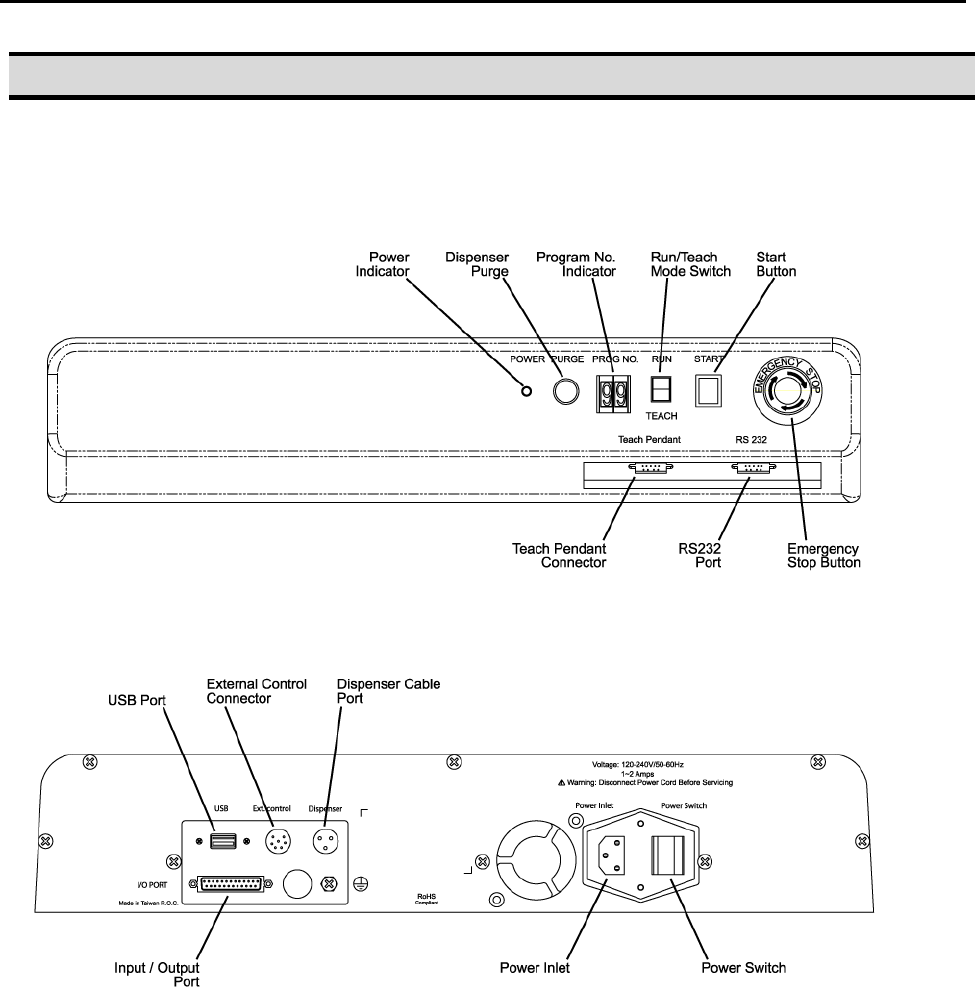
3. Connector and Switch Locations
Front View
Rear View