fx3r.pdf - 第140页
FX-3R Maintenance Guide 12-11 12-2-3. Setting Up the Network (This setup is required when communicating with the IS.) To use the communication between the FX-3R and the IS, it is absolutely necessary to set up the networ…
FX-3R Maintenance Guide
12-10
6) Exit the BIOS setting.
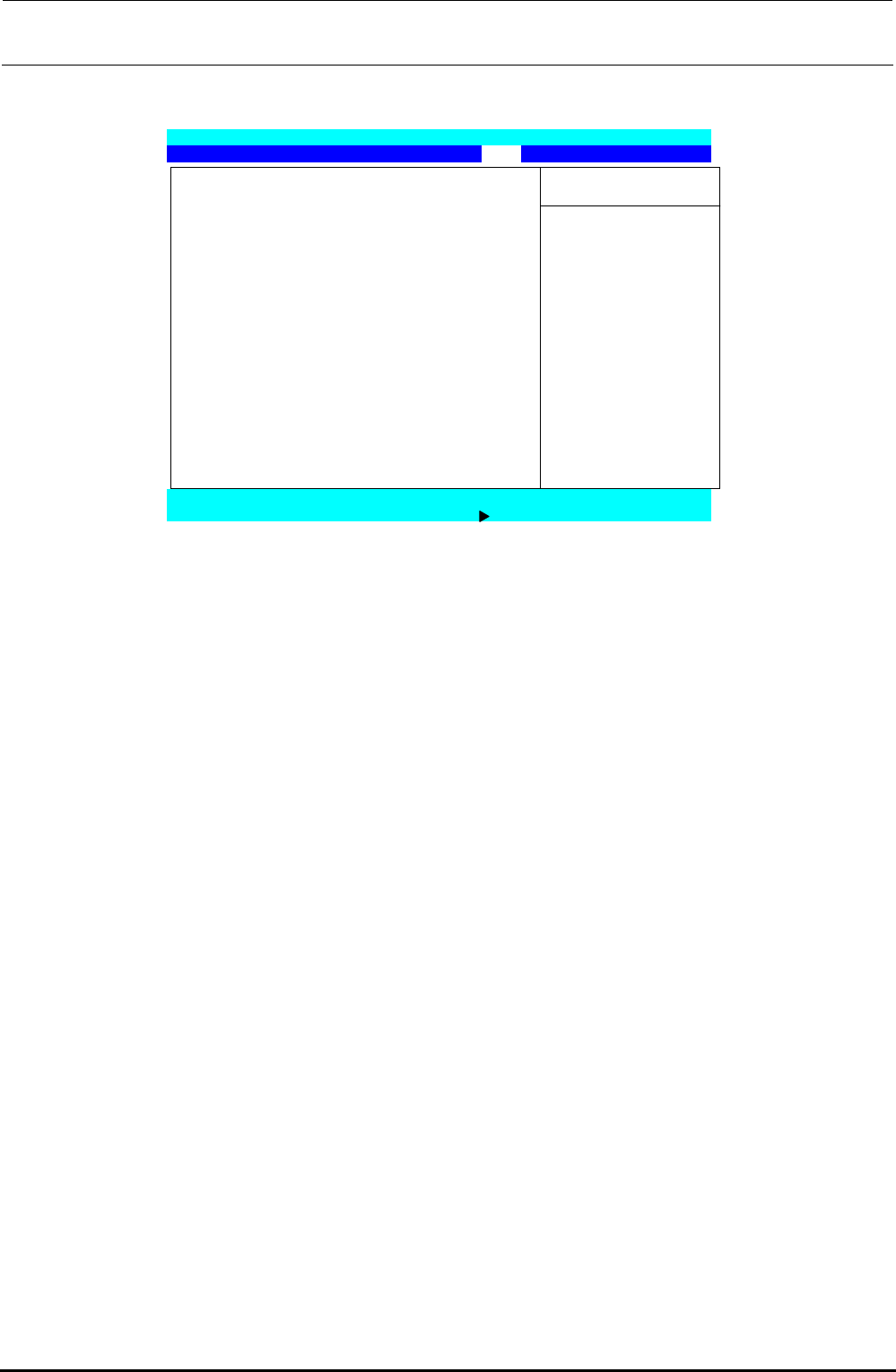
Display the “Exit” menu screen with the [←] or [→] key.
Phoenix TrustedCore (tm) Setup Utility
Main Advanced Security Boot Exit
Item Specific Help
Exit Saving Changes
Exit Discarding Changes
Load Setup Defaults Exit System Setup and
Discard Changes save your change to
Save Changes CMOS.
F1 Help ↑↓Select Item -/+ Change Values F9 Setup Defaults
Esc Exit Select Menu Enter Select Sub-Menu F10 Save and Exit
Figure 12-2-2-1-6 BIOS Screen (Exit Screen)
Move the cursor to “Exit Saving Changes” with the [↑] or [↓] key and press the <ENTER>
key to save the BIOS setting and exit it.
Rev. 1.00
FX-3R Maintenance Guide
12-11
12-2-3. Setting Up the Network (This setup is required when communicating with the
IS.)
To use the communication between the FX-3R and the IS, it is absolutely necessary to set up the
network.
<Setting procedures>
Setting up the TCP/IP
Setting up a shared folder
Registering a user
12-2-3-1. Setting Up the TCP/IP
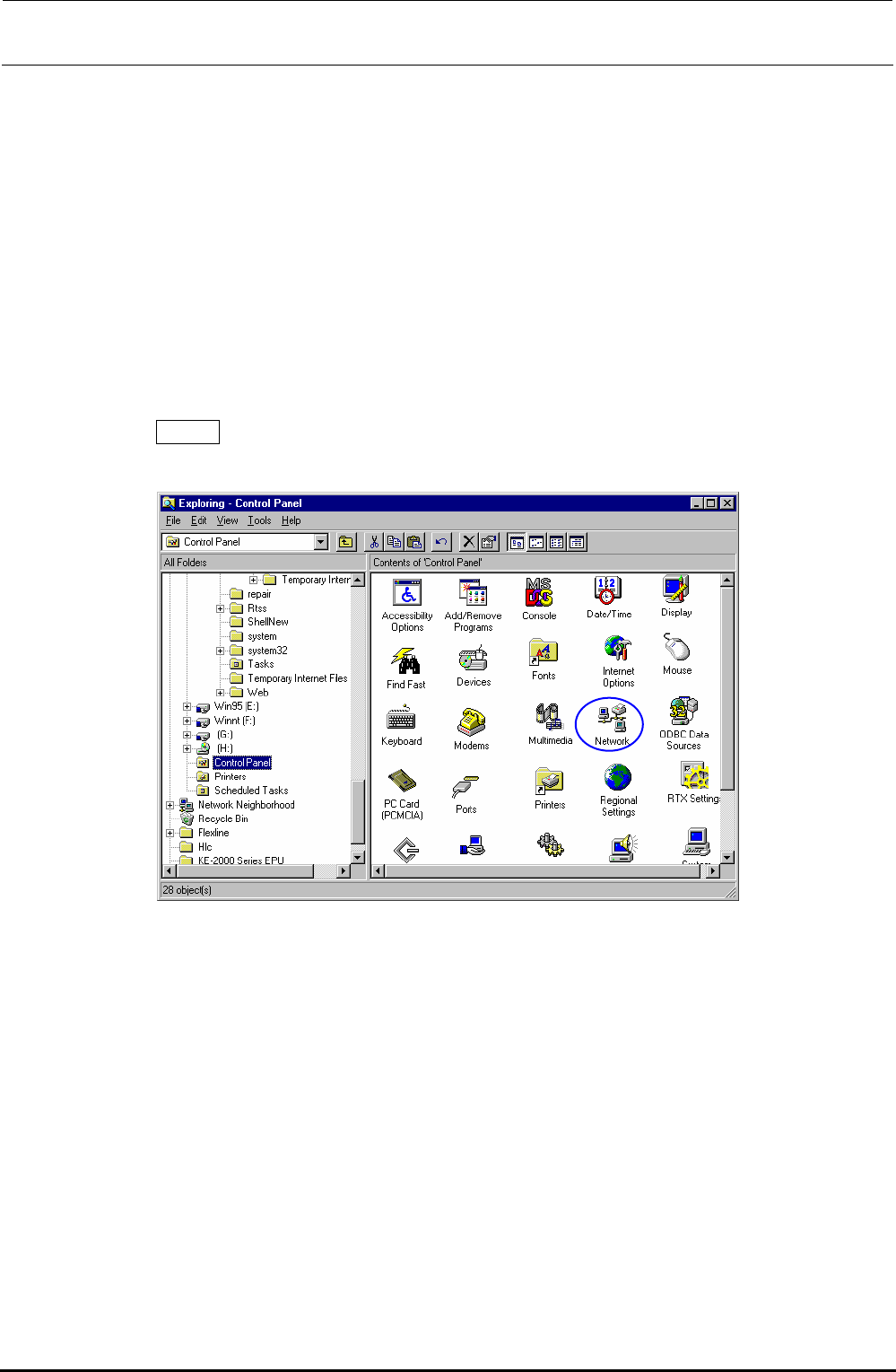
1) From the Start button, select [Settings], and then [Control Panel].
2) Select the [Network ] icon from the control panel.
Rev. 1.00
FX-3R Maintenance Guide
12-12
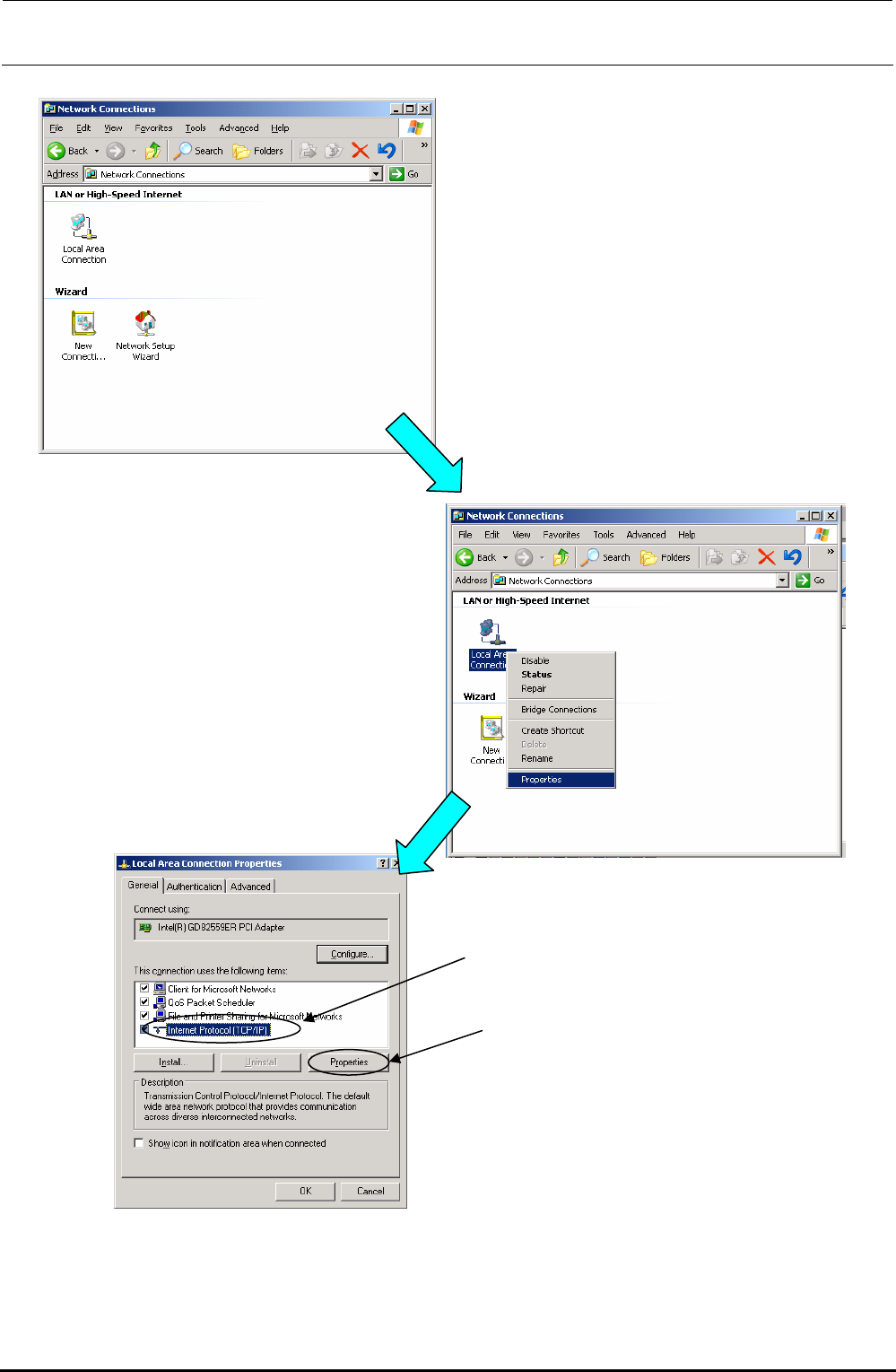
3) The “Network connection ” dialog box appears on the screen.
4) Select the [Local Area Connection] icon on the
dialog box stated in step 3), and then click the
[Properties] command with the right button to
select it.
Rev. 1.00
5) The “LOCAL Area Connection
(Properties)” dialog box appears on the
screen.
Select the [Internet Protocol (TCP/IP)]
on this screen, and the click the
[Properties] button.