fx3r.pdf - 第162页
FX-3R Maintenance Guide 12-33 5) The “ Welcome to the InstallShield Wizard ” screen will appear. Clicking the [Next] button will move to step 6). 6) The “ Confirmation ” screen for the License Agreement will appear. Chec…
FX-3R Maintenance Guide
12-32
12-2-5. Upgrading the FX-3R System Version
The following describes the upgrading steps to install the FX-3R system with a new version onto the
FX-3R system with any existing version.
1) Prepare the USB memory or other media containing the system program installation files.
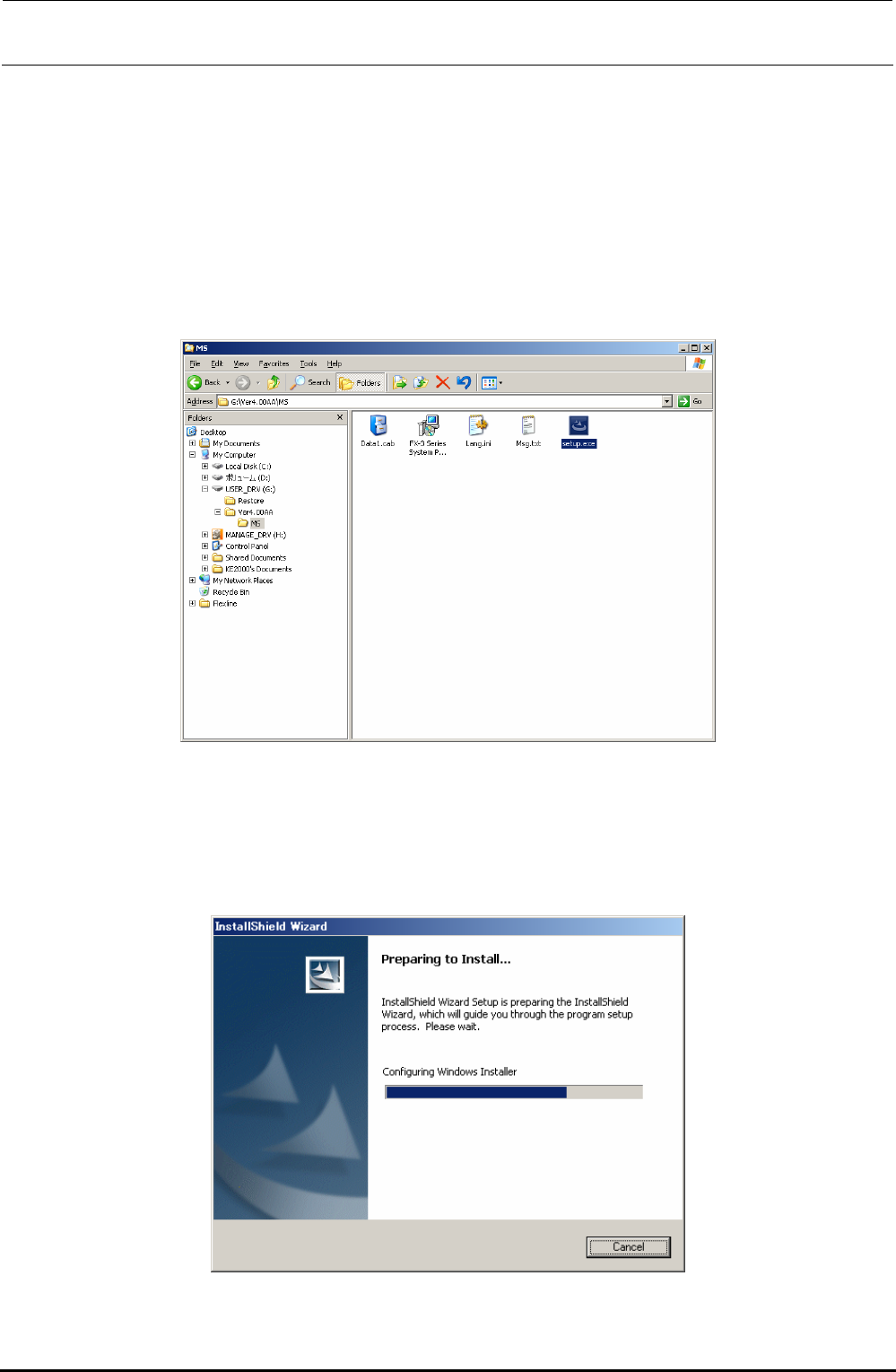
2) Click the [Start] button of Windows and run Explorer from Programs in the Start menu.
3) Select “Setup.exe” from the system program installation disk prepared in step 1).
In the Explorer window, double-click “Setup.exe” you have selected to start the installation.
4) When running “Setup.Exe”, the “Preparing to Install…” screen will appear.
This screen will disappear quickly and the operation automatically moves to step 5).
∗ CAUTION All menus and commends on the Installation screen are shown in English
regardless of the language specification of the OS.
Rev. 1.00
FX-3R Maintenance Guide
12-33
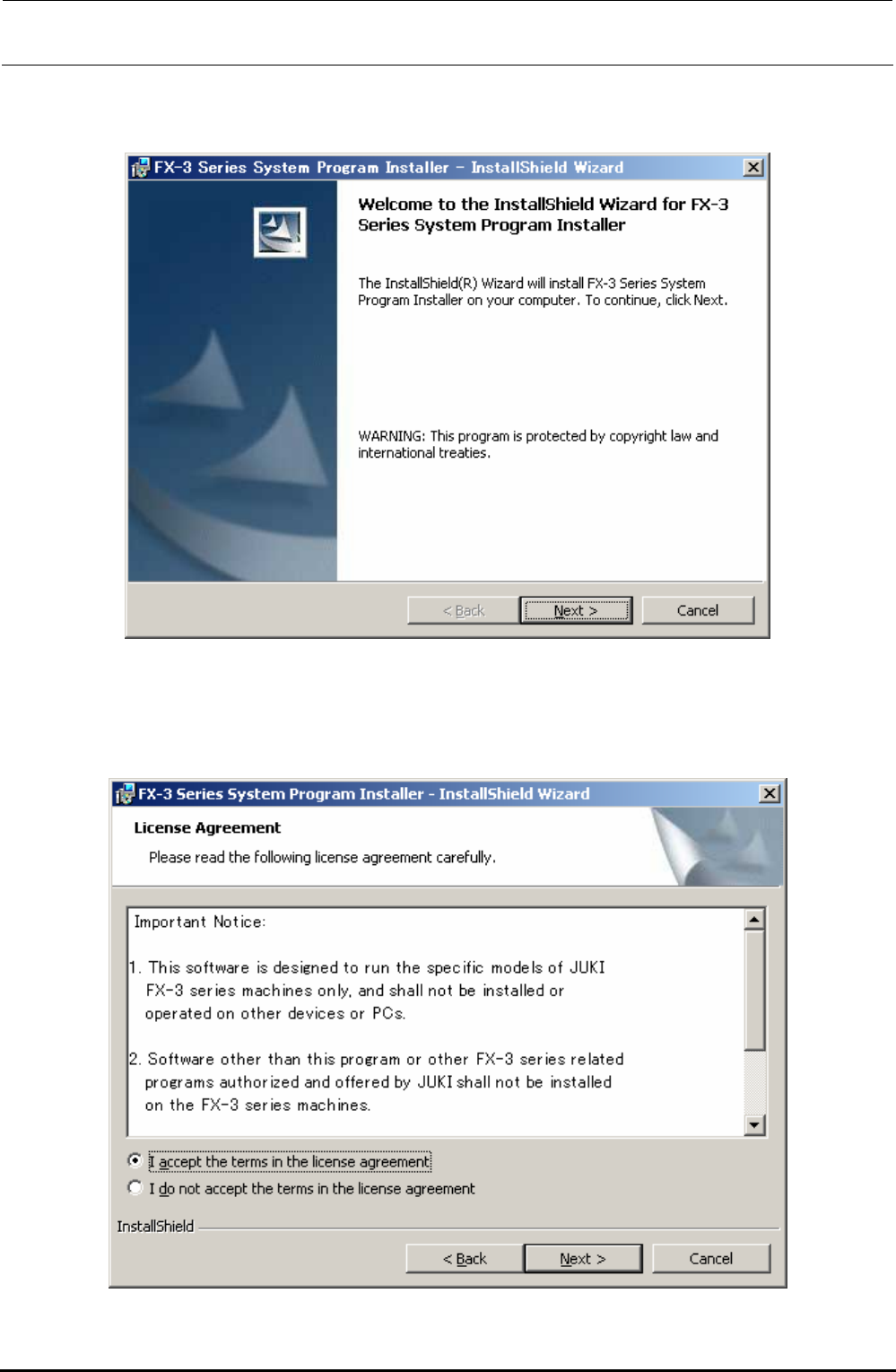
5) The “Welcome to the InstallShield Wizard” screen will appear.
Clicking the [Next] button will move to step 6).
6) The “Confirmation” screen for the License Agreement will appear.
Check on [I accept the terms in the license agreement] and click the [Next] button to move to
step 7). (If you do not agree with the license agreement, you cannot advance the operation
further.)
Rev. 1.00
FX-3R Maintenance Guide
12-34
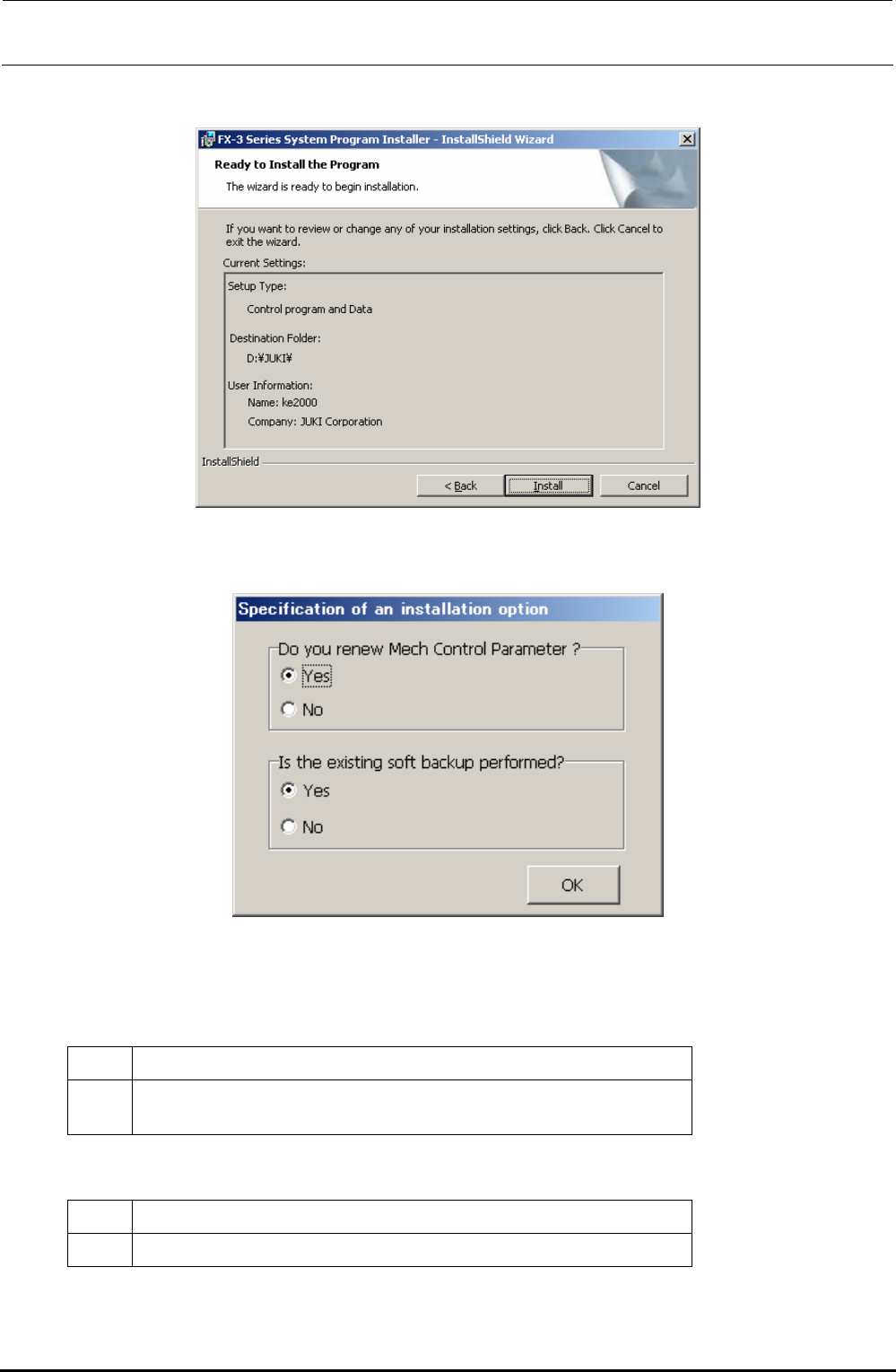
7) The “START INSTALLATION” confirmation dialog box will appear.
Click the [Install] button to move to step 8).
8) The “Specification of an installation option” screen will appear, prompting you to select whether
to initialize the Mech Control Parameters and whether to back up the existing software.
∗ CAUTION The button displays may vary depending on
the language specification of the OS.
<Do you renew Mech Control Parameter ?>
Yes Mechanical control parameters are initialized and the default values are set.
No
Currently set mechanical control parameters are succeeded to a new version.
When upgrading the program, newly required data becomes the default values.
<Is the existing soft backup performed ?>
Yes The exiting software is backed up.
No The backup process of the exiting software is skipped.
Check on [Yes] or [No] in each item. The installation will start.
Rev. 1.00