fx3r.pdf - 第164页
FX-3R Maintenance Guide 12-35 Appendix: About mechanical control parameters The mechanical control parameters are an aggregate of threshold value data. The following shows the major setting data to . Speed data for…
FX-3R Maintenance Guide
12-34
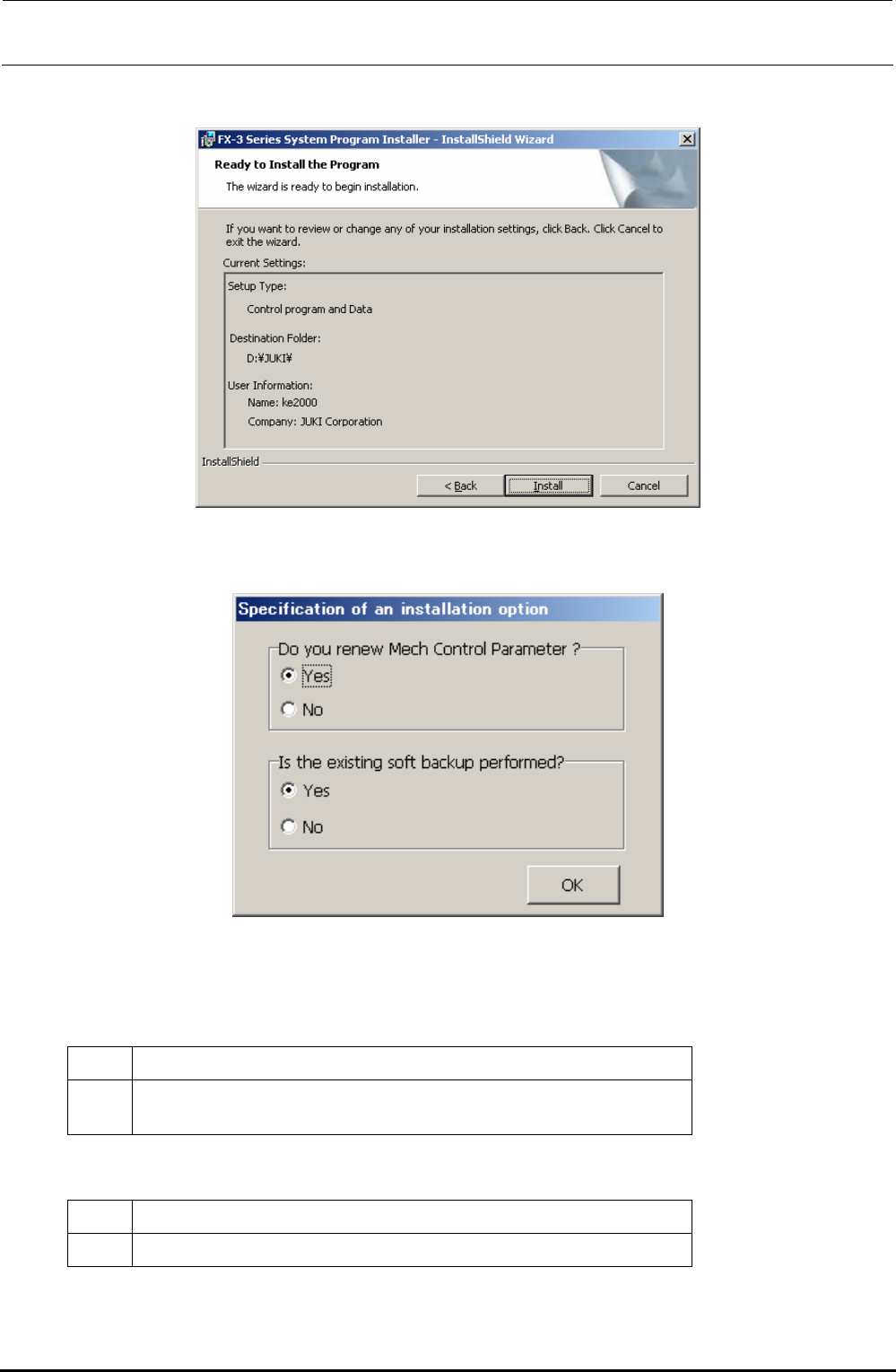
7) The “START INSTALLATION” confirmation dialog box will appear.
Click the [Install] button to move to step 8).
8) The “Specification of an installation option” screen will appear, prompting you to select whether
to initialize the Mech Control Parameters and whether to back up the existing software.
∗ CAUTION The button displays may vary depending on
the language specification of the OS.
<Do you renew Mech Control Parameter ?>
Yes Mechanical control parameters are initialized and the default values are set.
No
Currently set mechanical control parameters are succeeded to a new version.
When upgrading the program, newly required data becomes the default values.
<Is the existing soft backup performed ?>
Yes The exiting software is backed up.
No The backup process of the exiting software is skipped.
Check on [Yes] or [No] in each item. The installation will start.
Rev. 1.00
FX-3R Maintenance Guide
12-35
Appendix: About mechanical control parameters
The mechanical control parameters are an aggregate of
threshold value data.
The following shows the major setting data to .
Speed data for head operation
Speed data for X/Y-axis operation
Speed data for support table operation
R.P.M. of AWC/Center motor
Time data for ATC control
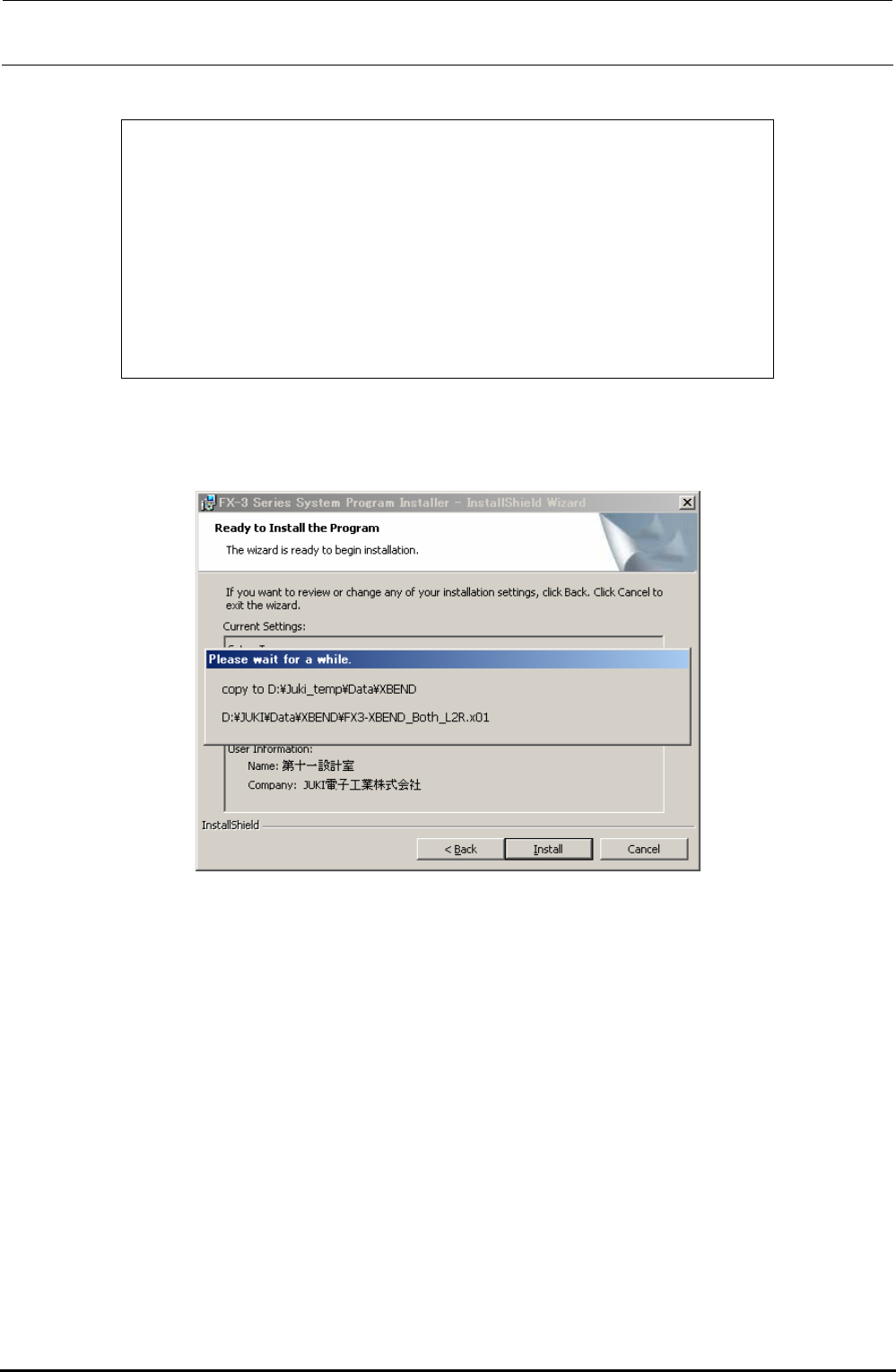
9) If you selected [Yes] in the “Is the existing soft backup performed?” area in step 8), the existing
soft backup progress screen will appear.
Rev. 1.00
FX-3R Maintenance Guide
12-36
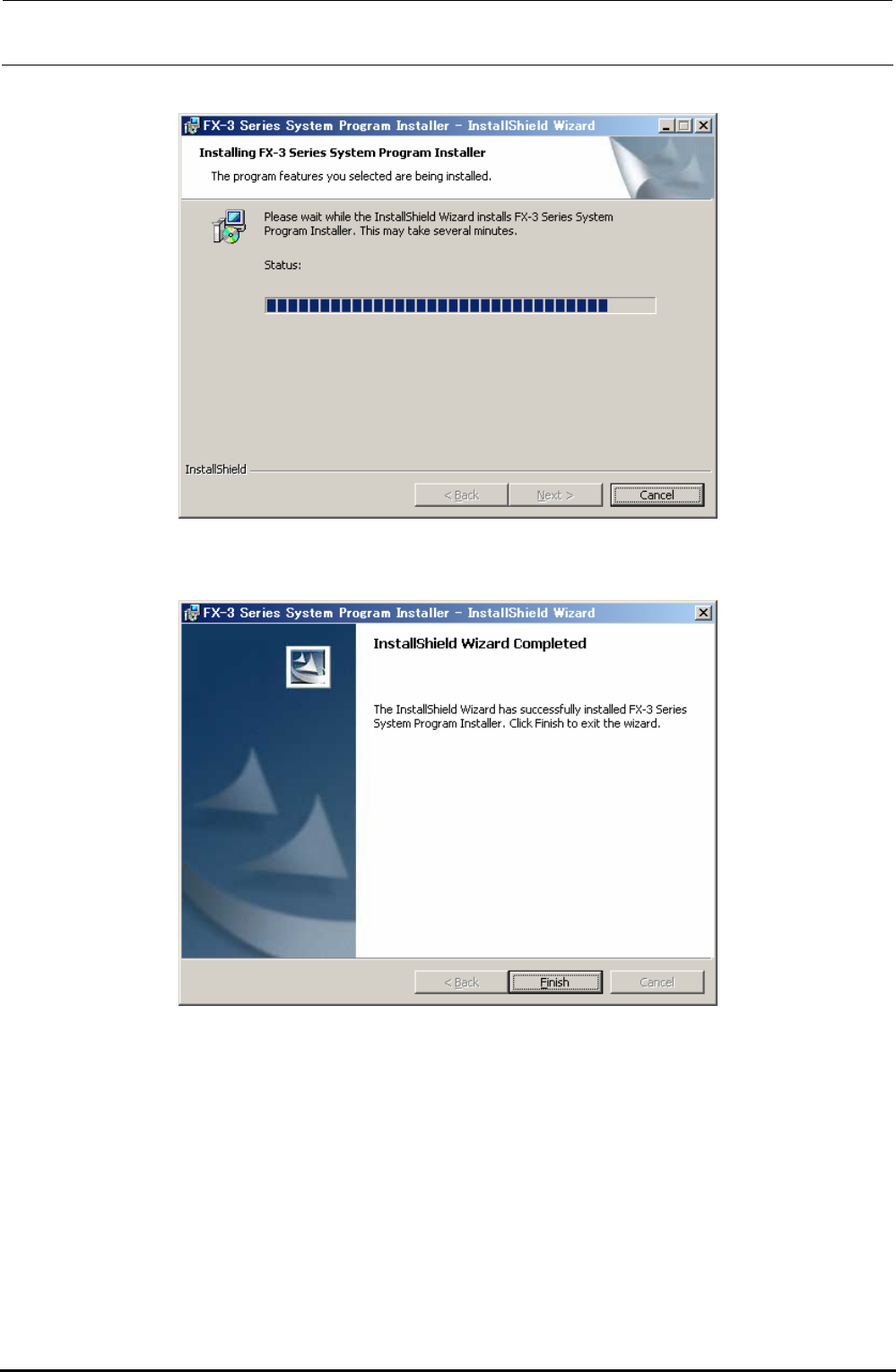
10) The progress status is shown using the progress bar during installation.
11) When the installation is completed, the “InstallShield Wizard Completed” screen will appear.
Click the [Finish] button to complete the installation.
12) Follow the steps stated in section 12-2-4-2, Installing the FlexlineDB, to install the FlexlineDB
suitable for the system version.
13) Follow the steps stated in section 12-2-4-3, Updating the C-drive, to update the C-drive.
∗ CAUTION
If the system is started up again without updating of the C-drive, the installation information is
cleared from the C-drive due to C-drive protect function, causing the system not to be started up
correctly.
Rev. 1.00