00191332-01.pdf - 第106页
2 Functions for the Adjustment of the Machine User Manual Test Program SITEST 2.7 Wafflepack Changer Functions (SIPLACE 80F4/80F5) Software Version 405.xx Issue 01/99 2 - 34 ● Clic k on the WPC reference run button to re…
User Manual Test Program SITEST 2 Functions for the Adjustment of the Machine
Software Version 405.xx Issue 01/99 2.7 Wafflepack Changer Functions (SIPLACE 80F4/80F5)
2 - 33
2.7 Wafflepack Changer Functions
(SIPLACE 80F
4
/80F
5
)
● If you wish to test the wafflepack changer functions, click - in the main view "SIPLACE 80F
4
/80F
5
"- on the
icon to switch to the "Wafflepack Changer" display (see Fig. 0.3.10) and subsequently (if required)
on the icon to switch to the "Wafflepack Changer functions" display.
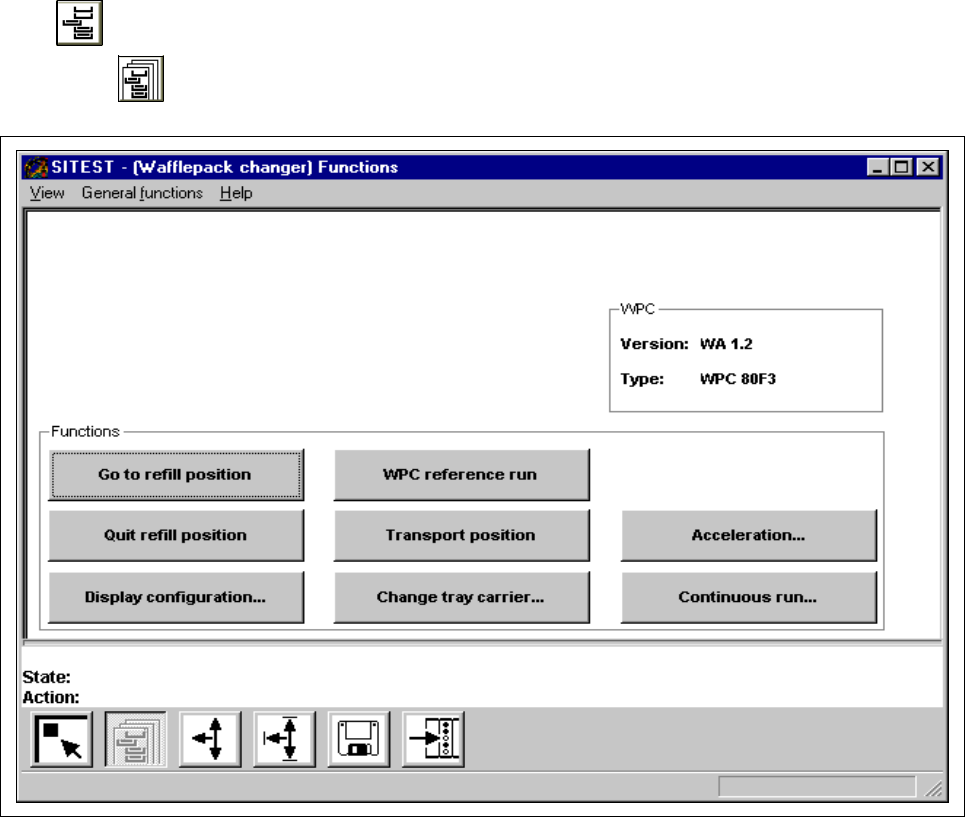
Fig. 2.7.1 "Wafflepack Changer functions" Display
The following functions are available in this display:
– Go to refill position to move the "elevator" of the WPC to the refill position
– Quit refill position to align wafflepack trays
– Display configuration... to display the allocation of the WPC storage levels
– WPC reference run to perform a reference run of the lifting and feed axes
– Transport position to move the WPC "elevator" (for the transport of the WPC)
to the safe position
– Change tray carrier... to exchange the tray carrier on the selected level
– Acceleration... to display for all levels and the lifting axis the percentage of
the current acceleration as compared to the max.
acceleration
– Continuous run... to start the continuous run for selected levels
2 Functions for the Adjustment of the Machine User Manual Test Program SITEST
2.7 Wafflepack Changer Functions (SIPLACE 80F4/80F5) Software Version 405.xx Issue 01/99
2 - 34
● Click on the
WPC reference run
button to reference the axes of the WPC.
● Click on the
Go to refill position
button if you wish to position the "elevator" of the WPC so that all waf-
flepack trays can be conveniently removed or loaded.
● To complete the replenishing operation, click on the
Quit refill position
button.
The wafflepack trays loaded will be aligned during this procedure.
● Click on the
Display configuration...
button to review and display the allocation of the trays to the lev-
els of the WPC.
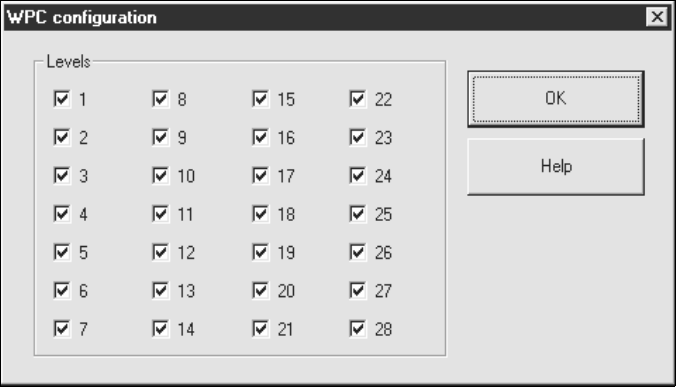
The configuration of all 28 levels is displayed as shown in the dialog box below.
Occupied levels are identified by a cross in the box next to their numbers.
● If the WPC is to be transported, click on the
Transport position
button.
The elevator will be moved to a pre-defined safe transport position.
● To test the changeover time for a tray carrier on a specific level, click on the
Change tray carrier...
but-
ton. The setting box for selecting the level and the changeover speed opens.
● Edit the desired level and change, if required, the speed (slow -> yes/no).
● Click on the
Start
button in the setting box. The tray carrier on the selected level will be exchanged. The
changeover time is displayed in a dialog box.
● Acknowledge the dialog box by clicking on OK.
● To display and edit, if required, for each level and the lifting axis the percentage of the acceleration with
respect to the max. acceleration, click on the Speed... button.
The percentage values are displayed for each level and once for the lifting axis.
User Manual Test Program SITEST 2 Functions for the Adjustment of the Machine
Software Version 405.xx Issue 01/99 2.7 Wafflepack Changer Functions (SIPLACE 80F4/80F5)
2 - 35
● If you wish to perform a continuous run of the feed and lifting axes, click on the
Continuous run...
but-
ton. The setting box displaying the level configuration appears.
● In the setting box click on the
Interrogate configuration
button to update the display.
● If specific levels are to be excluded from the continuous run, deactivate them by clicking on the check
boxes next to the numbers of the respective levels.
● In the setting box click on the
OK
button. The continuous run starts and a dialog box displaying the start
time opens.
● In the dialog box click on the
Cancel
button to terminate the continuous run.
The completion time of the continuous run is also displayed in the dialog box. The label of the
"Cancel" button changes to "OK".
● Close the dialog box by clicking on
OK
.