00198501-02_IM_711.1_R18-1_EN.pdf - 第25页
Station Software V ersion 711.1 (R 18 - 1) / Installat ion Manual 05/2018 Edition 25 5.4 Installing S tation Software 71 1.1 The following pac kages will be autom atically install ed during the st ation software instal l…
Station Software Version 711.1 (R18-1) / Installation Manual 05/2018 Edition
24
5.3.3 Calibrating the Touch Screen
The touch screen has to be installed by the software configurator during the operating system
installation. If the calibration does not start automatically after installation:
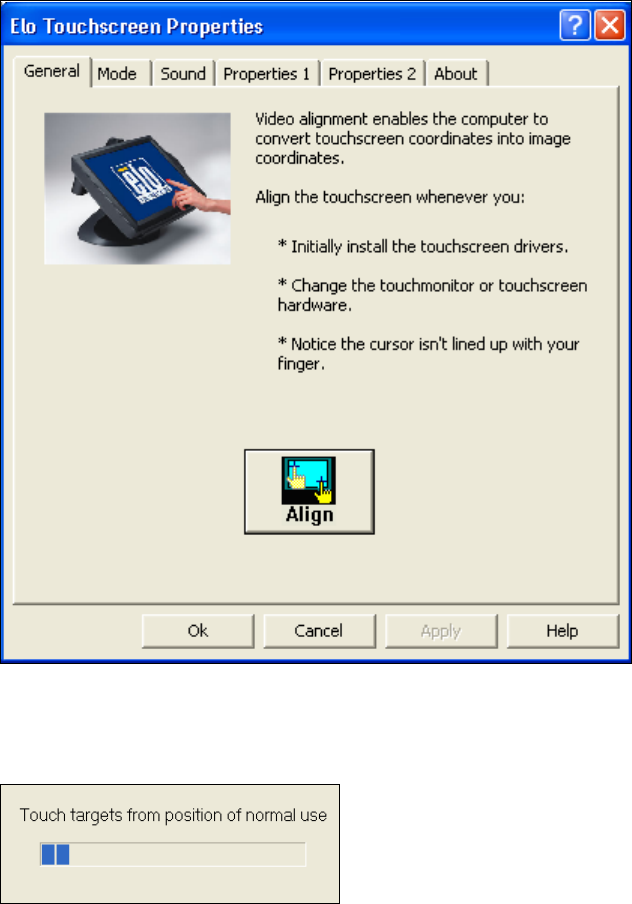
► Select Start – All Programs – Elo to go to EloTouchscreen Properties:
Figure 5-4: Elo Touchscreen properties
► Click the Align button.
The following message then appears:
Figure 5-5: Instruction for the screen to be calibrated
► Follow the instructions on the screen.
► Thereafter, disable the sound for the computer in the Control Panel. Otherwise, the computer
beeps each time the screen is touched.

Station Software Version 711.1 (R18-1) / Installation Manual 05/2018 Edition
25
5.4 Installing Station Software 711.1
The following packages will be automatically installed during the station software installation:
– Driver installations
– YATS
– Station software
– SIPLACE Vision software
– Default languages:
German
English
Simplified Chinese (preliminary version)
The station software Language Pack for other available languages has to be separately installed.
Please refer to section 5.6.
NOTICE
The setup wizard is available in English only.
► Switch on the placement machine.
► Change to the service desktop.
► Open Windows Task Manager.
► Select Logoff in the Users tab.
► Log in under the ASM_Admin user account.
► Insert the installation media and mount the *.iso file.
► Open Windows Explorer.
► Double-click the BundleInstaller.exe file to start installing the station software.
Station Software Version 711.1 (R18-1) / Installation Manual 05/2018 Edition
26
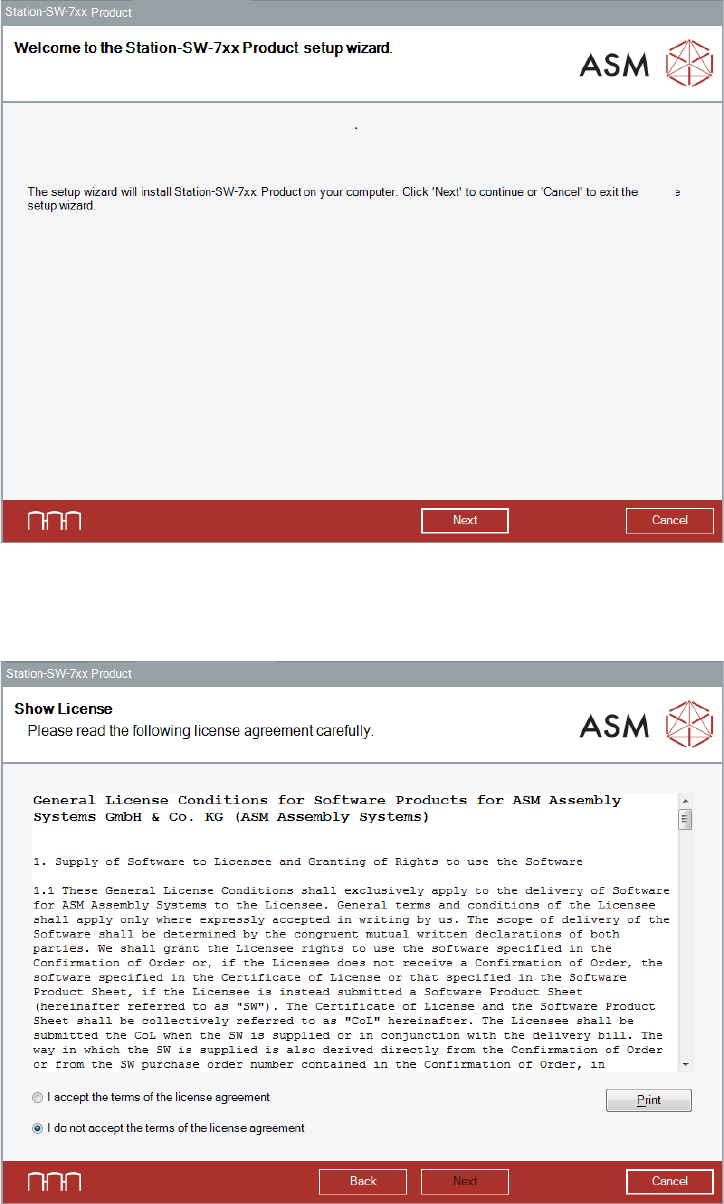
The Welcome dialog box of the station software setup wizard is displayed.
Figure 5-6: Welcome dialog box
► Click the Next button.
The Show License dialog box is displayed.
Figure 5-7: Accepting license
► Select I accept the terms of the license agreement to accept the license conditions.
► Click the Next button.