00198501-02_IM_711.1_R18-1_EN.pdf - 第34页
Station Software V ersion 711.1 (R 18 - 1) / Installat ion Manual 05/2018 Edition 34 After su ccessful installation , the following dialog box is displ ayed. Figure 5-22: Success ful installation ► Click the OK button to…
Station Software Version 711.1 (R18-1) / Installation Manual 05/2018 Edition
33
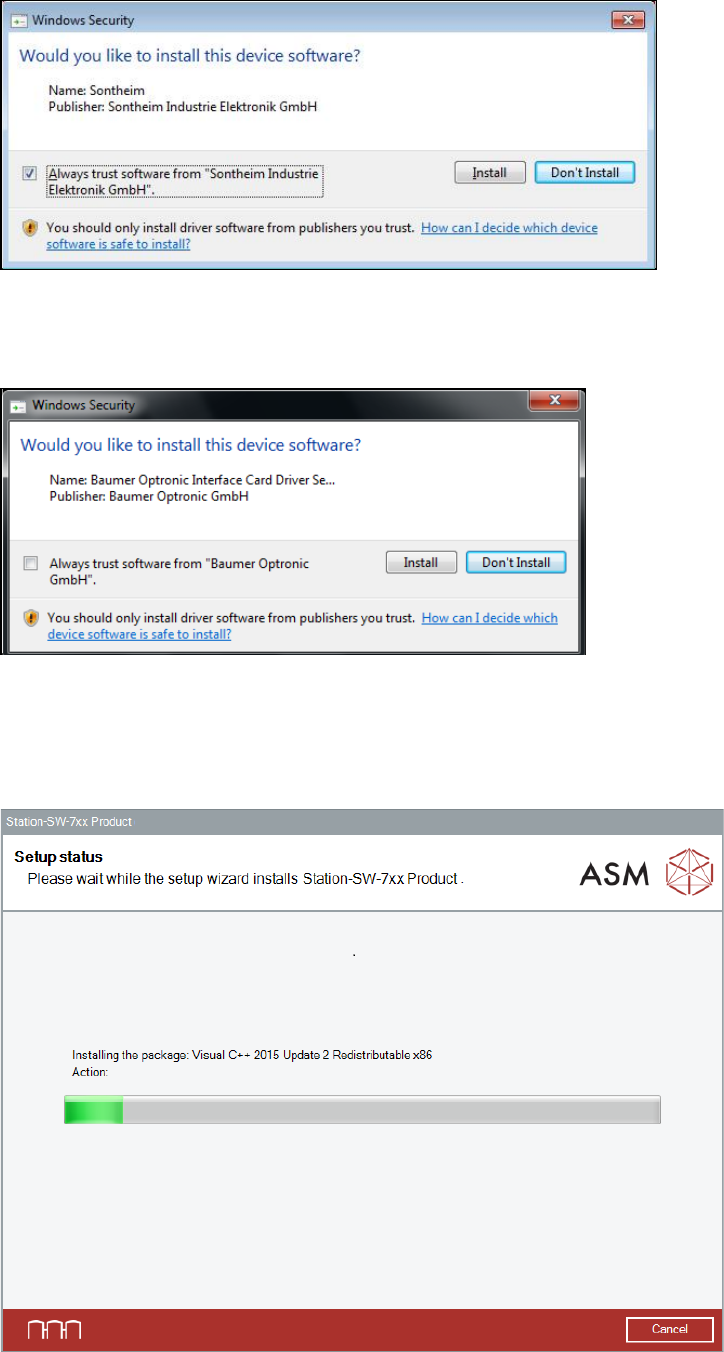
Thereafter, the following dialog box is displayed again.
Figure 5-19: Installing driver software for Sontheim device, part 2
► Perform the same steps as in the previous dialog box.
If a Baumer card is installed, the following dialog is displayed.
Figure 5-20: Installing driver software for Baumer card
► Activate the Always trust software from "Baumer Optronic GmbH" field.
► Click the Install button to install the corresponding driver software.
The setup status is displayed during installation.
Figure 5-21: Setup status
Station Software Version 711.1 (R18-1) / Installation Manual 05/2018 Edition
34
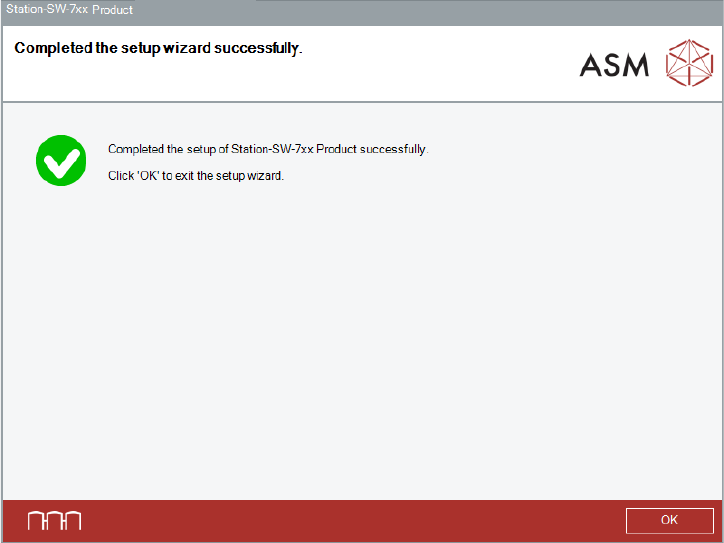
After successful installation, the following dialog box is displayed.
Figure 5-22: Successful installation
► Click the OK button to exit the setup wizard.
The installation is now completed.
► Restart your computer for all changes to take effect.
Optionally, you can now install the SIPLACE Smart GUI and the station software Language Pack.
Station Software Version 711.1 (R18-1) / Installation Manual 05/2018 Edition
35
5.4.1 Error Handling
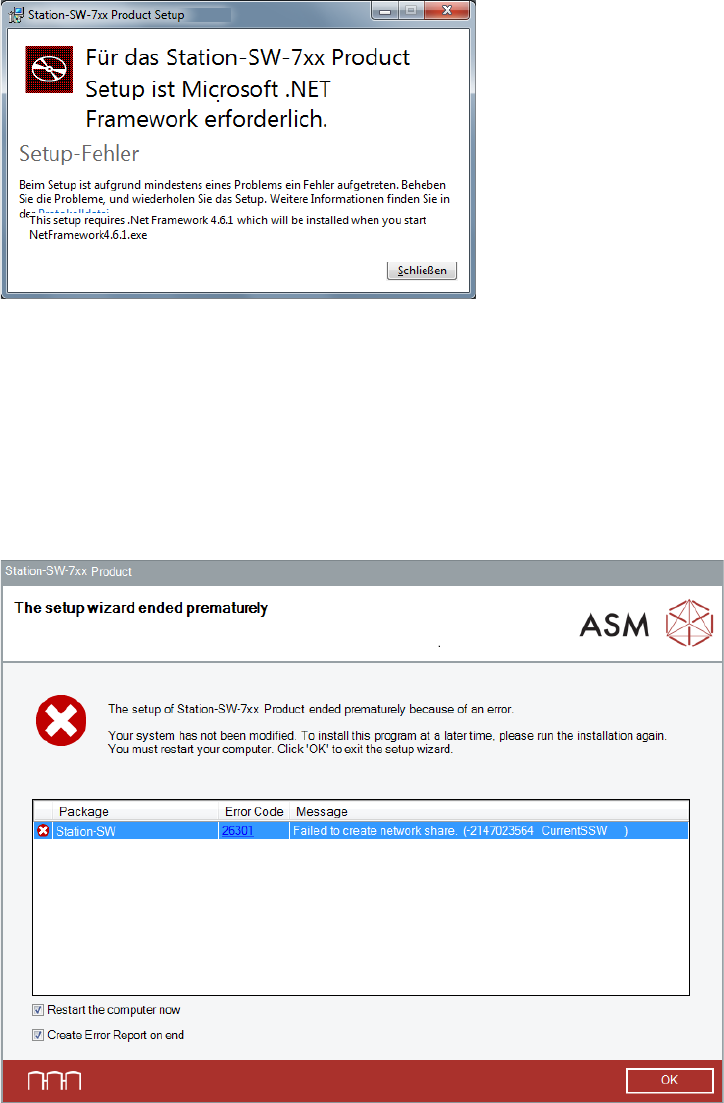
The following error message may be displayed after starting the station software installation.
Figure 5-23: Failing .NET Framework installation
In this case, .NET Framework 6.4.1 has to be installed manually.
► Click Close to exit the setup wizard.
► Install .NET Framework 4.6.1. Please refer to section 5.3.2.
► Start the BundleInstaller.exe file to run the installation again.
If an error occurs during installation, the setup is interrupted and the following dialog box displayed.
Figure 5-24: Error during installation
► Ensure that the Restart the computer now option is selected (default).
► Ensure that the Create Error Report on end option is selected (default).
► Click OK to exit the setup wizard.
You will be prompted to store the Error Report (as zip file).
► After the problem has been solved, start the BundleInstaller.exe file to run the installation
again.