00198501-02_IM_711.1_R18-1_EN.pdf - 第57页
Station Software V ersion 711.1 (R 18 - 1) / Installat ion Manual 05/2018 Edition 57 A Windows Explore r dialog box with acc ess to the VisionS hare directory opens on the Vision comp uter. Figure 6-10: VisionShare direc…
Station Software Version 711.1 (R18-1) / Installation Manual 05/2018 Edition
56
6.2 Installing the Software on the Vision Computer via a Remote
Connection
Vision computers are generally less accessible than station computers and do not have their own
input devices or displays. For this reason, a procedure describes how to perform the Vision
computer installation using the station computer.
In the first step, the installation files of the respective software are copied to the Vision computer.
I.e. the contents of the installation media or installation ISO image have to be locally available on
the Vision computer for a robust and successful installation.
In the second step, a remote desktop connection is established from the station computer to the
Vision computer. The actual installation is then performed remotely via this connection.
In the following, the necessary requirements and steps are described.
6.2.1 Requirements
– The Microsoft Windows Embedded Standard 7 operating system must be installed on the
Vision computer, see separate Installation Manual, item no. [00197737-xx].
– The "SIPLACE Windows Embedded Standard 7 Configurator" version 2.3.1 or higher must
have been run directly on the Vision computer. On this computer, the Configurator creates the
D:\VisionShare directory that is shared for the ASM_Admin user. Thereafter, this directory on
the Vision computer can be accessed from the station computer.
– The station computer and Vision computer have to be interconnected in the SIPLACE LAN by a
LAN cable or a switch via the following connections:
Connection to machine LAN (at the station computer)
Connection to SR (at the Vision computer)
Please also refer to section 4.3.
6.2.2 Establishing a Connection to the Vision Computer
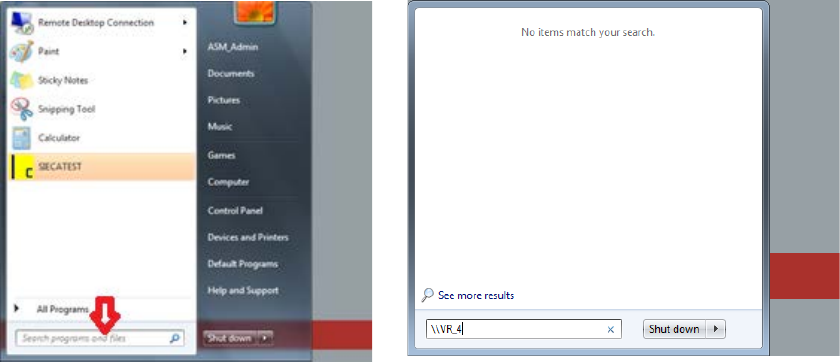
► Log in to the station computer under the ASM_Admin user account.
Figure 6-9: Establishing connection
► Enter the current Vision computer or the respective IP address in the input box of the Windows
Start menu:
\\VR_3 or IP address 192.168.255.253 (for Coplan computer)
\\VR_4 or IP address 192.168.255.251 (for feeder computer)
Station Software Version 711.1 (R18-1) / Installation Manual 05/2018 Edition
57
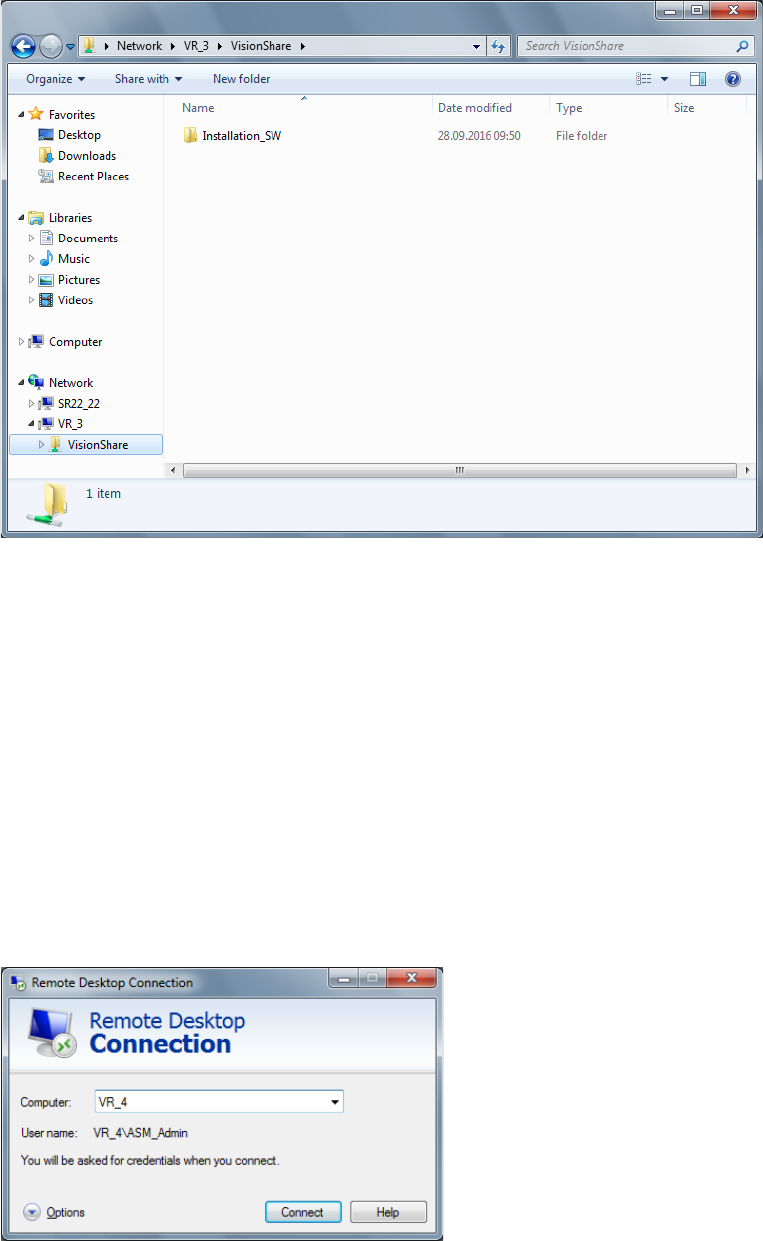
A Windows Explorer dialog box with access to the VisionShare directory opens on the Vision
computer.
Figure 6-10: VisionShare directory on the Vision computer
► Copy the installation files to the shared D:\VisionShare directory on the Vision computer.
(Called Installation_SW in the example above).
Thus, the installation files are locally available on the Vision computer (required for successful
installation). The actual installation then has to be performed via a remote desktop connection.
If the disk space on the D: drive on the Vision computer is insufficient, this problem can be solved
by using the Remote Desktop Connection Windows feature. With this feature, the installation files
can also be copied to the Vision computer as described in the following section.
6.2.3 Opening the Remote Desktop of the Vision Computer
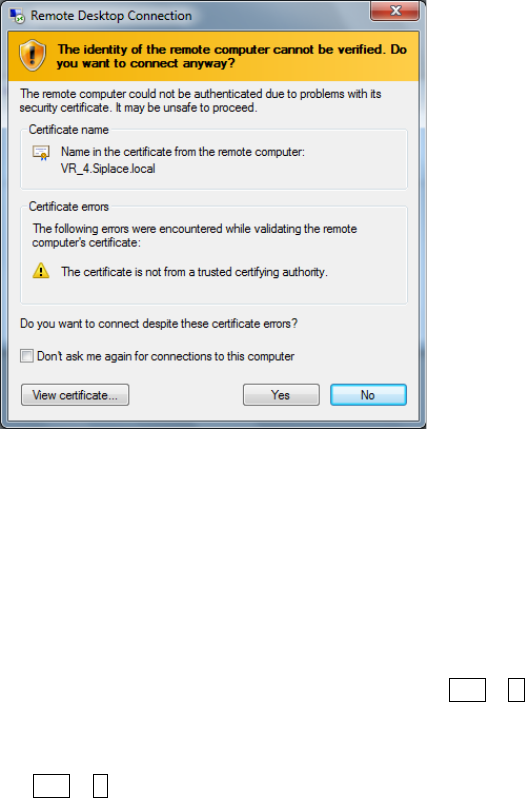
► Select Start – All programs – Accessories – Remote Desktop Connection to open a remote
connection.
The following dialog box opens.
Figure 6-11: Remote Desktop Connection dialog box
Station Software Version 711.1 (R18-1) / Installation Manual 05/2018 Edition
58
► Enter the current Vision computer or the respective IP address as Computer:
\\VR_3 or IP address 192.168.255.253 (for Coplan computer)
\\VR_4 or IP address 192.168.255.251 (for feeder computer)
► Log in as ASM_Admin user.
► Click the Connect button.
The following dialog box opens.
Figure 6-12: Computer verification
► Click the Yes button to confirm the query.
After the Remote Desktop of the Vision computer has been opened, the Windows Explorer can be
opened there. The available space on the D: drive can be checked now and, if necessary, not
required files deleted.
The station software installation files for installing the Vision computer software can now also be
locally stored on the Vision computer.
► On the station computer, copy the installation files from the Windows Explorer into the cache
with the right mouse button – Copy or with the Ctrl + C keys.
► Switch to the Remote Desktop of the Vision computer.
► Insert the files into the D:\Visionshare directory with the right mouse button – Paste or with the
Ctrl + V keys.
6.2.4 Installing the Software on the Vision Computer via the Remote Desktop
► Open a Windows Explorer in the Remote Desktop connection of the Vision computer.
► Double-click the BundeInstallerVision.exe file in the installation directory under D:\VisionShare.
► Install the respective software as described in section 6.1.